SLZB-06x/MRx/MRxU/Ultima series
- SLZB Series Overview
- SLZB-MRW10 and MRW10U
- Overview
- 🧰 Manual for Testers: Setting Up Z-Wave JS UI in Home Assistant
- 🧰 Manual for Testers: Z-Wave Integration Installation (Home Assistant)
- 🧰 Manual for Testers: Pairing a Z-Wave Device
- SLZB-Ultima
- Thread setup (network and USB connection)
- ESPHome firmware for Ultima and xU Series
- FAQ and troubleshooting
- SLZB-xxU and ZWA-2
- Zigbee network sniffing guide for SLZB-MRx and SLZB-06Mx adapters
SLZB Series Overview
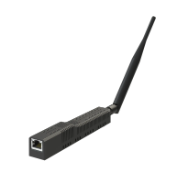
- SLZB-06 series - can run Zigbee or Thread (and capable for Multiprotocol, but not recommended by Home Assistant and deprecated), connects over Ethernet, could be powered by PoE or Type-C (if you do not have PoE - can connect Ethernet and power with Type-C). Support Wi-Fi and Bluetooth (BT is based on ESPHomne firmware). Could be used as Zigbee Coorinator, Zigbee Router or Open Thread Border Router (all models);
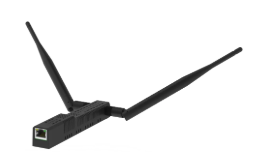
- SLZB-MR series - supercool version with two radios for Zigbee and Thread networks at the same time, connected over Ethernet, could be powered by PoE or Type-C (if you do not have PoE - can connect Ethernet and power with Type-C). Support Wi-Fi and Bluetooth (BT is based on ESPHomne firmware). Could be used as Zigbee Coorinator, Zigbee Router AND Open Thread Border Router at the same time;
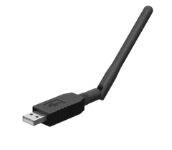
- SLZB-07 series - can run Zigbee or Thread (and Multiprotocol, but not recommended by Home Assistant and deprecated), connects over USB. Could Zigbee Coorinator, Zigbee Router or Open Thread Border Router (all models);
- SLZB-06xU/MRxU (U series) - same as SLZB-06x/MRx but better:
- additional 2MB PSRAM
- updated ethernet controller
- USB host support
- OTBR support
- BLE proxy support
More Detailed Summary
SLZB-06 Series
Triple radio:
Based on CC26XX (TI) and EFR32XX (Silicon Labs) SoCs. Silicon Labs models support Zigbee + Thread via Multiprotocol firmware, but this is not recommended by Home Assistant (see FAQ). Powered by SLZB-OS with full feature set including web UI, VPN, OTA, scripting, and native Home Assistant integration. |
|
SLZB-MR Series
Quadruple radio:
Supports true simultaneous Zigbee and Thread operation on separate SoCs (e.g., ZHA + Zigbee2MQTT or dual Thread networks). Powered by SLZB-OS with full feature set identical to SLZB-06 series. |
|
SLZB-07 Series
| Supercompact USB-based coordinator with 1 radio SoC (TI or Silicon Labs). Designed for low power, plug-and-play setups (Raspberry Pi, miniPC, etc.). Benefits from full SLZB firmware stack with preconfigured compatibility. |
|
SLZB Series – Tech Details
HIGH LEVEL OVERVIEW of SLZB Series
| Feature / Model Series | SLZB-06 Series | SLZB-MR Series | SLZB-07 Series |
|---|---|---|---|
| Models in Series | 5 models (06, 06M, 06p7, 06p10, 06Mg24) | 3 models (MR1, MR2, MR3) | 4 models (07, 07p7, 07p10, 07Mg24) |
| Zigbee Support | ✅ | ✅ | ✅ |
| Thread Support | ✅ | ✅ Native on separate SoC | ✅ |
| Wi-Fi Support | ✅ | ✅ | ❌ |
| Bluetooth Support | ✅ | ✅ | ❌ |
| Radio SoC 1 (Zigbee/Thread) | CC26XX or EFR32XX Series | EFR32XX Series | CC26XX or EFR32XX Series |
| Radio SoC 2 (Thread/Zigbee) | ❌ | CC26XX Series | ❌ |
| Radio SoC 3 (Wi-Fi/Bluetooth) | ✅ ESP32 2×240 MHz | ✅ ESP32 2×240 MHz | ❌ |
| Radio Count | Triple (Zigbee or Thread + Wi-Fi + Bluetooth) | ✅ Quadraple (Zigbee + Thread + Wi-Fi + Bluetooth) | Single (Zigbee or Thread) |
| Ethernet Support | ✅ | ✅ | ❌ |
| Ethernet-to-Wi-Fi bridge mode | ✅ | ✅ | ❌ |
| PoE Support | ✅ Active / 802.3af 48V | ✅ Active / 802.3af 48V | ❌ |
| USB Connectivity | ✅ | ✅ | ✅ |
| Form Factor | Compact with 1x Antenna | Compact with 2x Antennas | Ultra-Compact USB with 1x Antenna |
| Antenna Count | 2 Antennas | 3 Antennas | 1 Antenna |
| Antenna Type | External 5dB (Zigbee/Thread) + Internal (Wi-Fi/Bluetooth) | 2× External 5dB (Zigbee and Thread) + Internal (Wi-Fi/Bluetooth) | External 3dB (Zigbee/Thread) |
| Target Use Case | General & Industrial | Advanced / Multi-mesh | Plug-and-play USB |
| Multi-Network Support | ❌ | ✅ | ❌ |
| Max Device Scalability | ~150–400 devices, depending on model | ~300–750 devices, depending on model | ~150–400 devices, depending on model |
| Zigbee2MQTT Compatible | ✅ Plug-and-Play | ✅ Plug-and-Play | ✅ Plug-and-Play |
| Home Assistant ZHA Compatible | ✅ Plug-and-Play | ✅ Plug-and-Play | ✅ Plug-and-Play |
| Open Thread Border Router Compatible | ✅ Plug-and-Play | ✅ Plug-and-Play | ✅ Plug-and-Play |
U series devices
U series devices are complete analogues of the regular SLZB-06x/MRx devices but with an updated SoC and PCB.
With additional PSRAM U devices support native OTBR and can work as BLE proxy.
Full list of HW updates:
- Updated SoC ESP32S3R2. 2x 240MHz cores, 320Kib RAM + 2MB PSRAM, 16MiB flash, native USB host and device support.
- Updated ethernet controller
- Ethernet port LEDs control circuit
- RTS/CTS lines for radio modules (you can use firmware with HW flow control)
What dongles (USB sticks) can be connected to U series USB host?
The new U series coordinators support connecting any serial devices on the following chipsets:
- CP210x
- PL2303
- CH340
- CH341
- CH9102
Compatibility with other chipsets is not guaranteed!
To find out which chipset your dongle uses, please contact USB dongle manufacturer's support.
SLZB-06 Models
The SLZB-06 series is a versatile line of PoE-enabled Zigbee and Thread coordinators built for reliability, performance, and advanced integration scenarios. Featuring USB, Ethernet, and 802.3af PoE connectivity options, these models are ideal for both residential smart homes and industrial environments.
Each SLZB-06 model includes a powerful Zigbee/Thread radio (based on either Texas Instruments CC26XX or Silicon Labs EFR32MG SoCs) and an onboard ESP32 that runs SLZB-OS - a secure operating system with web-based configuration, OTA updates, scripting, Home Assistant support, and VPN capabilities.
Use the table below to compare models based on SoC type, wireless protocol support, maximum Zigbee device capacity, and recommended integration method.
| Feature | SLZB-06 | SLZB-06M | SLZB-06MG24 | SLZB-06P7 | SLZB-06P10 |
|---|---|---|---|---|---|
| Radio 1 – SoC Type | CC2652P | EFR32MG21 | EFR32MG24 | CC2652P7 | CC2674P10 |
| Radio 1 – Manufacturer | Texas Instruments | Silicon Labs | Silicon Labs | Texas Instruments | Texas Instruments |
| Maximum Connected End Devices | up to 200 | up to 200 | up to 350 | up to 300 | ✅ up to 400 |
| Best for | Zigbee2MQTT | ZHA | ZHA | Zigbee2MQTT | Zigbee2MQTT |
| Good with | ZHA | Zigbee2MQTT | Zigbee2MQTT | ZHA | ZHA |
| Zigbee Support | ✅ All models nativelly support Zigbee | ||||
| Thread Support | ✅ Supported on all models nativelly | ||||
| Wi-Fi Support | ✅ Native support 2.4 GHz, including Ethernet-to-Wi-Fi Bridge mode | ||||
| Bluetooth ESPHome Support | ✅ All models support BLE via ESP32 and ESPHome integration | ||||
| Powered by SLZB-OS | ✅ Yes, out of the box | ||||
| Multiprotocol | No | Yes | Yes | No | No |
| Note | Multiprotocol mode is not recommended by Home Assistant. See FAQ item: "What is the current state of multiprotocol support?" . | ||||
SLZB-MR Models
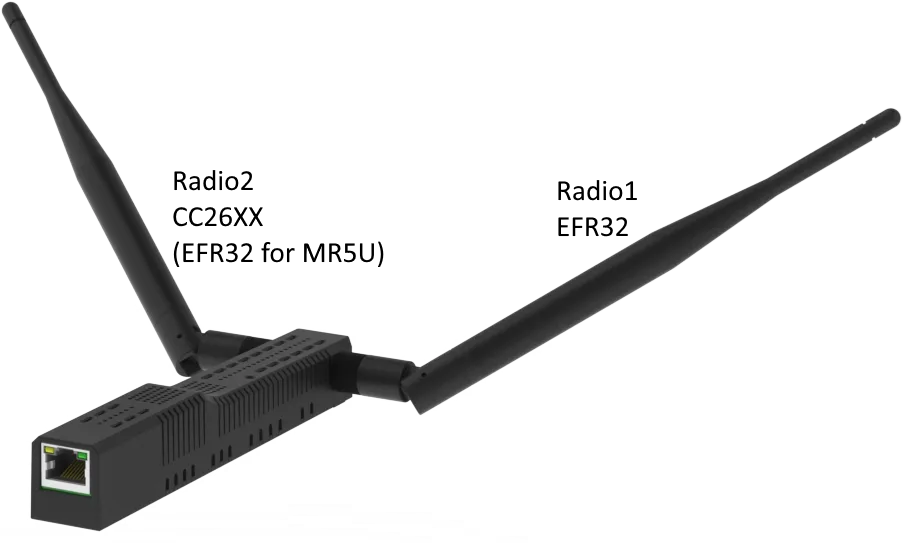
The SLZB-MR series represents the most advanced line of Zigbee and Thread coordinators available on the market. These devices feature quad-radio configurations, enabling simultaneous operation of multiple Zigbee networks or parallel Zigbee and Thread infrastructures on physically separated chips.
Each model includes two independent radio SoCs (one from Texas Instruments and second from Silicon Labs), along with an onboard ESP32 running SLZB-OS. This architecture eliminates the limitations of multiprotocol firmware by physically separating the protocols across dedicated chips - resulting in superior reliability and performance. Advanced user can also utilize to run both ZHA and Zigbee2MQTT at the same time ont he same device.
The table below compares SLZB-MR models by radio generation, supported protocols, maximum device count, and recommended use cases such as ZHA + Zigbee2MQTT or Matter over Thread.
| Feature | SLZB-MR1 | SLZB-MR2 | SLZB-MR3 |
|---|---|---|---|
| Radio 1 – SoC Type | EFR32MG21 | EFR32MG21 | EFR32MG24 |
| Radio 1 – Manufacturer | Silicon Labs | Silicon Labs | Silicon Labs |
| Radio 2 – SoC Type | CC2652P7 | CC2652P | CC2674P10 |
| Radio 2 – Manufacturer | Texas Instruments | Texas Instruments | Texas Instruments |
| Maximum Connected End Devices | up to 500 (200+300) | up to 400 (200+200) | ✅ up to 750 (350+400) |
| Best for | ✅ Native on all protocols on different chips (dual Zigbee or Zigbee+Thread) | ||
| Zigbee Support | ✅ Native on all models (via first SoC) | ||
| Thread Support | ✅ Native on all models (via second SoC) | ||
| Multiple Zigbee Network Support | ✅ Native on all models (can run ZHA and Z2M, or 2x Z2M) | ||
| Wi-Fi Support | ✅ 2.4 GHz via ESP32 with SLZB-OS; includes Ethernet-to-Wi-Fi Bridge | ||
| Bluetooth ESPHome Support | ✅ Supported via ESP32 (BLE + ESPHome integration) | ||
| Powered by SLZB-OS | ✅ Yes, all Features are Available! | ||
| Multiprotocol | ❌ Not needed – Zigbee and Thread run on separate dedicated SoCs | ||
| Note | SLZB-MR devices use dedicated chips for Zigbee and Thread, ensuring superior stability and performance. | ||
SLZB-07 Models
The SLZB-07 series offers a compact and energy-efficient alternative to full-featured Ethernet-based coordinators. Designed primarily for USB-powered use, these models integrate a high-performance Zigbee / Thread radio SoC into a minimalistic form factor - ideal for plug-and-play setups on PCs, Raspberry Pi, or miniPC.
All SLZB-07 devices are preflashed and support native integration with popular home automation platforms such as Home Assistant (ZHA, Zigbee2MQTT) and Matter (on Thread-capable models). While the SLZB-07 series lacks an onboard ESP32 and web UI, it offers excellent performance and cost-efficiency for focused applications.
Use the table below to compare the key features of each SLZB-07 model, including SoC generation, multiprotocol support, and preferred usage.
| Feature | SLZB-07 | SLZB-07P7 | SLZB-07P10 | SLZB-07MG24 |
|---|---|---|---|---|
| Radio 1 – SoC Type | EFR32MG21 | CC2652P7 | CC2674P10 | EFR32MG24 |
| Radio 1 – Manufacturer | Silicon Labs | Texas Instruments | Texas Instruments | Silicon Labs |
| Maximum Connected End Devices | up to 200 | up to 250 | ✅ up to 400 | up to 350 |
| Best for | ZHA | Zigbee2MQTT | Zigbee2MQTT | ZHA / Thread |
| Good with | Zigbee2MQTT | ZHA | ZHA | Zigbee2MQTT |
| Zigbee Support | ✅ Native Zigbee support on all models | |||
| Thread Support | ✅ Supported on all models nativelly | |||
| Multiprotocol | Yes | No | No | Yes |
| Note | Multiprotocol mode is not recommended by Home Assistant. See FAQ item: "What is the current state of multiprotocol support?" . | |||
SLZB-OS Feature Overview
SLZB-OS is a firmware preinstalled on all SLZB-06 and MR series devices with. It provides a powerful local web interface, configuration tools, scripting, and network utilities - making your coordinator more than just a coordinator.
The table below outlines key features included in SLZB-OS. These are designed to support both beginners and advanced users by simplifying smart home integrations, increasing network visibility, and adding flexibility without requiring third-party tools.
| Feature | Description | |
|---|---|---|
| ???? | Web UI | Access configuration and diagnostics via local web interface. |
| ???? | OTA Firmware Updates | Update both Zigbee SoC and ESP32 firmware via web interface. |
| ???? | Built-in VPN (WireGuard) | Secure remote access via integrated VPN client. |
| ???? | Ethernet-to-Wi-Fi Bridge | Use the device to bridge wired Ethernet to 2.4 GHz Wi-Fi network. |
| ???? | Zigbee2MQTT & ZHA Config Generator | Auto-generates config snippets for quick integration into popular coordinators. |
| ???? | Home Assistant Integration | Works natively with Home Assistant (ZHA & Zigbee2MQTT), no extra steps needed. |
| ???? | Home Assistant Autodiscovery | Enables seamless device detection and setup in Home Assistant. |
| ???? | mDNS Autodiscovery | Broadcasts device presence on local network using mDNS. |
| ???? | Standalone Zigbee Hub | Operates without a separate Zigbee2MQTT or Home Assistant instance. |
| ???? | Local Scripting | Write custom automations using embedded scripting engine. |
| ???? | Multi-language Support | Available in over 20 languages with automatic detection. |
| ???? | IEEE Address Management | Change Zigbee MAC/IEEE address via web interface. |
| ???? | Security & Firewall | Password protection, IP filtering, and system hardening enabled by default. |
SLZB-MRW10 and MRW10U
Overview
SLZB-MRW10 is a compact, powerful multiprotocol adapter developed by SMLIGHT, integrating:
- CC2674P10 for Zigbee 3.0, Thread, and Matter over Thread
- EFR32ZG23 for Z-Wave 800 series (currently non-Z-Wave certified)
- ESP32 (ESP32-S3 for U variant) for Wi-Fi and Bluetooth LE
Designed for integration into smart home hubs, bridges, and custom automation platforms, the device provides a reliable multiprotocol foundation for next-generation development.
Important Notice
Z-Wave support in this device is non-certified and is included strictly for evaluation and testing purposes.
These are not certified, not for commercial deployment, and are clearly labeled as non-Z-Wave certified samples.
Key Features
- CC2674P10: Supports Zigbee 3.0, Thread, and Matter
- EFR32ZG23: Provides non-Z-Wave certified support 800 series (for testing only)
- ESP32: Dual-core MCU with integrated Wi-Fi and Bluetooth LE
- Compact modular design
- Ships with two antennas:
- 2.4 GHz antenna for Zigbee/Thread/Matter
- Z-Wave antenna optimized for US, EU, and NAZ frequency bands (please note, non-Z-Wave certified samples)
Important Conditions
- Z-Wave functionality is non-certified and intended only for testing
- Devices are not for resale and not suitable for commercial use
- Each sample is clearly labeled as a non-Z-Wave certified sample
🧰 Manual for Testers: Setting Up Z-Wave JS UI in Home Assistant
Z-Wave JS UI is a powerful Z-Wave Home Assistant integration with a full web interface for network management. It's ideal for advanced users who want full control.
Purposes of each component:
- Z-Wave JS UI addon - this addon manages Z-Wave network from Home Assisntant.
- Z-Wave Integration - Z-Wave device management app. It uses add-on as intermediary part for communication between Home Assistant and Z-Wave devices.
1️⃣ Install the Z-Wave JS UI Add-on
📦 Step 1: Add the Add-on Repository
-
Go to Settings → Add-ons in Home Assistant.
-
Click “Add-on Store”.
-
Click the menu (⋮) in the top right → Repositories.
-
Paste the repository URL:
https://github.com/hassio-addons/addon-zwave-js-ui -
Click Add, then close the dialog.
🧪 Step 2: Install Z-Wave JS UI
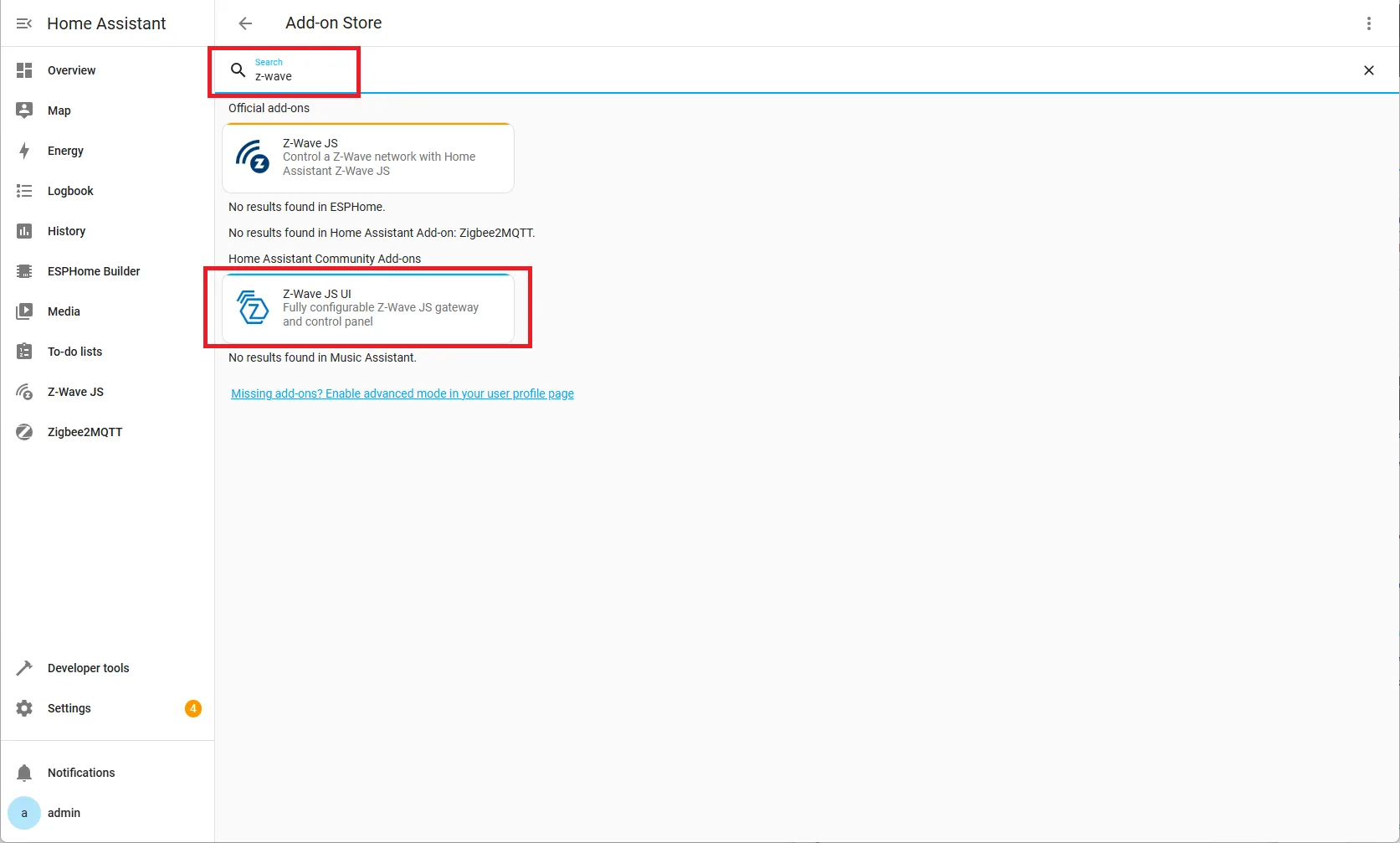
- Locate Z-Wave JS UI in the Add-on Store.
- Click it → Press Install.
- Wait for installation to complete.

2️⃣ Configure the Add-on
🛠️ Step 3: Basic Settings
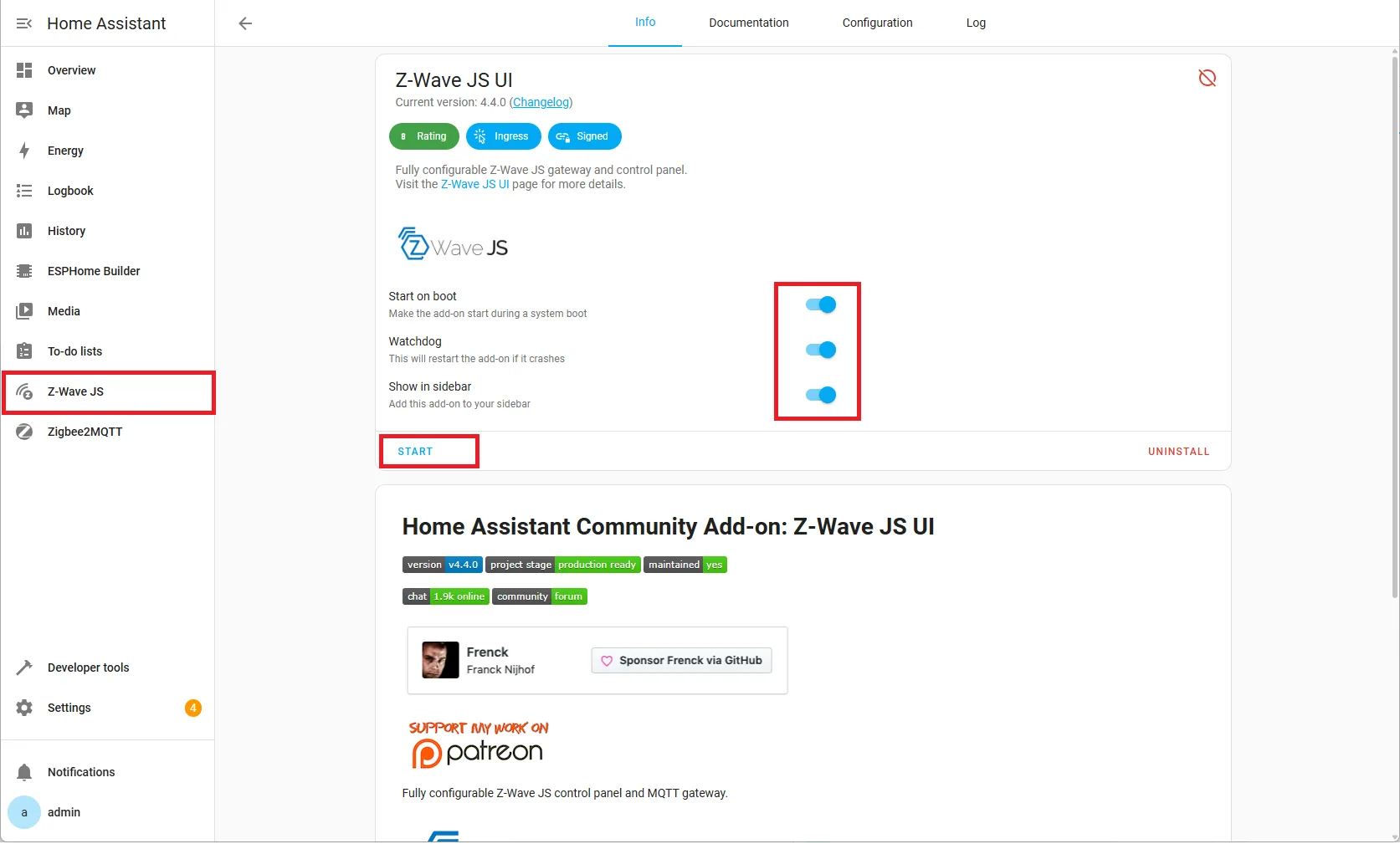
- Enable (optional) Start on boot
- Enable (optional) Watchdog
- Enable Show on sidebar
- Click
Start -

🔌 Step 4: Set the Serial Port and Z-Wave settings
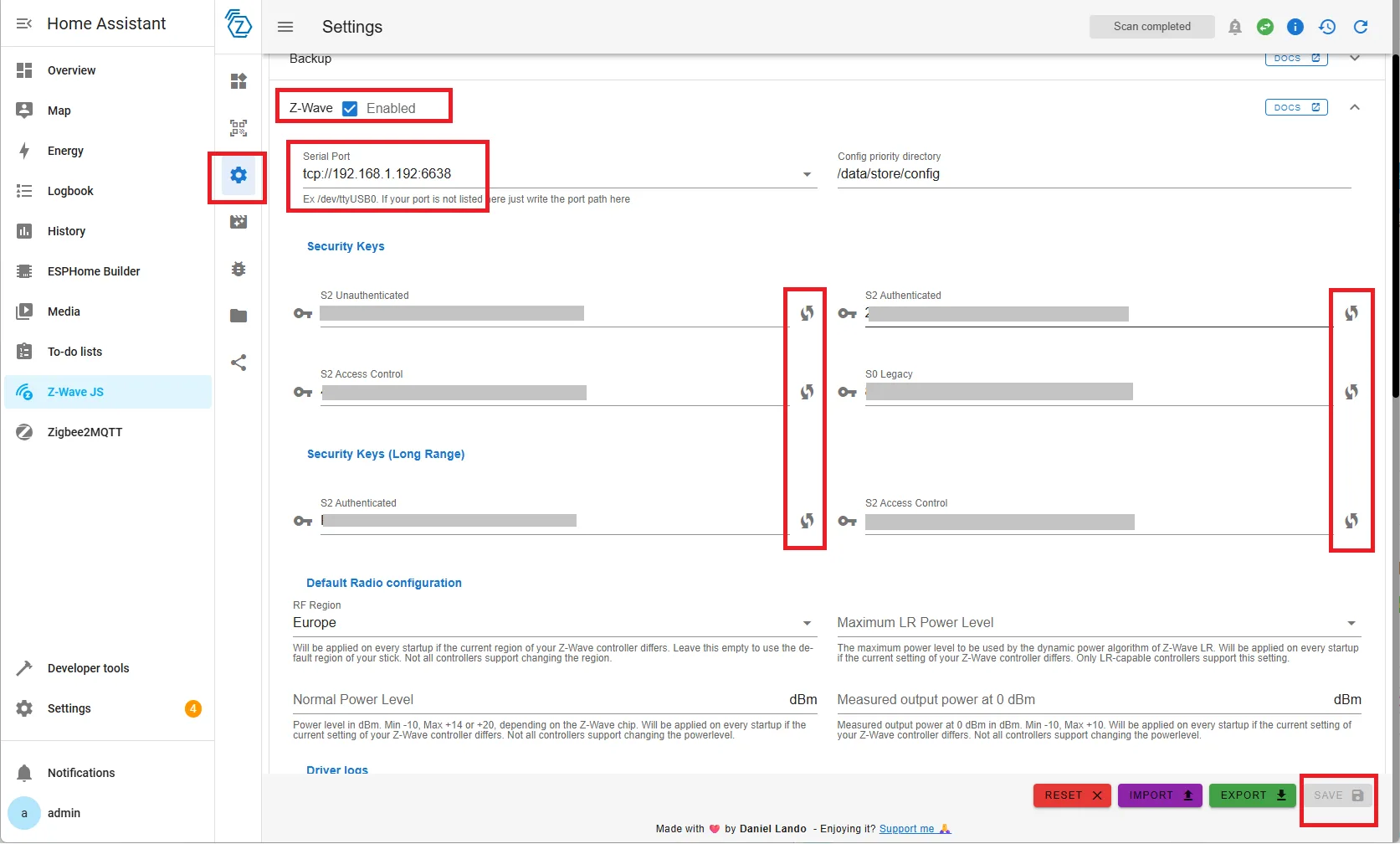
- After Starting, open Z-Wave JS tab in the left menu.
- Click on Setting button.
- Go to Z-Wave list of setting, Enable, enter Seiral port based on template
tcp://IP-ADDRESS:port, generate keys and click Save.

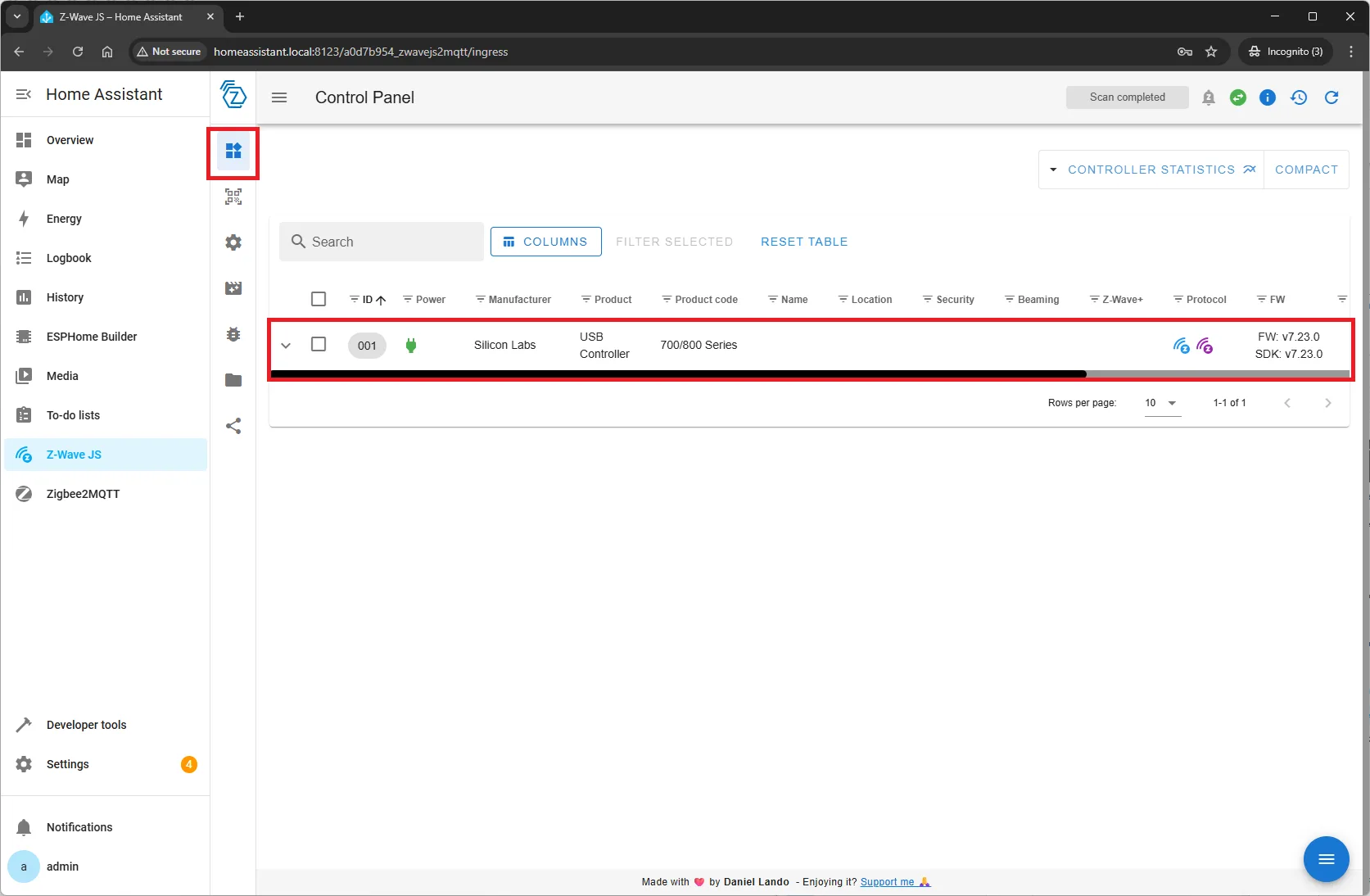
- Go to Z-Wave JS UI dashboard and check that Z-Wave controller was activated.

🧰 Manual for Testers: Z-Wave Integration Installation (Home Assistant)
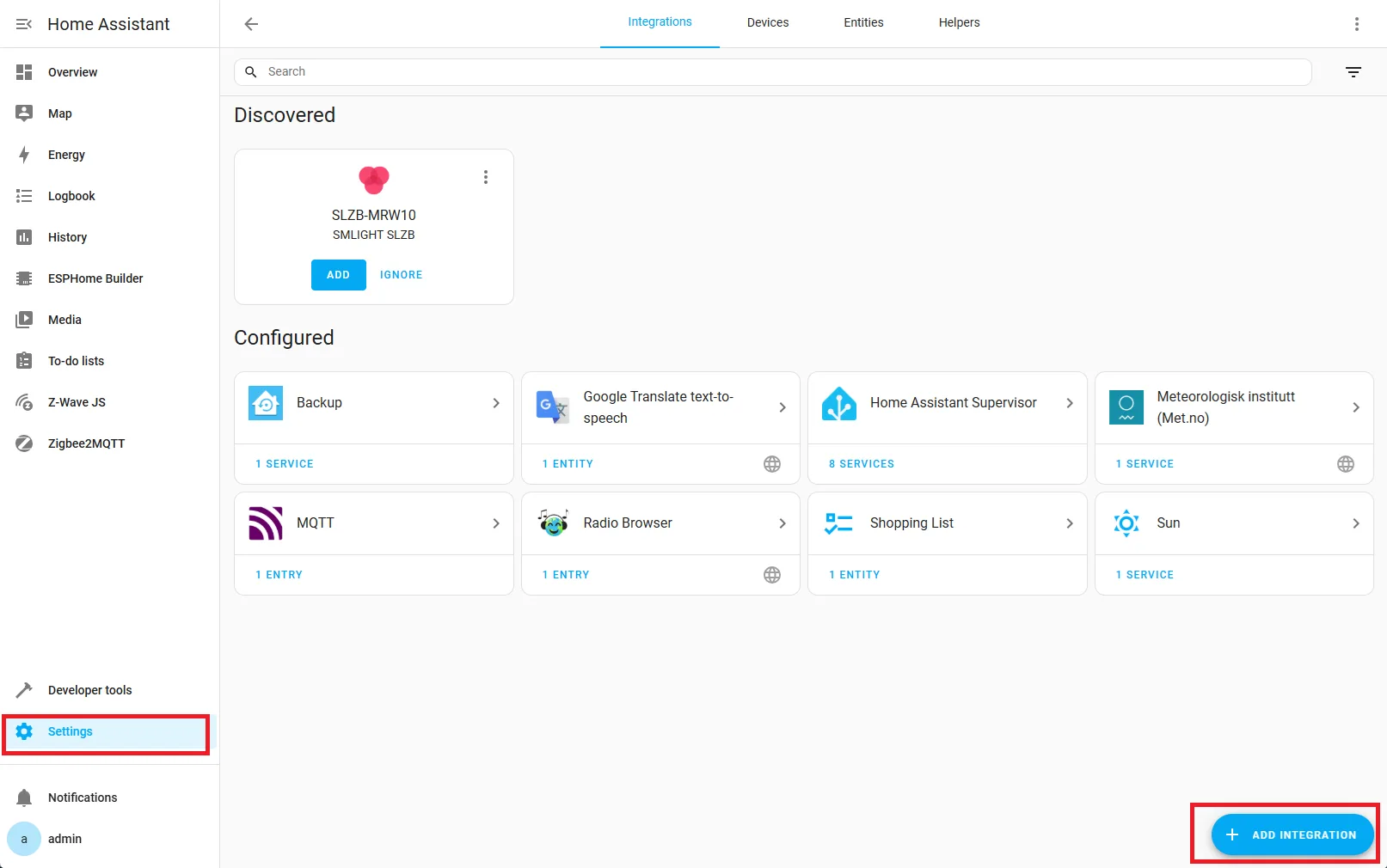
1. Open Integrations Menu
Go to Settings → Devices & Services, then click Add Integration at the bottom right.
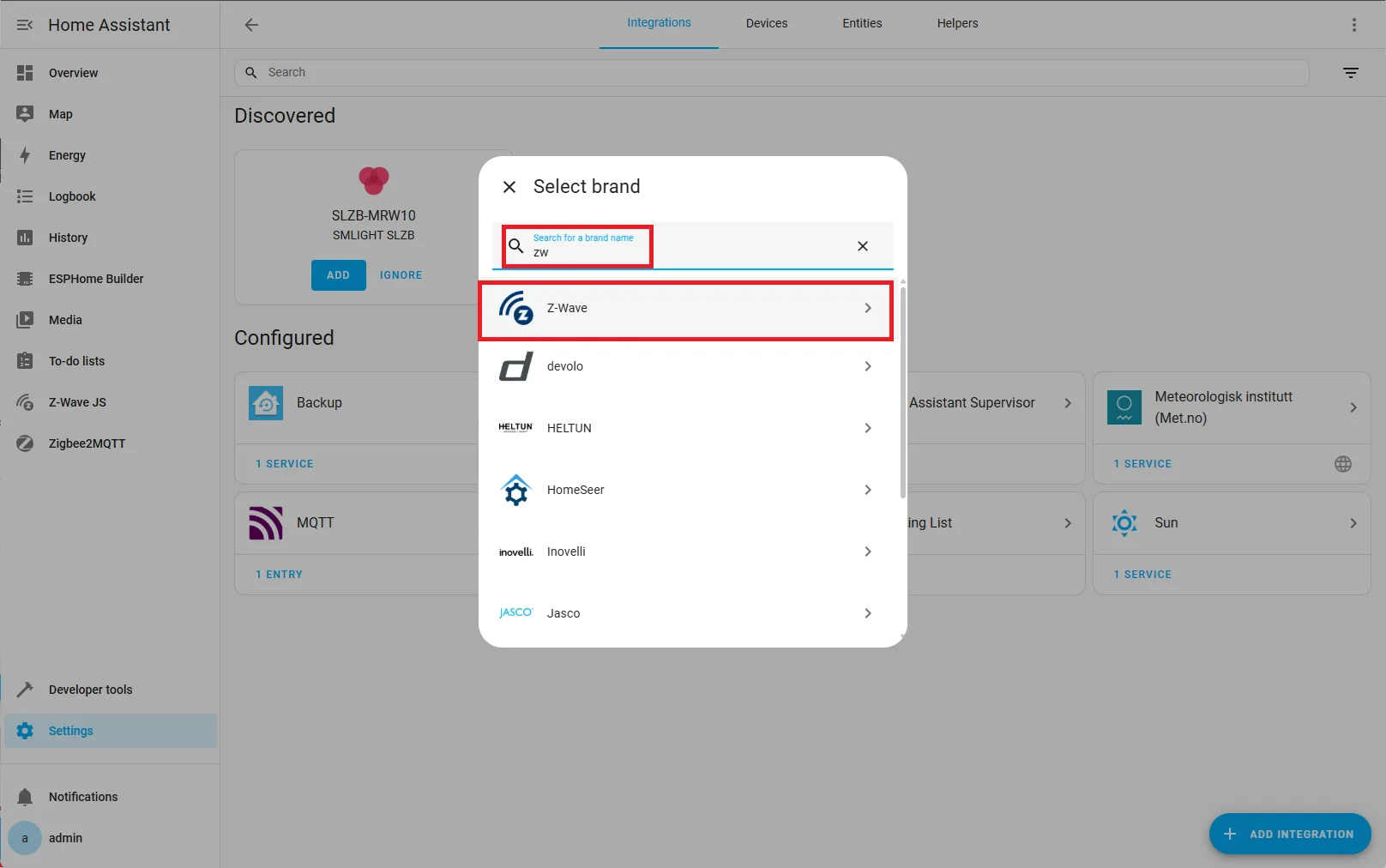
2. Search for Z-Wave Integration
Type Z-Wave into the search bar and click on the integration when it appears.
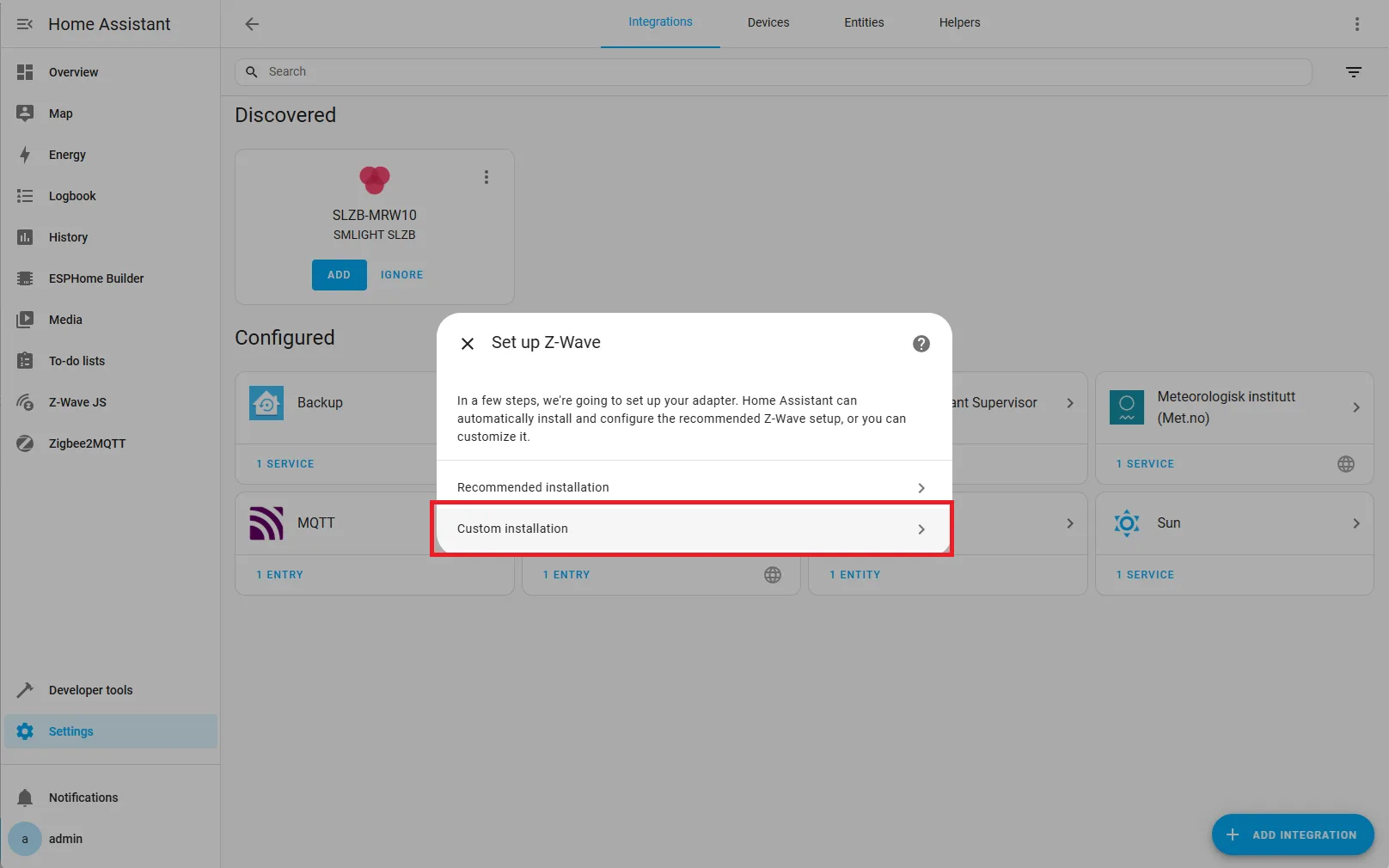
3. Select Custom Installation
Choose the Custom Installation option.
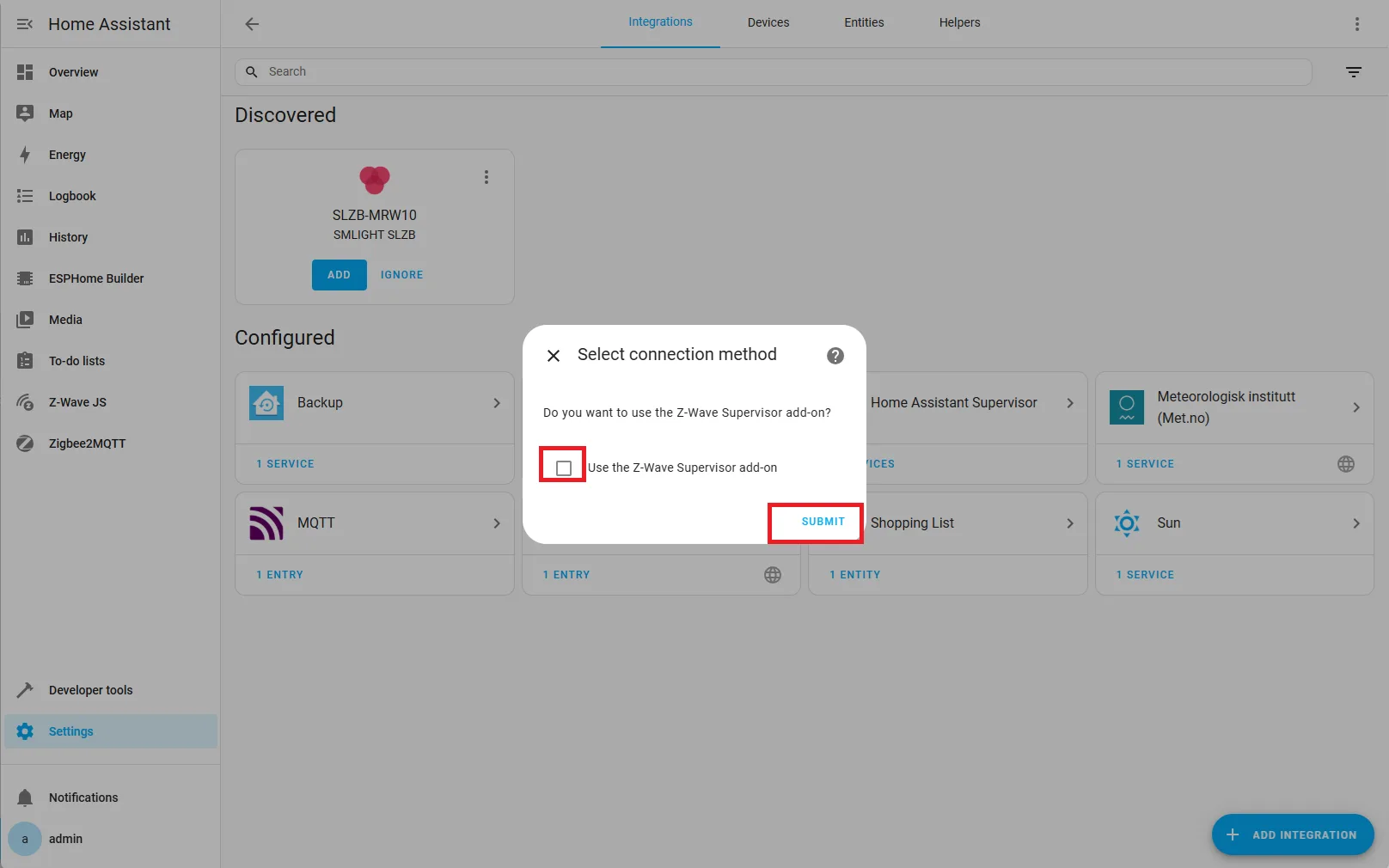
4. Disable Supervisor Add-on
Uncheck Use the Z-Wave Supervisor Add-on and click Submit.
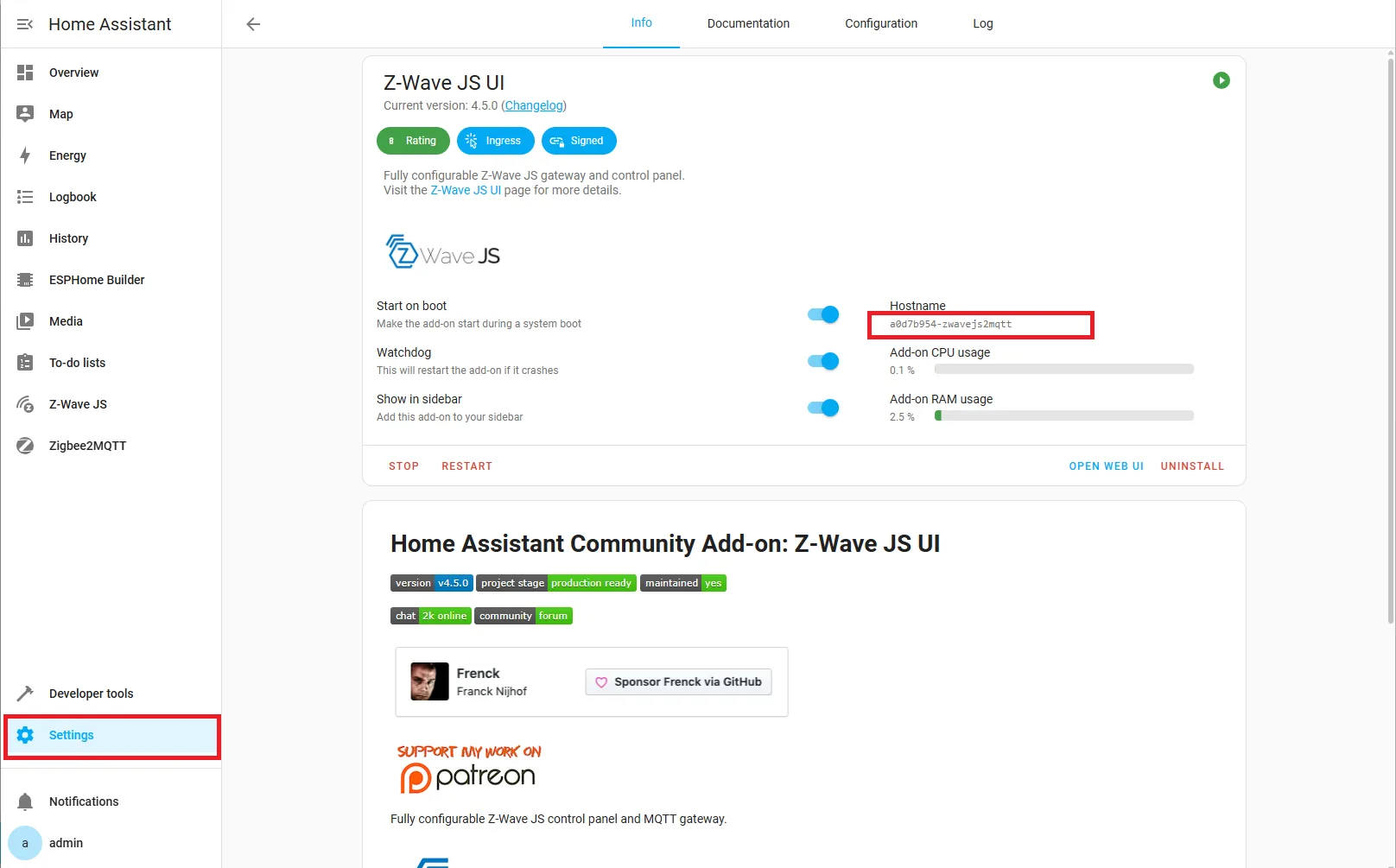
5. Get the Add-on Hostname
In a new window, go to Settings → Add-ons → Z-Wave JS UI, and copy the hostname of the add-on.
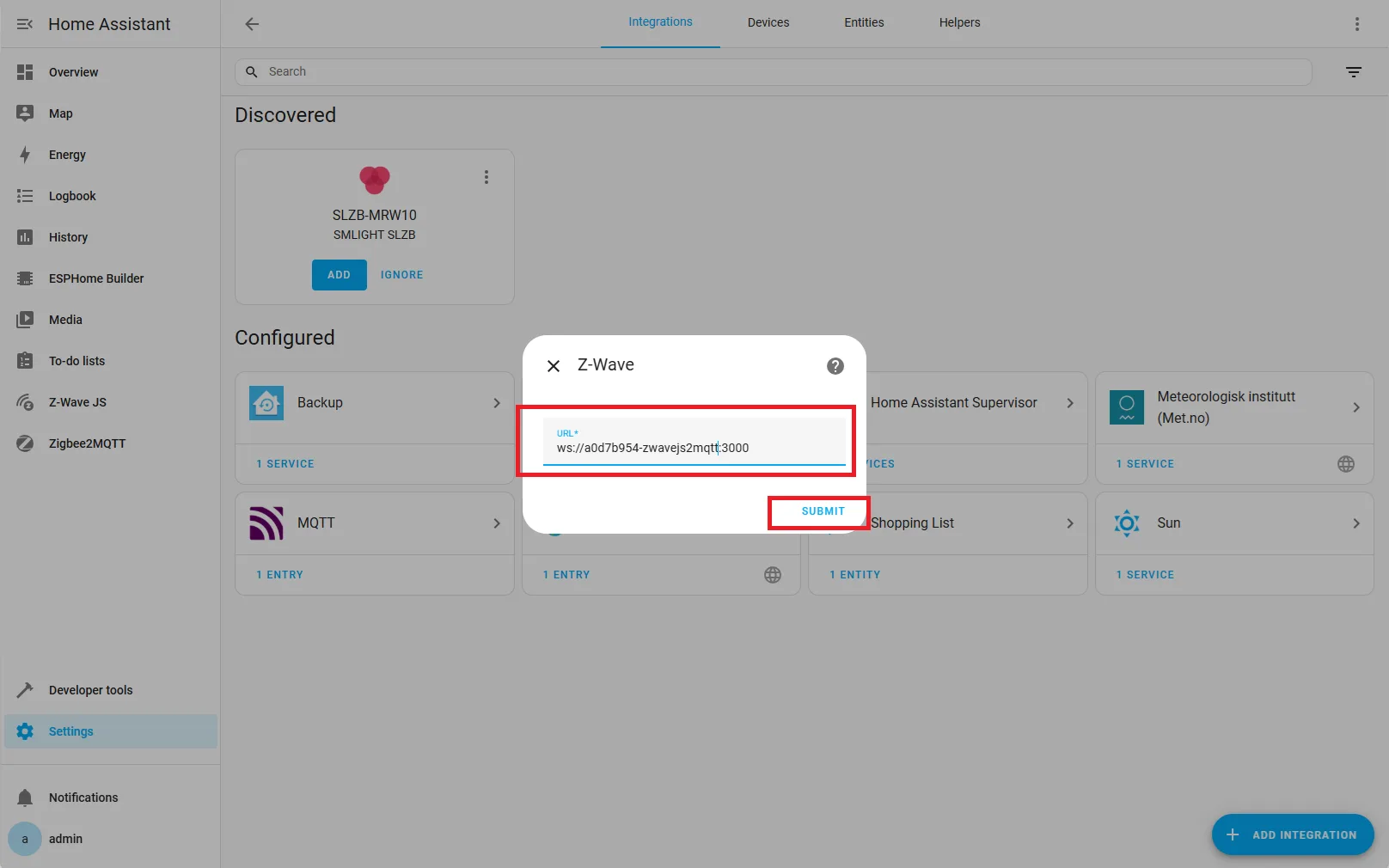
6. Enter WebSocket URL
Return to the Z-Wave integration setup screen and enter the WebSocket URL in the format:
ws://HOSTNAME:3000Replace HOSTNAME with the copied hostname.
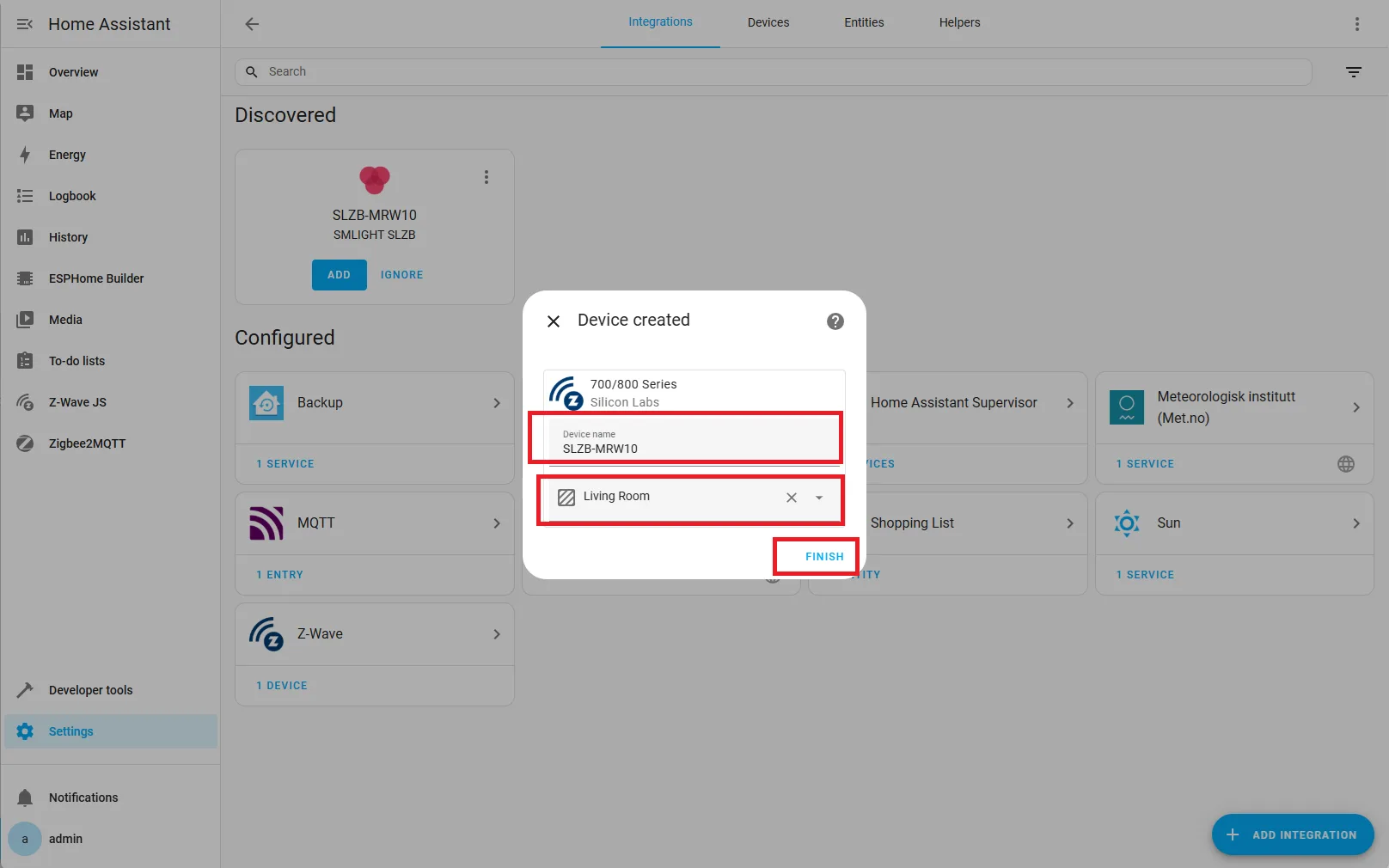
7. Finalize Integration
Optionally set a device name (e.g., SLZB-MRW10) and select a location. Click Finish.
🧰 Manual for Testers: Pairing a Z-Wave Device
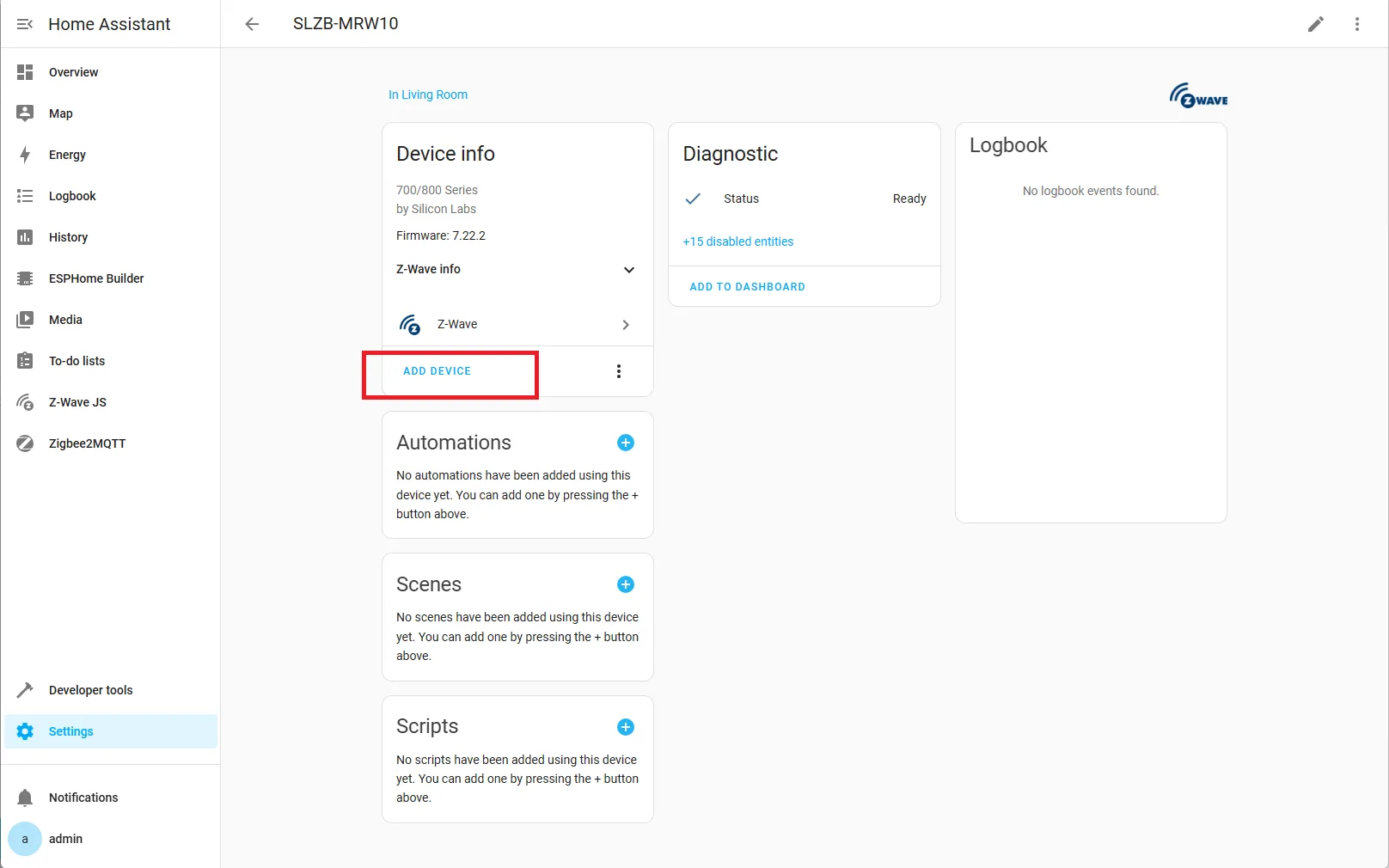
1. Open Device Page
You should be redirected to the Z-Wave adapter page. Click Add Device.
If not redirected, go to:
Settings → Devices & Services → Z-Wave → SLZB-MRW10
2. Choose Pairing Method
Choose your preferred pairing method:
| Method | Ease | Notes |
|---|---|---|
| Scan QR‑code using web-cam | ⭐⭐⭐ | Easiest & secure if the device has a SmartStart label. |
| Enter QR-code manually | ⭐⭐ | Secure S2 inclusion when QR‑code isn’t available. |
| Search for device | ⭐ | Put device in pairing mode, then let the hub discover it. |
We will use the third method.
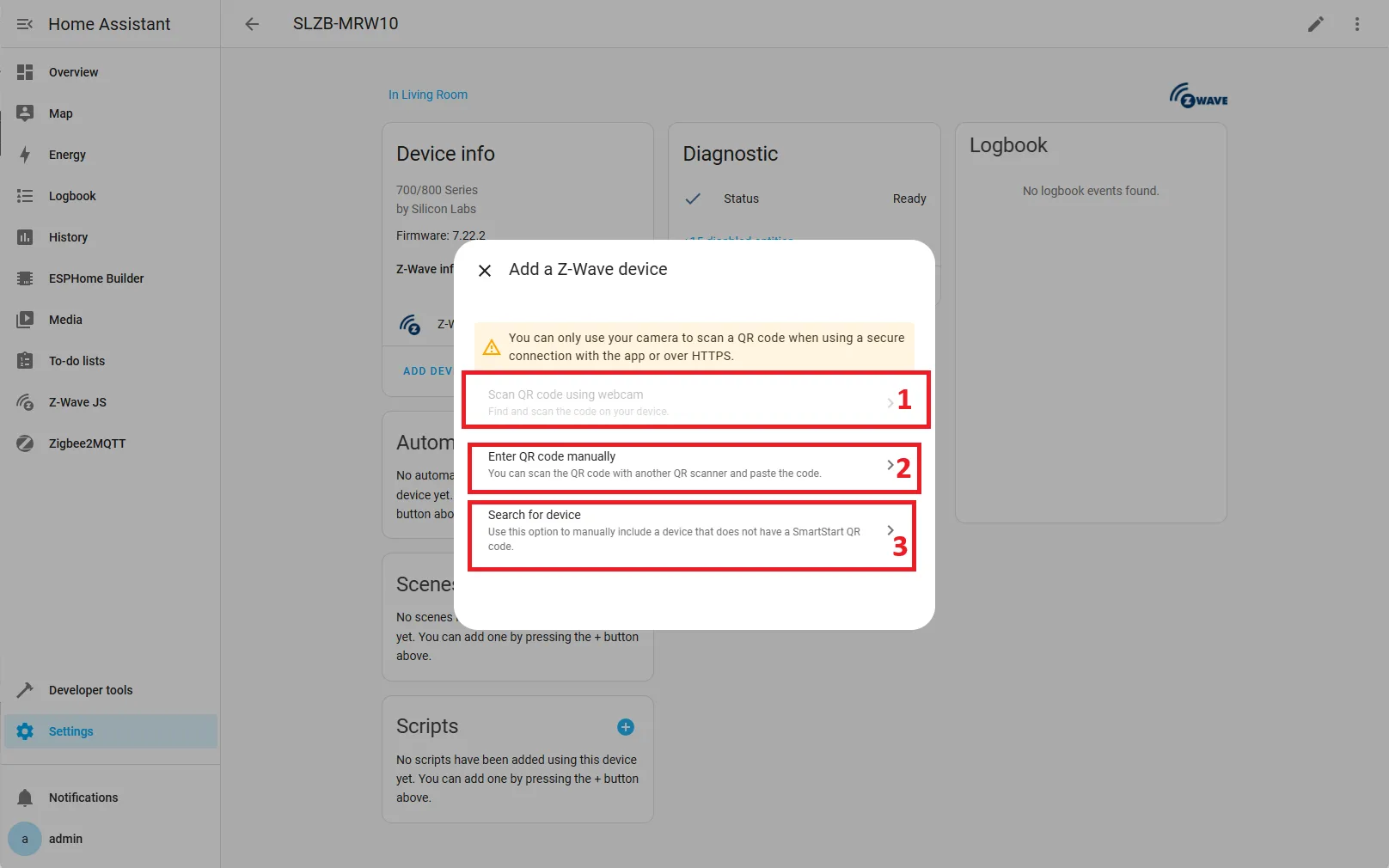
3. Put Device into Pairing Mode
Follow your device’s instructions to enter pairing mode.
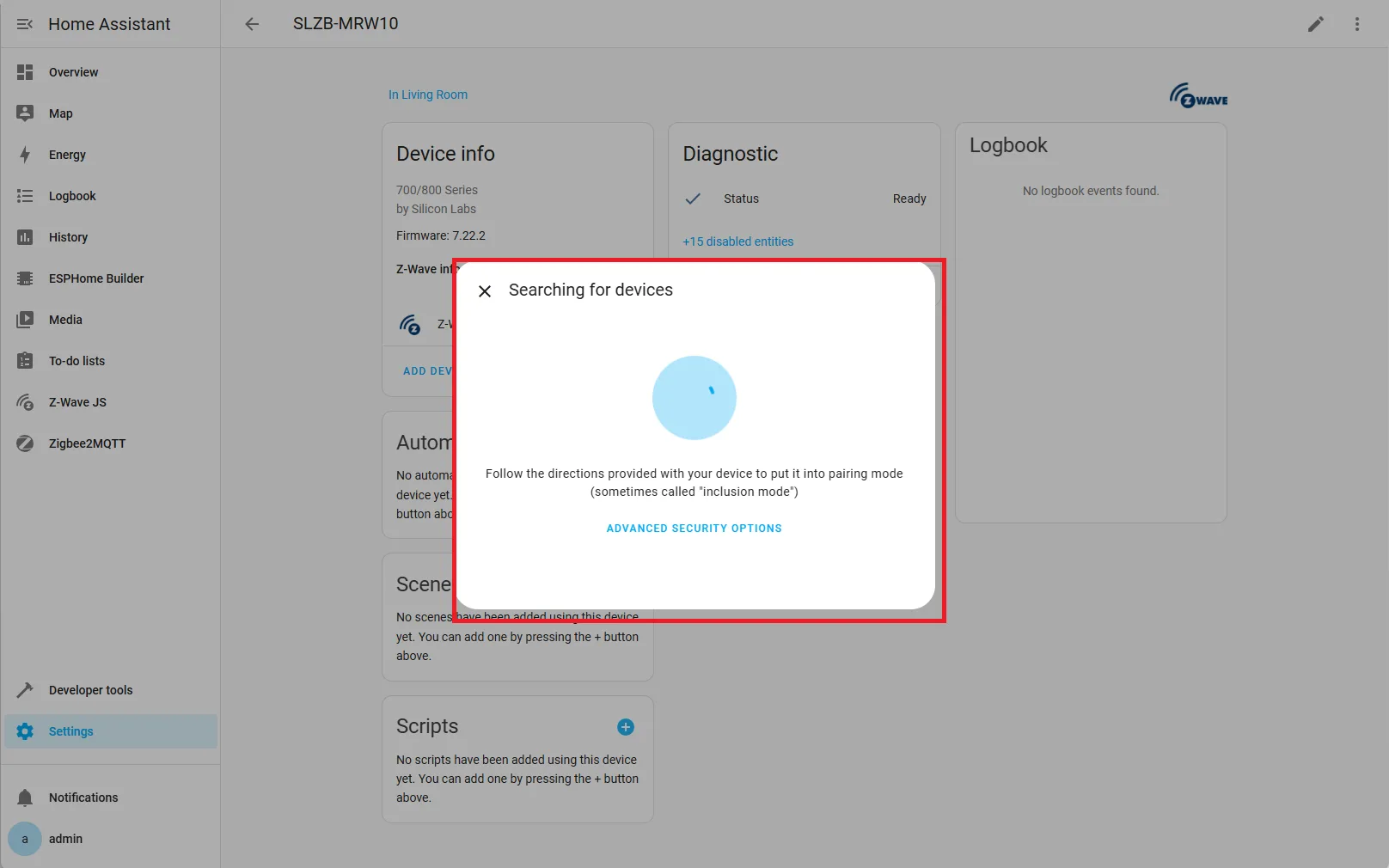
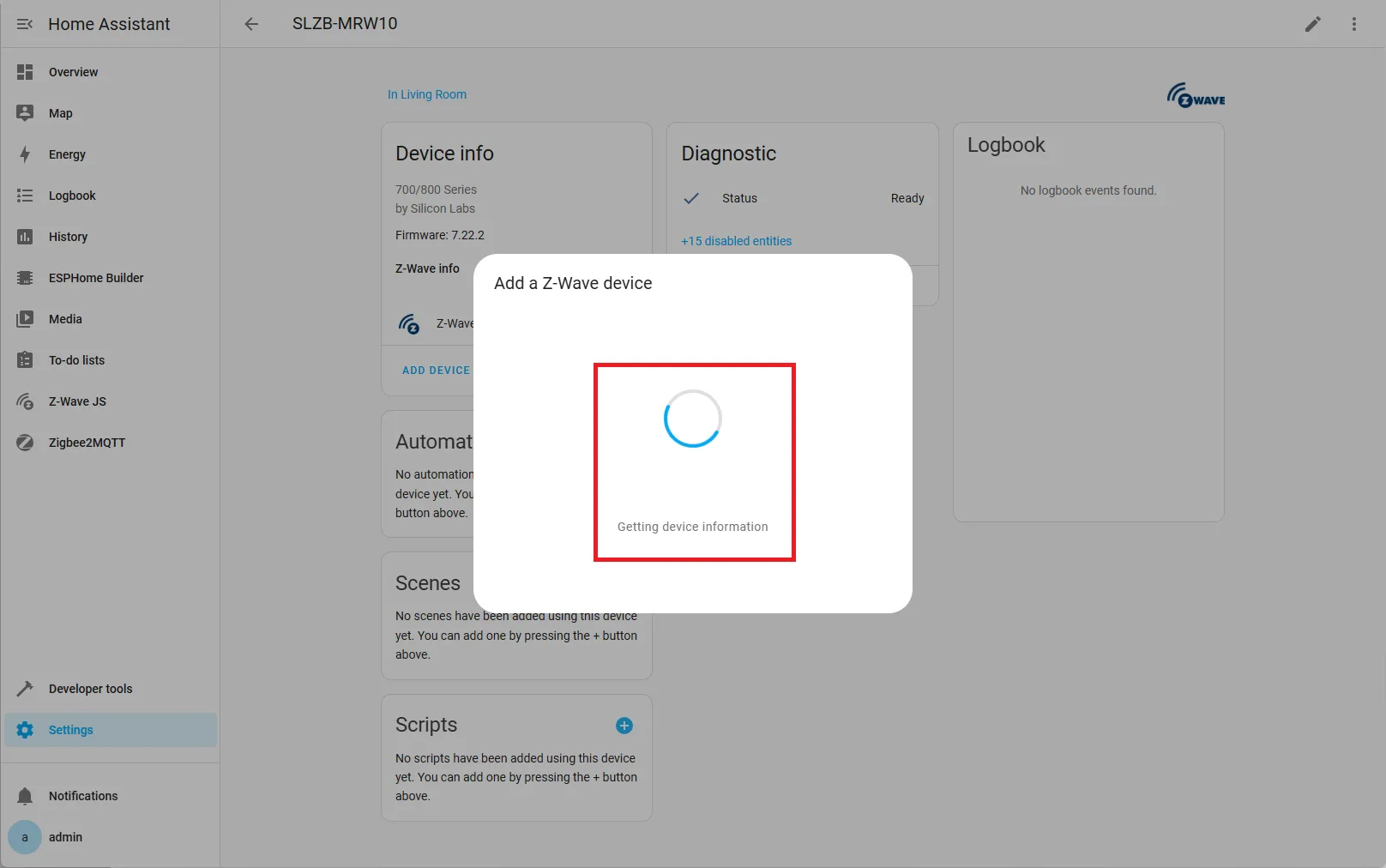
4. Wait for Device Info
Z-Wave will begin requesting information from the device.
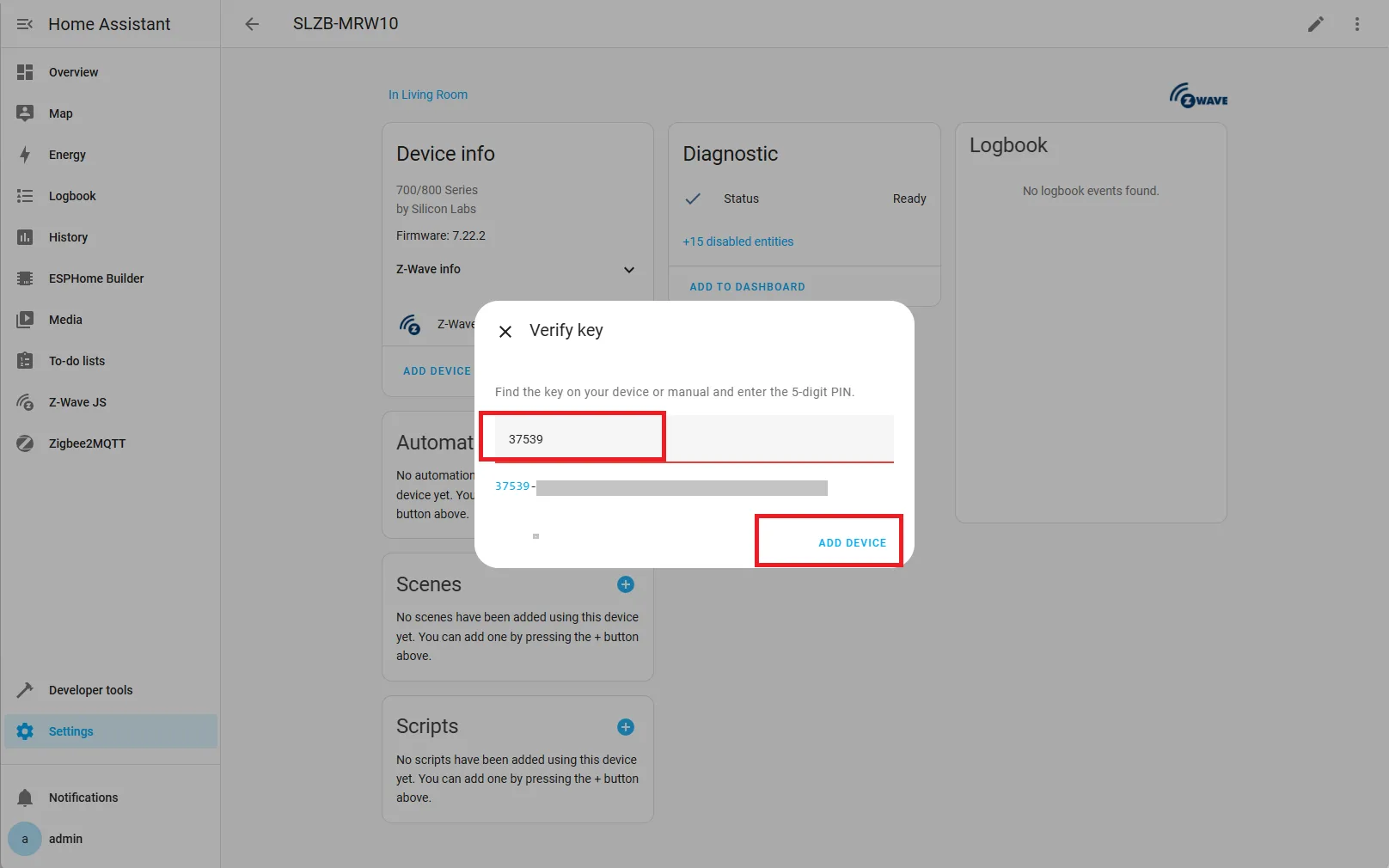
5. Enter Requested Data
If prompted, enter required details (e.g., PIN code found on your device).
6. Device Added!
The device is now ready for use. You’ll be redirected to the device page where you can monitor and control it.
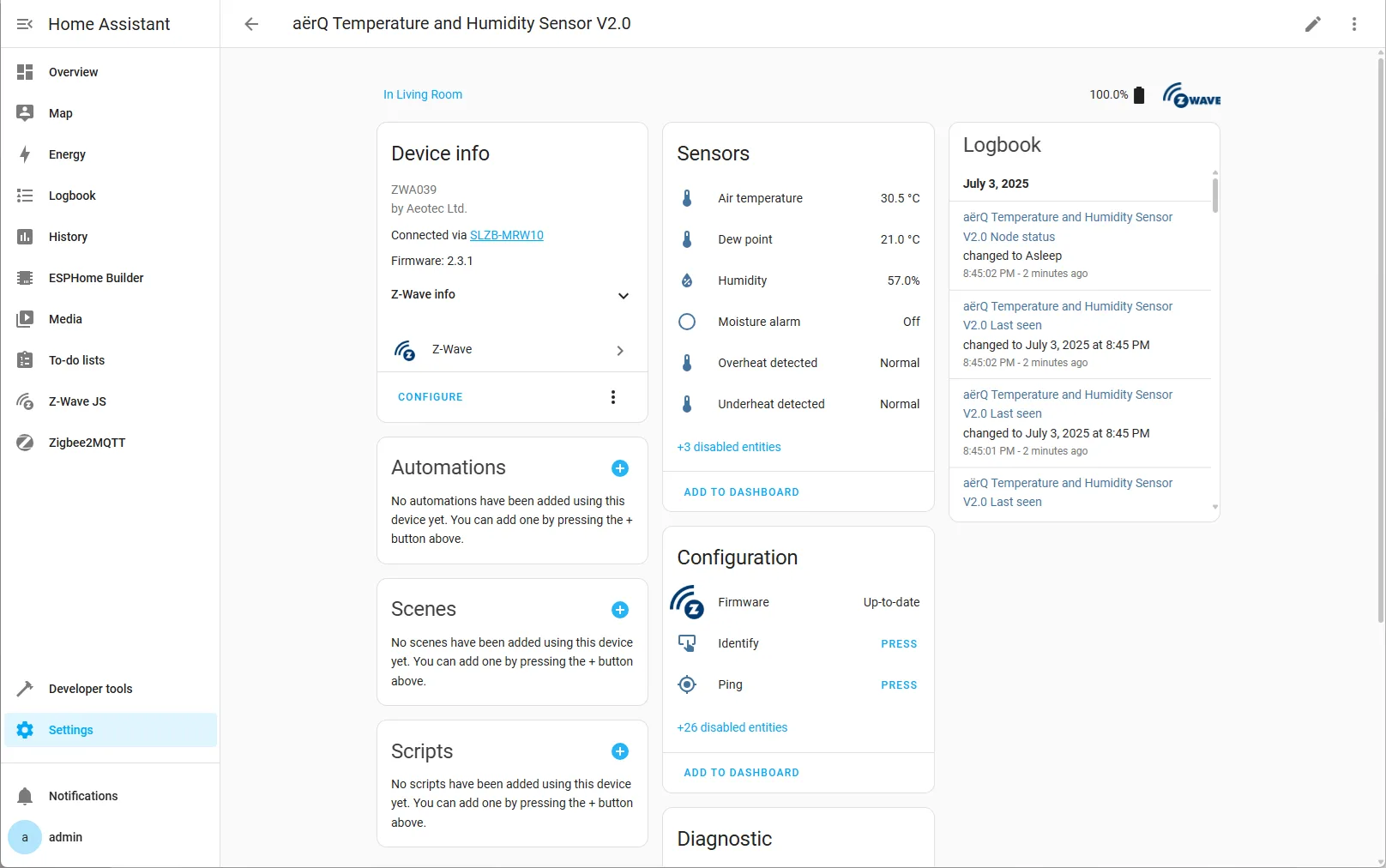
✅ You’re all set! Your Z‑Wave device is now fully integrated and ready for automation with the SLZB‑MRW10 adapter.
📋 Post‑Pairing Tips
- Rename entities to something meaningful (e.g., Kitchen Motion Sensor).
- Assign the device to an Area to keep your dashboard tidy.
- If a secure device fails to interview fully, exclude it first, then re‑include closer to the hub.
SLZB-Ultima
Installing add-ons on SLZB-Ultima
Importantly
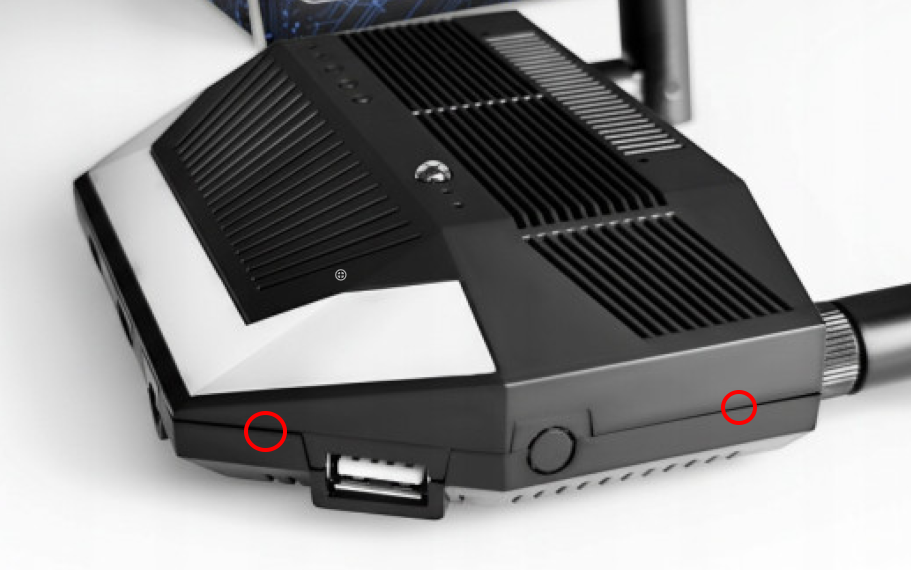
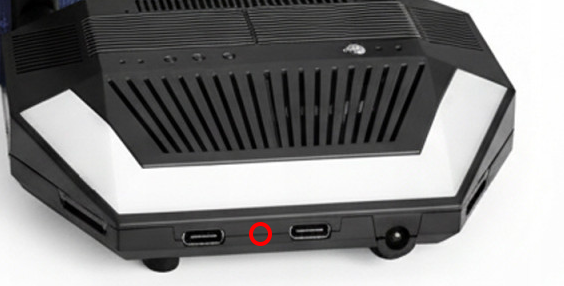
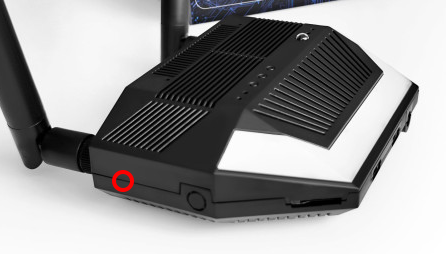
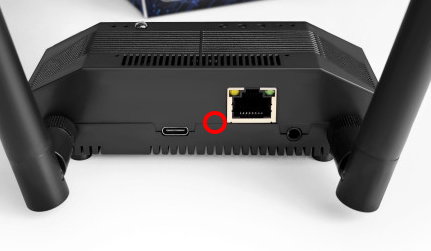
Please follow the placement of add-ons in these photos carefully. An incorrectly installed add-on may damage your device!
Microphone addon
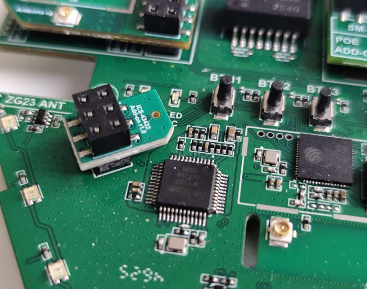
Z-Wave, POE, 4G/LTE
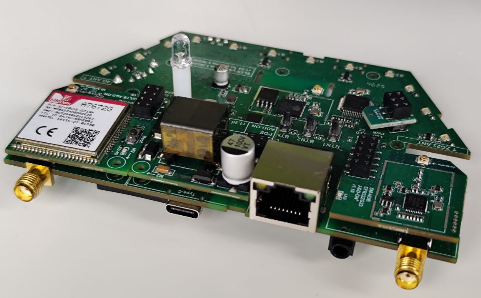
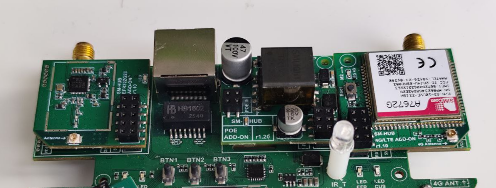
Opening the case
How to open device
Video guide https://youtu.be/gYNhB0CZMaU?t=246
Snaps locations
Buttons and LEDs functions
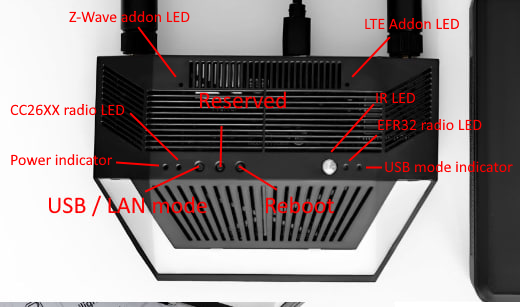
Thread setup (network and USB connection)
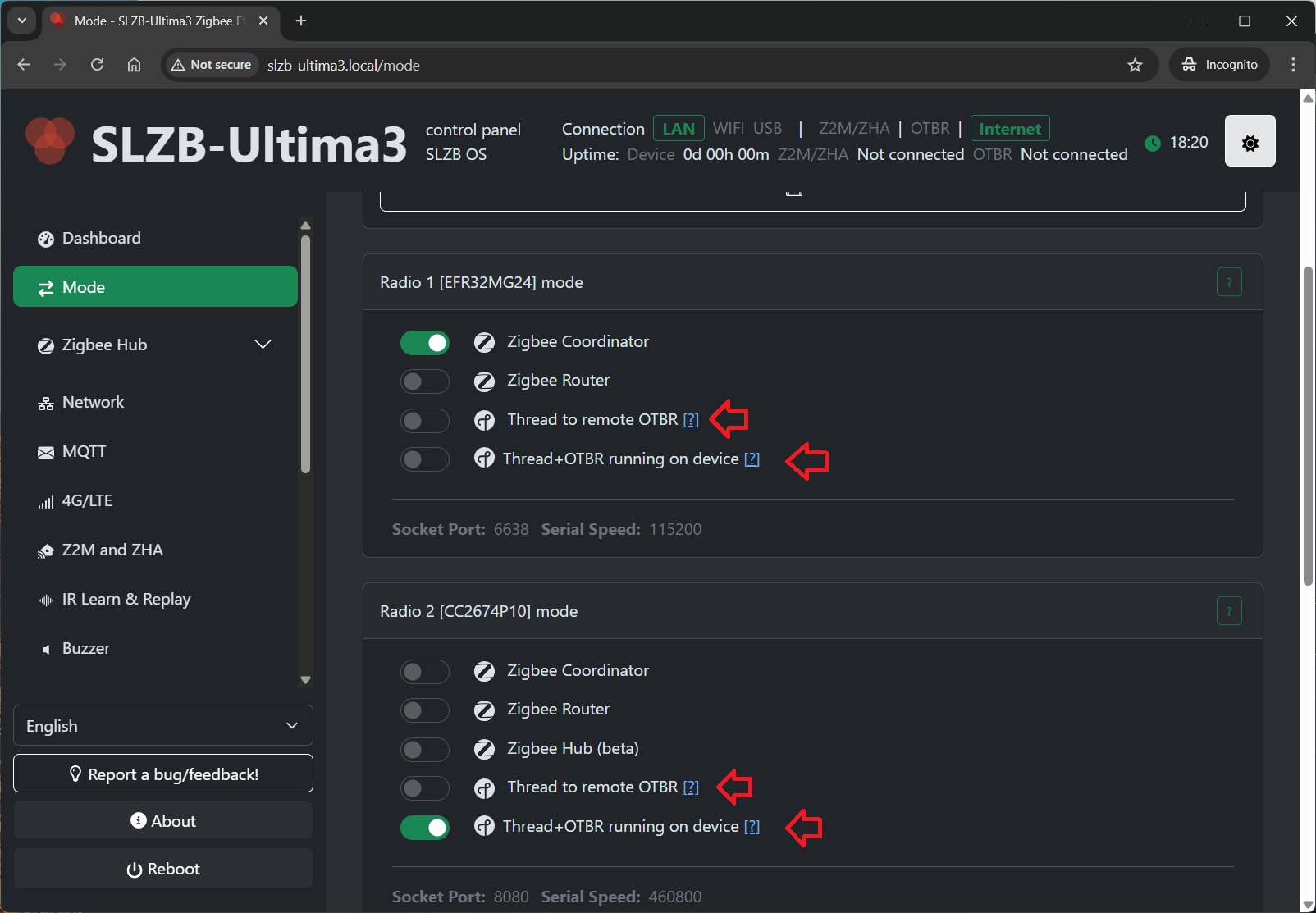
Thread setup for Home Assistant: two options
SLZB devices support two ways to run a Thread network with Home Assistant:
- Option A - “Thread to remote OTBR”: OTBR runs on Home Assistant (OTBR add-on, or, since Jan-2026, called "App"), SLZB works as a Thread RCP (radio).
- Option B - “Thread + OTBR running on device”: OTBR runs directly on the SLZB device, Home Assistant connects to it via REST API.
Prerequisites
- A server with Home Assistant installed and running (example: Raspberry Pi 4 with HAOS).
- An SLZB device with a Thread-capable radio module.
- The Matter device you want to connect (example: Eve Energy EU).
- An Android or iOS smartphone.
Additional:
- Option A (Thread to remote OTBR): Available on ALL SLZB coordinators. Can run over either USB or network (Serial-over-IP).
- Option B (Thread + OTBR on device): Available on SLZB-06xU, SLZB-MRxU and SLZB-Ultima. OTBR requires IPv6 on your LAN (IPv6 will be force-enabled on the device when this mode is activated).
Step 1 - Choose your setup option
Option A: “Thread to remote OTBR” (OTBR add-on/app runs on Home Assistant)
Choose this if you want OTBR to run on Home Assistant or other smart home systems. SLZB acts as a Thread RCP (radio only). This is the traditional setup, and supports USB or network connection.
Option B: “Thread + OTBR running on device” (OTBR runs on SLZB)
Choose this if you want OTBR to run directly on the SLZB device. Home Assistant connects via network API (http://device-ip:8080), and you don’t need the OTBR add-on in HA.
Note: this is an initial (beta) integration and may have limitations or unexpected behavior.
Step 2 - Set SLZB mode / firmware
Option A (Thread to remote OTBR): Flash / select Thread RCP mode
- Your device must have an internet connection.
- Go to
Modeand select the "Thread to remote OTBR". The device will be reflashed; wait until the update completes.
Option B (Thread + OTBR on device): Enable OTBR on the device
- Your device must have an internet connection.
- Go to
Modeand select “Thread + OTBR running on device”. The device will apply the required configuration and services and reboots. - OTBR REST API will be available at http://device-ip:8080.
Step 3 - Home Assistant software setup
3.1 Install and start Matter Server (required for both options)
- In Home Assistant go to
Settings→Devices & Services. - Click
Add integrationand search forMatter. - Keep
Use the official Matter Server Supervisor add-onenabled and clickSubmit. - Wait until Matter Integration and Matter Server add-on are installed.
- Go to
Settings→Add-ons→Matter Serverand clickStart. Recommended: enableStart on bootandWatchdog.
Step 4 - Thread / OTBR setup in Home Assistant
Option A: OTBR add-on on Home Assistant
Install the OpenThread Border Router add-on and connect it to the SLZB radio (USB or network).
- Go to
Settings→Add-ons→Add-on Store. - Search for
OpenThread Border Routerand clickInstall. - Open the add-on and go to the
Configuretab.
Option A - OTBR add-on with USB connection
- Switch the coordinator to USB connection mode (if applicable).
- Set OTBR add-on parameters:
Port: select your SLZB USB serial port.Hardware flow control: NoBaud rate: 460800Flash firmware: No (use pre-flashed RCP firmware)- Click
Save
- Go to
Infotab and clickStart. - Recommended: enable
Start on bootandWatchdog.
Option A - OTBR add-on with Network connection (Serial-over-IP)
Configure the OTBR add-on to connect to the SLZB network serial endpoint (example: 192.168.1.10:6638).
Setting Up the Thread Border Router Add-on (Network connection)
- OTBR config validation issues workarounds.
If you have errors like the ones in the screenshots below:

Workarounds:
- https://github.com/home-assistant/addons/issues/3993#issuecomment-3536041147 and https://github.com/home-assistant/addons/issues/4299#issuecomment-3771514634
- Connect any USB-serial device - Configure the addon according to the example below

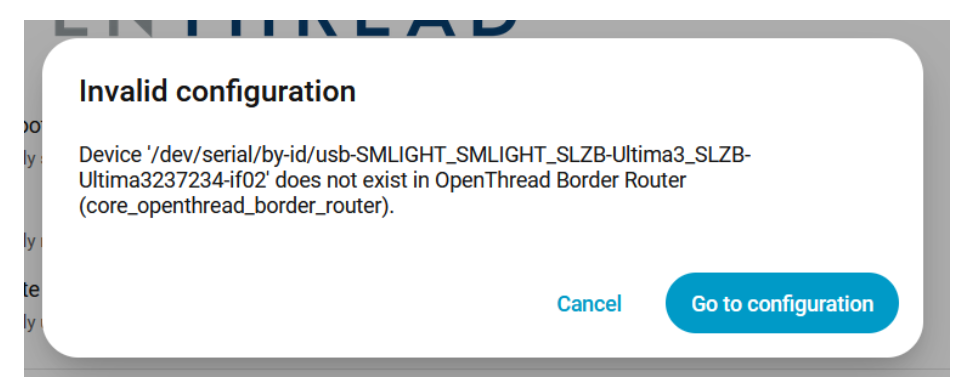
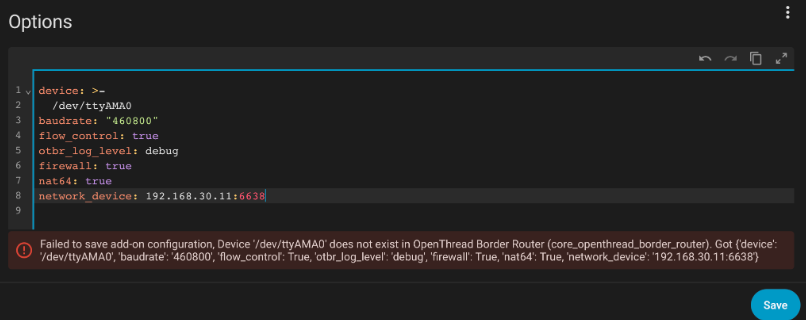
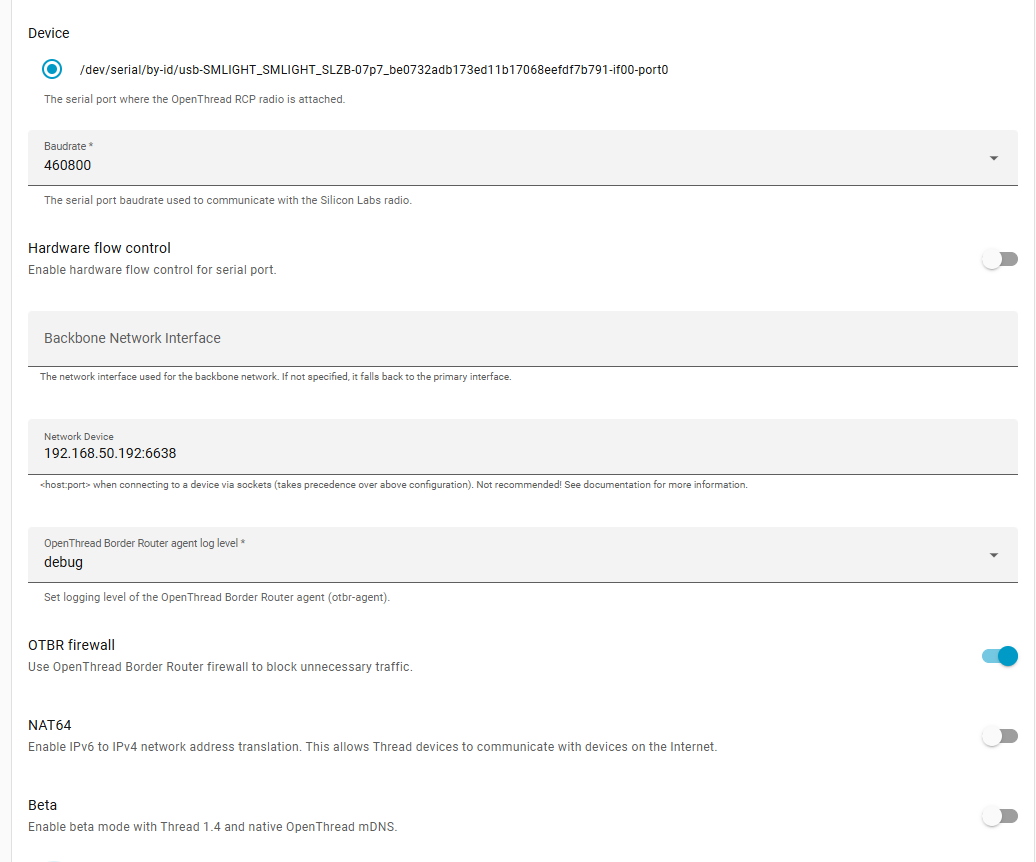
- Select
Show unused optional configuration options Hardware flow control: No.Baud rate: 460800.Flash firmware: No (we use pre-flashed coordinator)Network Device: Enter the IP and port of your coordinator. (for example 192.168.1.10:6638)- Click
Save.
- Go back to the INFO tab and
Startthe OpenThread Border Router add-on. It may take a moment to initialize. We would suggest to activate bothStart on bootandWatchdog. - You can check logs, they should say that addon started, although they can contain some errors as Thread and Matter are still under development in Home Assistant.
Option B: OTBR runs on the SLZB device (no OTBR add-on needed)
In this option, you do not install/use the OTBR add-on in Home Assistant. OTBR is already running on the SLZB device.
- Make sure SLZB mode is set to “Thread + OTBR running on device”.
Step 5 - Configure Home Assistant integrations (both options)
- Go to
Settings→Devices & Services. - Add (or confirm autodiscovery of) these integrations:
- Thread
- OpenThread Border Router
Notes:
- If you use Option A, the “OpenThread Border Router” integration will typically use the OTBR add-on.
- If you use Option B, when asked for the Border Router address, use: <device-ip>:8080.
In the Thread integration:
- Set OpenThread Border Router as the Preferred network.
- If available, enable Use router for Android + iOS credentials.
Step 6 - Reboot Home Assistant
- After installing and configuring Matter + Thread components, reboot your Home Assistant server.
Step 7 - Pre-set up your phone
- Install
Home Assistantapp on your phone. - Install
Google Homeapp (often required for Thread credential handling on Android). - Open Home Assistant app and connect it to your Home Assistant server (same Wi-Fi network).
- In the app go to
Settings→Companion app→Troubleshooting→Sync Thread Credentials. - Repeat until you see:
Home Assistant and this device use the same network. - If it fails repeatedly, try resetting Google Play Services data (Android) and try again.
Step 8 - Add the Matter-over-Thread device
- Ensure Bluetooth is enabled on your phone.
- In Home Assistant app:
Settings→Devices & Services→Devices. - Tap
+ ADD DEVICE→Add Matter device. - Scan the QR code (or enter the pairing code) and follow the on-screen steps.
- If prompted “Which app to open?”, choose
Other→Home Assistant.
The pairing flow usually goes through:
- Connecting to device…
- Generating Matter credentials…
- Connecting device to network…
- Checking network connectivity…
- Connecting device to Home Assistant…
- Device connected!
Tips:
- If the device was powered for a long time, you may need to reset it to enter pairing mode again.
- If you have Google/Nest Thread devices and pairing is unstable, try turning them off temporarily while pairing.
Step 9 - Verify connection and control
- After pairing, the device should appear in Home Assistant under
Devices. - Open it and confirm you can control it (e.g., switch on/off).
Congratulations! You’ve successfully connected a Matter-over-Thread device to Home Assistant.
TIP:
Home Assistant Thread documentation: https://www.home-assistant.io/integrations/thread/
ESPHome firmware for Ultima and xU Series
SLZB ESPHome Firmware Flashing Guide for SLZB-Ultima, MRxU and 06xU
-
Open SLZB-ESPHome repository: https://github.com/smlight-tech/slzb-esphome
-
Download the firmware file that matches your device:
-
SLZB-Ultima →
ultima-r1-04xx -
SLZB-MRxU series →
MRxU-r1-73xx(only for models with U) -
SLZB-06xU series →
06xU-r1-73xx(only for models with U)
Make sure you select the correct file for your product.
-
-
Connect your SLZB device to your computer using a USB cable.
-
Download and open the flashing tool (easiest one is here: https://github.com/Jason2866/ESP_Flasher/releases/tag/v3.2.0).
-
In the flasher tool, select the firmware file you downloaded and start flashing.
-
If flashing does not start, unplug the device, press and hold the button on the device (on SLZB-Ultima, this is the first button from the left), keep it pressed, plug the USB cable back in, and try flashing again.
-
Wait until flashing finishes.
-
Open Home Assistant. Your device should appear automatically. If it does not, add it manually in the ESPHome integration using the device’s IP address.
Ports for Z2M/ZHA/OTBR/ZWavejSUI configs:
Ultima:
-
-
- EFR32 SoC: 6638
- CC26 SoC: 7638
- ZWave: 8638
-
SLZB-MRxU
-
-
- EFR32/ZWave SoC: 6638
- CC26 SoC: 7638
-
SLZB-06xU
-
-
- EFR32/CC26 SoC: 6638
-
Remarks:
- The web server is turned OFF by default because of this: https://esphome.io/components/bluetooth_proxy/#memory-issues
- Bluetooth proxy is turned on by default in the existing builds. If you want to build your own firmware, please use YAML and compile your firmware.
Moving back from ESPHome:
To flash the SLZB-OS to the device, please use the official flasher https://smlight.tech/flasher/#SLZB-06U-MRxU.
If flashing does not start, unplug the device, press and hold the button on the device (on SLZB-Ultima, this is the first button from the left), keep it pressed, plug the USB cable back in, and try flashing again. This is because your USB port could be in Host mode, and the button forces ESP to be in Flash mode.
FAQ and troubleshooting
FAQ
I switched the device to router mode but it did not appear in Zigbee2MQTT / ZHA
The device in router mode only forwards ZigBee traffic over the ZigBee network, so it must be paired over the air just like any other ZigBee device. Of course, the device must be within range of your ZigBee network to work after pairing. Unfortunately, the network does not extend over Ethernet.
To start the pairing procedure, go to "Settings and Tools" -> "General settings" and click on the "Router reconnect" button. Your Zigbee network must be open for the device to pair.
How to reset SLZB device to factory settings?
For U devices and Ultima - reflash the device via USB using this tool https://smlight.tech/flasher/#SLZB-06U-MRxU
Video guide for devices before the U series https://youtu.be/ps-x_-CQXp0?t=139
Location of radio modules for MR coordinators
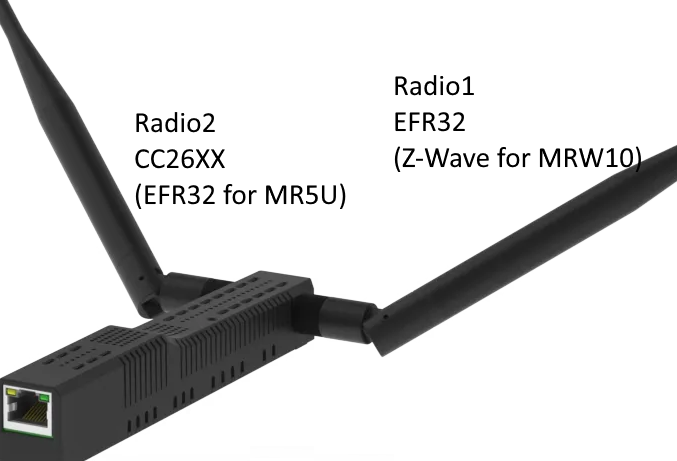
My device shows a temperature of X degrees, is this normal?
Temperatures up to 75 degrees are normal.
From 75 to 90 you should pay attention to ventilation and ambient temperature!
What is the best channel for a Zigbee network?
According to this article by Metageek the best is to use channel 15 for ZIgbee and channels 1,6 and 11 for your home WiFi networks.
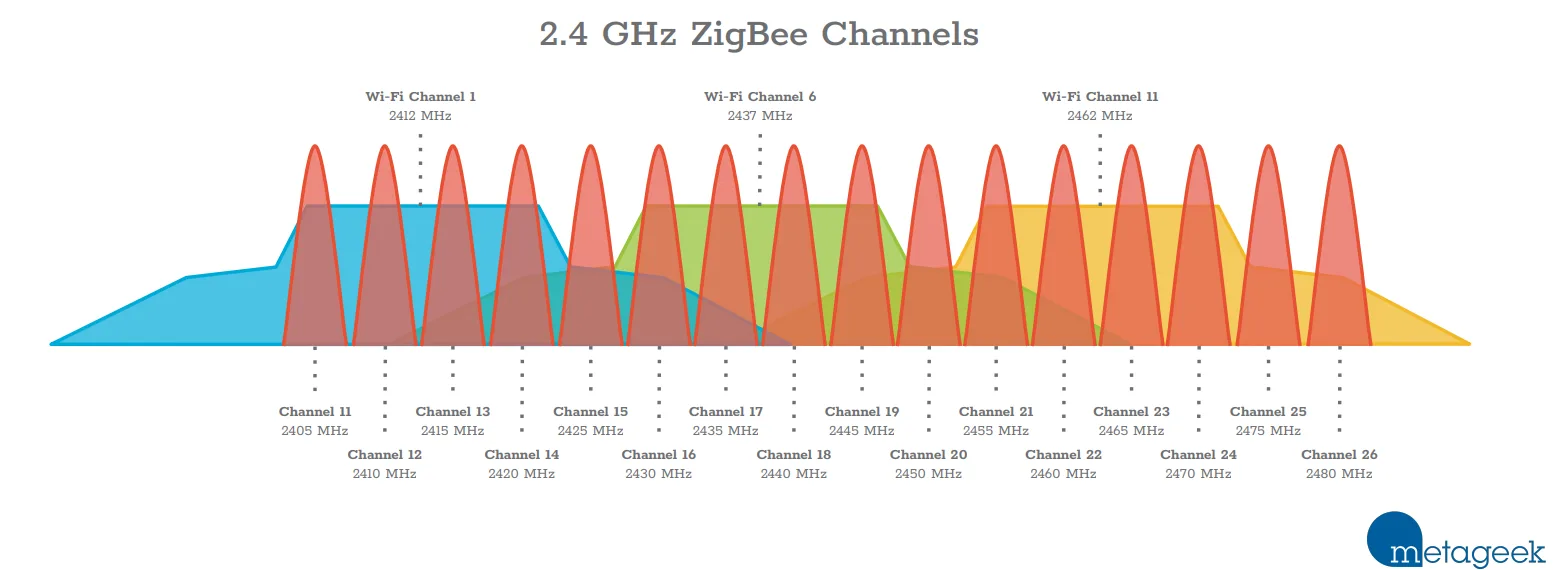
Does SLZB coordinators webserver support HTTPS?
No, HTTPS is not supported.
We are looking into HTTPS support on the U series but there is no ETA for this at this time.
I can't find the Transparent 802.1D WiFi bridge option
Starting with OS 3.2.6.dev0 this option is not available on U devices. Please use older firmware if you need this option.
Troubleshooting
Coordinator is restarting with reason "TASK_WDT"
Known problematic devices spamming the network with mDNS requests:
- Amino Aria
- Sonos
Reason: coordinator network interface is receiving too much multicast traffic and the CPU power is not enough to handle it.
Most likely, your network has a misconfigured video/IP TV stream or broken mDNS devices.
Possible solution: disable mDNS on the "Network" page.
Disabling mDNS is incompatible with OTBR!
REQ error: http_code -1
Your coordinator is not connected to the Internet.
Possible reasons:
- DNS servers or network gateway are incorrectly configured.
- blocking on the side of your router/provider of access to our update servers in Ukraine
warning: zh:ember:uart:ash: Frame(s) in progress cancelled
The problem is that Home Assistant automatically offers to install ZHA when it detects a SLZB device on the network. If you have agreed and installed ZHA and then try to run Z2M, you will get this error.
Please make sure that ZHA is not installed
Data request failed with error: 'MAC channel access failure' (225)
This error occurs when the coordinator is close to another radio wave source (e.g. WiFi router, microwave, etc.).
To fix this you need to move the coordinator away from the radio wave sources. Sometimes a distance of a few meters is not enough, if the error still occurs then move the coordinator outside the coverage area of your WiFi router.
I switched from conbee/efr32 to SLZB-06/p7/p10 and now LQI is lower
The difference in LQI between different manufacturers of ZigBee chips is a typical situation.
Unfortunately, LQI is not a standardized parameter, so each manufacturer calculates it in their own way. LQI in conbee and efr32 is always greater than in cc2652x, even with the same RSSI. Therefore, LQI is a conditional parameter that may not reflect the real situation.
The second factor that affects LQI is the location of the coordinator. If the USB coordinator was in one location, but after migration you placed the network coordinator in another location, this will affect the LQI of some devices, since they will be further from the coordinator, the best option in this case is to re-pair these devices.
Current backup file is not for EmberZNet stack
If you see the error "Current backup file is not for EmberZNet stack" it means that your previous backup was for an adapter on the CC2652x chip.
Please take look at this guide for migrating between zstack/ember https://github.com/Koenkk/zigbee2mqtt/discussions/26716
I wrote a custom IEEE address to my coordinator, is there a way to get its original IEEE address?
Yes! Just write IEEE 0xFFFFFFFFFFFFFFFF
What ports/addresses does the coordinator use?
Ports:
80 - device web interface
81 - SSE
5050 - SLZB BLE proxy
6638 - zigbee chip socket
7638 - zigbee chip socket for Radio 2 (for MRx devices)
8638 - USB to Ethernet passthrough mode
9638 - zigbee chip socket for Radio3 (for Ultima3 Z-Wave addon)
URL:
google.com - device sends DNS request to check internet
updates.smlight.tech - device and zigbee module firmware updates
stats.smlight.tech - used to send feedback via device web interface and send telemetry (if active in settings)
Error: network commissioning timed out - most likely network with the same panId or extendedPanId already exists nearby Error: AREQ - ZDO - stateChangeInd after 60000ms
You need to update pan_id in both zigbee2mqtt/configuration.yaml and zigbee2mqtt/coordinator_backup.json. Note that the values need to match, but in configuration.yaml the value is encoded decimal, while in coordinator_backup.json the value is encoded hexadecimal. You can use a tool to convert.
Here’s the steps:
- Make sure Z2M is stopped.
- Make backup of database.db and coordinator_backup.json
- Note the existing
pan_idvalues (both hexadecimal and decimal) - Change the value to something different. Make sure to use the same value in both files, but encode it decimal in the configuration and hexadecimal in he coordinator backup. (I just added 1 to the original value for simplicity.)
- Start Z2M.
- When Z2M has finished booting, stop it again.
- Change the
pan_idback to the original values in both files. - Start Z2M again.
If you have empty devices list or devices offline:
- Make sure Z2M is stopped.
- Restore original database.db and coordinator_backup.json
- Start Z2M again.
SLZB-xxU and ZWA-2
✅ Using ZWA-2 Z-Wave Dongle with SLZB-MR1U via USB Passthrough
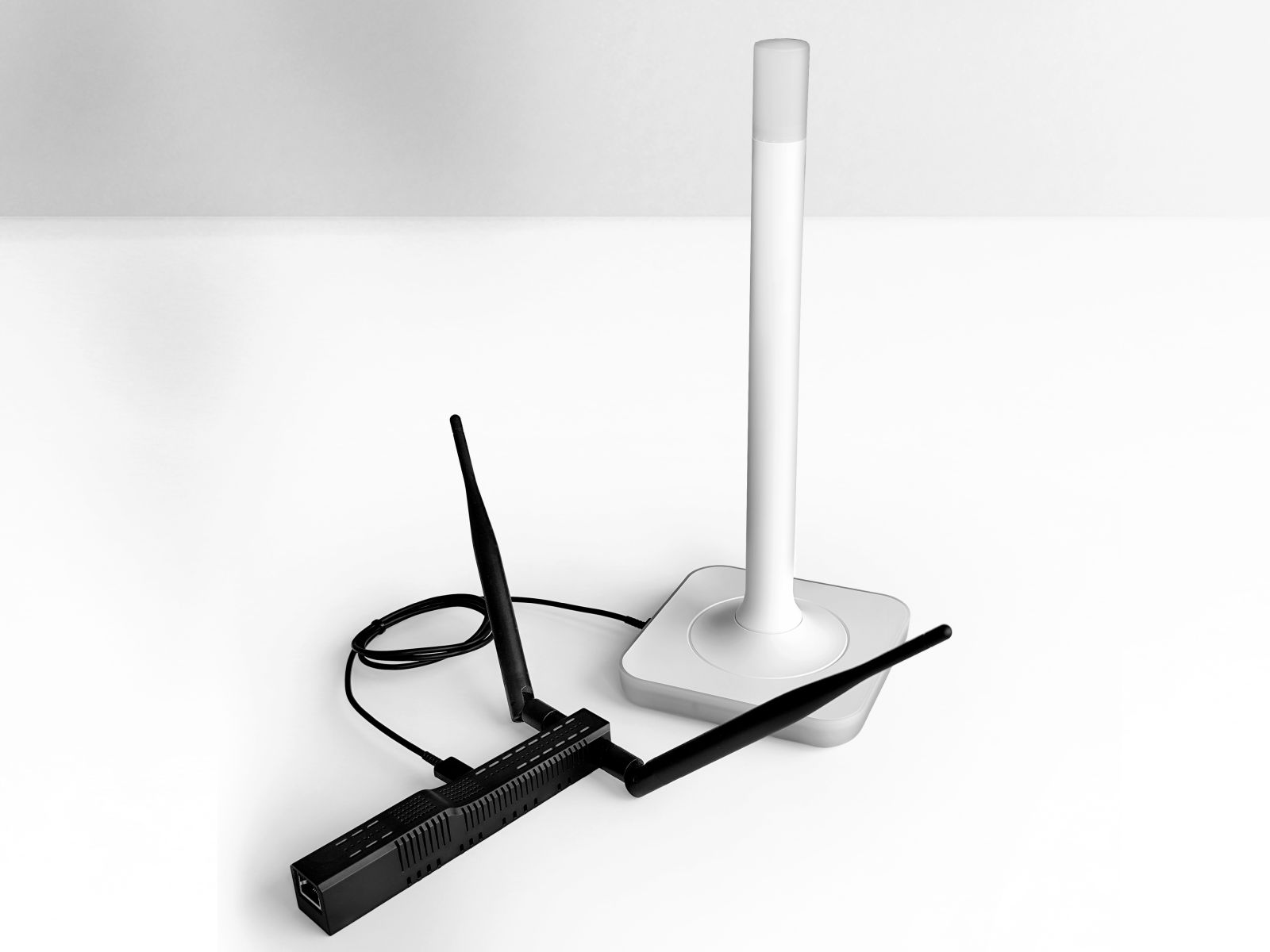
Overview
Many users asked whether the ZWA-2 Z-Wave USB stick can be used with the SLZB-MR1U using its USB passthrough over Ethernet feature.
Until recently, we couldn’t confirm, as it hadn’t been tested in-house.
We have now completed testing and can confirm:
✅ ZWA-2 works with SLZB-MR1U using USB passthrough.
Requirements
-
SLZB-MR1U hardware
-
SLZB-OS firmware v3.0.0 or newer
-
ZWA-2 USB Z-Wave stick
-
Z-Wave JS UI (or other TCP-compatible Z-Wave host)
-
Network access to the SLZB-MR1U IP address
Why SLZB-OS v3.0.0?
Firmware v3.0.0 (released 29 August 2025) is required because it:
✅ Resolves USB passthrough instability
✅ Fixes EFR32 firmware update failures
✅ Improves overall SLZB-MR1U reliability
You can update via:
-
OTA (if available)
-
Manual update via USB-C and our Web Flasher:
➡️ https://smlight.tech/flasher/#SLZB-06U-MRxU
Setup Instructions
-
Flash SLZB-MR1U with SLZB-OS v3.0.0
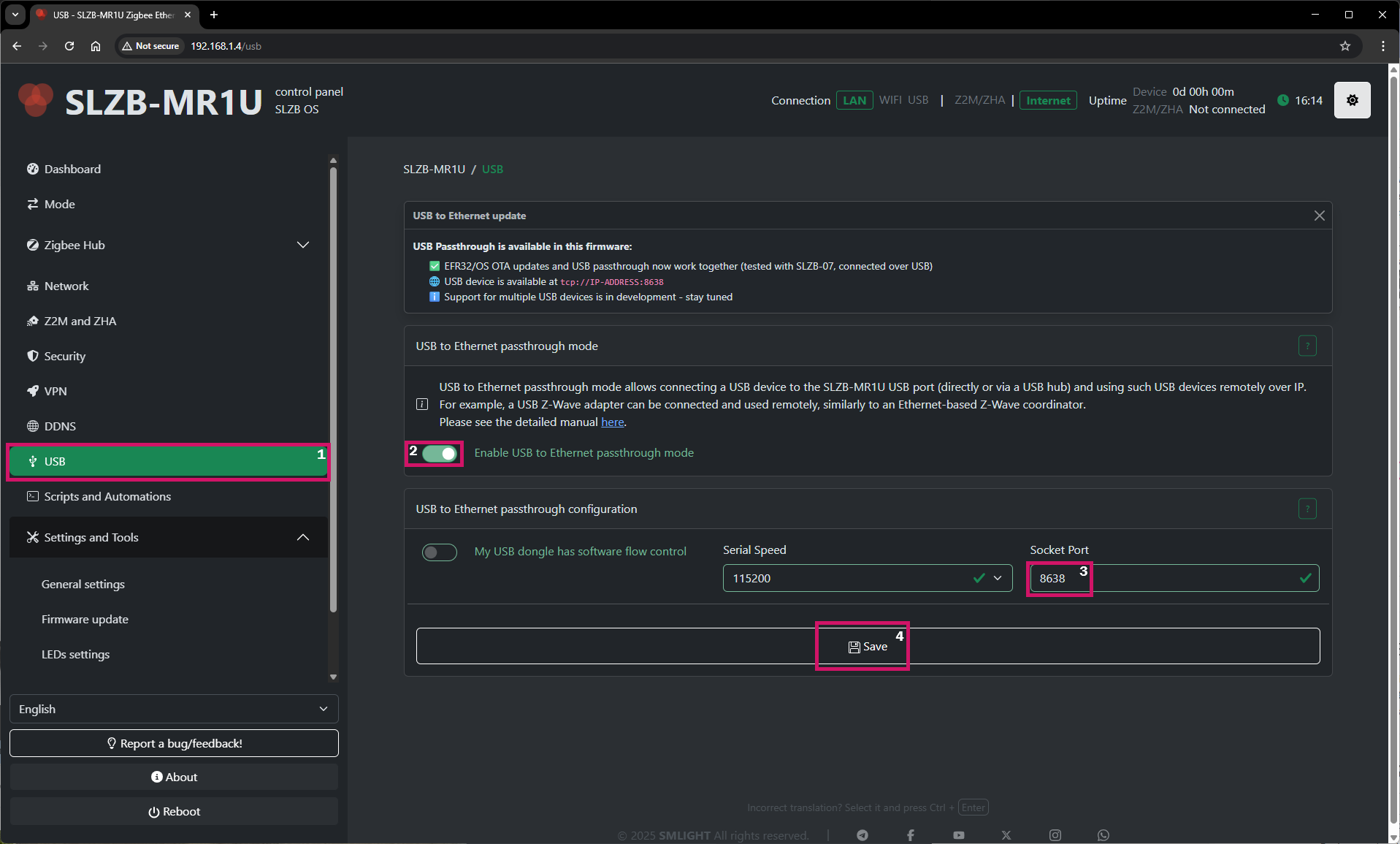
- Enable USB passthrough option (Go to http://slzb-mr1u.local/usb)

-
Plug the ZWA-2 USB stick into the USB-A port - right out of the box.
-
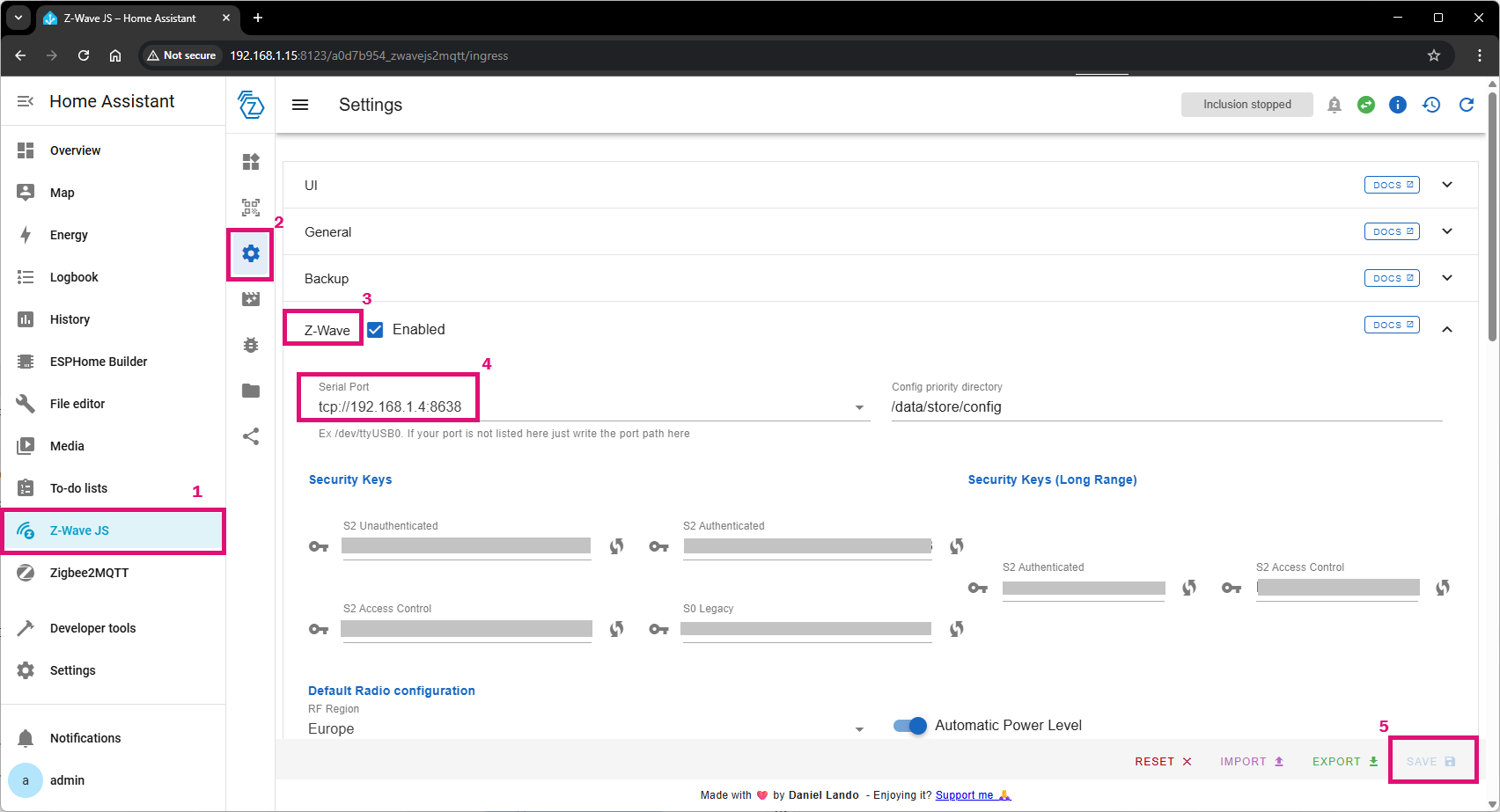
Open Z-Wave JS UI on your smart home host
-
Go to Settings -> Z-Wave -> Serial port and Set the serial port to:
-
Save settings and restart the service, if asked.

-
Pair Z-Wave devices as usual (we did it via Z-Wave integration).
⚠️ Notes & Best Practices
-
One USB device is supported at the moment via USB passthorugh.
- Ensure port 8638 is accessible on your LAN
Troubleshooting
| Problem | Solution |
|---|---|
| ZWA-2 not detected | Confirm IP and port, check firmware is v3.0.0 or newer |
| Devices won’t pair | Restart Z-Wave JS UI after configuring the serial port |
| Unstable USB connection | Use a shorter or higher-quality USB cable (or powered USB hub) |
Zigbee network sniffing guide for SLZB-MRx and SLZB-06Mx adapters
Prerequisites
1. Coordinator
You will need coordinator with EFR32 radio module from Silicon Labs.
You can use radio module1 on SLZB-MR adapters or single-radio adapters with EFR32 only: SLZB-06M, 06Mg24, 06Mg26 and their U versions.
2. Host PC with internet access
Software preparation
1. Coordinator preparation
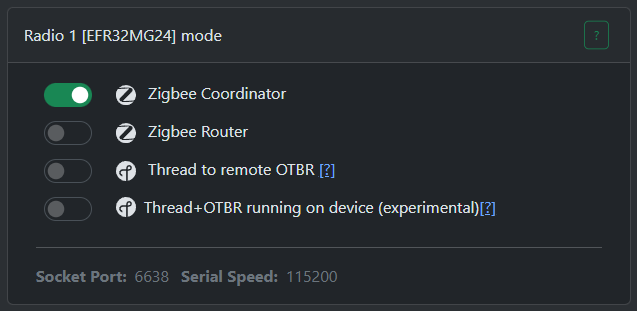
Go to "Mode" page and select "Zigbee Coordinator". Wait for the update to complete.
Make sure the coordinator radio module is not in use! Stop Z2M/ZHA before moving on to the next steps!
2. Preparing the PC
You must have NodeJS installed. If you don't have it, please download and install it first from this link https://nodejs.org/en/download/current
Open CMD or terminal and run the command: npm install -g ember-zli and wait for install to complete.
To start configuring the sniffer, run the command: ember-zli sniff

Note the "Data Folder", this is where the capture files will be saved.
Select "TCP"

Answer n

Enter the IP and port of your coordinator
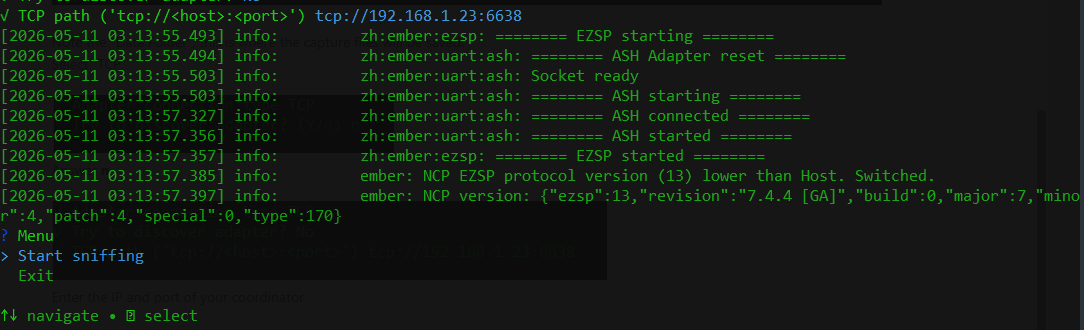
Wait for connection.
Select "Start sniffing"

Select "Wireshark" for Wireshark server or select "PCAP file" if if you want to save to a capture file.