Network
5. Network Settings
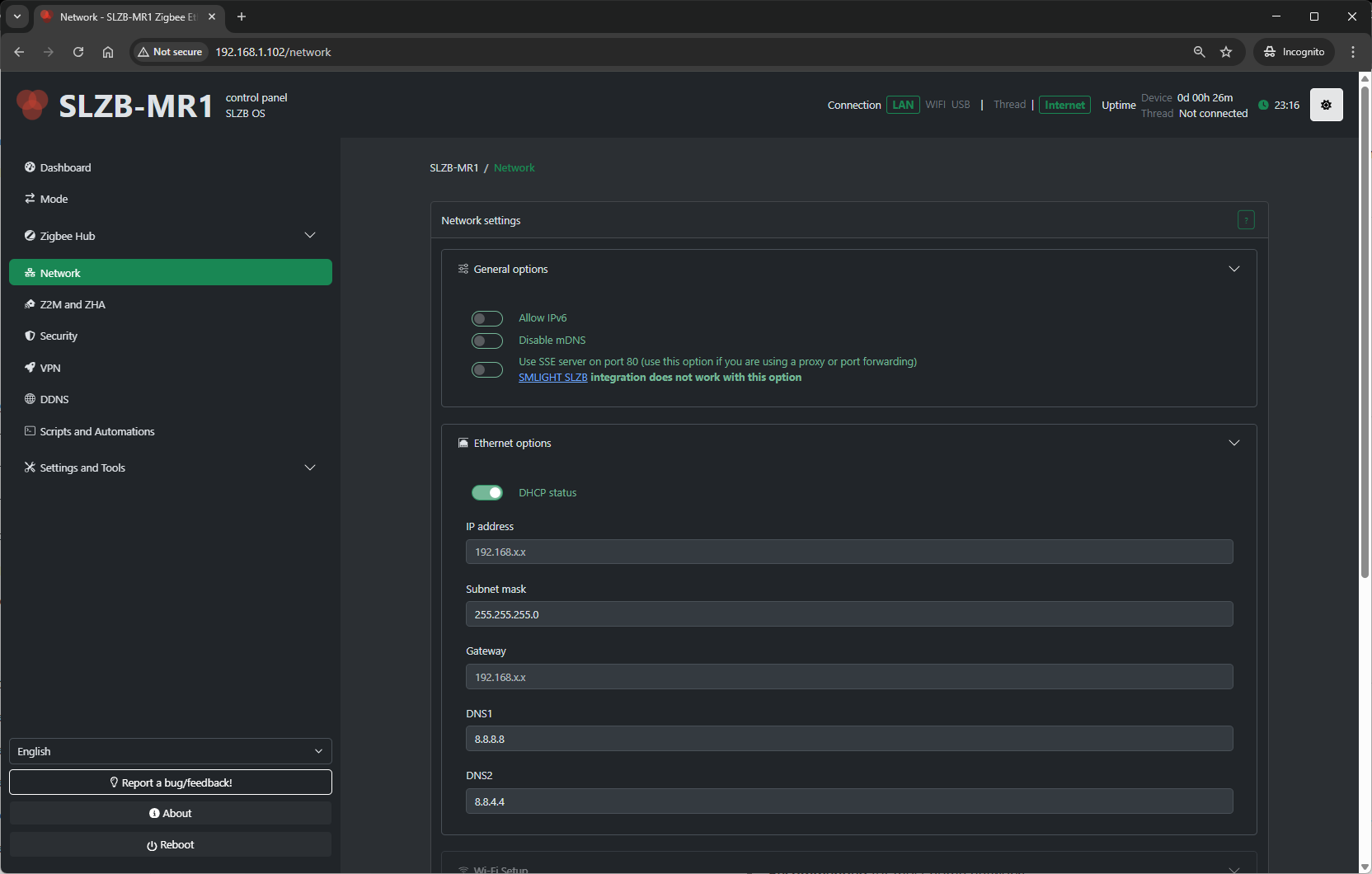
The Network page in SLZB-OS manages how your device connects to your local network and, if required, to the internet.
The available sections may vary depending on the selected Mode and hardware capabilities (Ethernet, Wi-Fi).
5.1 Information Block
At the top of the page you may see an info notice if certain network interfaces are inactive.
Example:
“Wi-Fi page is inactive because Wi-Fi mode is not activated.”
To enable it, change the device’s mode to one that supports Wi-Fi (see Mode page).
5.2 Connection Overview
A visual diagram shows the main connections:
-
LAN – Wired Ethernet connection.
-
Wi-Fi – Wireless interface (if enabled).
5.3 LAN / Ethernet Settings
Ethernet is the primary connection method for most SLZB devices.
5.3.1 DHCP (Dynamic Host Configuration Protocol)
-
Enable to have the SLZB device automatically receive network settings (IP, subnet mask, gateway) from your router.
-
Recommended for most home networks.
5.3.2 Static IP Configuration
If DHCP is disabled, manually configure:
-
IP Address – The fixed address the device will use. Must be unique on your network.
-
Subnet Mask – Defines which IP addresses are considered local (e.g.,
255.255.255.0). -
Gateway – The IP address of your router or gateway to access external networks.
-
DNS Server(s) – Optional; used to resolve domain names. Defaults to your gateway if not set.
Tip: Use a static IP if you run integrations that need a consistent address (e.g., Home Assistant with static MQTT host).
5.4 Wi-Fi Settings
(Visible only when Wi-Fi mode is active)
5.4.1 Scan for Wi-Fi Networks
-
Searches for available networks.
-
Displays SSID, signal strength, and security type.
5.4.2 Connect to Network
-
SSID – Chosen from scan or entered manually.
-
Password – Required for secured networks.
-
Security Type – WPA/WPA2, WPA3 (depending on hardware/firmware).
5.4.3 IP Configuration
-
Same as Ethernet — can use DHCP or set Static IP, Subnet, Gateway, DNS.
5.5 Applying Changes
-
Adjust the settings for the interface you are using (Ethernet/Wi-Fi).
-
Click Save or Apply.
-
The device may briefly lose connectivity while settings are applied.
-
Verify new settings on the Dashboard or via your router.
5.6 Troubleshooting
-
No connection after static IP set – Ensure the IP, subnet, and gateway match your network’s addressing scheme.
-
Wi-Fi not available – Check mode selection; only certain modes enable Wi-Fi.
-
PoE not powering device – Confirm your switch/injector supports the correct PoE standard for your SLZB model.
-
Can’t reach device – Use a network scanner or check router’s DHCP leases to find its IP.