Update/Restore using SD-Card
💾 SD-Card Installation Guide Notice
The direct SD-card installation method is temporarily unavailable for the latest OS images.
Workaround: If you must use an SD card, you can flash an older compatible image first, boot the device, and perform an OTA update to the latest version. Otherwise, we highly recommend skipping the SD card entirely and using the new SMHUB Flasher tool over Type-C for a direct install.
👉 Download the firmware ZIP from your usual link (latest):
SD-CARD RESTORE FIRMWARE: prod: os_v0.9.9 , dev: os_v1.0.0.dev3 (previous: os_v0.3.11 | os_v0.3.10 | os_v0.3.7) and save the ZIP file to your computer (e.g., Downloads).
You’ll need:
-
A microSD card (8–64 GB is ideal) + microSD–to–SD adapter if your PC needs it
-
A Windows PC
-
A way to read/write the microSD card (built-in reader or USB adapter)
⚙️ What You’ll Do
-
Download the ZIP file with the firmware
-
Format microSD to FAT32
-
Copy three files from the archive folder ROM onto the root of the card
-
Insert the card into the SMHUB (click fully)
-
Power on → wait ~4 minutes (silent)
-
Power off → remove the card
- Power on → watch LED cues → open smhub.loca
1) Get the firmware and unzip it
-
Click the firmware link above and download the ZIP to your computer (e.g., Downloads).
[screenshot: browser download] -
Right-click the ZIP → Extract All… → choose a simple folder (e.g.,
C:\SMHUB\firmware\).
Inside the unzipped folder, you’ll see these three files in the rom folder. You’ll copy them to the SD card:
-
emmc.img -
fip.bin -
partition_gpt.xml
2) Format the microSD card to FAT32
This erases the card completely. Back up anything important first.
-
Insert the microSD (or SD adapter with the microSD inside) into your PC.
-
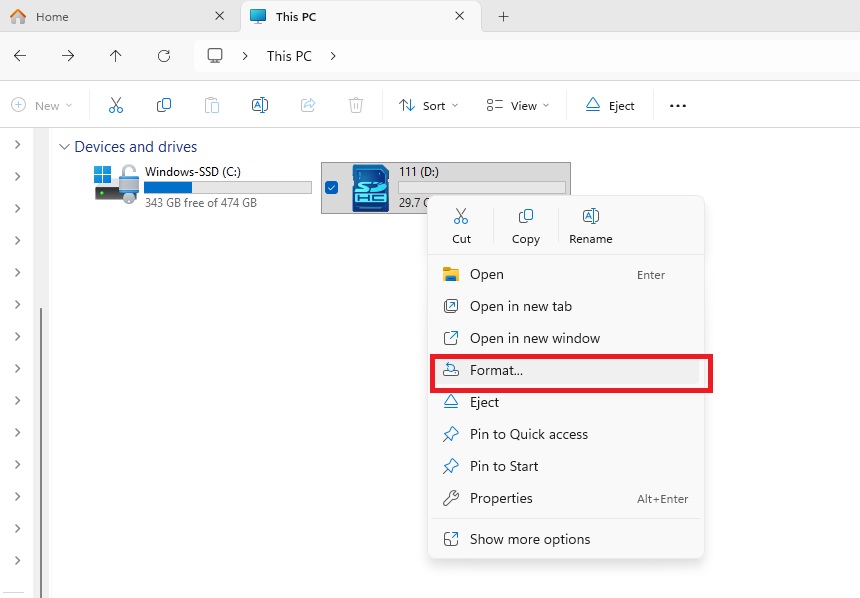
Open This PC (Windows Explorer).
-
Right-click the SD card drive (e.g., “SDHC (E:)”).
-
Click Format….

-
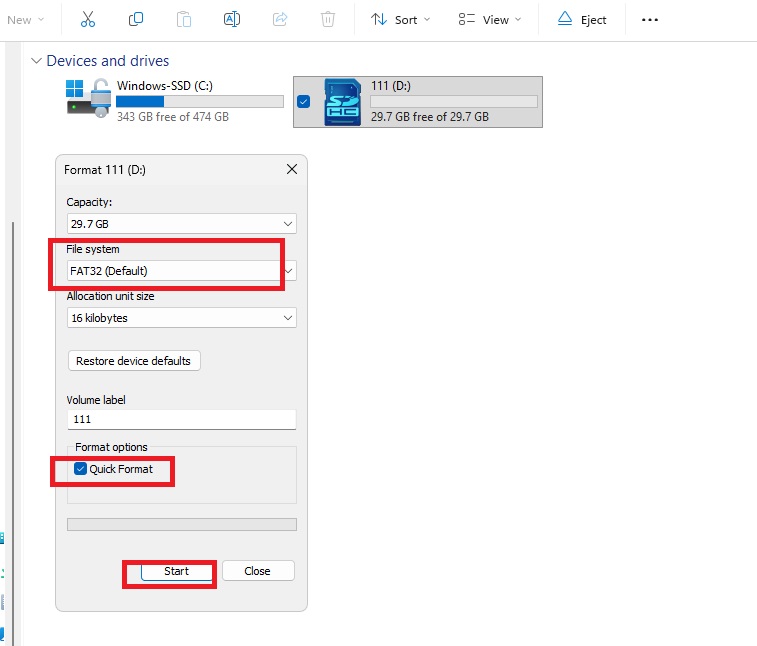
In the Format window:
-
File system: choose FAT32
-
Allocation unit size: leave Default or 16kb
-
Volume label: optional (e.g.,
SMHUB) -
Quick Format: checked (recommended)

-
-
Click Start, then OK/Yes to confirm.
-
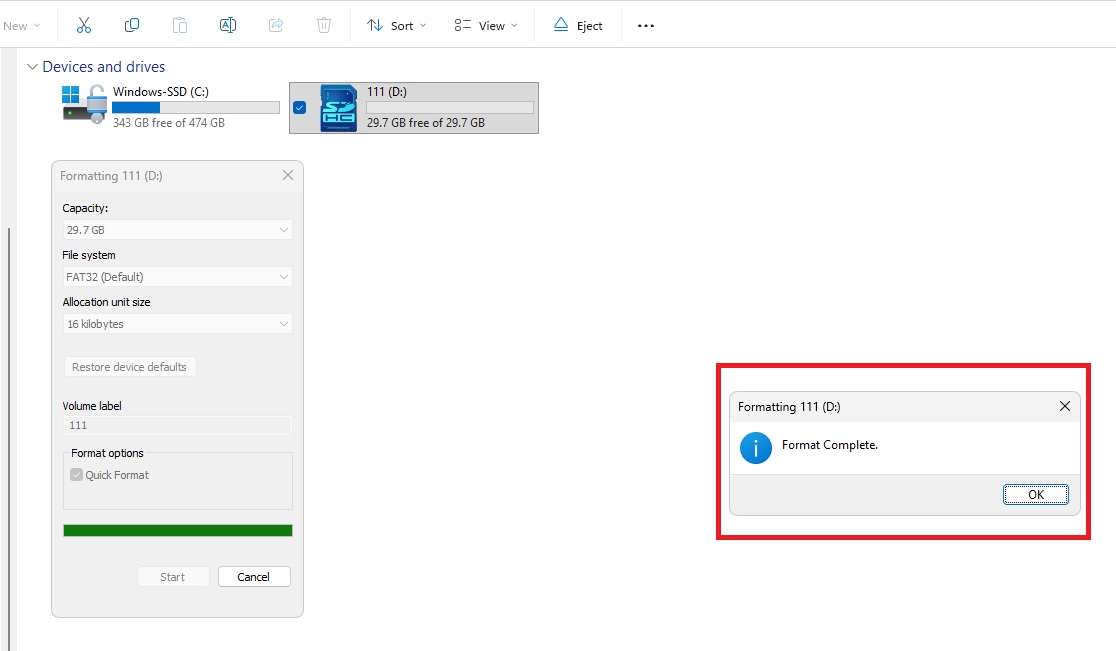
Wait for the Format Complete message → click OK and Close.

Tip: If your SD card is larger than 32 GB and FAT32 isn’t shown, try another (smaller) card. (Advanced users: a third-party FAT32 formatter also works.).
Check the lock switch: If you’re using a full-size SD adapter, make sure the tiny switch on its side is not set to “LOCK.” If locked, Windows won’t let you copy files.
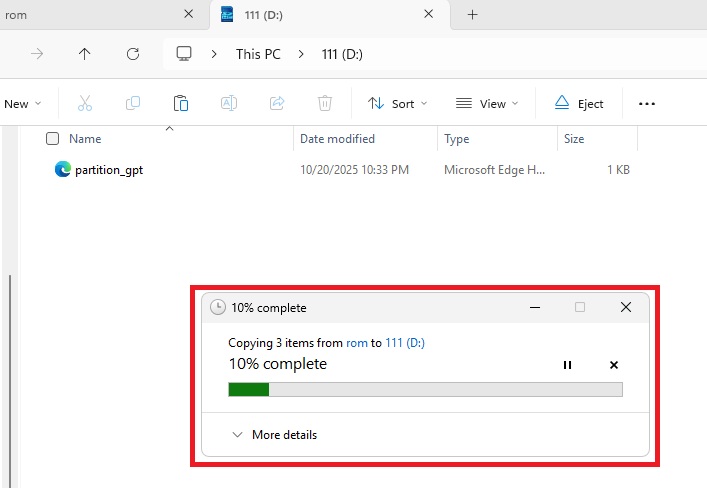
3) Copy the three files to the root of the SD card
-
Open the folder you unzipped earlier.
-
Select these three files:
emmc.img,fip.bin,partition_gpt.xml -
Copy them (Ctrl+C).
-
Open your SD card drive in This PC and Paste (Ctrl+V).
-
The files must be in the root of the SD card (not inside any folder).

-
-
When copying finishes, right-click the SD card drive → Eject → remove the card.
4) Insert the microSD card into the SMHUB
-
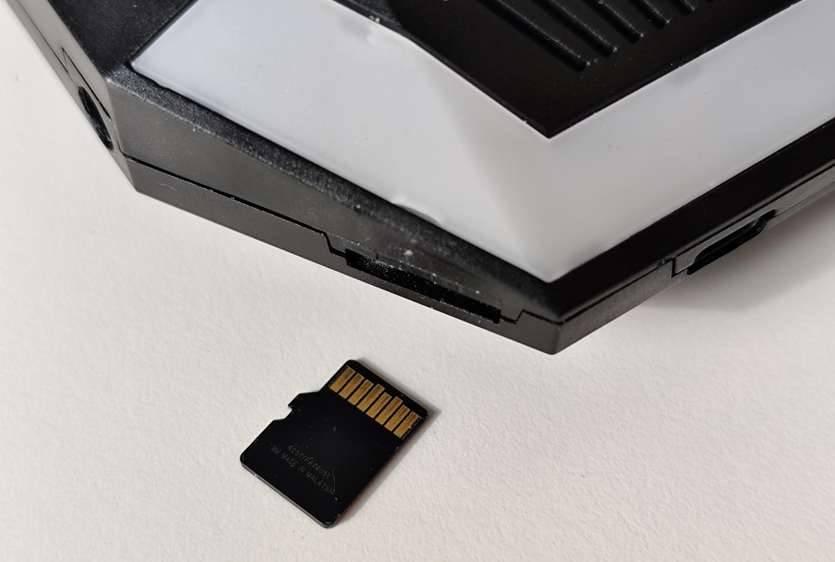
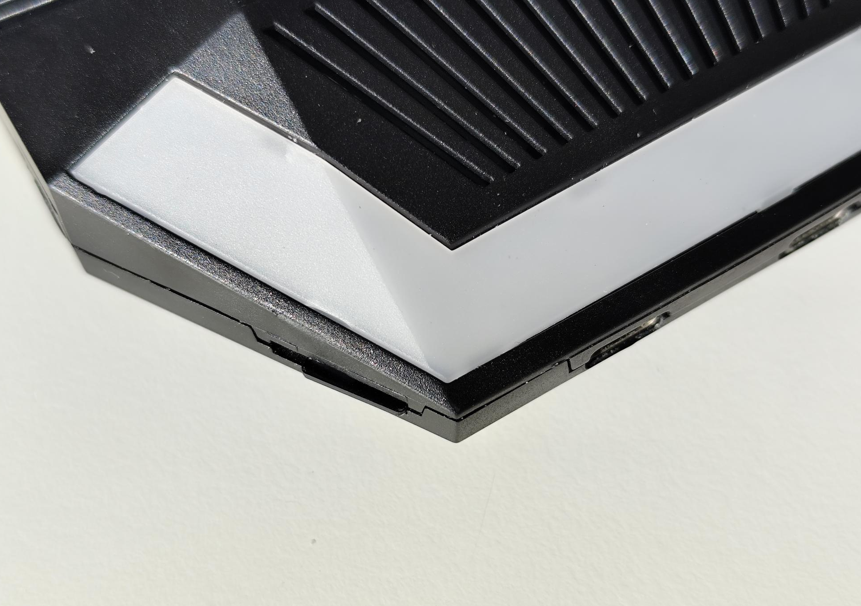
With the SMHUB powered OFF, insert the microSD into the slot.

-
Push until you feel a “click.” It must be fully seated.

5) Power ON and wait ~4 minutes until completion
-
Connect power to the SMHUB.
-
The device will automatically and silently flash itself from the SD card.
-
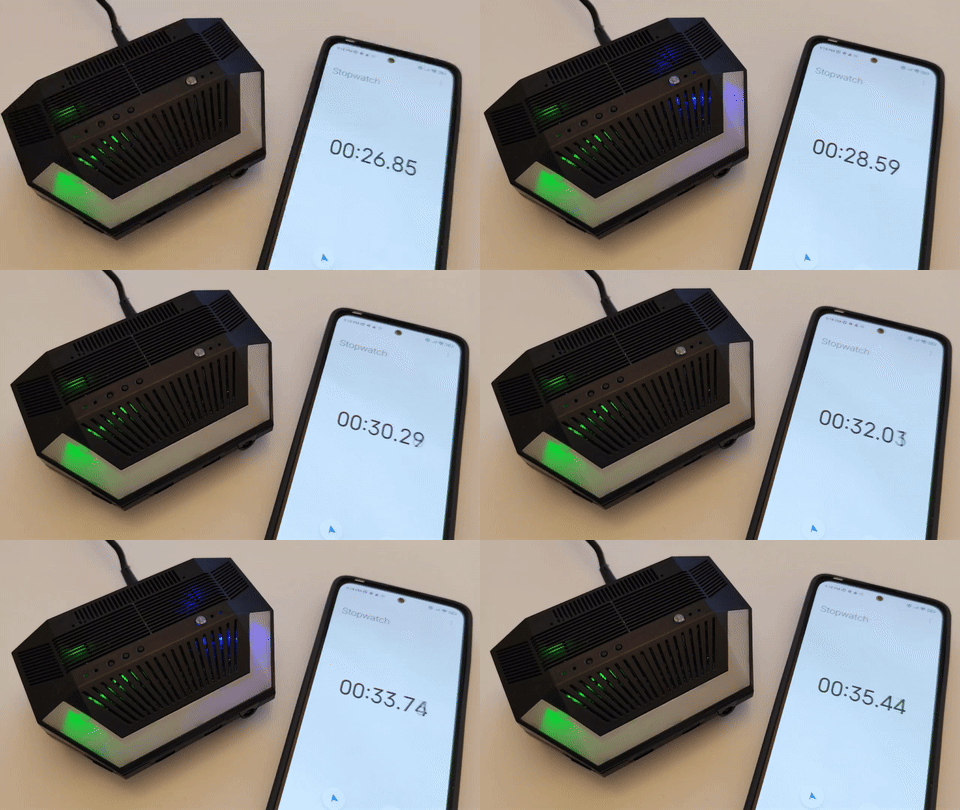
The blue LED (located near the IR transmitter) will begin blinking slowly (approximately once every 2 seconds), indicating that the flashing process has started. Please note that LED indications during SD-card flashing are available only starting from firmware 0.3.1-dev2 (24 Oct 2025).
-