All the information below relates to setting up a Matter-over-Thread controller (in this particular case, Home Assistant) and is outside the scope of SMHUB functionality (i.e., this is a third-party configuration topic). Therefore, the instructions below may change over time, and we do not track or maintain updates.
#### Setting Up the Matter add-on and Integration While Thread is a physical network, to control Matter-over-Thread devices, users need to installa Matter server on Home Assistant. 1. Go to the Home Assistant interface and navigate to `Settings` > `Devices & Services`. 2. Click on `Add integration` and search for `Matter`. 3. Keep checkbox `Use the official Matter Server Supervisor add-on` and click `Submit`. 4. Wait untill installation of Matter Integration and Matter Server add-on is completed. 5. Head over to the Left panel within Home Assistant and Click `Settings` and choose `Add-ons`. Go to the Matter Server add-on. Start the Matter Server add-on. Here we would suggest as well to click both `Start on boot` and `Watchdog`. #### Set-up and configuring the Integrations 1. Thread Integration – click `Configure` and make sure you have `OpenThread Border Router` under `Preferred network` line, and it contains an icon with key+phone. [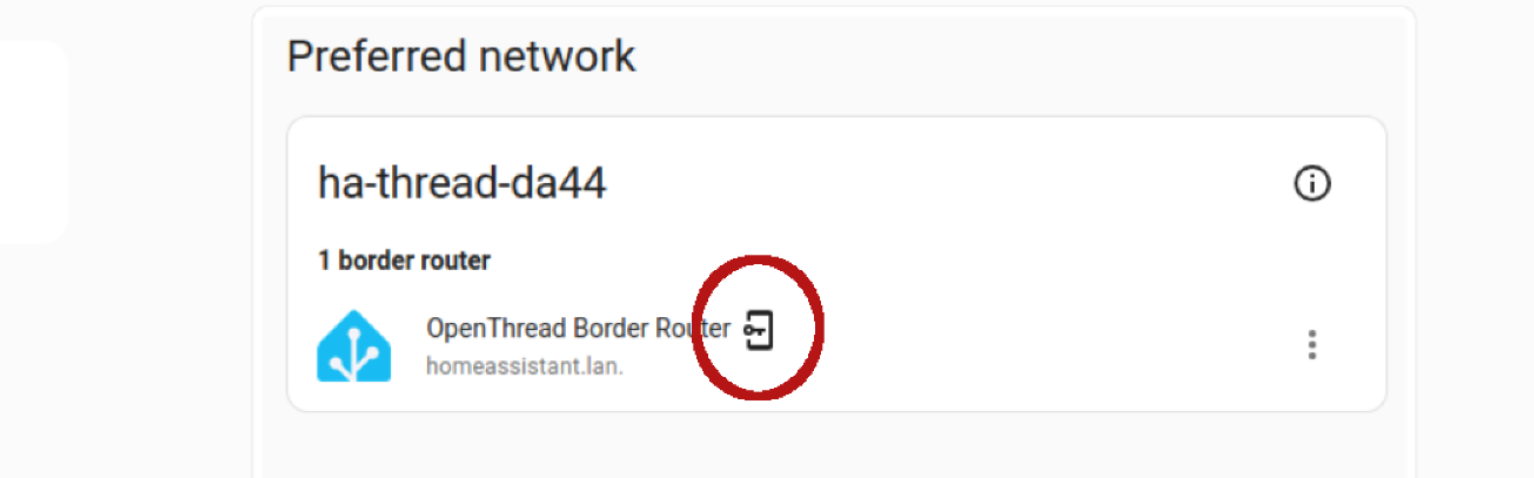](https://smlight.tech/support/manuals/uploads/images/gallery/2026-01/ftZimage.png) 2. If not, do the following: - click three dots on the right to `OpenThread Border Router`, choose `Add to preferrede network`. - Under the preferred network now, click again three dots on the right to `OpenThread Border Router`, and choose `Use router for Android + iOS credentials`. #### Reboot your Home Assistant server 1. Once all Home Assistant components are installed, we reccomend to reboot your Home Assistant server. ## Result - SMHUB is running an **OpenThread Border Router** - Home Assistant is connected to it - Your system is ready for **Matter-over-Thread** devices --- ## Pairing Matter-over-Thread devices ### Pre-set up your phoneThis paragraph is an extended version of the official documentation Home Assistant: https://www.home-assistant.io/integrations/thread/#to-make-home-assistant-your-first-thread-network
1. Install `Home Assistant` App on your Android phone from the Play Store. At the time of this video, we were unable to pair a Matter-over-Thread device via iPhone. 2. Install `Google Home` app from the Play Store. It is recommended by `Home Assistant` developers and we were not able to pair our Thread devices without installed Google Home app. 3. Open `Home Assistant` app and sync it with your Home Assistant server. Your phone and Home Assistant server should be in the same Wi-Fi network. 4. In the app, go to `Settings` – `Companion app` -> Click `Troubleshooting` and click `Sync Thread Credentials`. 5. Wait until the message `Home Assistant and this device use the same network`. If you see another message, namely `Added network from Home Assistant to this device` – You need to click on `Sync Thread Credentials` again until you get that message about the same network. 6. If you are not getting my message `Home Assistant and this device use the same network` - try to reset your Google Play Services (remove all data, usually by App settings -> Erase data -> Clear All Data, but names depend on the smartphone model). ### Adding the Matter Device 1. With the Matter integration set up, grab your Matter device and Android smartphone. Make sure Bluetooth is enabled on your phone. 2. Open the Home Assistant app and navigate to `Settings` > `Devices & Services` -> `Devices` Tab. 3. Click the `+ ADD DEVICE` button at the bottom right part of the screen to add a device, choose `Add Matter device`. 4. Follow the on-screen instructions in the app. You'll likely need to scan a QR code located on your Eve Energy socket or enter the pairing code manually. We did it with QR-code scanning. 5. Home Assistant app on your phone can as which app to open? Select `other` and then `Home assistant`. 6. The app will guide you through pairing the device with your Thread network. It should pass through this satuses: - Connecting to device... - Generating Matter credentials... - Connecting device to network... - Checking netwoek connectivity... - Connecting device to Home Assistant... - Device connected! 7. Note: - If a Matter-over-Thread end-device has been powered up for a long time, it may require a reset of device to put back into pairing mode. - In case you have Google home devices (Nest hub) and experiances issues with pairing, try to turn them off before starting OpenThread Border router add-on on your Home Assistant and your Home Assistant app. ### Verifying Connection and Control 1. Once the pairing is complete, head back to the Home Assistant interface. You should see your Eve Energy socket listed on your `Dashboard` or under the `Devices` section . [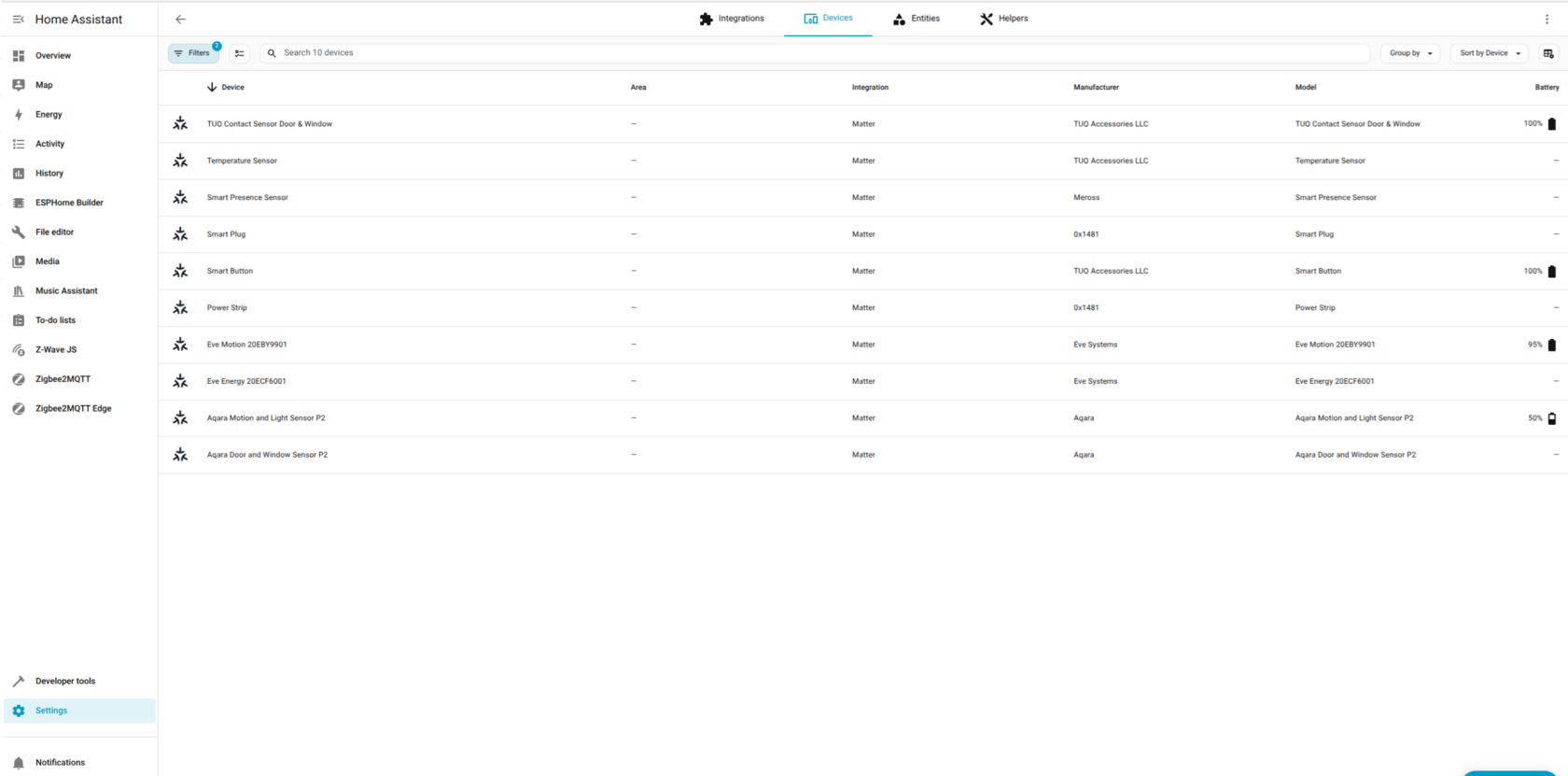](https://smlight.tech/support/manuals/uploads/images/gallery/2026-01/uKOimage.png) 2. Click on the device to access its controls. You should be able to turn the socket on and off remotely within the Home Assistant interface. **Congratulations**! You've successfully connected your Matter-over-Thread device to Home Assistant using the OpenThread Border Router and Matter Integrations. Now you can enjoy the benefits of Matter's secure and interoperable smart home ecosystem, connected via SMHUB. ## OTBR Safe Reflash Procedure (Type-C) **Important:** Reflashing SMHUB via Type-C may wipe OTBR (Thread) data. If you don’t back it up, you will most likely need to **re-pair all Thread/Matter devices** again. ### Recommended Safe Steps 1. **Stop OTBR app** - Go to **Apps → OTBR** - Click **Stop** 2. **Backup OTBR database** - Open **Console** - Backup the OTBR data folder: - `/var/lib/thread/*` 3. **Re-flash OS** - Reflash SMHUB using **Type-C** as usual. 4. **Restore OTBR database** - After the OS is reflashed, restore the backup to: - `/var/lib/thread/*` ### ⚠️ What happens if you skip backup? If OTBR data is lost during reflash, you will likely need to: - reset OTBR configuration - **pair all Thread devices again** (Matter/Thread network rebuild)