SLZB-OS
Operating system for SLZB series devices: SLZB-06x, SLZB-MRx, SLZB-06xU and SLZB-MRxU
- About SLZB-OS
- Dashboard
- Mode
- Zigbee Hub
- Network
- Zigbee2MQTT / ZHA Settings
- Security
- VPN
- DDNS
- Scripts and Automations
- Settings
- Additional features
- SLZB-OS API endpoints
- USB to Ethernet passthrough mode
- Wire Guard VPN setup
- Changelog SLZB-OS
- Bluetooth Low Energy
- Breaking changes
- Known issues
About SLZB-OS
-
1. About SLZB-OS
1.1 Overview
SLZB-OS is the official firmware platform developed by SMLIGHT for its line of Zigbee and multi-radio Ethernet/USB/PoE adapters. It provides a web-based management interface that allows you to configure, monitor, and control your device from any browser on your local network — and, if desired, from remote locations via VPN or DDNS.
The system is designed for stability, performance, and seamless integration with modern smart home ecosystems such as Zigbee2MQTT, Home Assistant (ZHA), and other MQTT-capable platforms.
1.2 Supported Devices
SLZB-OS runs on a variety of SMLIGHT hardware, including but not limited to:
-
SLZB-06x series: SLZB-06, SLZB-06M, SLZB-06P7, SLZB-06P10, SLZB-06MG24, SLZB-06MG26
-
SLZB-MRx series: SLZB-MR1, SLZB-MR2, SLZB-MR3, SLZB-MR4, SLZB-MRW10
- SLZB-MRx series: SLZB-MR1U
- SLZB-USB-to-LAN adapter
- SLZB-UltimaX series: SLZB-Ultima1, SLZB-Ultima2, SLZB-Ultima3, SLZB-Ultima4,
-
Future-ready models: Support is regularly expanded via firmware updates.
Note: Certain functions may differ depending on your device model and hardware capabilities (e.g., availability of PoE, dual-radio features, or USB passthrough).
1.3 Key Features
-
Zigbee network management – Integrated Zigbee hub with support for popular coordinators and firmware.
-
Multiple connectivity options – Ethernet, USB, Wi-Fi (where hardware supports it), and PoE.
-
Direct integration – Works with Zigbee2MQTT and ZHA without additional bridges.
-
Advanced features – Wi-Fi bridge, Bluetooth Proxy (ESPHome mode), dual-radio support, VPN, DDNS, automation scripts, and more.
-
31 interface languages – making it accessible to users worldwide.
- Advanced networking – VPN client/server, DDNS support, static/DHCP IP configuration.
-
Custom automation – Built-in scripts and triggers for device behaviors.
-
Security – User authentication, password management, and remote access controls.
-
Diagnostics & logging – View detailed logs and debug information for troubleshooting.
-
Firmware flexibility – Easy updates via local file upload or online sources.
1.4 Accessing the Interface
-
Connect your SLZB device to your network via Ethernet, PoE, or USB (depending on model and mode).
-
Determine its IP address using your router’s DHCP client list or a network scanning tool.
-
Open a web browser and enter the device’s IP address in the format:
-
The SLZB-OS dashboard will load, showing system status and navigation menus.
-
Dashboard
2. Dashboard
The Dashboard is the first screen you see when logging into SLZB-OS.
It provides an at-a-glance overview of your device’s current status, connectivity, and Zigbee network health.
From here, you can quickly access detailed sections via the top or side navigation menus.
2.1 Layout Overview
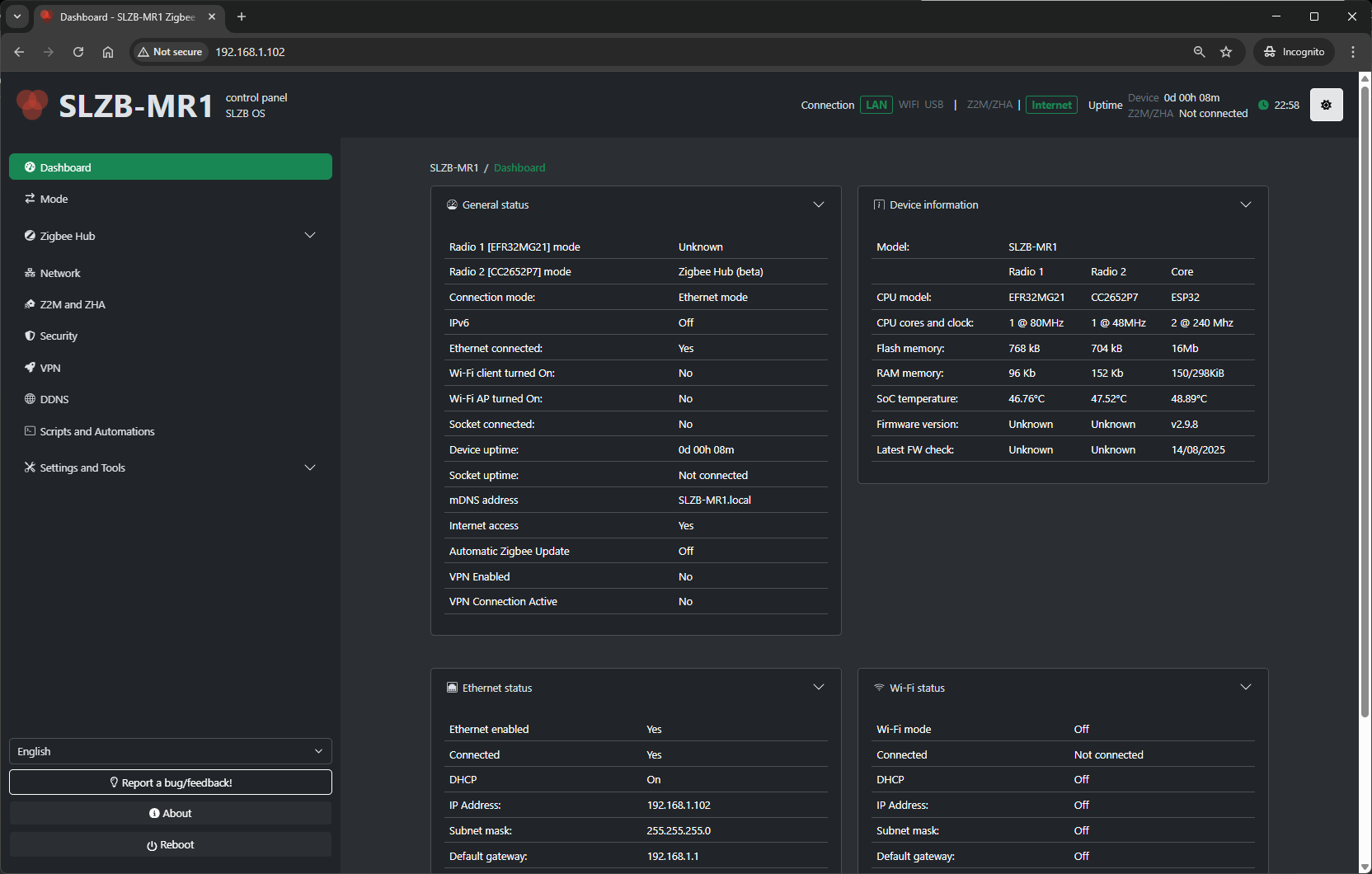
The dashboard typically consists of the following key blocks:
-
Device Status Panel
-
Model – Displays the hardware model (e.g., SLZB-MR1U).
-
Firmware Version – Current SLZB-OS version installed.
-
Uptime – How long the device has been running since last restart.
-
CPU & Memory Usage – Real-time resource utilization.
-
-
Network Status
-
IP Address – Current assigned IPv4 address.
-
Connection Type – Ethernet, PoE, USB, or Wi-Fi (depending on model).
-
MAC Address – Unique network identifier.
-
Link Status – Connection state and link speed.
-
-
Zigbee Hub Summary
-
Coordinator State – Online/Offline status.
-
Connected Devices – Number of active Zigbee devices.
-
Last Message – Timestamp of the last received Zigbee event.
-
Zigbee2MQTT / ZHA Status – Shows which integration is currently active.
-
-
Quick Actions
-
Restart Device – Reboots the SLZB device.
-
Restart Zigbee Hub – Restarts Zigbee coordinator service without rebooting the whole system.
-
Open Zigbee2MQTT Web UI – Shortcut to Z2M frontend (if enabled).
-
Check for Firmware Update – Quick link to update page.
-
2.2 Indicators & Colors
-
Green – Normal operation.
-
Yellow/Orange – Warning or degraded performance (e.g., high CPU usage).
-
Red – Critical issue (e.g., coordinator offline).
2.3 Typical Uses
-
Monitoring – Quickly verify if both network and Zigbee hub are running normally.
-
Troubleshooting – Identify offline status or high resource load.
-
Fast Navigation – Jump directly to network or Zigbee hub settings.
Mode
3. Mode
The Mode page lets you choose how the coordinator is exposed to your smart‑home stack.
3.1 Radio SoC Modes
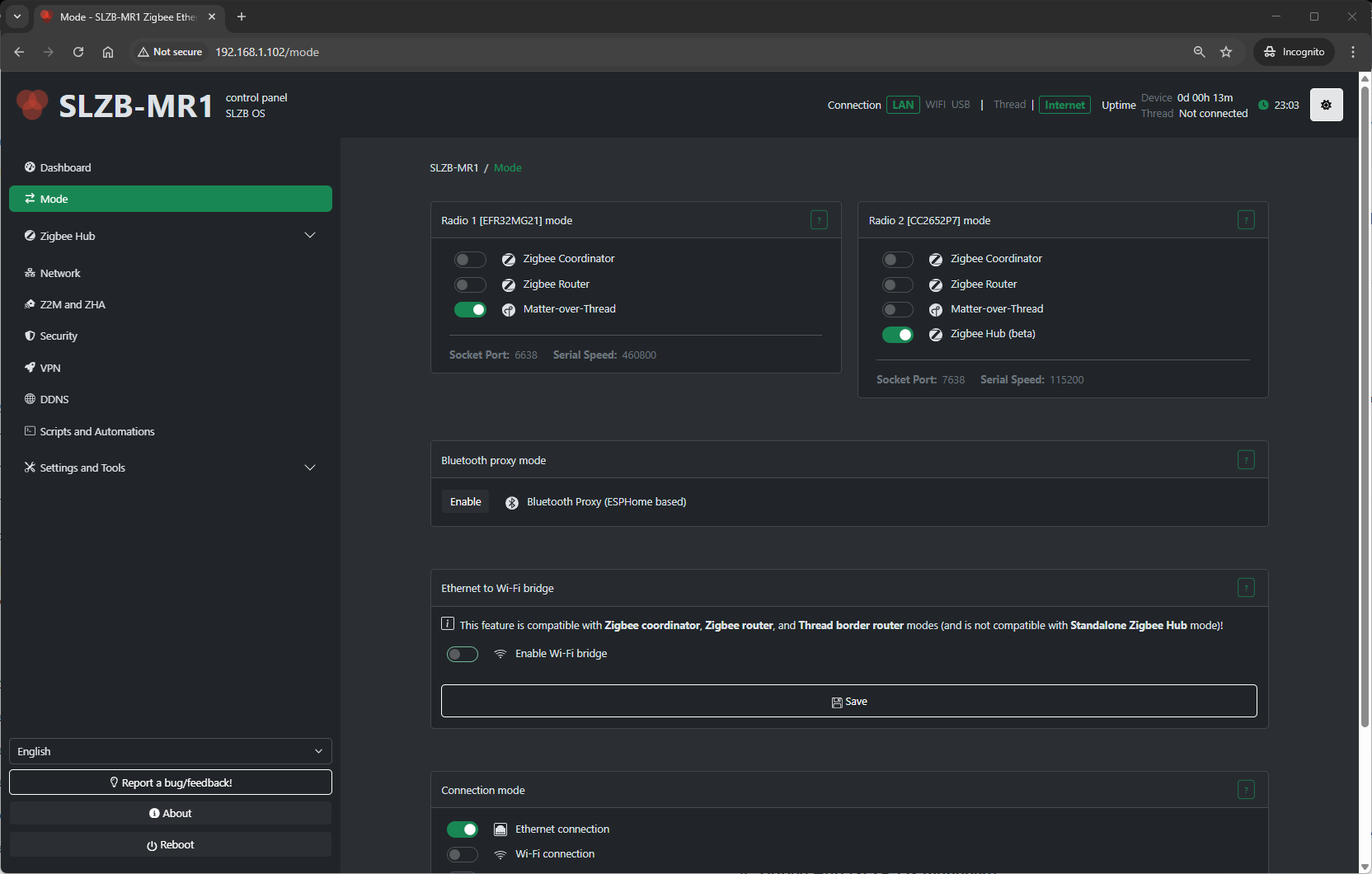
Your SLZB device’s primary radio SoC can operate in different roles depending on your smart home network design:
1. Zigbee Coordinator
-
Creates and manages a Zigbee network.
-
Required if this device is the main Zigbee hub in your setup.
-
Works with Zigbee2MQTT, ZHA, and other Zigbee controllers.
-
Allows pairing new devices and maintaining the full network routing table.
2. Zigbee Router
-
Extends an existing Zigbee network by relaying messages between devices.
-
Improves coverage and reliability in large or signal-challenged areas.
-
Cannot create a network; must join an existing one.
-
Useful for eliminating “dead zones” without replacing your main coordinator.
3. OpenThread Border Router (OTBR)
-
Allows Thread devices (e.g., Matter over Thread) to join your home network.
-
Bridges Thread to IP networks for integration into Matter-compatible platforms.
-
Typically used alongside Matter controllers like Home Assistant, Google Home, or Apple HomeKit.
4. Zigbee Hub (SLZB-OS managed)
-
Runs the Zigbee stack directly on the device under SLZB-OS control.
-
No need for a PC/NAS to host Zigbee2MQTT or ZHA.
-
Integrates easily via MQTT or native ZHA API.
-
Managed through Zigbee Hub menu pages (Dashboard, Devices, Settings, MQTT).
3.2 Connection Modes
Once the radio role is selected, choose how the coordinator/router connects to your automation system:
A) Ethernet (Serial over TCP)
-
Coordinator serial interface exposed as a TCP server.
-
Ideal for stable wired installations (PoE optional).
-
Use in remote Docker/VM/NAS setups where the Zigbee stack runs off-device.
-
Access via:
B) USB (Direct Serial)
-
Device acts as a USB dongle with a standard serial interface.
-
Requires physical connection to the host running Z2M/ZHA.
-
Best for small servers or Raspberry Pi deployments.
C) Wi-Fi
-
Coordinator available over Wi-Fi instead of Ethernet.
-
Useful when wired connection isn’t possible.
-
Expect slightly higher latency compared to Ethernet.
3.3 Additional Features
These optional modes and functions can be enabled separately to expand device capabilities:
Wi-Fi Bridge (Ethernet ↔ Wi-Fi)
-
Two types:
-
Transparent (802.1D) – Makes connected Wi-Fi devices visible on the Ethernet network.
-
NAT/Proxy – Routes traffic from Wi-Fi clients via the device’s Ethernet uplink.
-
-
Handy for extending Wi-Fi coverage to IoT devices in Ethernet-only zones.
Bluetooth Proxy (ESPHome mode)
-
Turns the device into a Bluetooth LE proxy for Home Assistant.
-
Ideal for extending coverage of BLE sensors like Xiaomi/Mijia, Aqara, etc.
-
Uses ESPHome firmware module within SLZB-OS.
3.4 How to Apply Changes
-
Go to Mode in the SLZB-OS menu.
-
Select Radio SoC mode (Coordinator / Router / OTBR / Zigbee Hub).
-
Choose Connection mode (Ethernet / USB / Wi-Fi).
-
Enable any Additional Features (Wi-Fi Bridge, BLE Proxy) if needed.
-
Click Save/Apply.
-
Restart the service or device if prompted.
-
Confirm status in Dashboard and, for Zigbee Hub, under Zigbee Hub → Dashboard.
Zigbee Hub
Build your local ZigBee network without Z2M/ZHA
About Zigbee Hub mode
4. About Zigbee Hub mode
It is highly recommended to use U series coordinators for this mode (SLZB-06xU / MRxU / Ultima)
Limitations:
- no support for ZigBee devices that require a manufacturer code
- no support for ZGP
- no OTA updates for ZigBee devices
- limited support for ZigBee devices that use non-standard clusters (requires special converters)
- limited number of devices that can be paired:
U series coordinators - up to 100 devices.
non-U series - up to 20 devices.
It is not recommended to use more than this limit (although technically possible)
4.1 What is Zigbee Hub in SLZB-OS?
The Zigbee Hub feature allows the SLZB device to run its Zigbee network directly on the device — without needing an external computer, Raspberry Pi, or NAS to host the Zigbee stack.
In Zigbee Hub mode, SLZB-OS launches an integrated Zigbee stack service that can connect directly to your smart home platform over MQTT.
This mode is ideal for:
-
Self-contained setups where the device acts as both the coordinator and the host.
-
Reducing complexity by eliminating extra hardware.
-
PoE/Ethernet-based installations for maximum stability.
When Zigbee Hub is active, a dedicated Zigbee Hub menu appears in the SLZB-OS interface, containing the following pages:
-
Dashboard – Live overview of Zigbee network status.
-
Devices – List and manage all paired Zigbee devices.
-
MQTT – Configure the MQTT broker connection.
-
Settings – Advanced Zigbee network and coordinator options.
4.2 Zigbee Hub → Dashboard
The Dashboard is the central monitoring page for your Zigbee network.
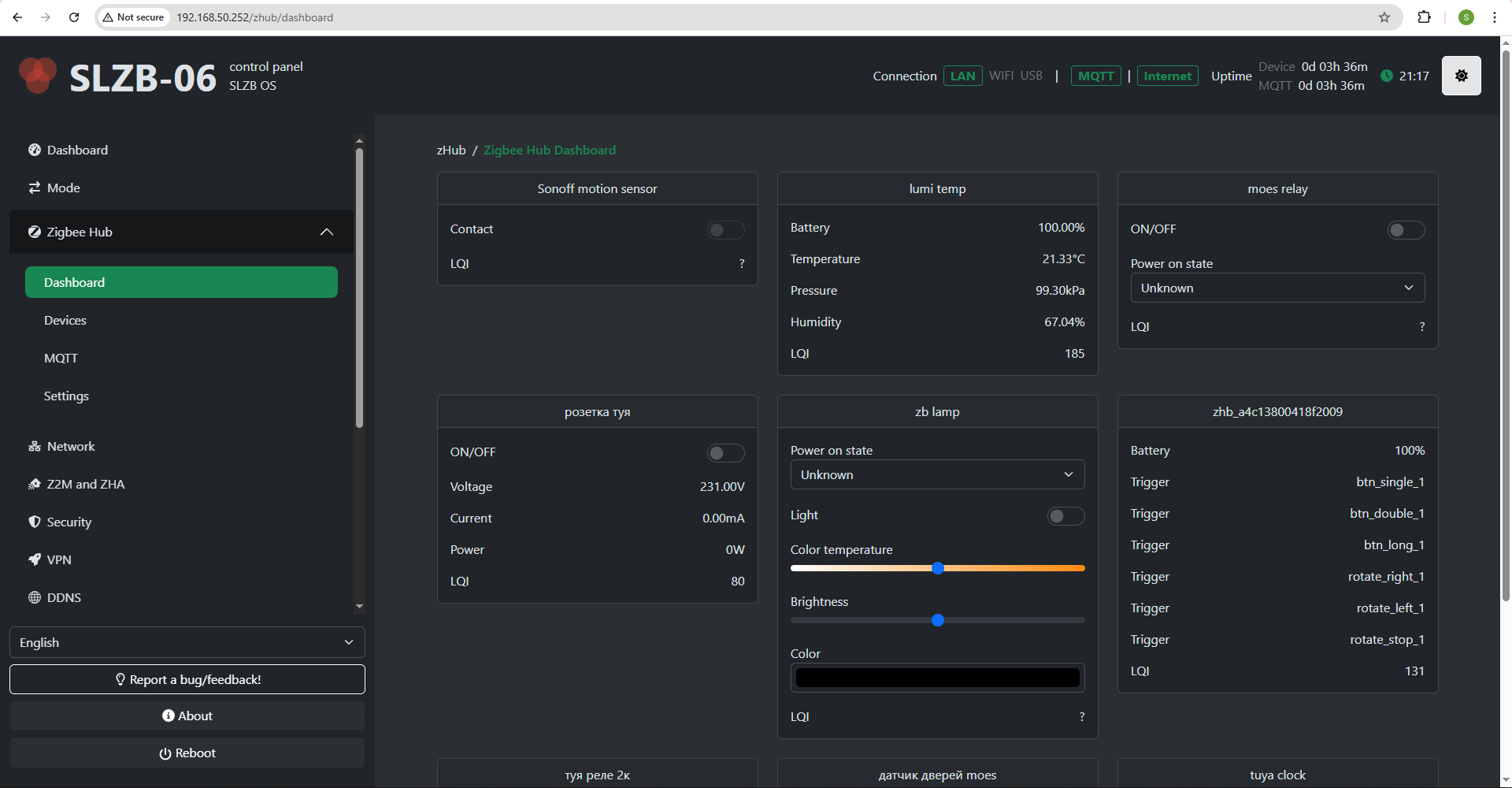
The dashboard contains cards of your ZigBee devices with the data they provide and controls.
The dashboard is updated in real time via SSE.
4.3 Zigbee Hub → Devices
The Devices page lists every Zigbee device paired to your coordinator.
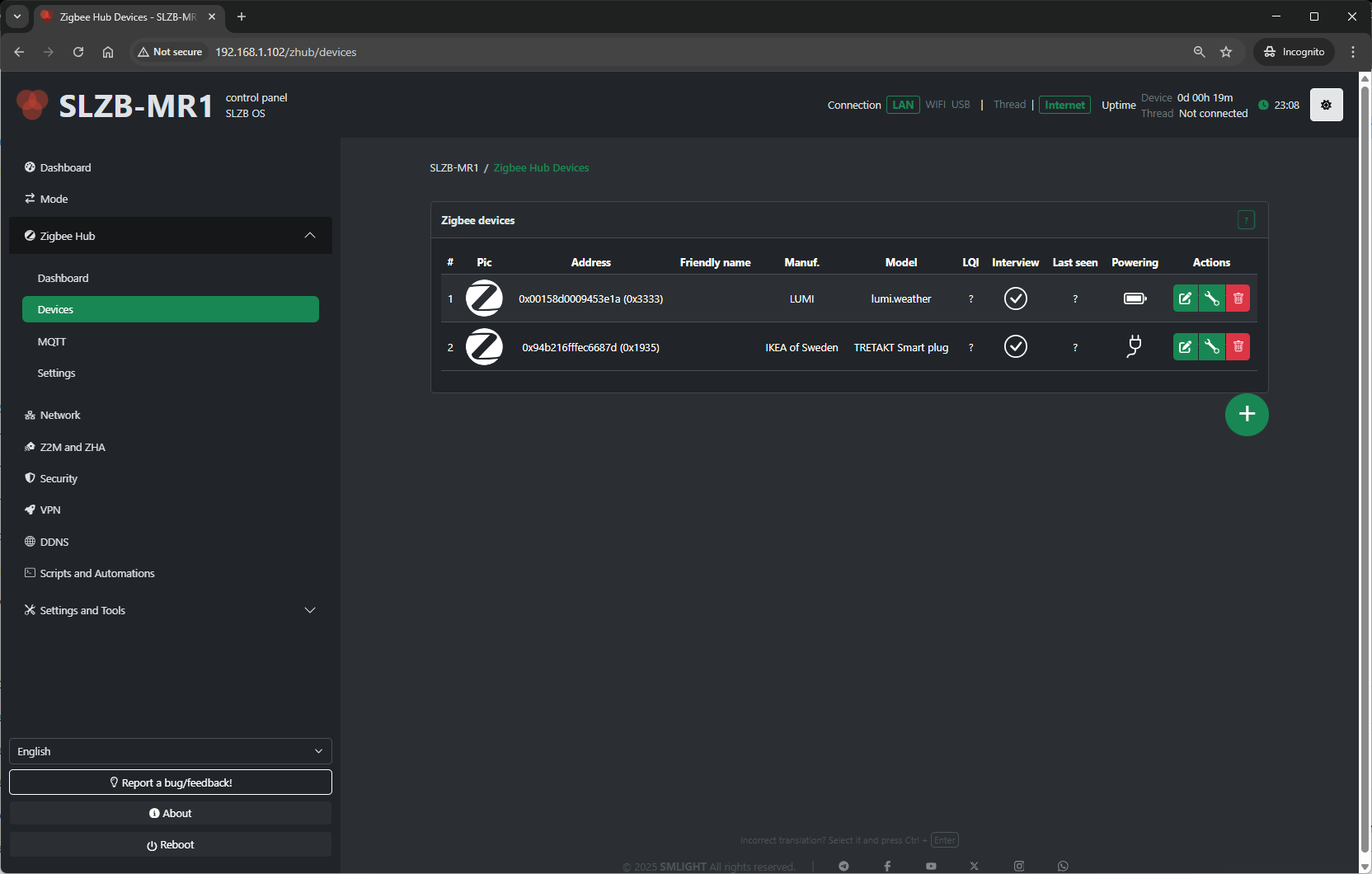
Pairing control:
- Permit Join (+ button on the bottom right side of the device table) – Allow or deny new devices joining the network.
For each device, you’ll see:
-
Name / Friendly Name – Human-readable identifier.
-
IEEE Address – Unique device ID.
-
Network Address – Short Zigbee address assigned by the coordinator.
-
Last Seen – Timestamp of the last communication.
- Powering – Device power source (AC/battery) or ? if the device does not provide information.
-
Link Quality (LQI) – Signal strength indicator.
-
Actions:
-
Rename device
-
Remove/unpair device
-
View device details (clusters, endpoints, bindings)
-
Bind/unbind devices (if supported)
-
Typical uses:
-
Verify devices are online and responsive.
-
Rename devices for easier identification in automations.
-
Remove devices no longer in use.
Device config
How to rename device
Select the pencil icon 
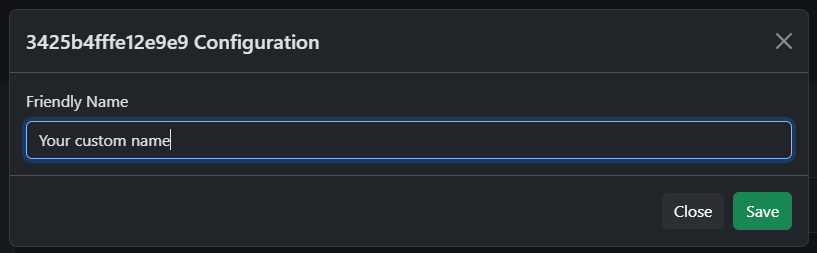
Enter new name and press "Save". Maximum length - 50 characters.
Device config
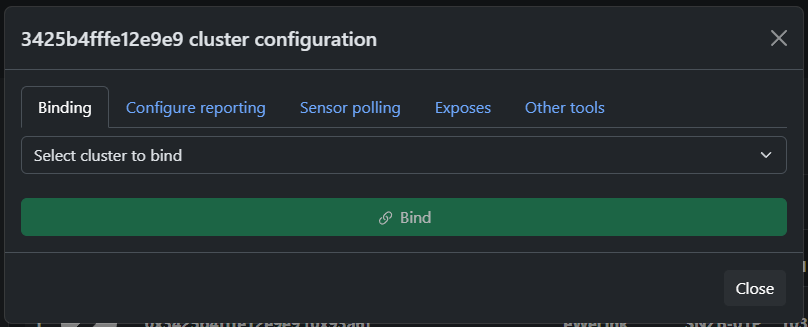
Click on the wrench
Binding
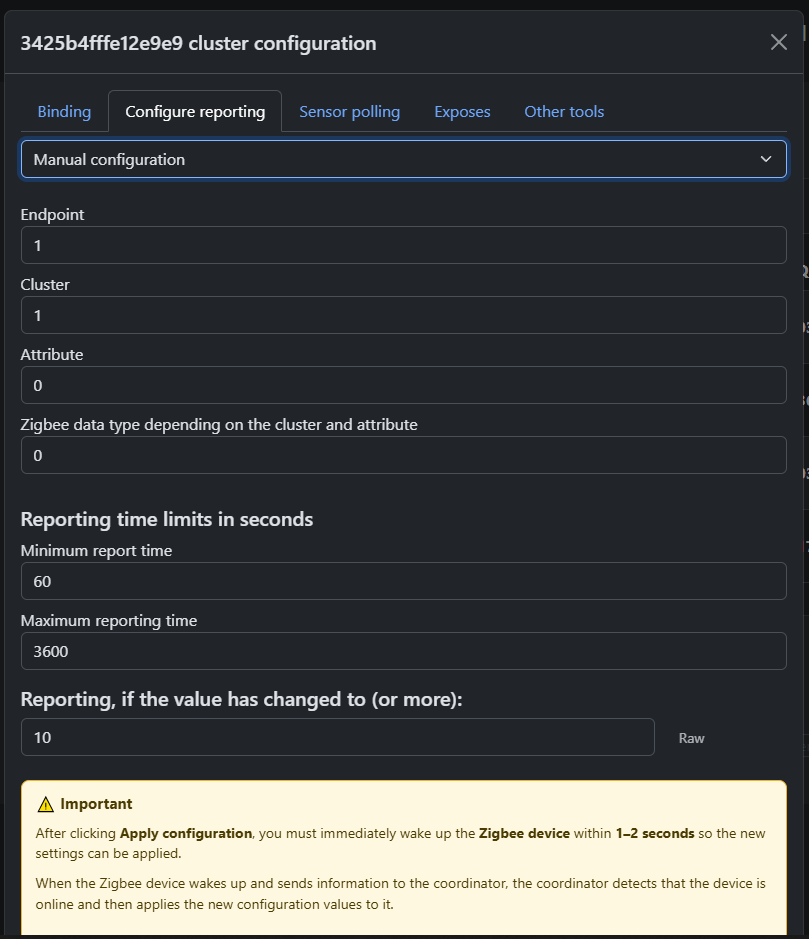
Configure reporting
Polling
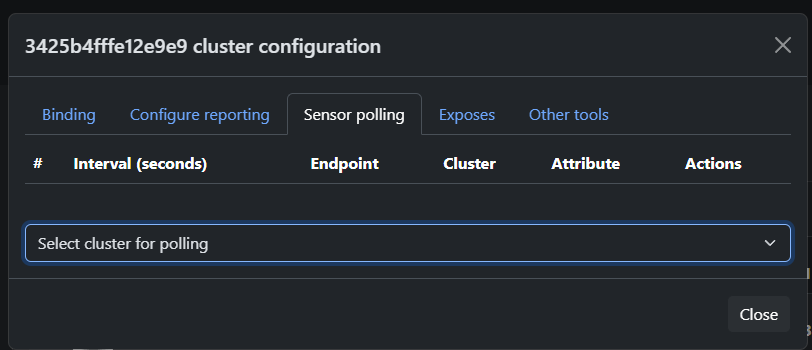
Allows you to configure polling of the selected attribute after a certain time interval
Exposes
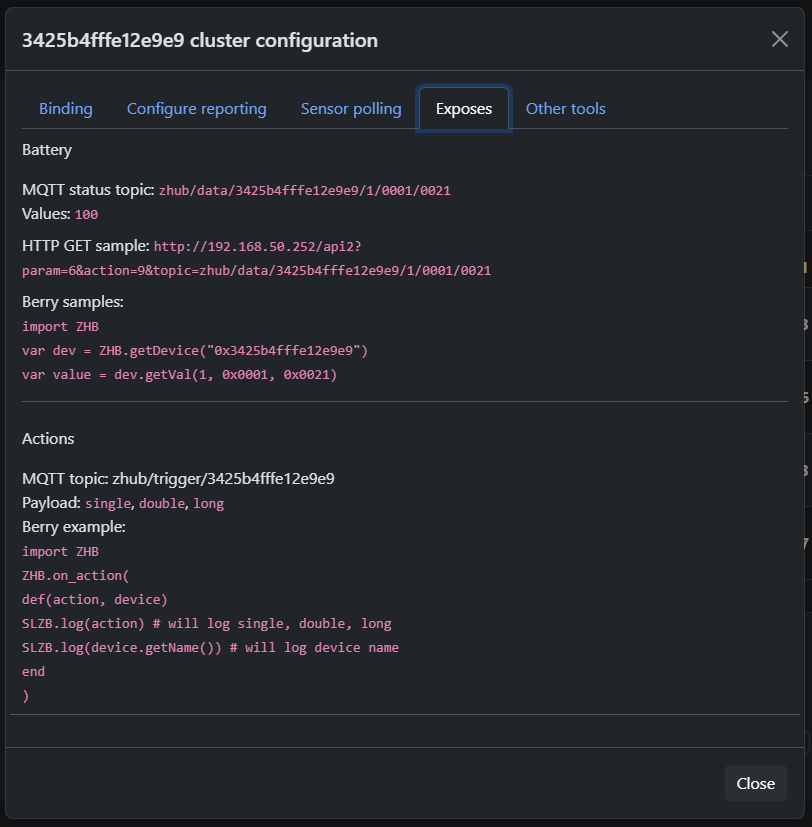
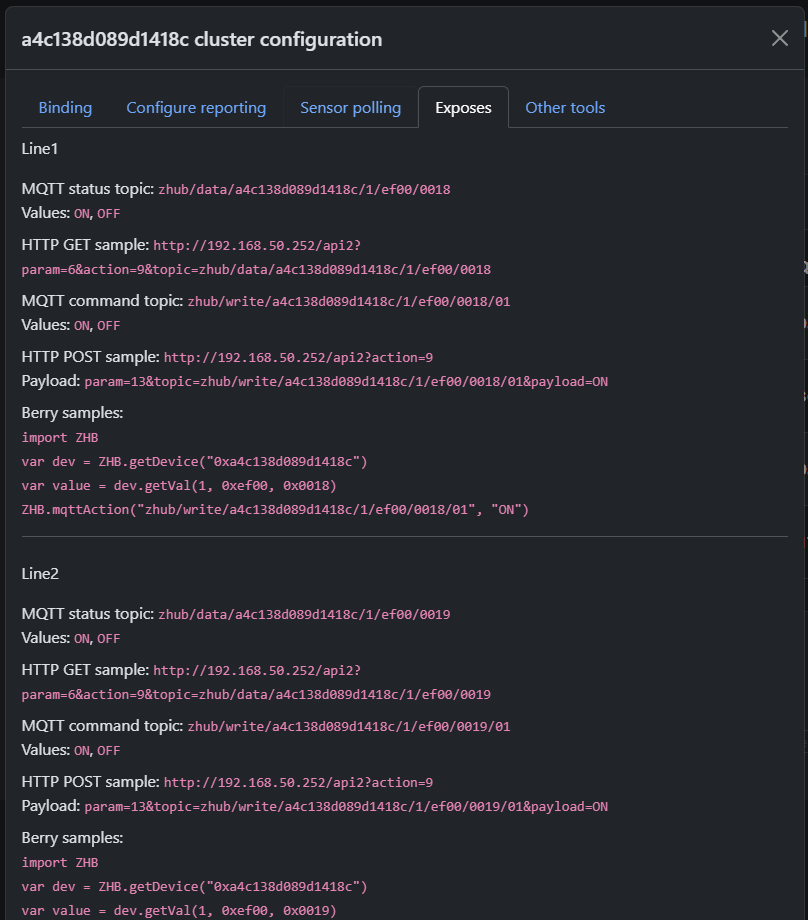
Provides information about expected data from the device and examples of using MQTT, HTTP, and Berry API to get or set device state.
IMPORTANT!
This section provides information about EXPECTED data from the device, based on information about the device clusters or converter (if it exists).
This information may not match the actual behavior of the device if it uses non-standard clusters!
If this is a Tuya DP device, then information will be displayed here only if a converter exists for the device!
Other tools
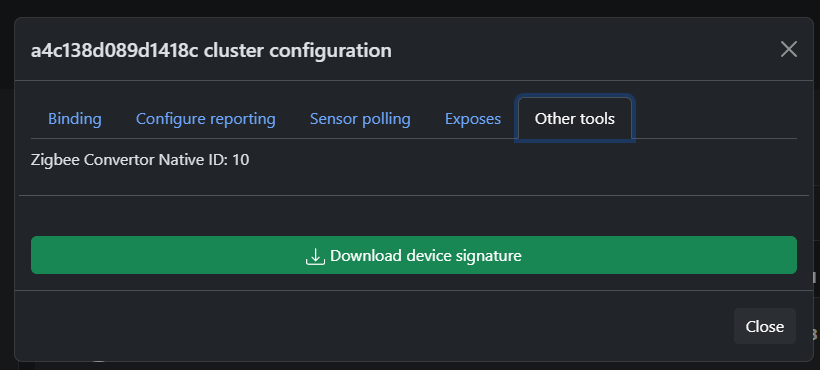
Here you can find the ZCN converter number (if used) and download device information
4.4 Zigbee Hub → MQTT
This page configures the MQTT connection that Zigbee2MQTT (running on SLZB-OS) uses to communicate with your smart home platform.
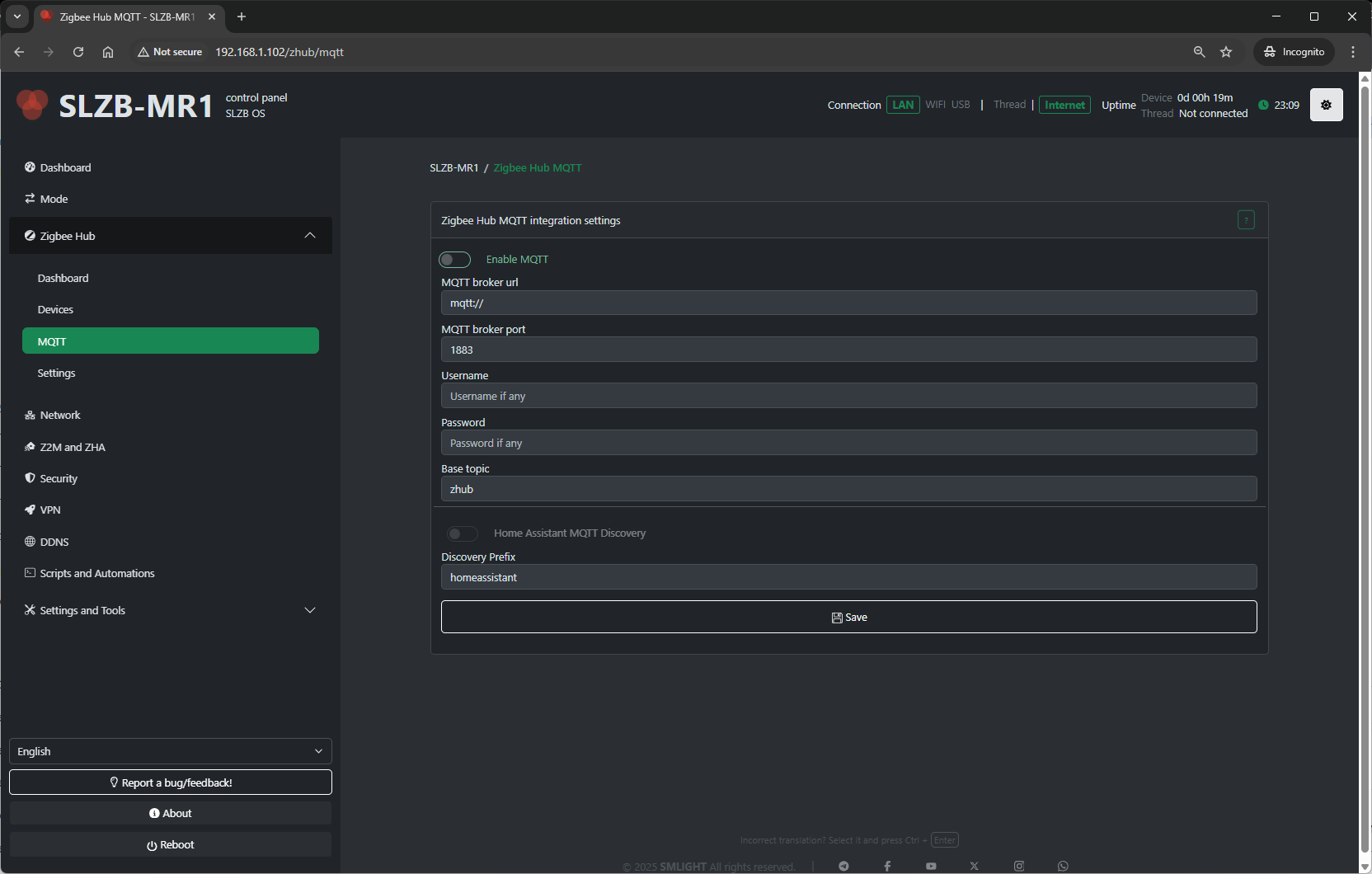
Configuration fields include:
-
MQTT Server Address – IP or hostname of your broker (e.g.,
mqtt://192.168.1.100). -
Port – Default 1883 for MQTT, 8883 for MQTT over TLS.
-
Username / Password – Broker authentication (if required).
-
Base Topic – Topic prefix for Zigbee messages (default:
zigbee2mqtt). - Discovery Prefix - Home assistant main topic name.
Tips:
-
For Home Assistant with Mosquitto add-on, use the HA IP and port
1883. -
Always use a unique base topic if you run multiple Zigbee networks.
-
Save and restart Zigbee Hub after making MQTT changes.
4.5 Zigbee Hub → Settings
The Settings page contains deeper configuration for the Zigbee coordinator and Zigbee2MQTT service.
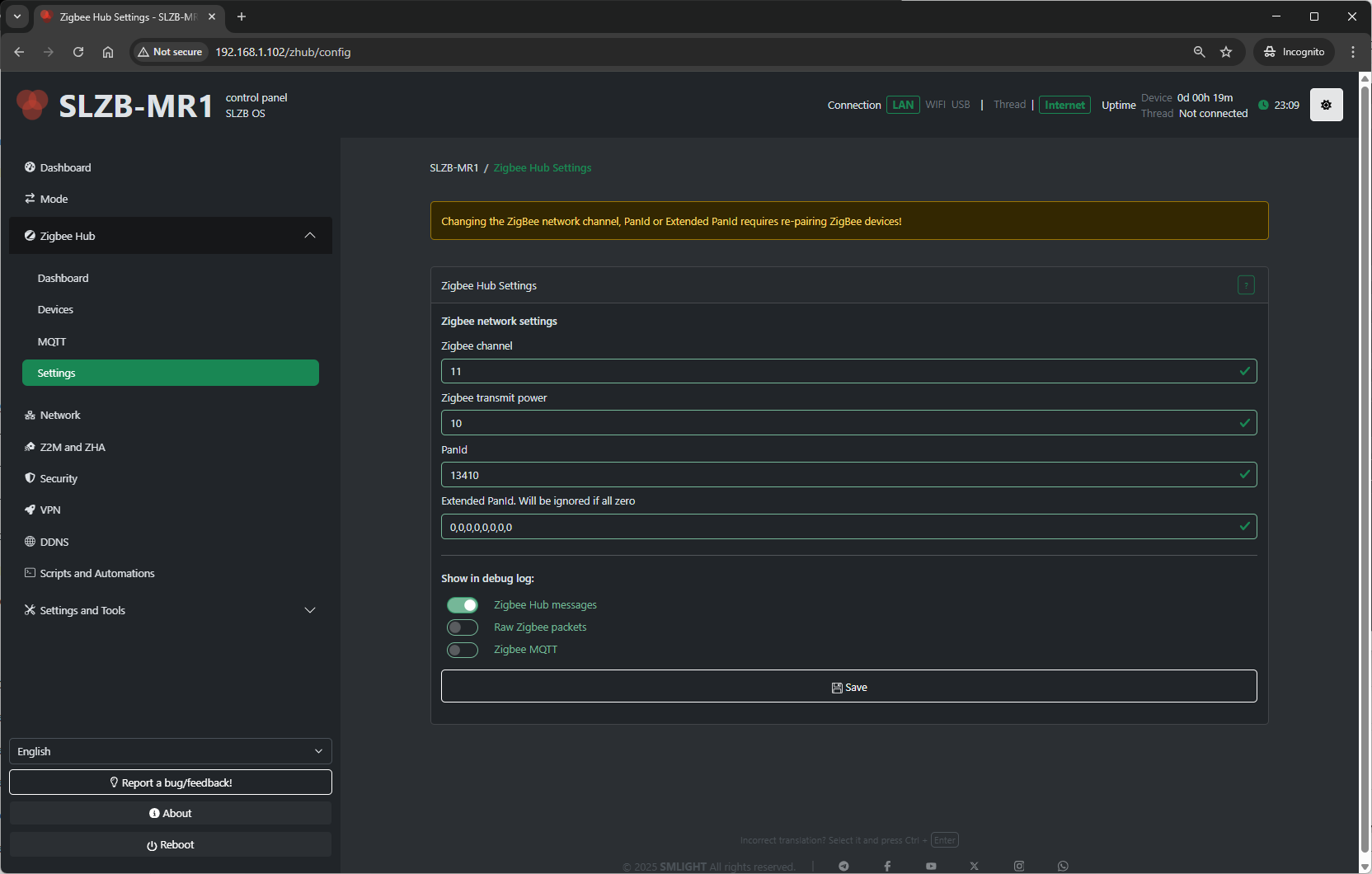
Typical settings available:
-
Network Parameters:
-
PAN ID – Zigbee network identifier.
-
Channel – RF channel (11–26; avoid Wi-Fi overlap if possible).
-
Extended PAN ID – Long network identifier.
-
-
Transmit Power – Radio TX power in dBm (higher = longer range, more power draw).
- Show in debug log - Select which categories of Zigbee-related information are recorded in the Log & Debug page.
-
Zigbee Hub messages – Logs high-level events from the Zigbee Hub service (e.g., device joins, status updates).
-
Raw Zigbee packets – Logs low-level Zigbee frame data; useful for deep protocol debugging.
-
Zigbee MQTT – Logs MQTT messages related to Zigbee communication, including publishes and subscriptions.
-
Best practices:
-
Change the Zigbee channel only on a fresh network (re-pair required after change).
-
Keep
Permit Joindisabled most of the time for security. -
Adjust transmit power to match your coverage needs and regulatory limits.
4.6 Troubleshooting
Problems when starting a Zigbee network
OS v3.0.9 update is breaking. If you updated OS to v3.0.9 and started getting this error then follow the instructions below
- turn off coordinator
- turn off ALL Zigbee routers that were connected to Zigbee Hub. This is important, it will not work without this
- turn on coordinator. Zigbee Hub should start now but zigbee devices will be unavailable
- remove all devices (click on the red trash can)
- download and run berry script below, this script will keep permit join enabled as long as it is running
#META {"start":0}
#Insert your code below
import ZHB

ZHB.waitForStart(0xFF)

while 1
  ZHB.permitJoin(254)
  SLZB.delay(255 * 1000)
end
- repair all devices
- after devices repaired you can stop and delete script
- move the coordinator away from the wifi router
- make sure there is no other coordinator nearby with the same zigbee network settings
MQTT API
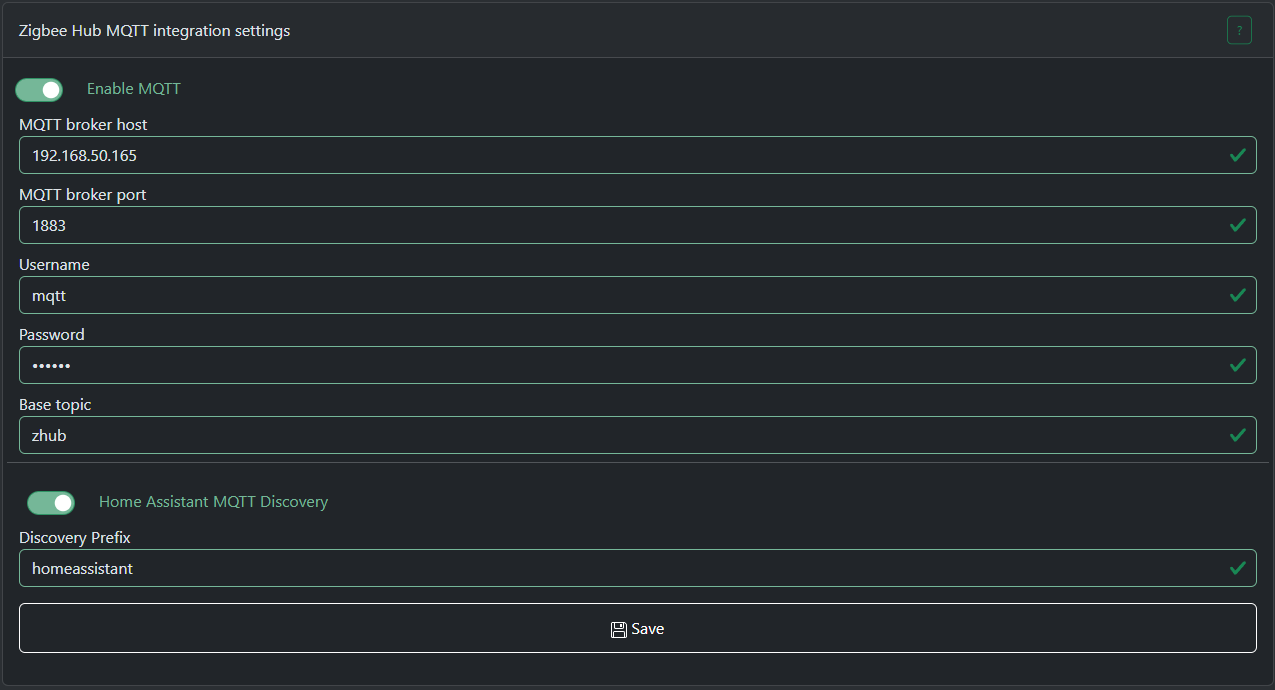
Zigbee Hub mode has the ability to connect to local or remote MQTT brokers. Currently only TCP connections are supported.
This document describes MQTT API for SLZB-OS 3.0.9 or higher
Topics are divided into IN and OUT.
IN - you can send messages to these topics.
OUT - Zigbee Hub sends messages to these topics.
zHub topics format
Data topic (OUT)
General data topic format below:base topic / data / zigbee device ieee / zigbee endpoint / zigbee cluster / zigbee attribute
base topic - global prefix, so you can have few Zigbee Hubs connected to one broker, you just have to set different base topics.data - static text (topic type)zigbee device ieee - sender IEEE address in HEX format.zigbee endpoint - zigbee endpoint from which this message is coming, DEC format.zigbee cluster - zigbee cluster from which this message is coming, HEX format.zigbee attribute - zigbee attribute from which this message is coming, HEX format.
Data topic example: zhub/data/a4c1383439bf5cc9/1/0000/0001
Read topic (IN) (available from v3.3.0)
This topic accepts requests to read attributes of ZigBee devices.
When you send a message to this topic, the coordinator generates and sends a request for the specified attribute to the target ZigBee device. The device must be online to accept the request, so this is usually used for AC-powered devices.
Topic format: base topic / read / zigbee device ieee / zigbee endpoint / zigbee cluster / zigbee attribute
base topic - global prefix, so you can have few Zigbee Hubs connected to one broker, you just have to set different base topics.read - static text (topic type)zigbee device ieee - sender IEEE address in HEX format.zigbee endpoint - zigbee endpoint from which this message is coming, DEC format.zigbee cluster - zigbee cluster from which this message is coming, HEX format.zigbee attribute - zigbee attribute from which this message is coming, HEX format.
Read topic example: zhub/read/a4c1383439bf5cc9/1/0006/0000
payload: any text
Attribute update will be sent to data topic!
PLEASE NOTE!
You must add any text content to the payload!
Do not send an empty payload to this topic!
An empty payload will only delete this topic (if it exists). The coordinator will not respond to empty payloads.
Command topic (IN)
This topic is intended for sending ZCL commands to a Zigbee device.
General cmd topic format below:base topic / cmd / zigbee device ieee / zigbee endpoint / zigbee cluster / zigbee command
base topic - global prefix, so you can have few Zigbee Hubs connected to one broker, you just have to set different base topics.cmd - static text (topic type)zigbee device ieee - target zigbee device IEEE address in HEX format.zigbee endpoint - target zigbee device endpoint to which this message is coming, DEC format.zigbee cluster - target zigbee device cluster to which this message is coming, HEX format.zigbee command - zigbee command to send, HEX format.
Some clusters have special handlers for input commands, such as the ON/OFF or Light cluster. You can find their formats below:
ON/OFF cluster payload format for command topic
ON - send ON commandOFF - send OFF command
Example: zhub/cmd/a4c1383439bf5cc9/1/0006 payload: ON
Will send command to enable relay or light device.
Level control for Light cluster payload format
0000 command payload is a number in DEC from 1 to 254, the larger the number, the brighter the lamp will be.
Color control cluster payload format
0007 command payload is a color in HEX or RGB format. For example: 255,29,0 or #FFFFFF000a command payload is a light temperature in mired. For example: 200
Other clusters
If no built-in clusters or ZCN converters has overridden the processing of this command, if the command contains a payload, it must be a HEX string of the following format:
- Bytes without spaces, uppercase, multiple of two. Example: 010203FF
- Bytes with spaces, uppercase, grouped by two. Example: 01 02 03 FF
Write topic (IN)
This topic is intended for writing ZigBee device ZCL attributes.
General write topic format below:base topic / write / zigbee device ieee / zigbee endpoint / zigbee cluster / zigbee attribute
base topic - global prefix, so you can have few Zigbee Hubs connected to one broker, you just have to set different base topics.write - static text (topic type)zigbee device ieee - target zigbee device IEEE address in HEX format.zigbee endpoint - target zigbee device endpoint to which this message is coming, DEC format.zigbee cluster - target zigbee device cluster to which this message is coming, HEX format.zigbee attribute - target zigbee device attribute to which this message is coming, HEX format.
Cluster 0006, attribute 4003 payload format
Last state - device will remember its stateON - device will be on after power lossOFF - device will be off after power lossCluster EF00 (Tuya DP) payload format
Please note that the write topic format for Tuya is different!
base topic / write / zigbee device ieee / 1 / ef00 / data point / data type
data point - Tuya data point id. You can read more about it here: https://www.zigbee2mqtt.io/advanced/support-new-devices/03_find_tuya_data_points.htmldata type - a number that represents the type of data being sent.
0 - RAW, 1 - BOOL, 2 - INT, 3 - STRING, 4 - ENUM, 5 - BITMAP
Examples:
topic: zhub/write/a4c138d089d1418c/1/ef00/0018/1
payload: 1
Any other clusters/attributes payload format
Payload should contain JSON: {"type": <zigbee data type>, "data":<data to be sent>}type - a number that represents the type of data being sent.
Zigbee Data Types and Data Type IDs
|
Data Class |
Data Type |
Data Type ID |
|---|---|---|
|
Null |
No data |
0x00 |
|
General Data |
8-bit data |
0x08 |
|
Logical |
Boolean |
0x10 |
|
Bitmap |
8-bit data |
0x18 |
|
Unsigned integer |
Unsigned 8-bit integer |
0x20 |
|
Signed integer |
Signed 8-bit integer |
0x28 |
|
Enumeration |
8-bit enumeration |
0x30 |
|
Floating point |
Semi-precision |
0x38 |
|
String |
Reserved |
0x40 |
|
Ordered sequence |
Array |
0x48 |
|
Collection |
Set |
0x50 |
|
Reserved |
- |
0x58—0xdf |
|
Time |
Time of day |
0xe0 |
|
Identifier |
Cluster ID |
0xe8 |
|
Miscellaneous |
IEEE Address |
0xf0 |
|
Unknown |
Unknown |
0xff |
data - a HEX string of the following format:
- Bytes without spaces, uppercase, multiple of two. Example: 010203FF
- Bytes with spaces, uppercase, grouped by two. Example: 01 02 03 FF
Please note that the number of bytes in the payload strictly depends on the data type!
For example, if you send data with type 16-bit integer, the number of bytes in the payload should be 2.
Example: {"type": 33, "data":"0000"}
33 - is 0x21 converted to DEC
System control topic (IN) (available from v3.3.0)
This topic allows you to control main functions of the Zigbee Hub.
Topic format: base topic / system_control
Payload format: {"action": "<system control actions>", <additional parameters>}
Permit join action
Allows you to open a ZigBee network to add new devices.
Payload format: {"action": "permit_join", "time": <time to open the network in seconds, from 1 to 254>, "addr": <network address of the device on which to open the network. Can be omitted if the network needs to be opened on all devices>}
Examples:{"action": "permit_join", "time": 60} - open the entire network for 60 seconds{"action": "permit_join", "time": 0} - close network{"action": "permit_join", "time": 60, "addr": 64580} - open the network for 60 seconds only on device with network address 64580 (DEC number, not HEX)
Configure reporting action
Configures reporting for the selected device. If the device is battery-powered, it must be woken up to accept this command.
Payload format: {"action": "configure_reporting", "ieee": <IEEE address of the target device, HEX string>, "ep": <target endpoint, DEC>, "cl": <target cluster, DEC>, "attr": <target attribute, DEC>, "minRep": <minimum time for reporting in seconds, DEC>, "maxRep": <max time for reporting in seconds, DEC>, "dType": <zigbee reporting data type for this attribute, DEC>, "change": <how much the attribute value must change for reporting to occur. Should be omitted for discrete attributes>}
Examples:{"action": "configure_reporting", "ieee": "3425b4fffe12e9e9", "ep": 1, "cl": 6, "attr": 0, "minRep": 1, "maxRep": 3600, "dType": 0} - configure ON/OFF attribute repotring to minimum 1s and max 3600s report time. "change" field is omitted because it is a discrete attribute.{"action": "configure_reporting", "ieee": "3425b4fffe12e9e9", "ep": 1, "cl": 2820, "attr": 1285, "minRep": 30, "maxRep": 3600, "dType": 33, "change": 200} - configure RMS Voltage attribute repotring to minimum 1s and max 3600s report time. Reporting will occur no earlier than 30s if the value has changed by 200 or more (2v) or after a 3600s timeout if value does not changed.
Binding action
Binds the target device to the coordinator or to another device.
If one device bound to another, the coordinator will stop receiving reports from the bound device cluster.
Payload format: {"action": "binding", "mode": "<binding mode>", "scrIeee": "<IEEE of the device to which the binding request will be sent, HEX string>", ""scrEp": <endpoint number that needs to be bound, DEC number>, "scrCl": <cluster number that needs to be bound, DEC number>, <additional parameters>}
To device mode
Binds one device to another.
Payload format: {"action": "binding", "mode": "to_device", "scrIeee": "<IEEE of the device to which the binding request will be sent, HEX string>", ""scrEp": <endpoint number that needs to be bound, DEC number>, "scrCl": <cluster number that needs to be bound, DEC number>, "dstEp": <endpoint number to which the binding will be done, DEC number>, "dstIeee": "<IEEE device to which binding will be performed, HEX string>"}
Example: {"action": "binding", "mode": "to_device", "scrIeee": "3425b4fffe12e9e9", ""scrEp": 1, "scrCl": 6, "dstEp": 1, "dstIeee": "a4c1389ffb198304"} - binding a Zigbee button (ON/OFF cluster) to a Zigbee relay.
To coordinator mode
Binds to the coordinator so that it can receive reports from this cluster.
Zigbee Hub will attempt to bind automatically when interviewing a device, but this does not always work perfectly.
Payload format: {"action": "binding", "mode": "to_device", "scrIeee": "<IEEE of the device to which the binding request will be sent, HEX string>", ""scrEp": <endpoint number that needs to be bound, DEC number>, "scrCl": <cluster number that needs to be bound, DEC number>}
Example: {"action": "binding", "mode": "to_coordinator", "scrIeee": "3425b4fffe12e9e9", ""scrEp": 1, "scrCl": 6} - binding a Zigbee button (ON/OFF cluster) to the coordinator.
Berry ZCN system manual
Everything here requires the device to run in Zigbee Hub mode and SLZB-OS v3.3.8.dev0 or higher.
This document describes the Berry side of the ZCN converter system: writing device-specific Zigbee Hub converters as Berry scripts, without rebuilding the firmware.
The concept of ZCN primarily refers to native C++ converters, but we decided to keep this name for Berry converters for simplicity. Actually Berry converters are not native, they are a scripting interface.
1. What Berry ZCN is and when to use it
A Berry ZCN converter is the runtime-scriptable twin of a native zcn_converter_t: a description of how a specific Zigbee device deviates from standard ZCL handling — extra/proprietary attributes, remapped clusters, custom value normalization, custom MQTT/Home Assistant discovery — plus Berry callback functions that the hub invokes at the same points where native converters invoke C function pointers.
Use Berry ZCN when you want to:
- Prototype a converter for a new device without a firmware rebuild — iterate directly in the on-device script editor, then port the result to a native converter for shipping.
- Support a device locally that the stock firmware does not have a converter for.
- Experiment with normalization/serialization/discovery logic against a live device.
2. Architecture and lifecycle
2.1 Slots
There are (currently 2) slots for Berry converters. Each registered converter occupies one slot. Registration fails with "no free slots for ZCN" when all slots are taken.
2.2 VM binding and garbage collection
- A converter belongs to the VM that registered it.
- All callback functions passed into the structure are GC-pinned while the converter exists, and unpinned on delete — you can use closures/anonymous
defblocks safely. - When a script's VM stops, all its converters are automatically deleted. Restarting the script re-registers them.
2.3 Attachment is NOT persisted — attach on every boot
This is the most important lifecycle difference from native ZCN:
- The native converter index is saved in the device database and restored on boot.
- The Berry converter index is runtime-only. It resets every boot and is set only by:
- Interview matching — during a device interview.
- Explicit
ZCN.attach(slot, ieee)from your script.
Since interviews only run at pairing, a converter script must call ZCN.attach() for its devices every time it starts. The standard pattern:
var slot = ZCN.register(my_converter)
ZCN.attach(slot, "0x3425b4fffe12e9e9") # repeat for each device
Optional, run the script with autostart (#META {"start":1}) so the converter is registered and attached right after boot.
2.4 Priority over native converters
Berry converters take priority everywhere:
- Interview matching: all Berry slots are checked first; if one matches, is set and native matching is skipped.
- Runtime dispatch: every hook site checks
ZCN_CHECK_BE(dev)before the nativeZCN_CHECK(dev)— data handling, on_cmd, MQTT write/cmd, HA discovery, trigger discovery. A device can technically have bothzcnandzcn_beset; the Berry one is consulted first wherever it provides an override.
2.5 Matching logic
- If the converter has a
matcherfunction — it is called asdef (dev)with aZigbeeDeviceinstance and must returntrue/false.model/manufstrings are ignored. - Otherwise — exact string compare of both
manuf(Basic attr 0x0004) andmodel(Basic attr 0x0005) against the interviewed values.
3. Quick start
The easiest way to produce a converter is the ZCN Builder page in the web UI (Zigbee Hub → ZCN Builder): assemble the structure in the form, pick callback presets, and copy the generated Berry code.
ZCN.register() validates the map, finds a free slot, and feeds the structure into the native slot. It returns the slot number (needed for ZCN.attach) and raises a descriptive error on failure (the partially built slot is deleted automatically).
4. Converter map reference
The converter is a plain Berry map. Missing keys get defaults: int → 0, string → "", bool → false, function → nil (exceptions noted below). Extra/unknown keys are ignored.
4.1 Top level
| Key | Type | Required | Meaning |
|---|---|---|---|
signature |
map | yes (raises otherwise) | Device matching, see below |
on_annonce |
function | no | Called when the device announces itself (power-on / rejoin) |
on_intw_stage |
function | no | Called before interview stages; see §5.2 |
overrides_count |
int | yes, if overrides present |
Must equal overrides.size() — it is not derived automatically |
overrides |
list of maps | no | Endpoint overrides |
4.2 signature
The signature tells SLZB-OS whether this converter is suitable for the device for which the interview is currently being performed.
| Key | Type | Meaning |
|---|---|---|
matcher |
function | If present, used instead of model/manuf. Must be a function |
model |
string | Zigbee model identifier (exact match via strcmp()) |
manuf |
string | Manufacturer name (exact match) |
4.3 Endpoint override (element of overrides)
| Key | Type | Meaning |
|---|---|---|
endpoint |
int | Zigbee endpoint number this override applies to |
clusterCount |
int | Number of clusters in clusters |
clusters |
list of maps | Cluster object array |
4.4 Cluster override (element of clusters)
| Key | Type | Default | Meaning |
|---|---|---|---|
id |
int | 0 | ZCL cluster id (e.g. 0x0402) |
addMode |
int | 0 | 0 = ADD (merge with the standard cluster: your attrs are used where ids collide, standard attrs fill the rest),1 = OVERRIDE (standard cluster fully ignored; only your definition used) |
bind |
bool | false | Bind this cluster to the hub during interview |
attrCount |
int | 0 | Number of attributes in attrs |
attrs |
list of maps | — | Attribute objects array |
cmd_config |
map | — | Cluster command handling (buttons/actions), see below |
on_mqtt_cmd |
function | nil | Used for cmd_config.Handles MQTT messages on the {base}/cmd/... topic for this cluster. Return true = handled (standard handling skipped) |
4.5 cmd_config
Tells SLZB-OS what actions(triggers) this cluster provides. Typically used for Zigbee buttons and scene remotes.
| Key | Type | Meaning |
|---|---|---|
on_cmd |
function |
Converts the received command record into an action string (e.g. Must return a string to publish it as an action. |
exposes |
string | "|"-separated list of all possible action strings — used to generate device-trigger discovery |
exposesOverride |
function | Dynamic alternative to exposes: return the "|"-separated list at discovery time; empty-string return skips triggers for this cluster |
Note: the command path is only taken when the cluster has on_cmd and at least one of exposes / exposesOverride.
4.6 Attribute override (element of attrs)
| Key | Type | Default | Meaning |
|---|---|---|---|
id |
int | 0 | ZCL attribute id |
name |
string | "" | Human-readable name (shown in web UI) |
mqttClass |
int | 0 | MQTT entity type, see table below |
mqttSubClass |
string | "" | MQTT entity device_class (e.g. "temperature", "moisture") |
unit |
string | "" | Unit of measurement (e.g. "°C") |
dataType |
int | 0 |
ZCL data type. Required for configuring reporting and if this attribute is writable. Can be omitted if the attribute is not writable and not reported. |
ram |
bool | false | If True, ZHB will create a special container (record) for this attribute in RAM at startup. The received value will be cached in this container, only the last value is stored. |
rp |
bool | false | Configure attribute reporting during interview. Also adds this attribute to web UI "configure reporting" dialog. |
minReport |
int | 1 | Reporting: minimum interval, s. Can be omitted if rp is false |
maxReport |
int | 3600 | Reporting: maximum interval, s. Can be omitted if rp is false |
change |
int | 1 | Reporting: reportable change threshold. Can be omitted if rp is false |
rpChangeMult |
real | 0 |
Multiplier for the web UI "configure reporting" dialog: raw ZCL reportable change = human value × |
query |
bool | false | If True, the coordinator will send a request to read this attribute when the hub starts. |
on_normalize |
function | nil | Tells ZHB how to convert raw Zigbee data into usable data, see §5.4 |
on_serialization |
function | nil | Tells ZHB how to convert data in a container (record) into a text representation, see §5.5 |
on_discovery |
function | nil | Allow you to customize/veto discovery for this attribute, see §5.6 |
on_mqtt_write |
function | nil | Tells ZHB how to handle {base}/write/... MQTT messages, see §5.7 |
mqttClass values:
| Value | Class |
|---|---|
| 0 | NONE (not exposed to WEB/MQTT) |
| 1 | BINARY_SENSOR |
| 2 | BUTTON |
| 3 | TRIGGER |
| 4 | |
| 5 | |
| 6 | LIGHT |
| 7 | NUMBER |
| 8 | SELECT |
| 9 | SENSOR |
| 10 | SWITCH |
| 11 | |
| 12 |
5. Callback reference
All callbacks run inside your script's VM, scheduled through the Berry event system. The hub task waits up to ~20 ms for the VM to become available; if the VM is busy longer (e.g. a blocked loop in your script), the event is dropped — keep both the callbacks and the rest of the script non-blocking.
dev arguments are ZigbeeDevice instances, record arguments are ZclAttrRecord instances (§6). doc/data are JSON proxy objects supporting obj["key"] = value style access.
5.1 on_annonce
Called when an attached device sends a device announce (typically power-on or rejoin). Return value ignored.
5.2 on_intw_stage
Called before interview stages, identified by string tag. Return one of:
| Return | Meaning |
|---|---|
0 (DONE) |
Stage handled by the converter — hub skips its standard logic and go to next stage |
1 (WAIT) |
Converter started something async — hub waits, stage will be re-entered |
2 (ERR) |
Fail interview on this stage |
3 (ZCN_UNUSED) |
Converter does not care — hub runs standard logic (default choice) |
Caveat (same as native): on the first interview the converter is matched at the intw_zcn stage, so tags for stages ordered before it (req_ep, discover_ep) only fire on re-interview — unless the device was pre-attached with ZCN.attach().
5.3 cmd_config.on_cmd
Called when a ZCL command arrives on the cluster (record.isCmd() is true; record.getAttr() holds the command id). Return the action string to publish (must be one of the exposes values for HA to recognize it). Non-string return = not handled.
Important for Tuya commands: record.asInt() contains the ID of the Tuya command and record.getAttr() its data.
5.4 on_normalize
Called right after the raw ZCL value is parsed into the record, before it is stored and serialized.
Mutate the record in place:
"on_normalize": def (record, dev)
  record.setFloat(record.asInt() / 100.0)
end
You can also redirect a record to another cluster/attr (record.setCl(), record.setAttr(), record.setEp()) — e.g. unpacking a proprietary struct into standard records. The redirect target attr must exist (declare it with ram: true).
5.5 on_serialization
Called when the stored record is converted to JSON for MQTT / web dashboard.
Write into data:
"on_serialization": def (record, dev, data)
  data["type_sm"] = "report"
  data["val"] = record.asFloat()
end
Keys follow the native zcl_json convention: "type_sm" (usually "report") and "val". If absent, standard serialization for the data type applies.
5.6 on_discovery
Called when generating discovery payload for this attribute. doc is the discovery JSON (base payload already filled from mqttClass/mqttSubClass/name/unit); zhbBase is the MQTT base topic. Add or override keys, e.g. doc["state_class"] = "measurement". In most cases, you only use doc if you need to add something (like min, max and step for a slider).
Return true to publish, false to veto discovery of this attribute. Note: with no callback set the attribute is still discovered when mqttClass != 0; but if you do set a callback, you must return true for it to be published.
5.7 on_mqtt_write
Called for MQTT messages on the {base}/write/... topic targeting this attribute. data is the raw payload string. Convert and send to the device (dev.sendCmd, dev.sendTuyaData, etc.). Return true = handled (standard ZCL write skipped).
5.8 on_mqtt_cmd (cluster level)
Same idea for the {base}/cmd/... topic — cluster commands sent from MQTT (e.g. switch toggles). Return true = handled.
6. Objects available in callbacks
6.1 ZigbeeDevice - Berry Zigbee device proxy
| Method | Description |
|---|---|
matcher(manuf, model) -> bool |
Exact manuf+model compare |
getName() / getIeee() / getModel() / getManuf() / getNwk() |
Identity |
hasName() / setName(s) / setModel(s) / setManuf(s) |
Identity write access (e.g. normalizing Tuya _TZE200_... model strings in a matcher) |
getPS() / setPS(v) |
Power source (CONST_ZCL_PS.*) |
getBattery() / getLqi() / getLastSeen() |
Telemetry |
getIAS() / setIAS(v) |
IAS zone type (CONST_ZCL_IAS.*) |
isBattery() / isAc() / isTuya() / haveTuyaDP() / isInterviewing() / isZcnUsed() |
State predicates (isZcnUsed = a native converter is attached) |
haveEndpoint(ep) / addEp(ep) / removeEp(ep) |
Endpoint list management (addEp creates an empty endpoint — populate it with addInCluster/addOutCluster) |
hasInCluster(cl) / addInCluster(cl [, ep]) |
Input cluster list (ep 0 / omitted = first endpoint); duplicate-safe |
hasOutCluster(cl) / addOutCluster(cl [, ep]) |
Output cluster list, same semantics |
removeCluster(ep, cl) |
Remove a single input cluster from an endpoint ("ignore cluster X" quirks) |
getVal(ep, cl, attr) / setVal(ep, cl, attr, value) |
Read / update a stored record value (setVal accepts bool/int/real/string/bytes and only updates an existing record) |
addRecord(ep, cl, attr) / haveRecord(ep, cl, attr) / removeRecord(ep, cl, attr) / removeAllRecords() |
RAM record management |
queryAllRecords([pauseMs]) / queryMissingRecords([pauseMs]) |
Actively read all / value-less records from the device (warning: a non-zero pause blocks the script and the hub for pause × records ms — prefer 0) |
startPooling(intervalSec, ep, cl, attr) / stopPooling(ep, cl, attr) |
Periodic attribute polling driven by the hub task |
sendOnOff / sendBri / sendColor / sendColorTemp |
High-level actuator commands |
sendCmd(ep, cl, cmd [, bytes]) |
Raw ZCL cluster command |
sendTuyaData(dp, ztype, val) |
Tuya 0xEF00 datapoint write |
sendTuyaQuery() / sendTuyaMagic() |
Tuya: query all datapoints / send the "magic" init packet (typical in on_annonce) |
readAttr(ep, cl, attr...) |
ZCL Read Attributes request |
writeAttr(ep, cl, attr, dType, bytes) |
ZCL Write Attribute with a raw payload (for custom on_mqtt_write handlers) |
confReporting(ep, cl, attr, dType, minReport, maxReport, change) |
ZCL Configure Reporting (for custom on_intw_stage("conf_reporting") handling) |
nodeDescReq() / simpleDescReq(ep) / reqEndpoints() |
Low-level ZDO requests; responses are processed by the interview state machine, so these are mainly useful inside on_intw_stage |
bindToHub / bindToDevice / bindToGroup |
Binding operations |
(module-level) ZHB.await(seq [, timeoutMs]) -> bool / ZHB.lastStatus() / ZHB.on_response(seq, cb(ok, status) [, timeoutMs]) -> bool |
Wait for the device's response to a previous send (sync / async); the device is resolved from seq. ZHB.await() raises inside ZCN callbacks — they run on the ZHB task; use ZHB.on_response() there. See docs/slzb-os-scripts/docs/modules/zhb.md |
6.2 ZclAttrRecord - Zigbee data container
Getters: getEp(), getCl(), getAttr(), getStatus(), getZtype() (raw ZCL type), getSMtype() (internal storage type, compare against ZclAttrRecord.TYPE_* constants: TYPE_NONE/U32/I32/FLOAT/BUF/STR/BOOL/CMD/CMD_PAYLOAD).
Predicates: isCmd(), isCmdPayload(), isTuya() (cluster == 0xEF00), hasPayload() (type is not TYPE_NONE), matcher(cl, attr [, ep]) -> bool.
Value access: asInt(), asFloat(), asStr(), asBytes(), asLumiStruct([start]) — parses the Lumi/Aqara proprietary struct (Basic 0xFF01/0xFF02 buffer) into a {tag_id: int} map; getMSB16() / getLSB16() — high/low 16-bit halves of the raw 32-bit value (e.g. packed color X/Y).
Mutation: setInt(v), setUInt(v), setFloat(v), setBool(v), setStr(v), setBuf(bytes) (replaces the payload with a copy of a Berry bytes() buffer, 1–255 bytes), setCmd(cmdId [, tuyaCluster]), setMSB16(v) / setLSB16(v), setEp(v), setCl(v), setAttr(v).
7. ZCNP — native callback presets
The ZCNP module exposes ready-made preset functions used by built-in converters, so a Berry converter can reference them directly instead of re-implementing the logic:
import ZCNP
...
"on_normalize": ZCNP.zcn_norm_i16_divide_100, # the received zigbee value has data type int16 and needs to be divided by 100 to convert it to float
"on_serialization": ZCNP.zcn_ser_float, # the received value is converted to float, so we convert float to string
"on_discovery": ZCNP.zcn_dis_gen_basic_measurement, # add "measurement" class on discovery| Kind | Functions |
|---|---|
| normalize | zcn_norm_i16_divide_10/100/1000, zcn_norm_u16_divide_10/100/1000, zcn_norm_lumi_basic |
| serialization | zcn_ser_float, zcn_ser_raw_uint, zcn_ser_xy, zcn_tuya_ser_switch, zcn_ser_tuya_batt_enum, zcn_ser_lumi_basic |
| discovery | zcn_dis_gen_basic, zcn_dis_gen_basic_measurement, zcn_dis_tuya_batt_enum |
| mqtt write | zcn_write_tuya_int, zcn_write_tuya_float_int100, zcn_write_int16, tuya_switch_handler |
| cmd | zcn_cmd_onoff_action, tuya_ias_wd_cmd_action |
zcn_norm_i16_divide_10/100/1000 |
divides received two-byte signed int by 10/100/1000 and converts result to float. Typically used for temperature sensors, etc. |
zcn_norm_u16_divide_10/100/1000 |
divides received two-byte unsigned int by 10/100/1000 and converts result to float. Typically used for humidity or voltage sensors, etc |
zcn_norm_lumi_basic |
parses the battery value from the proprietary LUMI structure and sends it to the basic cluster |
zcn_dis_gen_basic |
generates the minimum possible discovery payload |
zcn_dis_gen_basic_measurement |
generates the minimum possible discovery payload and add: {"state_class": "measurement"}
|
zcn_dis_tuya_batt_enum |
battery enumeration: high, med, low |
zcn_cmd_onoff_action |
handles standard ZCL ON/OFF commands for cluster 0x0006 |
tuya_ias_wd_cmd_action |
|
zcn_write_tuya_int |
sends the received value as tuya int type |
zcn_write_tuya_float_int100 |
converts the received float value to int by multiplying by 100 and sends it as tuya int type |
zcn_write_int16 |
writes a ZCL attribute with int16 data type |
tuya_switch_handler |
converts the received text "ON"/"OFF" text to bool (1/0) and sends it as tuya bool type |
8. ZCN module API
Public functions:
| Function | Description |
|---|---|
ZCN.register(converter_map) -> int |
Register a converter from a Berry map (see §4). returns used slot number, raises a error on failure |
ZCN.attach(slot, ieee_str) -> bool |
Attach converter to a paired device (IEEE as hex string, e.g. Raises on: hub not started, bad slot, unknown IEEE. |
ZCN.delete(slot) |
Free the slot: unpins all callbacks, frees all allocations. Automatic when the VM stops |
9. Example — SNZB-01P custom button actions(triggers)
#META {"start":0}
#ZCN_BUILDER {"scriptVariableName":"snzb01p_zcn","autostartOnBoot":false,"signatureMode":"model","signatureModel":"SNZB-01P","signatureManufacturer":"eWeLink","matcherCallback":{"enabled":false,"presetReference":"","bodyText":""},"onAnnonce":{"enabled":false,"presetReference":"","bodyText":""},"onIntwStage":{"enabled":true,"presetReference":"","bodyText":"if (tag == \"intw_get_power_source\")\n  dev.setPS(3)  # battery\n  return 0\nend\nreturn 3  # ZCN unused - standard handling"},"attachEnabled":false,"attachIeeeAddress":"","endpointOverrides":[{"endpointNumber":1,"clusters":[{"clusterIdText":"0x0006","addMode":0,"bindCluster":false,"onMqttCmd":{"enabled":false,"presetReference":"","bodyText":""},"commandConfig":{"enabled":true,"exposesList":"btn_single|btn_double|btn_long","onCmd":{"enabled":true,"presetReference":"","bodyText":"# attr: 0 = long, 1 = double, 2 = single\nvar names = ['btn_long', 'btn_double', 'btn_single']\nvar id = record.getAttr()\nif (id < 3) return names[id] end\nreturn \"\""},"exposesOverride":{"enabled":false,"presetReference":"","bodyText":""}},"attributes":[]}]}]}
import ZCN

var snzb01p_zcn = {
  "signature": {
    "model": "SNZB-01P",
    "manuf": "eWeLink",
  },
  "on_intw_stage": def(dev, tag)
    if (tag == "intw_get_power_source")
      dev.setPS(3)  # battery
      return 0
    end
    return 3  # ZCN unused - standard handling
  end,
  "overrides_count": 1,
  "overrides": [
    {
      "endpoint": 1,
      "clusterCount": 1,
      "clusters": [
        {
          "id": 0x0006,
          "cmd_config": {
            "exposes": "btn_single|btn_double|btn_long",
            "on_cmd": def(dev, record)
              # attr: 0 = long, 1 = double, 2 = single
              var names = ['btn_long', 'btn_double', 'btn_single']
              var cmd_id = record.getAttr()
              if (cmd_id < 3)
                return names[id]
              end

              return ""
            end,
          },
        },
      ],
    },
  ],
}

var zcn_slot = ZCN.register(snzb01p_zcn)
ZCN.attach(zcn_slot, "0x00124b0012345678")  # attach to a device manually
10. Gotchas
- Counts are explicit.
overrides_count,clusterCount,attrCountare read from the map, not derived from list sizes. A count smaller than the list silently drops entries; a count larger than the list reads will crash device. - Attach every boot.
zcn_beis not saved to the device DB. NoZCN.attach()after reboot (and no fresh interview) = converter silently inactive. signatureis mandatory — registration raises without it.matchermust be a function if present.- Callbacks must be fast.
on_cmdneedsexposes. WithoutexposesorexposesOverrideon the same cluster, the command path is never taken.on_discoverymust returntruefor the attribute to be discovered — a forgotten return (nil) vetoes it.ram: truefor redirect targets and dashboard-only values — otherwise the record does not exist until the device first reports it (or ever, for synthetic attrs).- Slot exhaustion. Only
2Berry converters can exist at once, across all scripts. A crashed-then-restarted script frees and re-takes its slots automatically, but a script that registers in a loop will run out. ZCN.attachrequires a running hub and a paired device — it raises"enable zHub first"/"wrong device ieee"otherwise. If your script autostarts before the hub is up, wait viaZHB.waitForStart()first.- Multiple matching converters: Not recommended. Converters are meant to be unique.
- Berry converters are much slower than native ones! Berry ZCN intended for rapid prototyping, not for continuous use as it will slow down the system.
Network
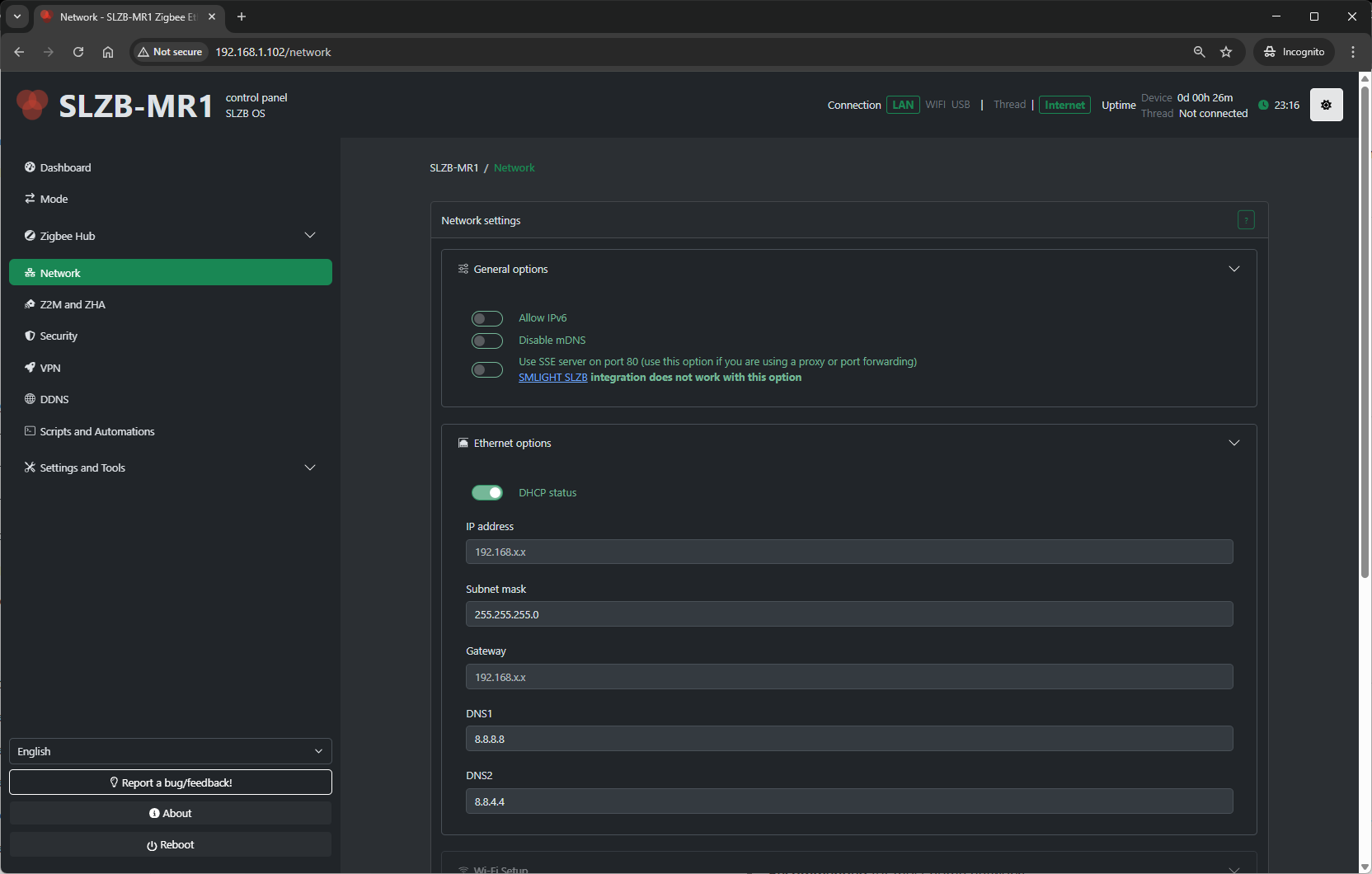
5. Network Settings
The Network page in SLZB-OS manages how your device connects to your local network and, if required, to the internet.
The available sections may vary depending on the selected Mode and hardware capabilities (Ethernet, Wi-Fi).
5.1 Information Block
At the top of the page you may see an info notice if certain network interfaces are inactive.
Example:
“Wi-Fi page is inactive because Wi-Fi mode is not activated.”
To enable it, change the device’s mode to one that supports Wi-Fi (see Mode page).
5.2 Connection Overview
A visual diagram shows the main connections:
-
LAN – Wired Ethernet connection.
-
Wi-Fi – Wireless interface (if enabled).
5.3 LAN / Ethernet Settings
Ethernet is the primary connection method for most SLZB devices.
5.3.1 DHCP (Dynamic Host Configuration Protocol)
-
Enable to have the SLZB device automatically receive network settings (IP, subnet mask, gateway) from your router.
-
Recommended for most home networks.
5.3.2 Static IP Configuration
If DHCP is disabled, manually configure:
-
IP Address – The fixed address the device will use. Must be unique on your network.
-
Subnet Mask – Defines which IP addresses are considered local (e.g.,
255.255.255.0). -
Gateway – The IP address of your router or gateway to access external networks.
-
DNS Server(s) – Optional; used to resolve domain names. Defaults to your gateway if not set.
Tip: Use a static IP if you run integrations that need a consistent address (e.g., Home Assistant with static MQTT host).
5.4 Wi-Fi Settings
(Visible only when Wi-Fi mode is active)
5.4.1 Scan for Wi-Fi Networks
-
Searches for available networks.
-
Displays SSID, signal strength, and security type.
5.4.2 Connect to Network
-
SSID – Chosen from scan or entered manually.
-
Password – Required for secured networks.
-
Security Type – WPA/WPA2, WPA3 (depending on hardware/firmware).
5.4.3 IP Configuration
-
Same as Ethernet — can use DHCP or set Static IP, Subnet, Gateway, DNS.
5.5 Applying Changes
-
Adjust the settings for the interface you are using (Ethernet/Wi-Fi).
-
Click Save or Apply.
-
The device may briefly lose connectivity while settings are applied.
-
Verify new settings on the Dashboard or via your router.
5.6 Troubleshooting
-
No connection after static IP set – Ensure the IP, subnet, and gateway match your network’s addressing scheme.
-
Wi-Fi not available – Check mode selection; only certain modes enable Wi-Fi.
-
PoE not powering device – Confirm your switch/injector supports the correct PoE standard for your SLZB model.
-
Can’t reach device – Use a network scanner or check router’s DHCP leases to find its IP.
Zigbee2MQTT / ZHA Settings
6. Zigbee2MQTT and ZHA Configuration
The Z2M and ZHA page in SLZB-OS provides configuration tools for connecting your device’s Zigbee coordinator to an external server running either Zigbee2MQTT (Z2M) or Zigbee Home Automation (ZHA).
It also contains advanced options for connection methods and device identity.
Note:
On single-radio devices (e.g., SLZB-06x and SLZB-06xU series), these settings apply to that one radio.
On dual-radio devices (e.g., SLZB-MRx and SLZB-MRxU series), settings will appear for both radios, and each must be configured separately.
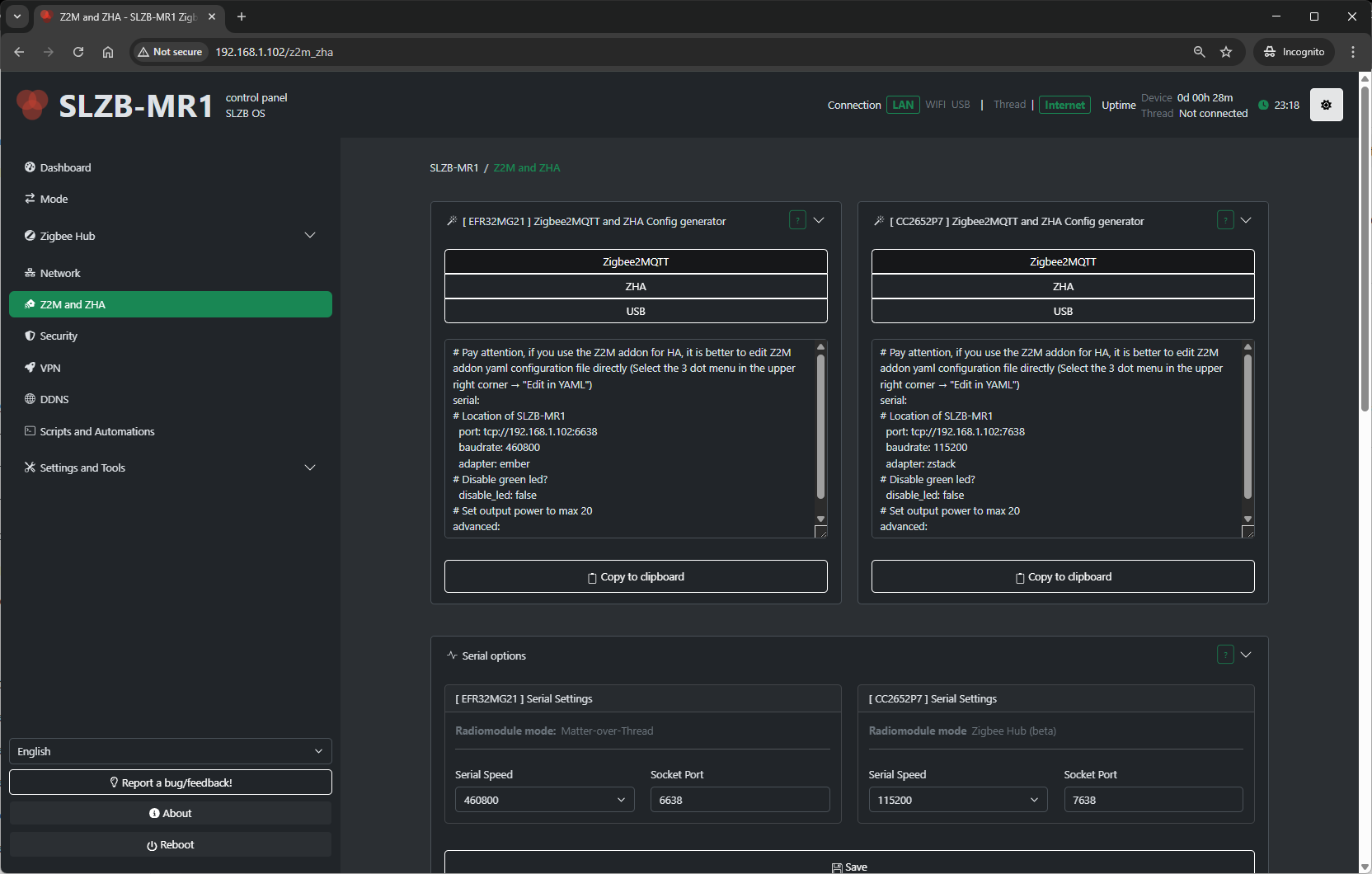
7.1 Configuration Generator – Purpose and Output
This section provides ready-to-use parameters for integrating your coordinator with an external Zigbee2MQTT or ZHA setup via Ethernet.
What it does:
-
Reads the current radio configuration.
-
Generates adapter type, connection interface, baud rate, and socket settings.
-
Reduces manual input errors when configuring your external Z2M/ZHA installation.
What it provides:
-
Adapter type (e.g., CC2652P7 = ZNP, EFR32MG21 = EZSP).
-
Serial settings (port, baud rate).
-
Socket details (IP, port) if using Ethernet bridge mode.
You simply copy these values into your external Z2M configuration.yaml or ZHA connection string.
7.2 Serial Options
If you use USB or direct serial mode, the Serial Settings section appears.
Available fields:
- Serial port - socket port to which the external server has to connect. Default is
6638 -
Serial Speed – Choose from:
- 115200 (default for most Zigbee firmwares)
- 460800 (default for most Thread firmwares)
Select the baud rate supported by your firmware and integration.
-
Save – Apply changes.
7.3 Advanced Socket Connection Options
The ADVANCED: Socket options – helper section controls how the coordinator’s serial data is forwarded over TCP.
Available options:
-
Enable Zigbee Socket packet processing
-
Instead of forwarding raw bytes, SLZB-OS assembles complete EZSP/ZNP frames before sending them.
-
Only valid Zigbee frames are forwarded — other traffic is ignored.
-
-
Allow multi-threaded socket connection
-
Up to 5 clients can connect to the socket at once.
-
Important: Only one client can actively communicate with the Zigbee chip at a time. If multiple clients send data simultaneously, the connection will not function correctly.
-
-
Multi-Radio Queue Control (only shown on dual-radio devices)
-
Balances socket traffic between radios.
-
7.4 IEEE Address Change
The ADVANCED: Adapter IEEE address change section allows you to read or modify the coordinator’s IEEE (extended) address.
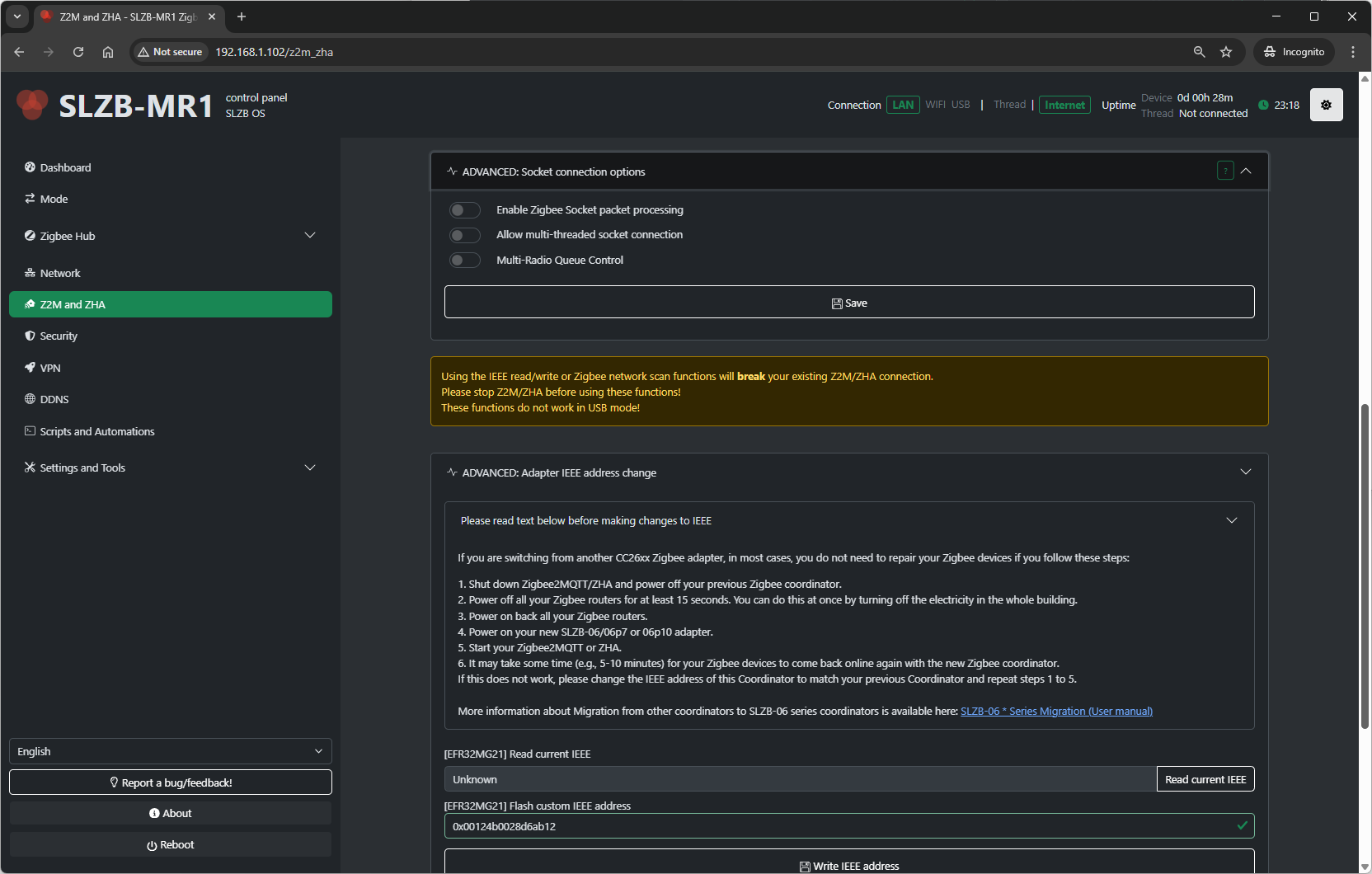
Important notes from the UI:
-
Using IEEE read/write or Zigbee network scan will break your current Z2M/ZHA connection.
-
Stop Z2M/ZHA before using these functions.
-
Does not work in USB mode.
Migration tip from SLZB-OS:
If migrating from another CC26xx adapter, you may avoid re-pairing devices if you:
-
Shut down Zigbee2MQTT/ZHA and power off your old coordinator.
-
Power off all Zigbee routers for ≥15 seconds (e.g., cut building power briefly).
-
Power on the new coordinator.
-
Power on routers.
-
Start Zigbee2MQTT/ZHA.
Devices may take 5–10 minutes to reconnect. -
If they do not, set the IEEE address of your new coordinator to match the old one, and repeat steps 1–5.
IEEE tools in UI:
-
Read factory IEEE
-
Read current IEEE
-
Flash custom IEEE address
-
Write IEEE address
Security
8. Security
This page controls access to the SLZB‑OS web interface and the TCP “socket” that exposes the Zigbee coordinator to Z2M/ZHA. The options below are listed exactly as they appear.
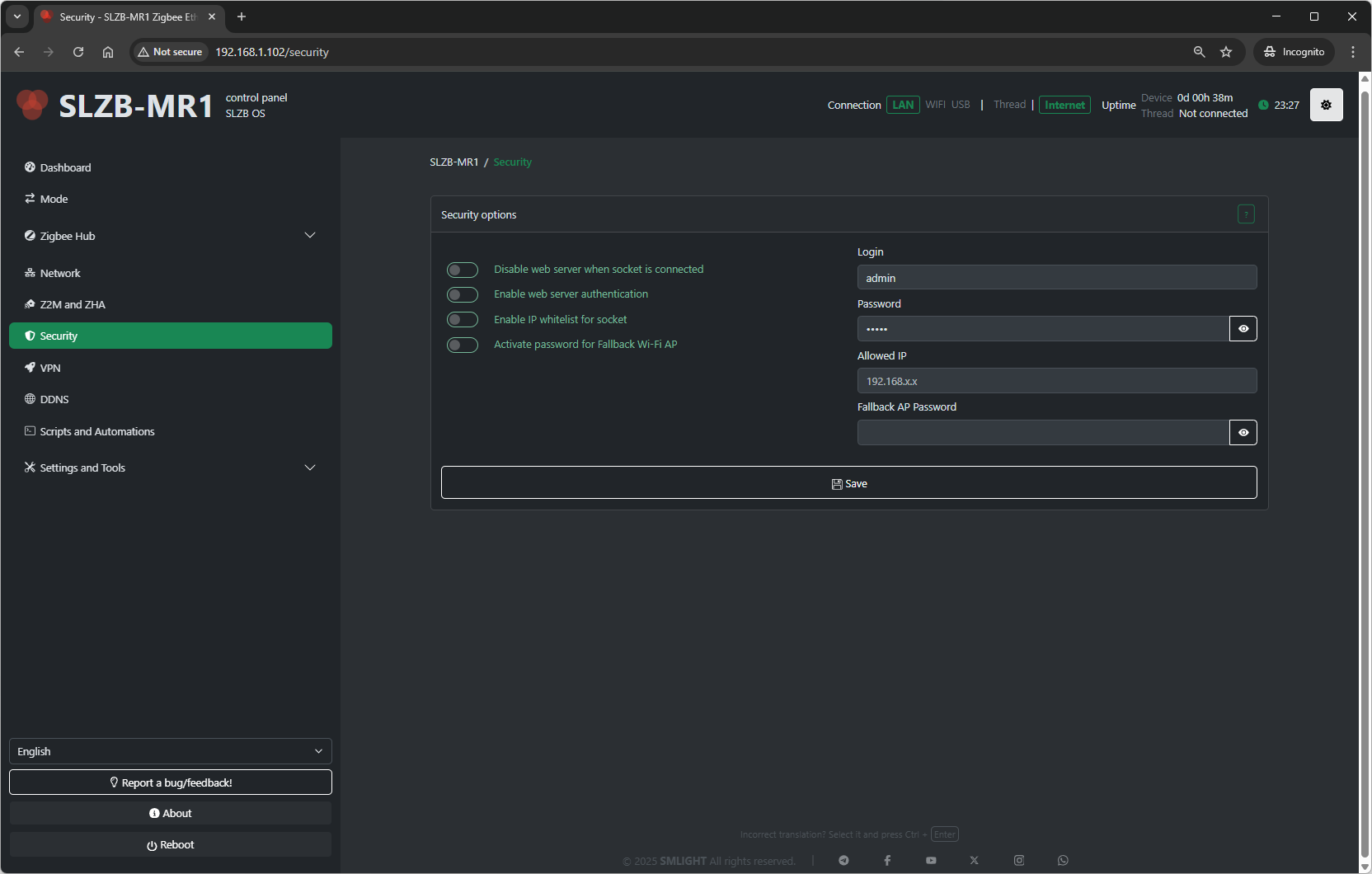
8.1 Web‑server when socket is connected
What it does: Controls whether the SLZB‑OS web UI remains available while the coordinator’s TCP socket is actively in use by Zigbee2MQTT or ZHA.
-
Enable – The web server stays accessible even when the socket is already connected (e.g., your Z2M/ZHA is using the coordinator). Useful when you want to keep configuring the device during active operation.
-
Disable – The web server is turned off whenever the socket is connected. This adds security by preventing web access while Z2M/ZHA is using the coordinator.
Recommendation:
For maximum security on production systems, choose Disable. Use Enable while commissioning or troubleshooting.
8.2 Web server authentication
What it does: Enables login protection for the SLZB‑OS web interface.
-
Enable web server authentication – Requires credentials to access the web UI.
-
Fields (shown when enabled):
-
Login – Username for web access
-
Password – Password for web access
-
Recommendation:
Keep this enabled and use a strong password.
8.3 IP whitelist for socket
What it does: Restricts which client can connect to the Zigbee TCP socket (the bridge used by Z2M/ZHA).
-
Enable IP whitelist for socket – Only the specified address can connect to the Zigbee socket.
-
Field:
-
Allowed IP – A single IP address permitted to access the socket. All other addresses are blocked.
-
-
Disable – Any device on the network can attempt to access the socket (less secure).
Recommendation:
Enable this and set Allowed IP to the host that runs Z2M/ZHA (e.g., your Home Assistant server).
8.4 Fallback Wi‑Fi AP password
What it does: Protects the fallback Wi‑Fi access point (brought up by the device in recovery/initial setup scenarios).
-
Activate password for Fallback Wi‑Fi AP – Requires a password to join the fallback AP.
Recommendation:
Enable this to prevent unauthorized local access during recovery.
8.5 Save & Operational Notes
-
After changing security options, Save/Apply and reconnect if prompted.
-
If you Disable web server when socket is connected, you may temporarily lose UI access when Z2M/ZHA is connected; disconnect the client or stop the service to regain the UI.
-
When IP whitelist for socket is enabled with a wrong IP, Z2M/ZHA will fail to connect—double‑check the Allowed IP value.
VPN
9. VPN (WireGuard)
The VPN page in SLZB-OS contains a WireGuard settings helper, allowing the Zigbee coordinator to securely connect to your Home Assistant server or other remote endpoint.
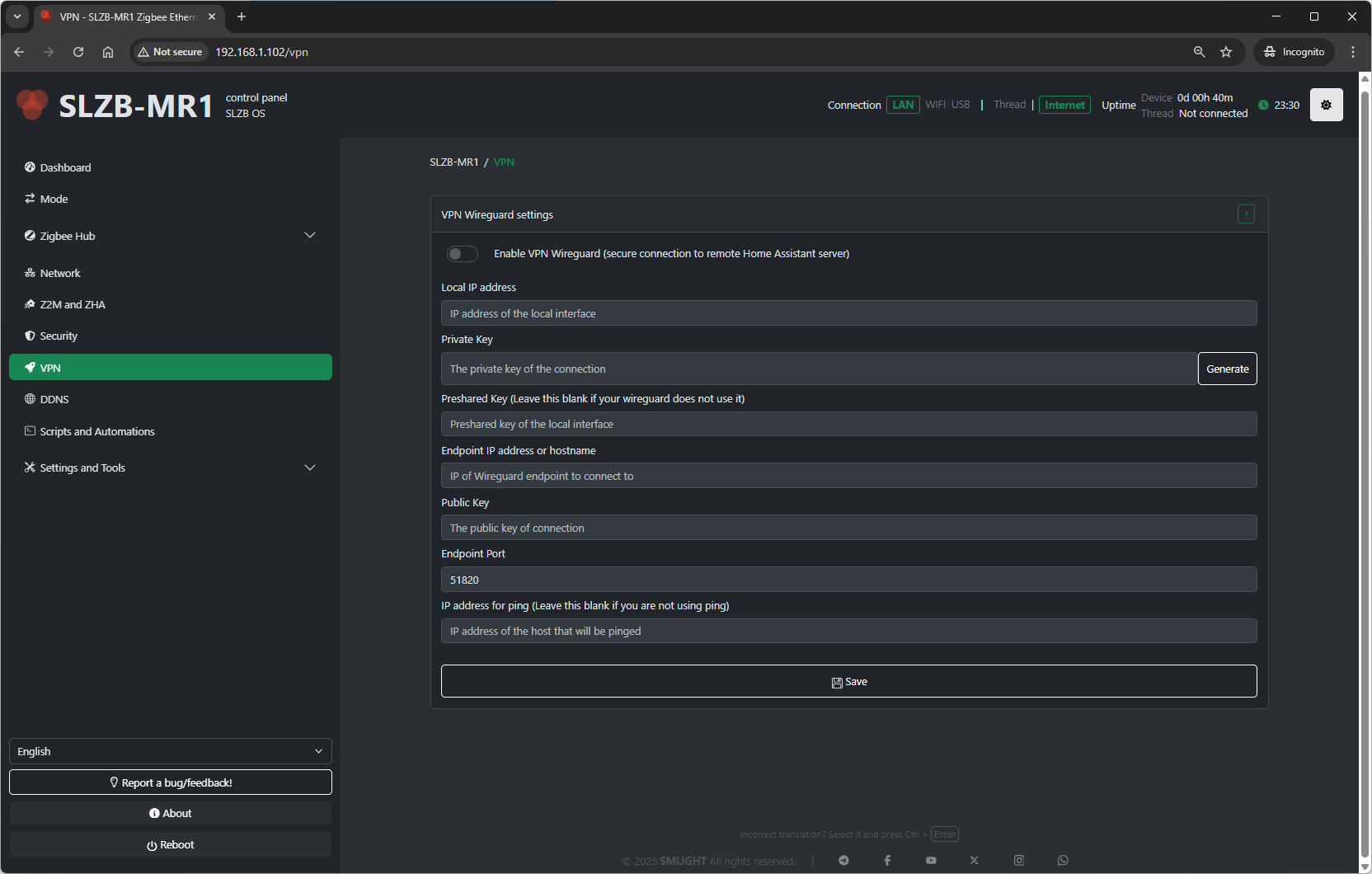
9.1 WireGuard Overview
WireGuard is a modern, highly secure VPN protocol. In SLZB-OS, it:
-
Establishes an encrypted link between your coordinator and a remote server (e.g., Home Assistant).
-
Protects data in transit across the internet or local networks.
-
Provides privacy and prevents unauthorized access.
Note: You must have the WireGuard add-on installed and configured on your Home Assistant or other VPN server.
9.2 How WireGuard Works for Home Assistant
When configured:
-
Your coordinator connects to the WireGuard server.
-
All Zigbee and management traffic is securely tunneled through this encrypted channel.
-
The remote server sees the coordinator as if it were on the same local network.
This is useful when:
-
Your coordinator is in a different physical location than the server.
-
You want to expose the coordinator to Home Assistant without opening public ports.
9.3 WireGuard Settings
The page provides the following editable fields:
-
Local IP Address
IP address of the coordinator inside the VPN network. -
Private Key
Secret key unique to the coordinator. Keep it confidential. -
Public Key
Coordinator’s public key (share with the WireGuard server so it can authenticate your device). -
Peer Public Key
The public key of the VPN server or peer you will connect to. -
Endpoint
IP address or domain name of the VPN server, plus port (e.g.,vpn.example.com:51820). -
Allowed IPs
Specifies which IP ranges are routed through the VPN tunnel (e.g.,0.0.0.0/0to route all traffic). -
Persistent Keepalive
Interval in seconds to send keepalive packets and maintain connection (useful behind NAT).
9.4 Save & Connect
-
After filling all fields, click Save to store settings.
-
The VPN will attempt connection automatically using the provided details.
9.5 Security Recommendations
-
Use a strong Private/Public key pair generated for the device only.
-
Limit Allowed IPs to the networks actually needed for Zigbee control.
-
Keep Persistent Keepalive enabled if the device is behind NAT or in networks with aggressive idle timeouts.
DDNS
10. DDNS (Dynamic DNS)
The DDNS page in SLZB-OS provides a helper to keep a public hostname updated with your device’s current public IP address. This is especially useful if your ISP changes your IP periodically and you want to access the coordinator remotely without manually tracking IP changes.
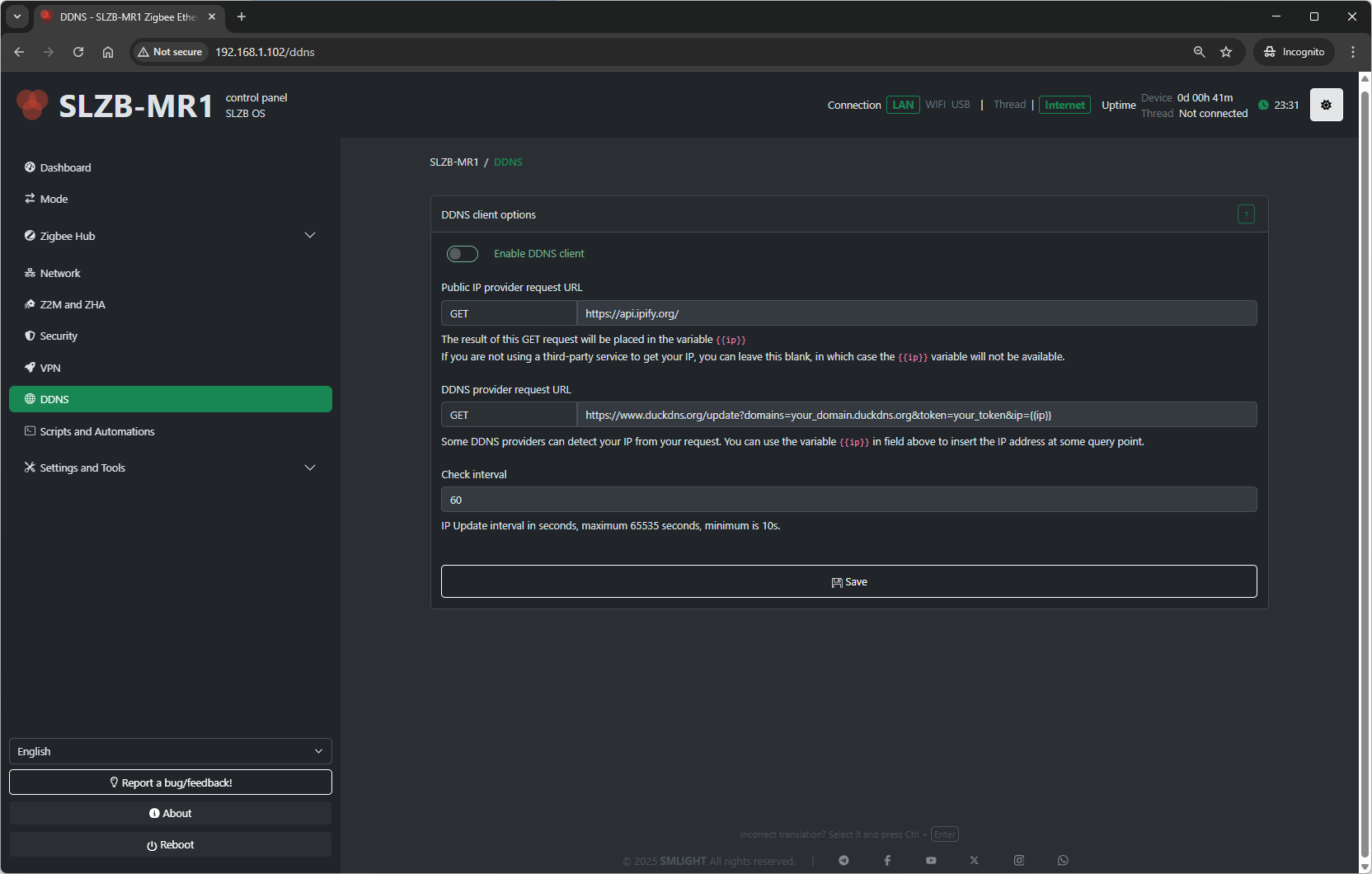
10.1 How It Works
When enabled, SLZB-OS:
-
Detects your current public IP.
-
Sends an update request to your chosen DDNS provider.
-
Repeats this at the set interval to ensure your hostname always points to the correct IP.
10.2 Available Settings
-
Enable DDNS client
Turns the DDNS updater on or off. -
Public IP provider request URL
-
A URL to query your current public IP address.
-
The result of this
GETrequest is placed into the variable{{ip}}. -
If you are not using a third-party service to get your IP, you can leave this blank.
-
If blank, the variable
{{ip}}will not be available.
-
-
DDNS provider request URL
-
The URL used to update your DDNS provider with the current IP.
-
You can use
{{ip}}in this field to insert the IP address from the previous step at the required point in the query. -
Some providers can detect your IP automatically from the request — in that case, you may not need to insert it manually.
-
-
Check interval
-
How often the IP address is checked/updated, in seconds.
-
Minimum: 10 seconds
-
Maximum: 65535 seconds
-
10.3 Example Workflow
-
Set Public IP provider request URL to something like:
https://api.ipify.org -
Set DDNS provider request URL according to your DDNS service’s API. For example:
https://myddns.example/update?hostname=myhome&myip={{ip}} -
Set Check interval to a reasonable value, such as 300 seconds (5 minutes).
-
Save settings.
10.4 Security Note
-
If your DDNS provider’s URL contains authentication tokens or passwords, ensure the coordinator’s network is secure and do not share screenshots containing the full URL.
Scripts and Automations
11. Scripts and Automations
The Scripts and Automations feature in SLZB-OS lets you create and run your own automation logic directly on the coordinator, without needing an external controller to send every command. Scripts can respond to events, toggle GPIOs, interact with the Zigbee hub, or perform other custom actions.
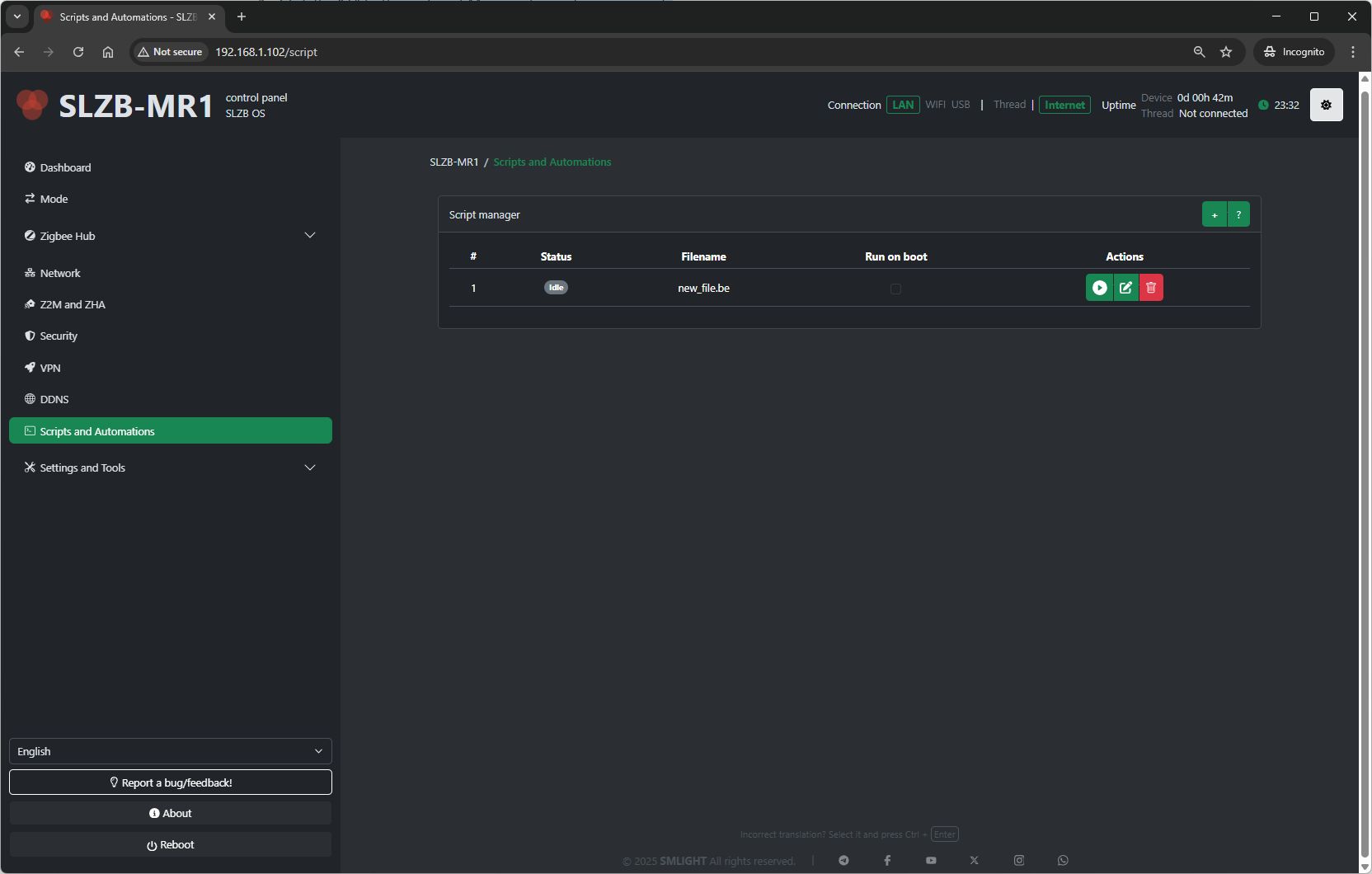
11.1 Overview
-
Scripts are executed by the coordinator’s firmware.
-
They can be triggered automatically (on boot) or run manually.
-
They support features such as an HTTP client to fetch or send data over the network.
-
This feature is intended for advanced users familiar with automation logic and scripting.
For examples and full API documentation, refer to the official repository:
???? https://github.com/smlight-tech/slzb-os-scripts
11.2 Script Manager
The Script Manager section contains the list of available scripts and their control options:
| Field / Button | Description |
|---|---|
| Status | Shows whether the script is enabled/disabled. |
| Filename | The name of the script file stored in the coordinator. |
| Run on boot | Toggle to run the script automatically after the device boots. |
| Actions | Buttons to edit, run, stop, or delete the script. |
11.3 Adding a Script
11.4 Running a Script
-
To run a script manually, click the Run action button next to it.
-
The script will execute immediately and perform its programmed logic.
11.5 Editing / Updating a Script
-
Click the Edit button for the script you want to modify.
-
Make changes in the script editor and save.
-
If “Run on boot” is enabled, the updated script will take effect at the next reboot.
11.6 Removing a Script
-
Click the Delete button.
-
Confirm deletion — the file will be removed from the coordinator.
11.7 Notes & Best Practices
-
Test scripts carefully before enabling Run on boot, to avoid loops or undesired behaviors.
-
The HTTP client functionality enables integration with external APIs or local services.
-
Avoid blocking operations or excessive network calls to keep the coordinator responsive.
-
Store scripts in a safe location outside the coordinator for backup, as they may be lost on a full reset.
Settings
12. Settings & Tools
The Settings & Tools section in SLZB-OS contains core configuration and maintenance options that apply to the entire coordinator, regardless of the selected Zigbee mode or network configuration.
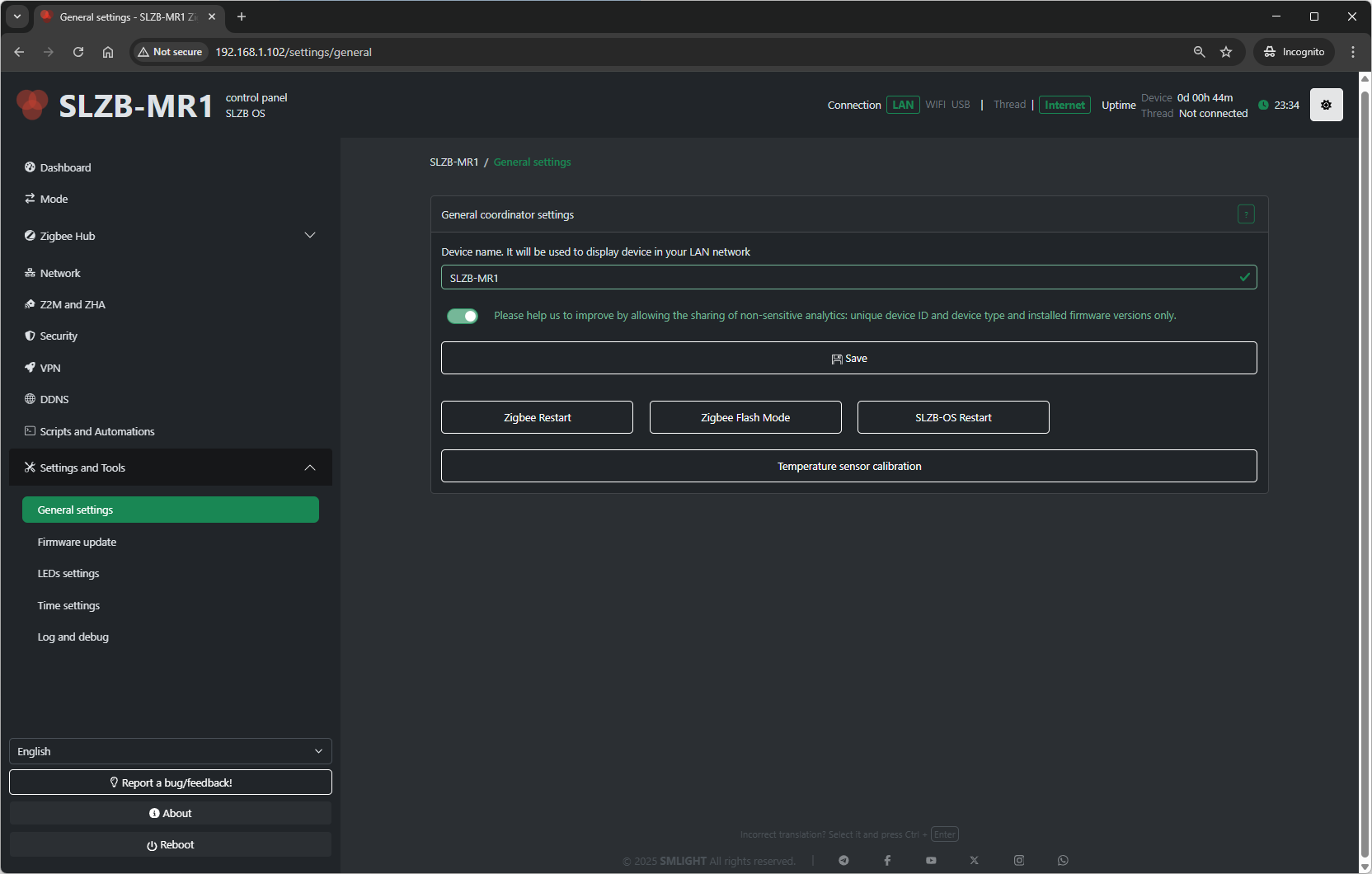
12.1 General Settings
12.1.1 Device Name
-
Sets a friendly name for your coordinator.
-
Appears in the web interface header and can help distinguish multiple devices.
12.1.2 Update Check Interval
-
Defines how often SLZB-OS checks for firmware updates (in hours).
-
Minimum: 1 hour; Maximum: 168 hours (1 week).
12.1.3 Enable Remote Support Mode
-
Allows temporary remote access by SMLIGHT support (if instructed).
-
For troubleshooting purposes only.
12.2 Firmware Update
The Firmware Update page allows upgrading SLZB-OS to the latest release or a specific version.
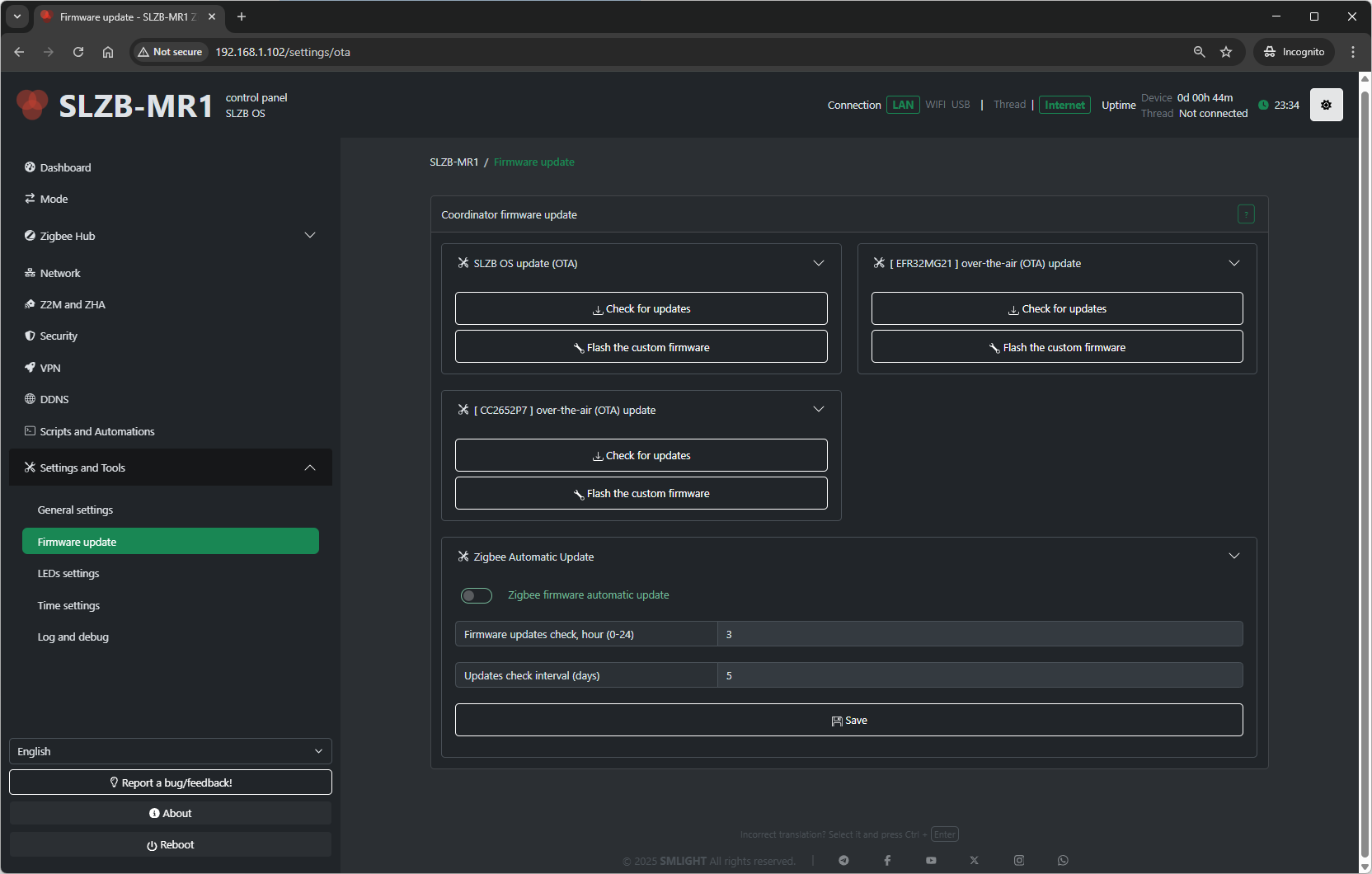
12.2.1 Update Methods
-
Online Update
-
Fetches and installs the latest stable firmware from SMLIGHT servers.
-
-
Manual Upload
-
Lets you upload a
.binfirmware file from your computer.
-
12.2.2 Update Process
-
Select update method (online or manual).
-
Confirm and start update.
-
Device will reboot automatically after installation.
Note: Updating SLZB-OS does not affect your Zigbee network data — Zigbee pairing and configuration are stored in Zigbee2MQTT/ZHA, not in the core firmware.
12.2.3 Automatic Zigbee Firmware Updates
-
Enable Zigbee Automatic Updates (checkbox):
-
When enabled, SLZB-OS will automatically check for Zigbee firmware updates every # DAY and TIME (for example, every fifth day at 3 am)
-
If a new version is found, the Zigbee chip will update automatically.
-
This process restarts the Zigbee component — ensure your Zigbee2MQTT or ZHA setup is ready to reconnect devices after the restart.
-
12.3 LED Settings
This page configures the behavior of the onboard status LEDs.
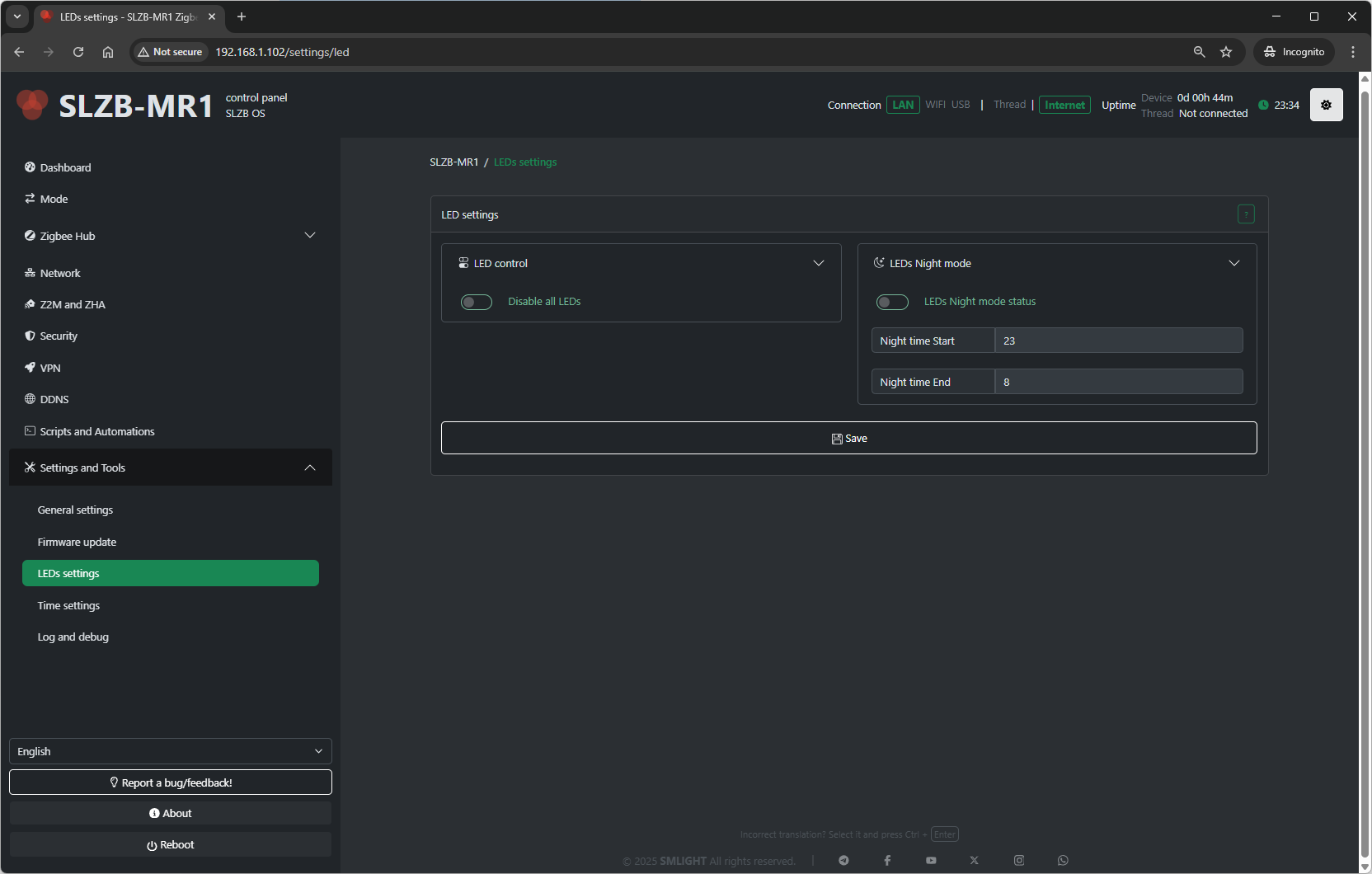
12.3.1 LED Modes
-
Always On – LEDs remain lit continuously.
-
Always Off – LEDs are disabled entirely.
-
Status Indication – LEDs display network or coordinator activity.
-
Blink on Activity – LEDs flash when Zigbee or network events occur.
12.3.2 Brightness
-
Adjusts LED brightness (0–100%).
12.4 Time Settings
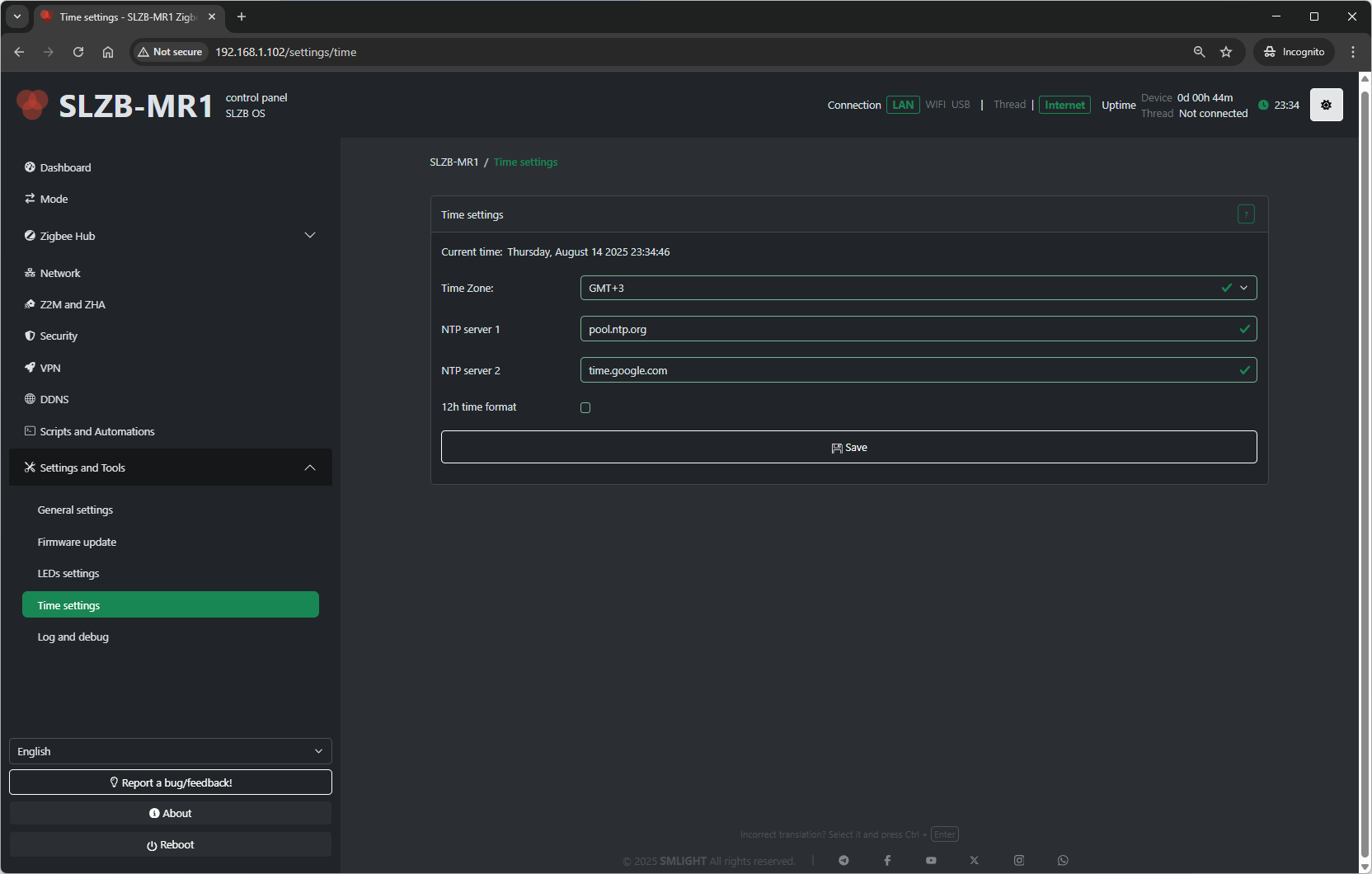
12.4.1 Time Zone
-
Select the time zone for the coordinator’s internal clock.
12.4.2 NTP Server
-
Specify the Network Time Protocol (NTP) server used for synchronization.
-
Default is a public NTP pool, but you can set a local NTP server.
12.4.3 Manual Time Set
-
Option to set time and date manually if NTP is not used.
12.5 Log and Debug
This section helps in troubleshooting and monitoring.
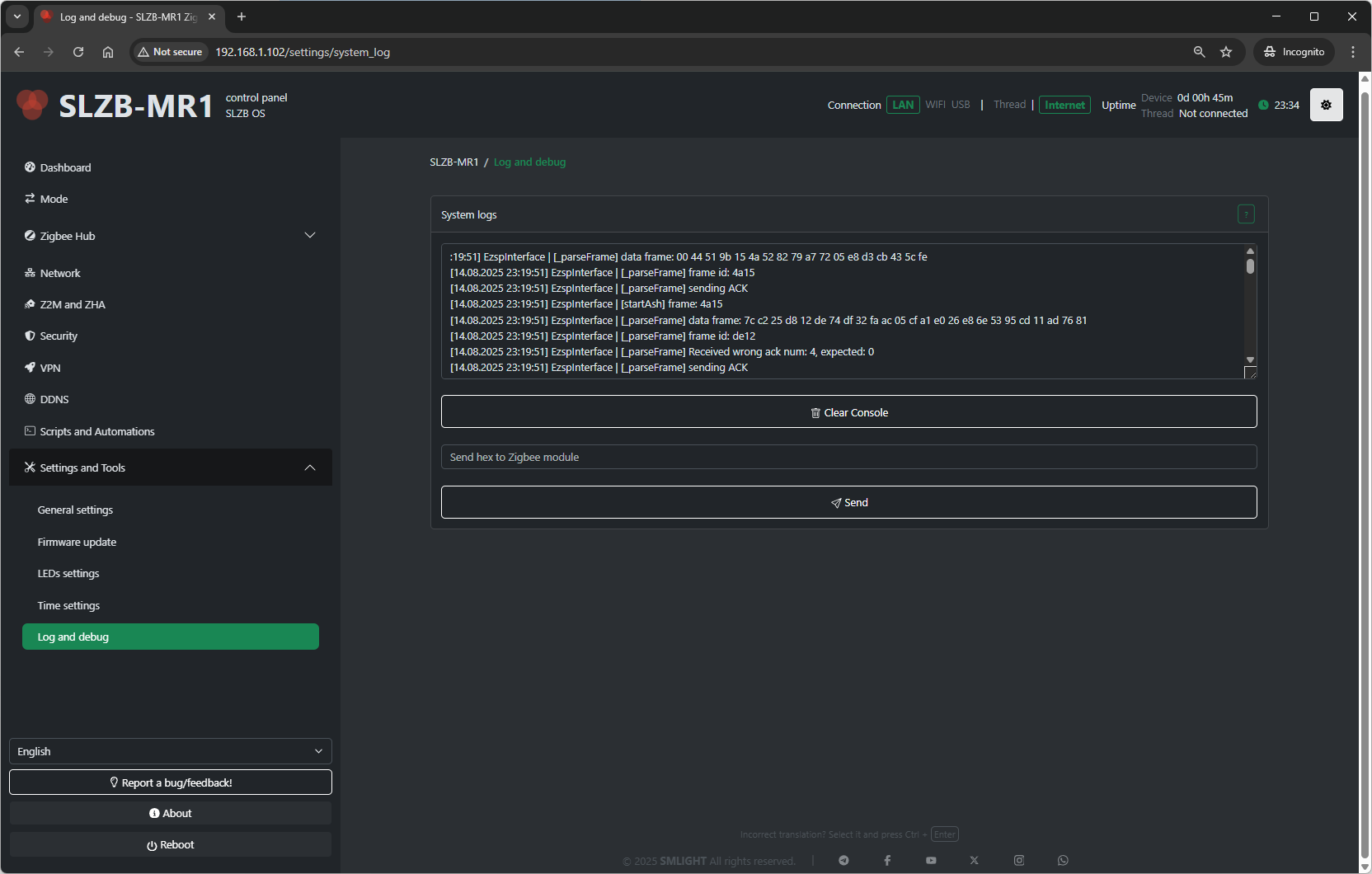
12.5.1 Clear Logs
-
Deletes all stored logs on the device.
Additional features
13. Report a Bug / Feedback
The Report a Bug / Feedback page in SLZB-OS is dedicated to collecting your input to improve your experience with the smart home Zigbee coordinator.
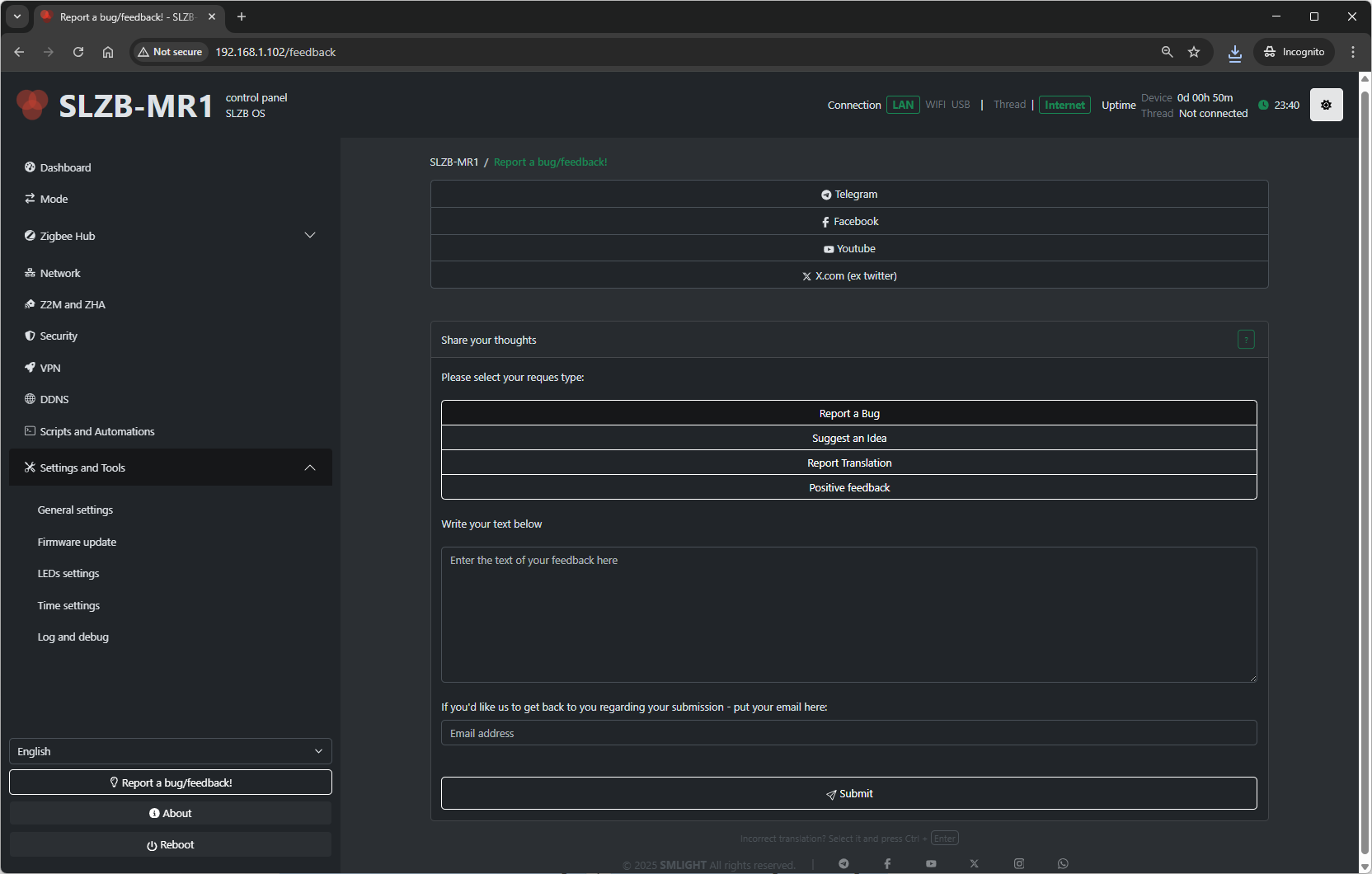
13.1 Purpose
From this page, you can:
-
Report a Bug – If you encounter issues or unexpected behavior.
-
Suggest an Idea – Share innovative thoughts or feature requests.
-
Report Incorrect Translation – Notify the team about any translation errors in the interface.
-
Provide General Feedback – Offer comments or suggestions about the product.
-
Leave Positive Feedback – Share what you enjoy about the device or firmware.
13.2 How to Submit
-
Select Request Type:
-
Report a Bug
-
Suggest an Idea
-
Report Translation
-
Positive Feedback
-
-
Write Your Text – Enter details about the bug, idea, translation correction, or general thoughts.
-
Optional Contact Details:
-
Email address – if you want the SMLIGHT team to follow up.
-
Name – optional identifier.
-
-
Click Submit.
13.3 Tips for Useful Reports
-
For bugs, include steps to reproduce, what you expected, and what happened.
-
Mention your device model and firmware version (found in the About page).
-
For translation corrections, specify the language and the exact text that needs improvement.
13.4 Quick Translation Reporting
If you spot a translation issue anywhere in the interface:
-
Highlight the incorrect text.
-
Press Ctrl + Enter to open a quick report dialog.
13.5 Privacy
The information you submit is used solely for troubleshooting and product improvement. Technical data from logs will not include Zigbee/Thread/Z-Wave network keys or passwords!
SLZB-OS API endpoints
General information
The SLZB-OS operating system has several API channels: HTTP, SSE and MQTT.
When using any of these channels, it is not recommended to send more than one request per second.
A large number of requests per second can slow down the coordinator and negatively affect stability.
HTTP API
- Used by the device's web interface.
- Processed by the built-in web server.
- Single-threaded, all requests are processed in turn
- NO HTTPS SUPPORT! (And it is not planned)
Web-interface API endpoints
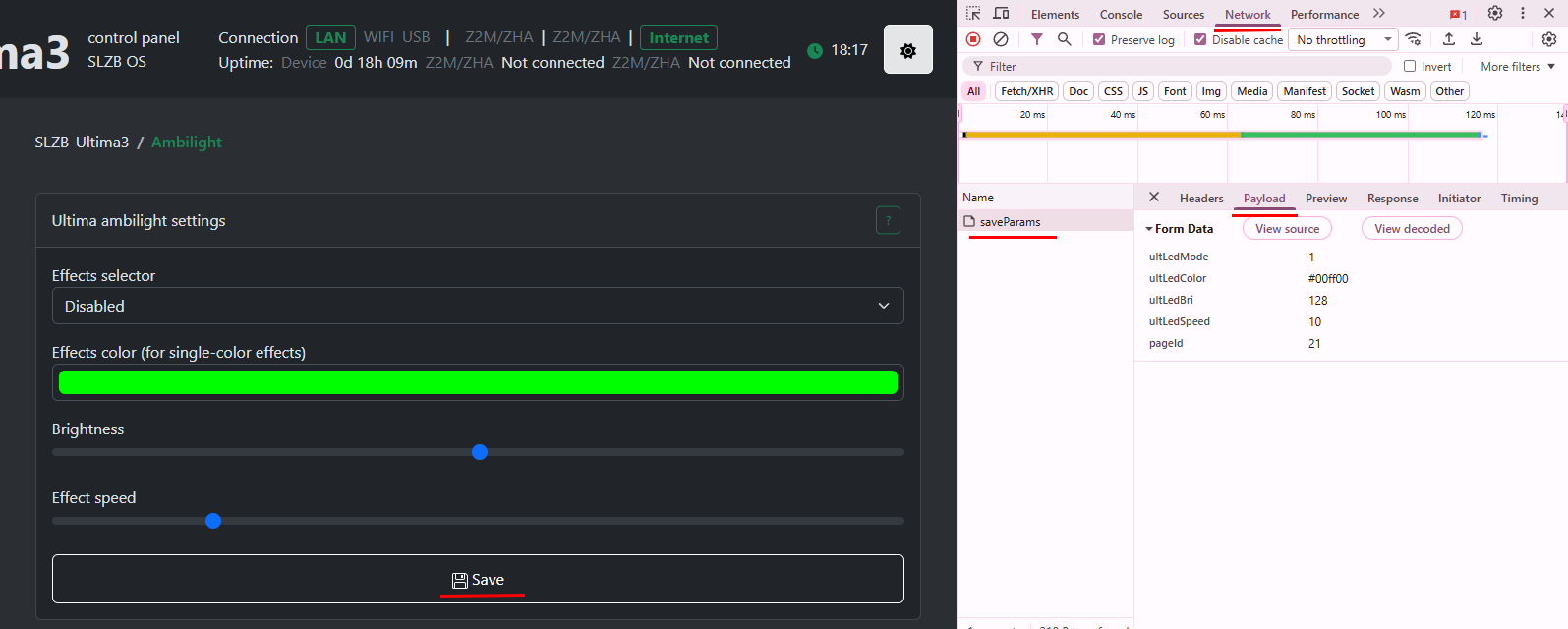
Not documented and may change without notice. The primary purpose is for internal use by the web interface system!
You can find all the queries in the developer tools in your browser:
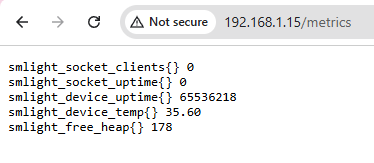
Prometheus metrics
Endpoint: /metrics
SSE
https://en.wikipedia.org/wiki/Server-sent_events
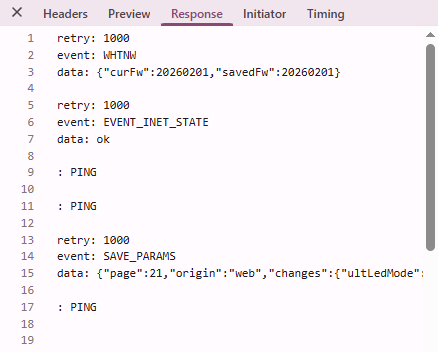
Endpoint: /events
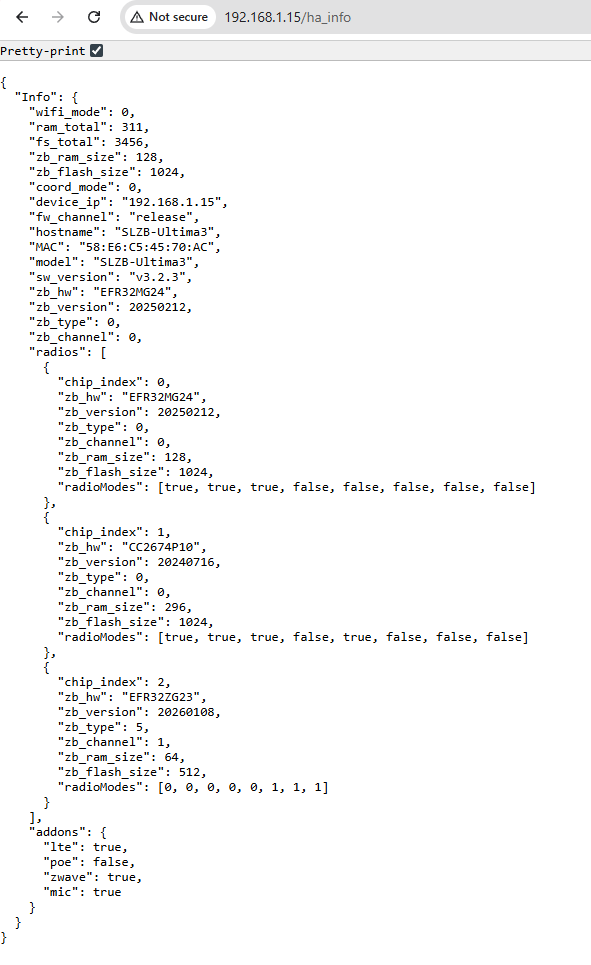
Home Assistant endpoints
General device information: /ha_info
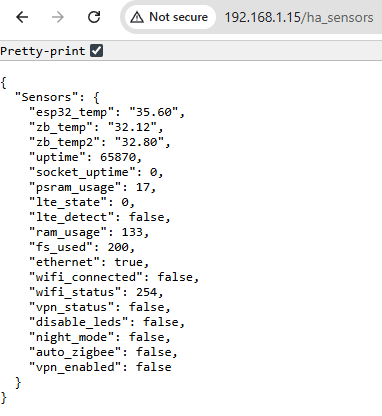
Real time sensors: /ha_sensors
MQTT API
This API is available from firmware v3.2.4
zHub MQTT API can be found here: https://smlight.tech/support/manuals/books/slzb-os/page/mqtt-api
ATTENTION! Some topics are reserved by the system!/api2/# topic is reserved for MQTT API usage./cmd/#, /write/#, /read/# and /data/# topics are used by HA discovery for Zigbee Hub.
Please avoid using these topics.
SLZB-Ultima specific
Ultima has a special API for interacting with IR, Ambilight, Buzzer, etc. Other models don't have this!
Buzzer Control
Buzzer control topic: <Base topic>/api2/write/buzzer
Payload: RTTTL sound pattern
Example: Arkanoid:d=4,o=5,b=140:8g6,16p,16g.6,2a#6,32p,8a6,8g6,8f6,8a6,2g6
IR Learn & Replay
IR Learn
Topic: <Base topic>/api2/status/ir
The OS will send information about all received IR messages to this topic.
Example message below:
{
  "raw": "472209080a190909090809080a08090809090908090909080a070a08091a090809080a0809080a080908090909080a0809190a0809080909090809080a0809080a08091a0908091a0a19091a09190a080908091a0a0809190a190a19091a09080a190a",
  "proto": 11,
  "addr": "0x0008",
  "cmd": "0x003d"
}
"proto" field values:
UNKNOWN = 0,
PULSE_WIDTH = 1,
PULSE_DISTANCE = 2,
APPLE = 3,
DENON = 4,
JVC = 5,
LG = 6,
LG2 = 7,
NEC = 8,
NEC2 = 9,
ONKYO = 10,
PANASONIC = 11,
KASEIKYO = 12,
KASEIKYO_DENON = 13,
KASEIKYO_SHARP = 14,
KASEIKYO_JVC = 15,
KASEIKYO_MITSUBISHI = 16,
RC5 = 17,
RC6 = 18,
RC6A = 19,
SAMSUNG = 20,
SAMSUNGLG = 21,
SAMSUNG48 = 22,
SHARP = 23,
SONY = 24,
BANG_OLUFSEN = 25,
BOSEWAVE = 26,
LEGO_PF = 27,
MAGIQUEST = 28,
WHYNTER = 29,
FAST = 30,
OTHER = 31,
Replay
Topic: <Base topic>/api2/write/ir
Raw payload example:
472209080a190909090809080a08090809090908090909080a070a08091a090809080a0809080a080908090909080a0809190a0809080909090809080a0809080a08091a0908091a0a19091a09190a080908091a0a0809190a190a19091a09080a190aStarting from SLZB-OS v3.3.0 you can use JSON payload below:
Json payload examples:
{
  "proto": 11,
  "addr": "0x0008",
  "cmd": "0x003d",
  "repeats": 5
}
{
"proto": 11,
"addr": 8,
"cmd": 61,
"repeats": 5
}{"raw":"472209080a190909090809080a08090809090908090909080a070a08091a090809080a0809080a080908090909080a0809190a0809080909090809080a0809080a08091a0908091a0a19091a09190a080908091a0a0809190a190a19091a09080a190a"}Ambilight
Topic: <Base topic>/api2/write/ambilight
Payload example:
{"color":"#00ff00","bri":128,"effect":2,"speed":10}If you only need to change one ambilight parameter then you can send only that one:
{"color":"#ffff00"}color - LEDs color in #RRGGBB hex format.bri - Brightness from 1 to 255effect - effect to be installed. You can choose between: 0 - Solid, 1 - LEDs disabled, 2 - Blur, 3 - Rainbow.speed - speed for this effect. Range: 1 - 50
USB to Ethernet passthrough mode
General information
This feature is supported only by "U" series devices and SLZB-Ultima
(CPU model: ESP32S3)
USB to Ethernet passthrough mode allows connecting a USB device to your coordinator USB port (directly or via a USB hub) and using such USB devices remotely over IP.
For example, a USB Z-Wave adapter can be connected and used remotely, similarly to an Ethernet-based Z-Wave coordinator.
What devices can be connected?
- Devices on CP210x chipset
- Devices on PL2303 chipset
- Devices on CH340 chipset
- Devices on CH341 chipset
- Devices on CH9102 chipset
- Other CDC-ACM devices
CDC-ACM is typically used in microcontrollers such as the ESP32-S3/S31/P4, STM32, and others.
Therefore, if your USB dongle is based on a microcontroller that supports USB, there is a high probability that it uses CDC-ACM.
We cannot guarantee support for all third-party CDC-ACM devices.
How many USB devices can be connected?
SLZB-OS versions up to v3.4.2.dev1
Only one USB device.
v3.4.2.dev1 and later
Update v3.4.2.dev1 allows the simultaneous use of two USB dongles, provided they are not based on the CH34x chip. Please check the table below for more details:
|
Device1 Device2 |
CP210x | FTDI | CDC-ACM | CH34x |
|---|---|---|---|---|
| CP210x | ✅ | ✅ | ✅ | ❌ |
| FTDI | ✅ | ✅ | ✅ | ❌ |
| CDC-ACM | ✅ | ✅ | ✅ | ❌ |
| CH34x | ❌ | ❌ | ❌ | ❌ |
- Any pair without CH34x fits.
- No CH34x-based pair fits.
USB hub rules
- If two devices are open, there cannot be a third one connected on the hub
- If only one device is open: you can keep 3 unopened devices connected.
- Additional USB hubs are not permitted.
How much power can the coordinator provide via USB?
The coordinator can provide up to 1A.
The optimal current is 500mA.
If you are using a powered USB hub, please make sure that PoE is disabled!
It is forbidden to use PoE and a powered USB hub at the same time!
USB to Ethernet passthrough setup
1. Mode select
Open the "USB" page and activate "Enable USB to Ethernet passthrough mode" and "Use new USB driver"
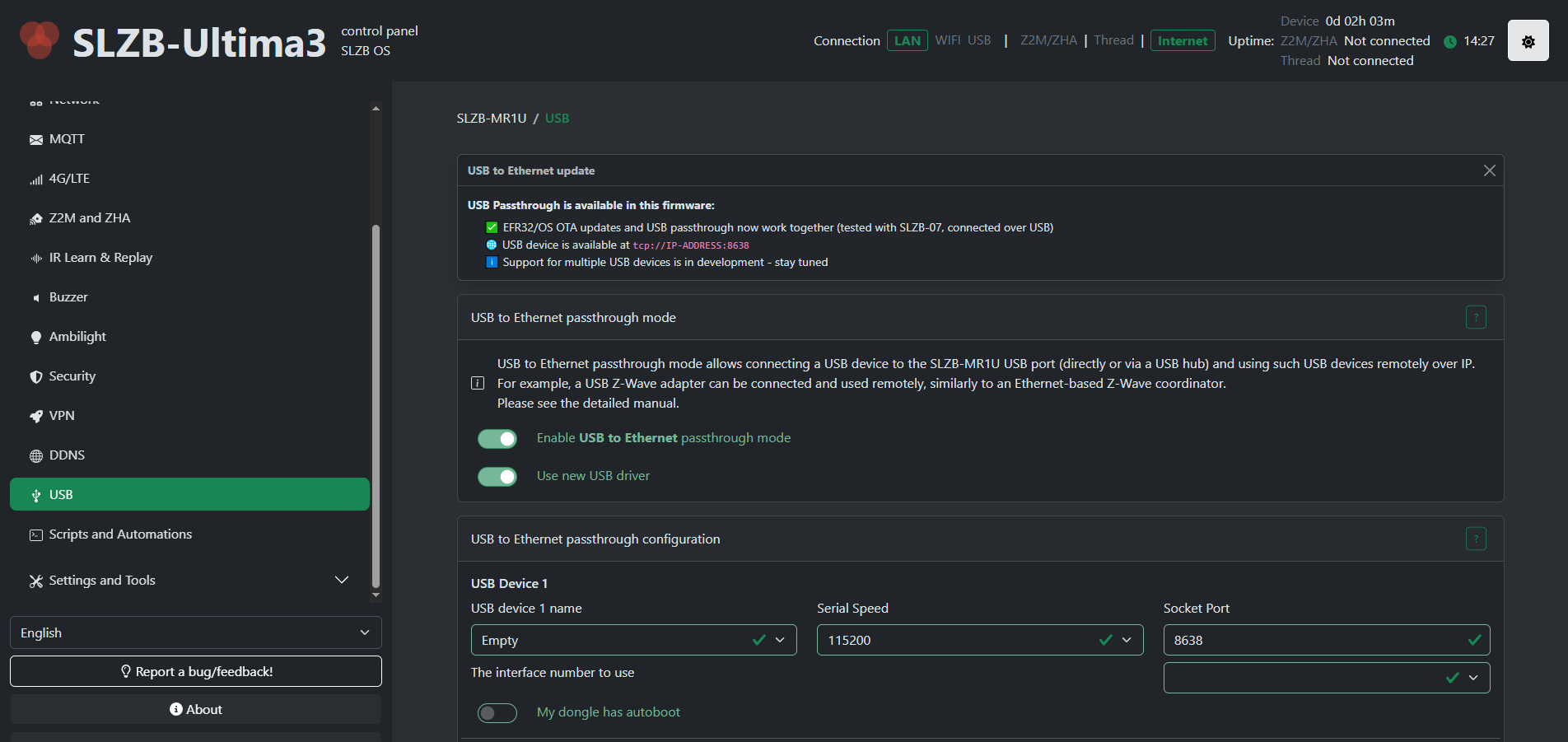
We recommend using the "Use new USB driver" option as the new driver provides greater stability and a wider list of supported USB devices.
The old driver will be removed in future updates!
Starting with v3.4.2.dev1 new driver is used by default. There no more driver selector!
2. Connect your USB device and reboot your coordinator
3. Select your USB device
Select your USB device from the list.
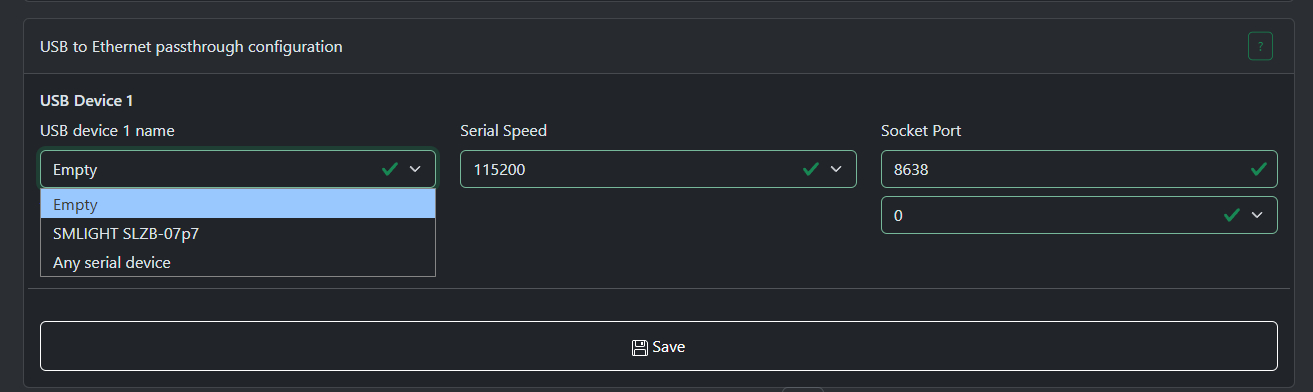
"Empty" - passthrough server disabled.
"Any serial device" - the system will select the first device found and try to open interface 0.
The interface has been redesigned starting from v3.4.2.dev1
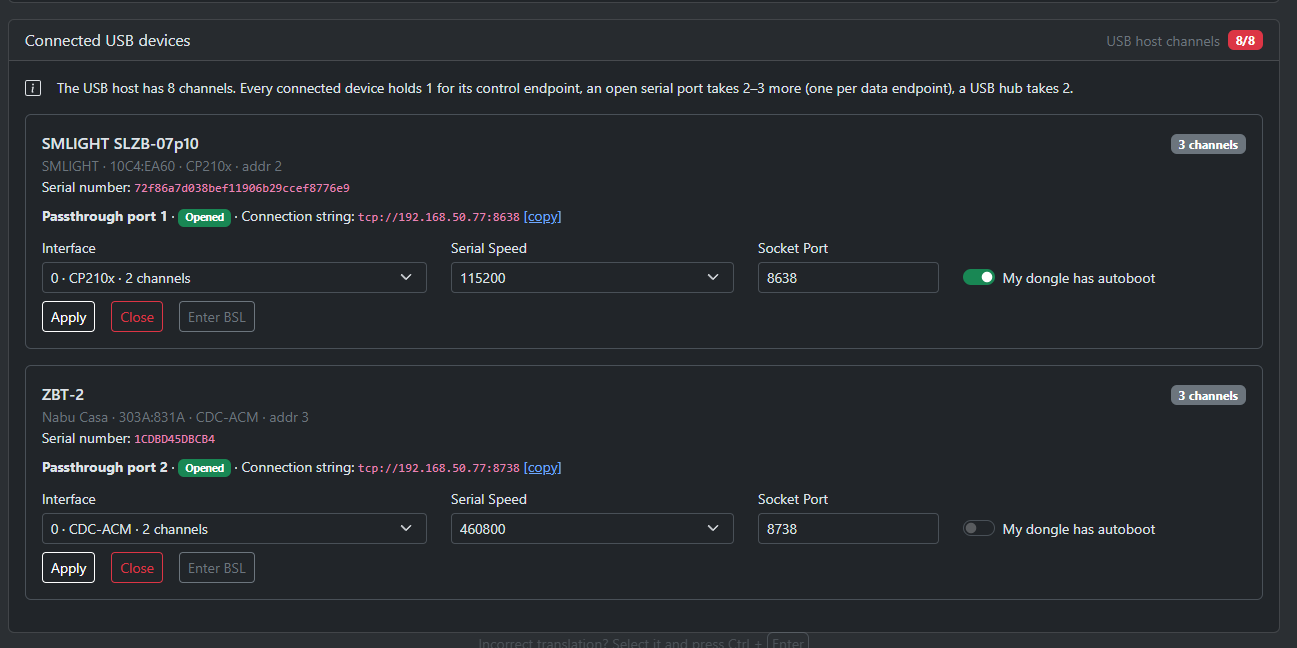
Now you need to click the "Open" button on the card for the desired device to enable USB pass-through for it.

4. Set the serial speed
The most common setting is 115200.
The serial speed depends on the firmware of your dongle. If you don't know what to choose, please contact the support service of the dongle manufacturer.
5. Choose an interface
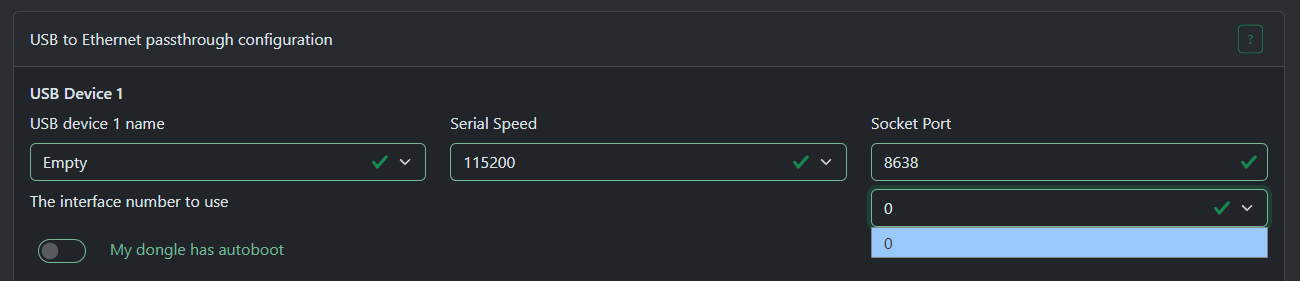
Most USB devices will only have one interface - interface 0.
But some devices may have several: for example one for firmware update/debug and another for communication.
If your device has multiple interfaces then you will have to try them all until you find correct one.
For ZWA-2 you need to select interface 1
The interface has been redesigned starting from v3.4.2.dev1

Key changes in v3.4.2.dev1
- The interface selector now displays only those supported by the driver. You will no longer see interfaces that the driver cannot open.
- The new BSL button uses the DTR/RTS lines to activate your dongle's bootloader (if supported by the dongle).
- You can open and close devices, as well as change the baud rate and other settings, in real time. A restart is no longer required.
- The list of connected USB devices updates in real time.
6. About autoboot
Some dongles have an autoboot circuit that puts the radio module into bootloader mode using the DTR/RTS lines, for example SLZB-07p7/p10.
For such a dongle to work you need to select the option "My dongle has autoboot".
Most dongles that have autoboot use the CH340 or CP2102x chipsets.
If you don't know if your dongle has autoboot, please contact the support service of the dongle manufacturer.
7. After setup
After you have selected all the settings, please click the "Save" button and restart the coordinator for the changes to take effect.
8. Host application settings
Most programs use the format tcp://ip:port or socket://ip:port, less often just ip:port
Examples:
tcp://192.168.50.196:8638
socket://192.168.50.196:8638
192.168.50.196:8638
If your host program has "RTS/CTS" or "Hardware flow control" settings, you should select "disabled"
Wire Guard VPN setup
WHAT IS VPN WIREGUARD
This is a feature of SLZB-OS that allow them to connect to remote Home Assistant / Zigbee2MQTT server through secure VPN tunnel without any additional hardware. WireGuard is an extremely simple yet fast and modern VPN that utilizes state-of-the-art cryptography. It aims to be faster, simpler, leaner, and more useful than IPsec while avoiding the massive headache. It intends to be considerably more performant than OpenVPN.
Current VPN limits
Via VPN, the following is currently available:
- Webserver
- Radiomodules (sockets)
What doesn't work through a VPN:
- Ethernet to WiFi bridge
- MQTT
1. Prerequisites
1.1. Hardware and Software used
- A server with Home Assistant is installed and running. In this manual, we are using Raspberry Pi 3B+ with a clean fresh install of HAOSS.
- An SLZB-06 family coordinator (firmware version 2.2.6 or later).
- WireGuad add-on, Zigbee2MQTT add-on and ZHA integration.
- The Zigbee device you want to connect remotelly.
1.2. IP Address reservation
It is reccomended to reserve a static IP addresses on the router for Home Assistant server and the SLZB-06 family coordinator. In our case, on a TP-Link router, static IP address reservations can be configured under the Network >> DHCP Server >> Address Reservation section.
2. Establishing access to your Home Assistant / Zigbee2MQTT
In order to let remote SLZB-06 coordinator to establish secure connection with your Home Assistant / Zigbee2MQTT, coordinator should know how to reach your Home Assistant. There are two options here:
- if you do not have a white IP address - you can use intermediary services like DuckDNS, that will let SLZB-06 coordinator know how to find your Home Assistant (so coordinator will knock to the doors and ask "Hey, may I connect to your Wireguard Add-on and establish a secure tunnel?").
- if you have a white IP address - you can open a port to access your Home Assistant directly without intermediary services like DuckDNS (although you can use DuckDNS togather with white IP address).
TIP
You need to use only one option - if you do not have white/static IP address from your provider - use DuckDNS, if you have - either open port or use service like DuckDNS as well.
Lets looks through both options.
2.1. Port forwarding
The location of this function may vary depending on your router. On a TP-Link router, it can be found under Advanced >> NAT Forwarding >> Port Forwarding. Add a port forwarding rule in which you specify:
Service Name: wireguard
Device IP Address: IP address of Home Assistant (in our case 192.168.0.103)
External Port: 51820
Internal Port: 51820
Protocol: UDP
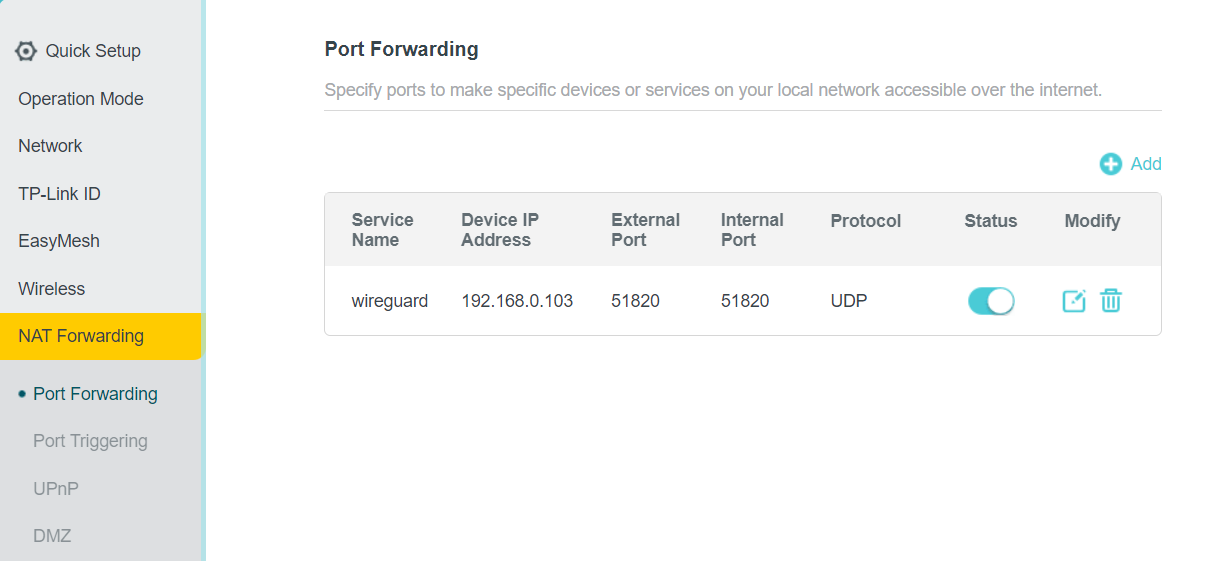
2.2. DuckDNS set-up
2.2.1. Duck DNS domain registration
- Visit the duckdns.org website and log in using your preferred method.
- Create a unique domain name, such as slzb-06, enter it in the domains section and click add domain. This will add the new domain to your list of domains.

WARNING
DuckDNS is not compatible with CGNAT!
2.2.2. Install Duck DNS add-on
- We'll need to install the DuckDNS add-on in Home Assistant. Head over to the Left panel within Home Assistant click
Settingsand chooseAdd-ons. - Navigate to the Add-on Store and search for
Duck DNSadd-on. ClickInstalland wait for the installation to complete. - Once installed, click
Configuretab on the top side of the add-on.
2.2.3. Duck DNS add-on configuration
TIP:
Keep your DuckDNS token private!
- In the
Domainsfield, enter the domain you created in Duck DNS. In UI mode, delete the empty domain. - In the
Tokenfield, enter your Duck DNS token. - In the
Lets Encryptsection, setaccept_termsto true. - Save settings and run add-on.
domains:
  - slzb-06.duckdns.org
token: 490d69be-u835-984a-a9aa-8430bcbd02bd
aliases: []
lets_encrypt:
  accept_terms: true
  algo: secp384r1
  certfile: fullchain.pem
  keyfile: privkey.pem
seconds: 300
duckdns-addon-config
Once these steps are completed, you can use the Duck DNS address as the host in Wireguard and as the Endpoint hostname in the coordinator's web interface.
3. WireGuard add-on setting-up and configuration
3.1. Wireguard add-on installation
- We'll need to install the WireGuad add-on in Home Assistant. Head over to the Left panel within Home Assistant click
Settingsand chooseAdd-ons. - Navigate to the Add-on Store and search for
WireGuardAdd-on. ClickInstalland wait for the installation to complete. - Once installed, click the
Configuretab on the top side of the add-on.
3.2. WireGuard add-on configuration in Home Assistant
The configuration is divided into two parts: the server side and the client side.
3.2.1. Server side:
host: The public IP address that clients can use to access WireGuard. This guide uses a static public IP address. However, you can also use DuckDNS.address: The IP address assigned to the WireGuard add-on interface. For a WireGuard network, it is recommended to use a different network than the main one to avoid routing problems. Home routers typically use the 192.168.0.0/24 or 192.168.1.0/24 network.
Network Selection: The /24 subnet mask is the most common. It determines how many devices can be on the network. A /24 subnet mask allows for 256 IP addresses or 254 connected devices. Two IP addresses are reserved for the network address and the gateway address. The /24 subnet mask is popular because of its simplicity. Every /24 network address always ends with 0. For example, 192.168.0.0/24, 192.168.1.0/24, 192.168.2.0/24, ..., 192.168.255.0/24. For WireGuard, you can choose any arbitrary network. For example, I chose 192.168.10.0/24. You can choose this one or another.
Host Selection: Once the network address is selected, you need to choose the host addresses. This includes the WireGuard interface address and the peer addresses. You can use an IP calculator to see the range of available addresses on the network. In my case, this is the range from 192.168.10.1 to 192.168.10.254. For the WireGuard add-on interface address, I chose 192.168.10.1.dns: For DNS, you can use the router's address, or 1.1.1.1, 1.0.0.1.
3.2.2. Client side:
name: Arbitrary client name, e.g., myphone, mylaptop, SLZB-06addresses: Address from the Wireguard network issued to the client. You can take the next address after the Wireguard interface.client_allowed_ips: This is a list of networks that the WireGuard peer is allowed to access. In this guide, this is the main network and the WireGuard network.
server:
  host: 176.37.187.207 #Avoid publicly sharing your public IP address
  addresses:
    - 192.168.10.1
  dns:
    - 192.168.0.1
  log_level: debug
peers:
  - name: slzb-06
    addresses:
      - 192.168.10.2
    allowed_ips: []
    client_allowed_ips:
      - 192.168.0.0/24 #Change this address if your main network is different
      - 192.168.10.0/24
You can add more clients. For example, your phone or another coordinator. To do this, copy the client part, change the name, and increase the IP address by one.
- name: slzb-06-2
  addresses:
    - 192.168.10.3
  allowed_ips: []
  client_allowed_ips:
    - 192.168.0.0/24 #Change this address if your main network is different
    - 192.168.10.0/24
3.3. Getting Wireguard configuration for use at SLZB-06
3.3.1. Using File Editor
- Install the
File Editoradd-on. - Go to the
Configurationtab and turn off theEnforce Basepathswitch. This will allow full access to the Home Assistant file system.
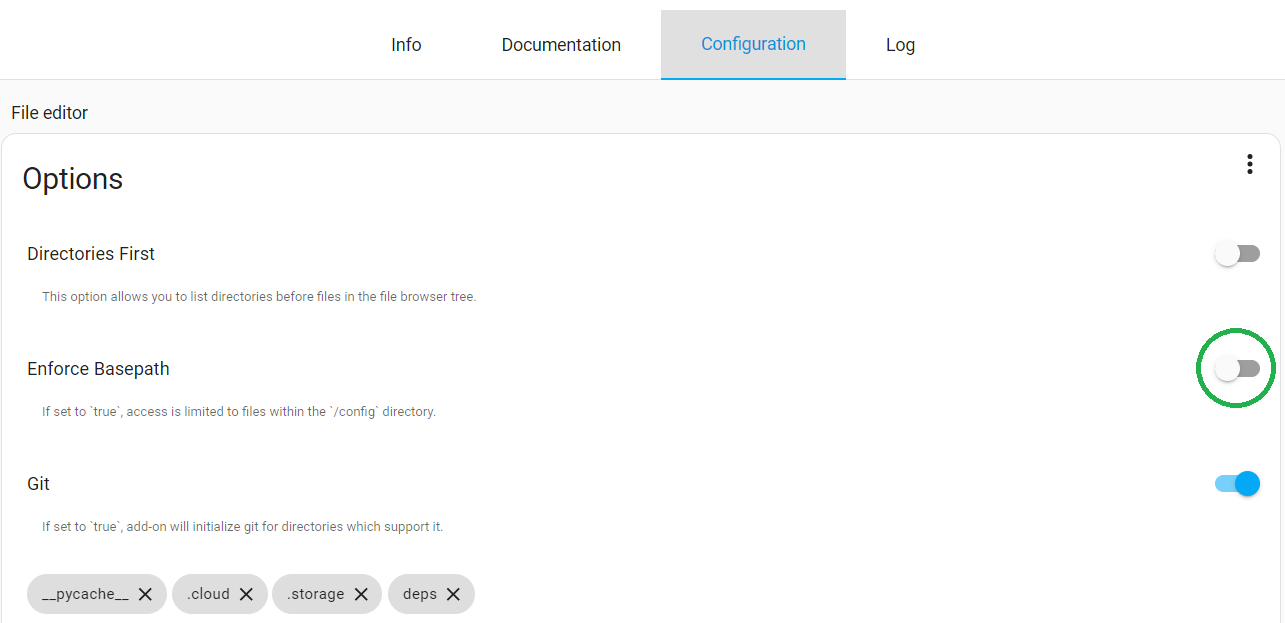
- Open the
File editoradd-on. In the top left corner, click the directory icon. Click the back arrow to go up one level. Select the directoryssl>>wireguard>>SLZB-06>>client.conf.
3.3.2. Using Studio Code Server
If you prefer Studio Code Server. Open the add-on, on the left Exproler panel in a space, right-click >> Add Folder to Workspace >> select the ssl directory >> wireguard >> click ok. Select the slzb-06 directory >> client.conf.
TIP:
You can run Wireguard in a separate container instead of an HA addon
3a. WireGuard container setting-up and configuration
3a.1. Install wireguard container
docker pull linuxserver/wireguard
3a.2. Run container example
docker run -d \
  --name=wireguard \
  --cap-add=NET_ADMIN \
  --cap-add=SYS_MODULE `#optional` \
  -e PUID=1000 \
  -e PGID=1000 \
  -e TZ=Etc/UTC \
  -e SERVERURL=wireguard.domain.com `#optional` \
  -e SERVERPORT=51820 `#optional` \
  -e PEERS=1 `#optional` \
  -e PEERDNS=auto `#optional` \
  -e INTERNAL_SUBNET=10.13.13.0 `#optional` \
  -e ALLOWEDIPS=0.0.0.0/0 `#optional` \
  -e PERSISTENTKEEPALIVE_PEERS= `#optional` \
  -e LOG_CONFS=true `#optional` \
  -p 51820:51820/udp \
  -v /path/to/wireguard/config:/config \
  -v /lib/modules:/lib/modules `#optional` \
  --sysctl="net.ipv4.conf.all.src_valid_mark=1" \
  --restart unless-stopped \
  lscr.io/linuxserver/wireguard:latest
TIP:
Change SERVERURL to your URL wireguard (using some like dudckns if this ip changes )
/path/to/wireguard/config in order to use your config wireguard folder.
3a.3. Add route to access client vpn ip's from host and others containers (like zigbee2mqtt)
wireguard_internal_subnet=$(docker exec wireguard printenv INTERNAL_SUBNET)
wireguard_ip=$(docker inspect -f '{{range.NetworkSettings.Networks}}{{.IPAddress}}{{end}}' wireguard)
ip route replace $wireguard_internal_subnet/24 via $wireguard_ip
3a.4. Get wireguard connection data
- Go to wireguard config folder and enter into
peer1orpeer2and readpeer1.conforpeer2.conf - Enter this info into SLZB-06
3a.5. zigbee2mqtt configuration.yaml for WG container
- Modify line
port: tcp://IP:6638and replace IP with the IP Address of wireguard container (The$wireguard_ipvalue obtaneid previously) - Restart Z2M container/addon
4. Wireguard configuration on SLZB-06
WARNING
You should never share your private key and public IP address with anyone.
TIP:
Newer versions of Wireguard require a Preshared Key. SLZB-06 supports Preshared Key starting from firmware version v2.5.3
A VPN tunnel allows you to be on one network and connect to another. To add a VPN configuration to the SLZB-06 coordinator, go to the device address, in the left-hand side menu, click VPN, and activate the Enable VPN Wireguard switch. Transfer local and endpoint IP addresses, and private and public keys from the client.conf file. Click Save
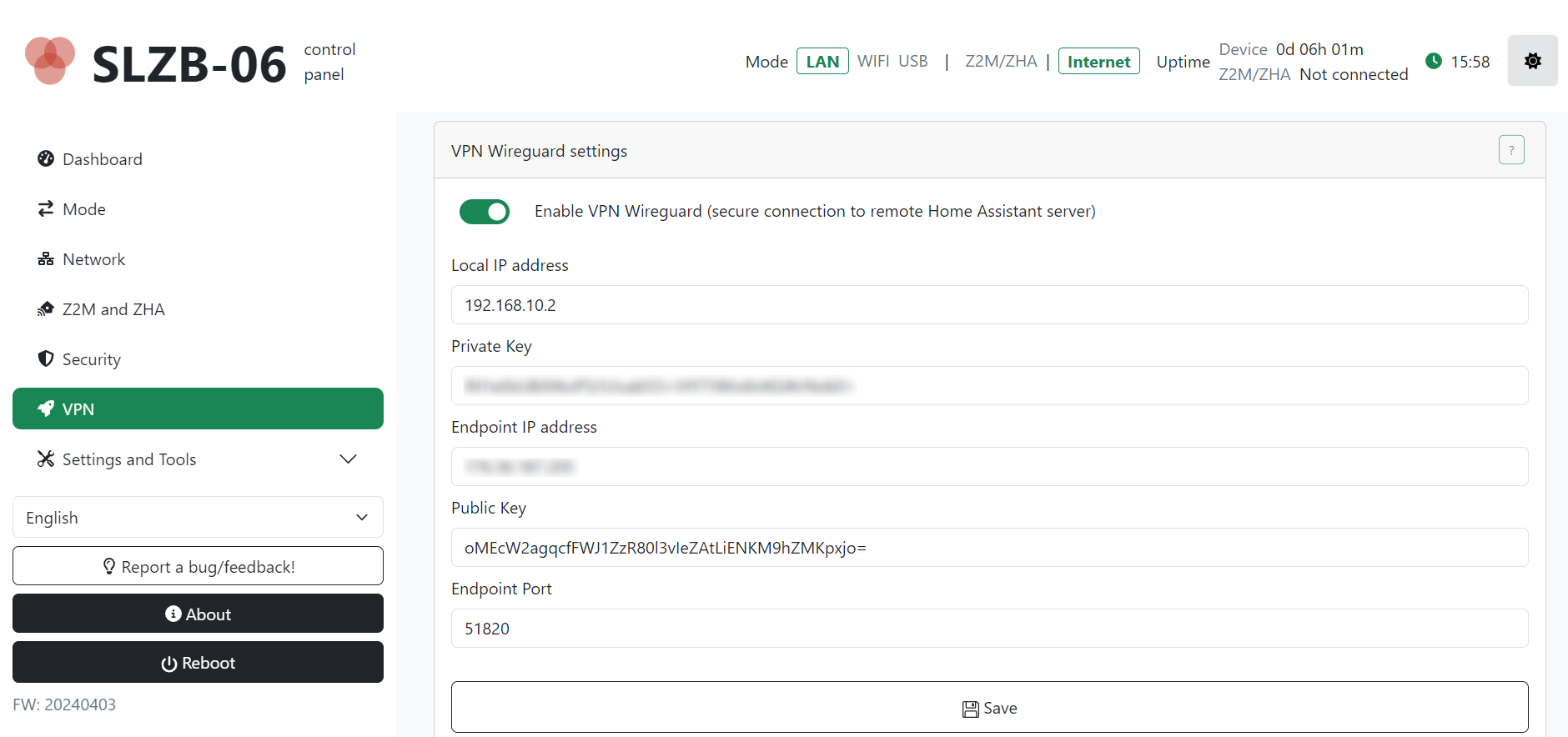
5. Configuring IP routing on Home Assistant server
- Install the
Advanced SSH & Web Terminaladd-on on your Home Assistant. - Go to the
Configurationtab and in thepasswordrow set a strong password. The password can be generated. ClickSave - In the
Infotab, disable theProtection modeswitch and start the add-on. - Click
Open Web UIand paste the following command:
host_result=$(host a0d7b954-wireguard); addon_ip=${host_result##* }; ip route replace 192.168.10.0/24 via $addon_ip; echo $addon_ip
where 192.168.10.0/24 is the network that we have allocated for the Wireguard interface and peers. This command tells Home Assistant that to reach the 192.168.10.0/24 network, it needs to go through the IP address of the Wireguard add-on.
To check if the command works, you can view the routing table by running the command route -n. If the desired network is in the list, then the command worked. Additionally, you can ping the coordinator.
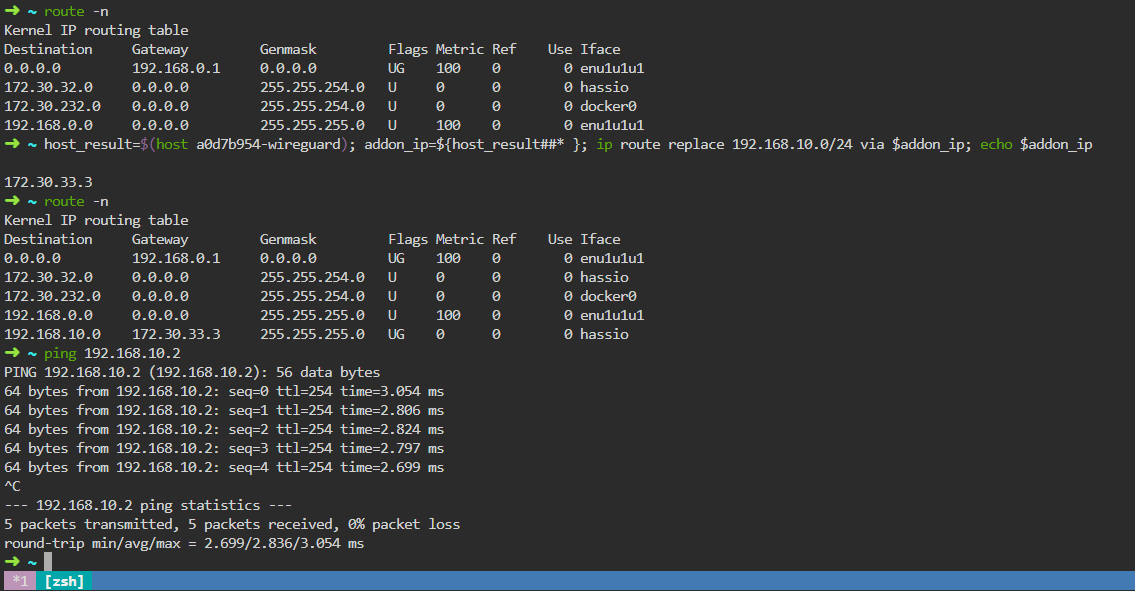
The routing command only works temporarily and then gets erased. To make it permanent, you need to create a sensor in the configuration.yaml file and restart Home Assistant. After that, the sensor name will appear in Devices & Services >> Entities.
command_line:
  - sensor:
      name: wireguard_route
      command: "host_result=$(host a0d7b954-wireguard); addon_ip=${host_result##* }; ip route replace 192.168.10.0/24 via $addon_ip; echo $addon_ip"
6. Running ZHA / Zigbee2MQTT with remote SLZB-06
6.1. ZHA launch with remote SLZB-06
- Head over to the Left panel within Home Assistant click
Settingsand chooseDevices & Services. - In the bottom right corner, click the
Add Integrationbutton, find and select theZigbee Home Automationintegration. - In the Radio Type window, select the line
- ZNP - for SLZB-06/06p7 and 06p10 (based on Texas Instruments chips)
Submit. - EZSP - for SLZB-06M and SLZB-06Mg24 (based on SiliconLabs chips) and click
Submit.
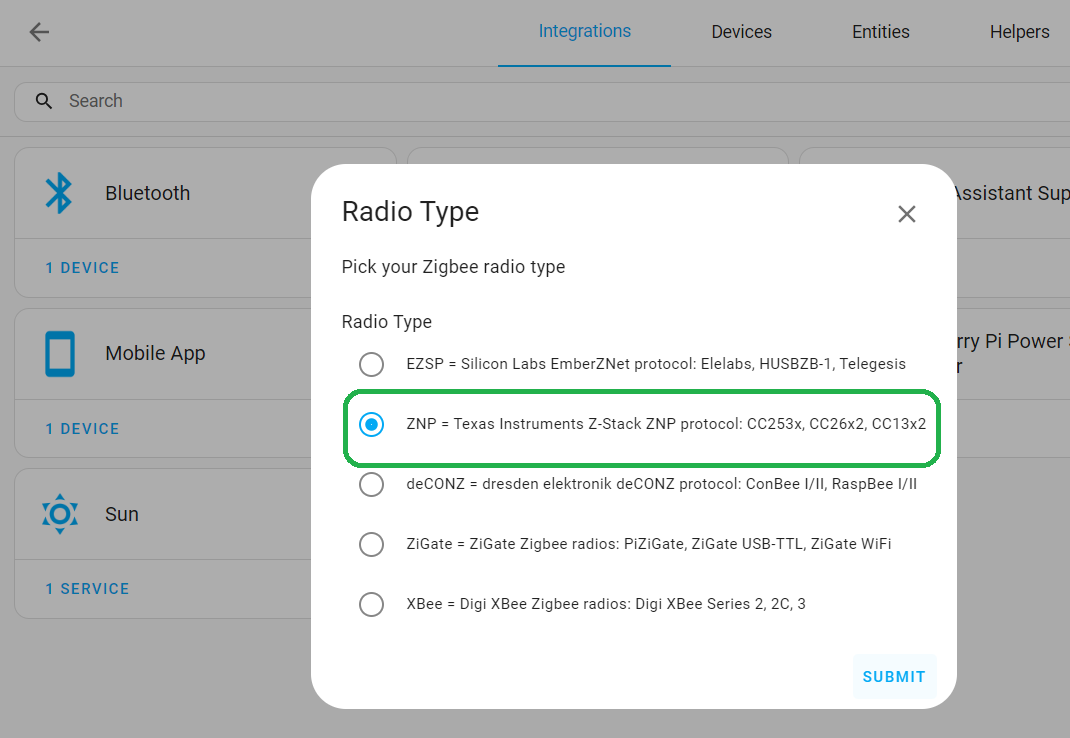
- In the Serial Port Settings window, enter
socket://192.168.10.2:6638. Where 192.168.10.2 is the IP address assigned to the coordinator in Wireguard. Leave the Port speed and Data flow control unchanged and clickSubmit. - In the Network Formation window, select the option to create a new network. After following these steps, you should receive a success message.
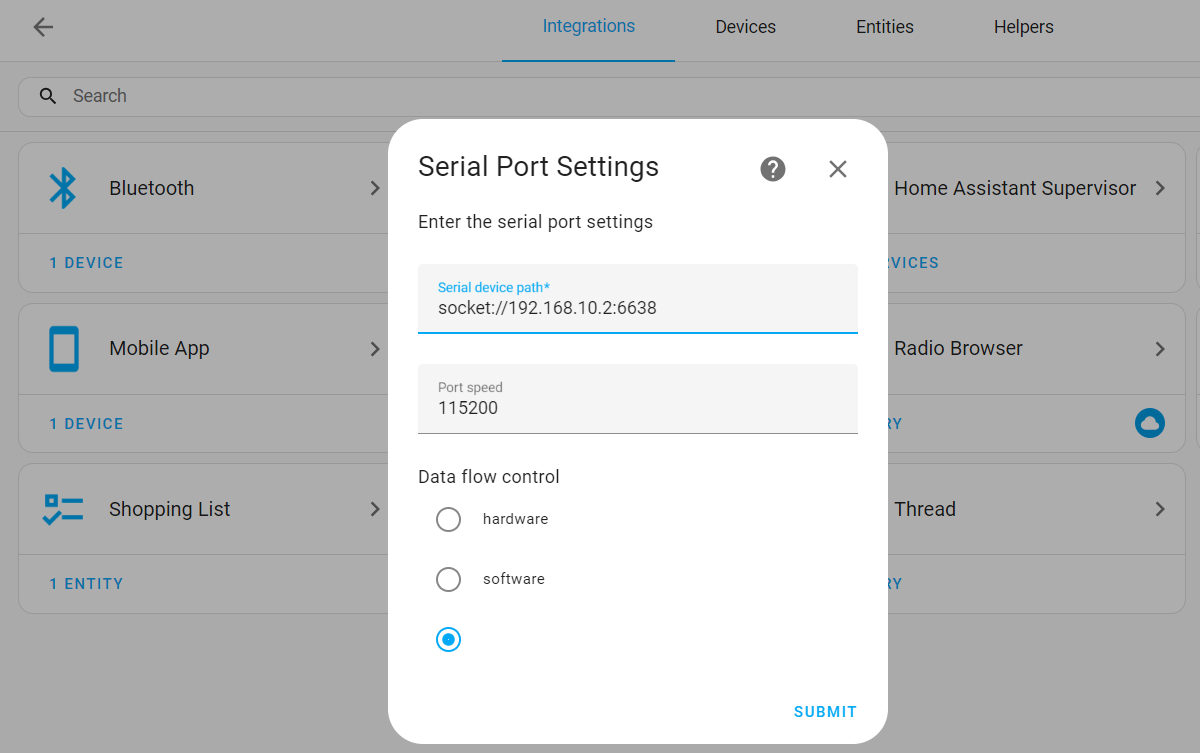
6.2. Running local and Remote SLZB-06 with Zigbee2MQTT via Wireguard
6.2.1. Zigbee2MQTT running with local SLZB-06
MQTT Settings
- in Home Assistant go to
Settings>>Add-ons>>Add-on storeand install theMosquitto brokeraddon >> enable Watchdog switch, then start it. As of the writing of this manual, the version of the add-on is 6.4.0. - Click on the Home Assistant user icon >> User settings section >> and enable the Advanced mode switch.
- Go to
Settings>>People>>Users tab>> click the add user button:Display name: mqtt_userUsername: mqtt_userPassword: mqtt_password
You can choose your username and password. - Go to
Settings>>Devices & Services>> press the Add Integration button >> MQTT >> MQTTBroker: core-mosquittoPort: 1883Username: mqtt_userPassword: mqtt_password
Press Submit and Finish
Zigbee2MQTT Settings
- Go back to the Add-on store, click
⋮>> Repositories, fill inhttps://github.com/zigbee2mqtt/hassio-zigbee2mqttand click Add - Install
Zigbee2MQTTadd-on and enable the Watchdog switch. As of the writing of this manual, the version of the add-on is 1.37.1-1. - Click on
Configurationand paste in the following configuration. You need to change the mqtt login and password in it if they differ and the coordinator IP address. ClickSave. Switch to the info tab and click Start. The add-on takes some time to start, so if you get a502: Bad Gatewayerror try again in a minute.
data_path: /config/zigbee2mqtt
socat:
  enabled: false
  master: pty,raw,echo=0,link=/tmp/ttyZ2M,mode=777
  slave: tcp-listen:8485,keepalive,nodelay,reuseaddr,keepidle=1,keepintvl=1,keepcnt=5
  options: "-d -d"
  log: false
mqtt:
  server: mqtt://core-mosquitto
  user: mqtt_user
  password: mqtt_password #Change password if it is different for you
serial:
  port: tcp://192.168.0.109:6638 #Change the IP address to the address of your coordinator
  adapter: zstack
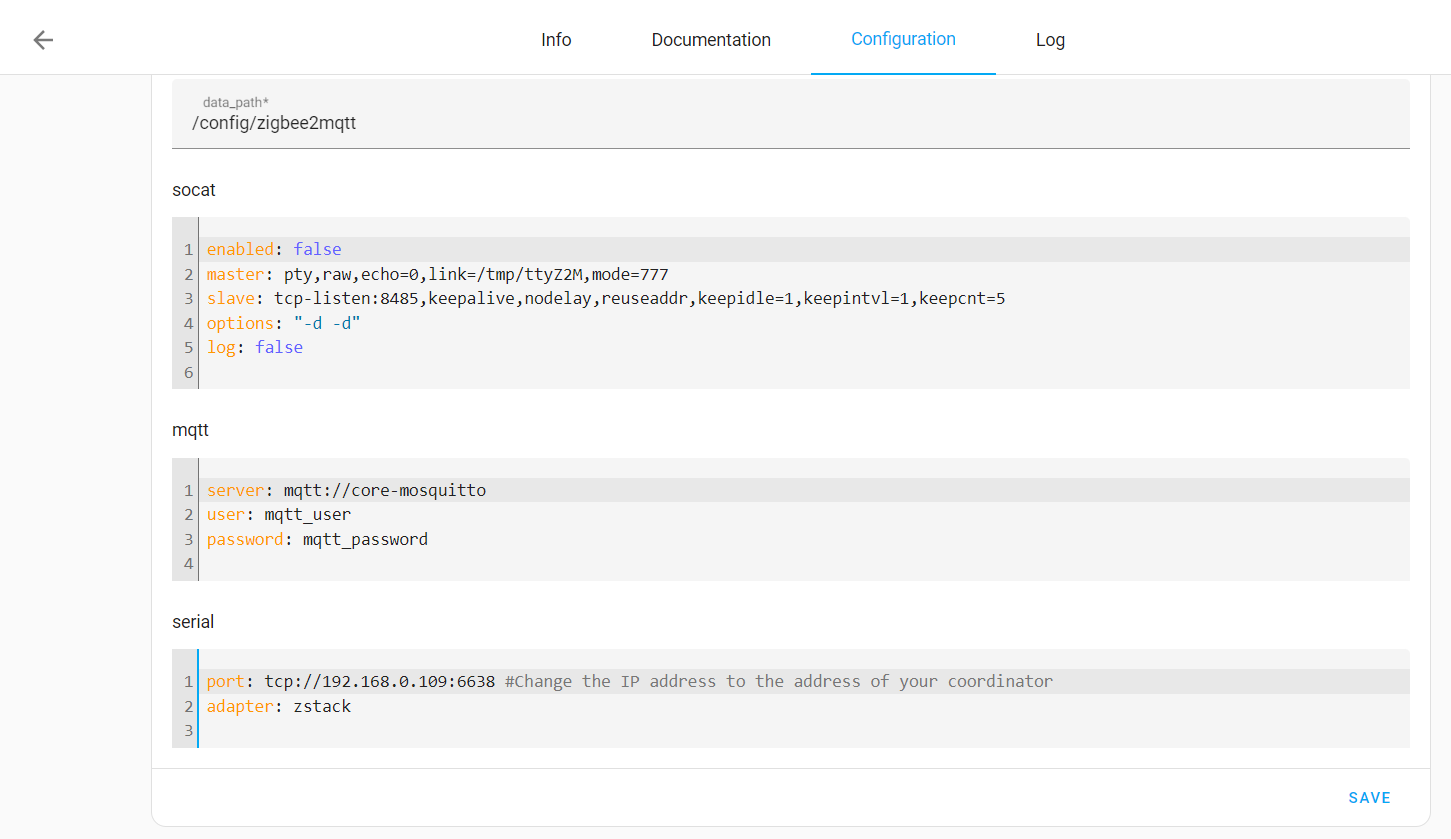
6.2.2. Zigbee2MQTT running with remote SLZB-06 connected via Wireguard
To set up a second Zigbee2MQTT instance, you need to add another slightly modified repository URL to Home Assistant. Each such URL is perceived as new and unique. Here are some examples of modified URLs:
https://github.com/zigbee2mqtt/hassio-zigbee2mqtt/http://github.com/zigbee2mqtt/hassio-zigbee2mqtthttp://github.com/zigbee2mqtt/hassio-zigbee2mqtt/http://www.github.com/zigbee2mqtt/hassio-zigbee2mqtt/
- Navigate to the
Add-on store, click on the three dots⋮icon, and then select Repositories. Paste any of the provided links into the URL field. - Refresh the page and install the new Zigbee2MQTT instance. Activate the Watchdog switch.
- Click on the Configuration tab and paste in the following configuration, change the network port and save it.
data_path: /config/zigbee2mqtt_lan2
socat:
  enabled: false
  master: pty,raw,echo=0,link=/tmp/ttyZ2M,mode=777
  slave: tcp-listen:8485,keepalive,nodelay,reuseaddr,keepidle=1,keepintvl=1,keepcnt=5
  options: "-d -d"
  log: false
mqtt:
  server: mqtt://core-mosquitto
  base_topic: zigbee2mqtt_lan2
  user: mqtt_user
  password: mqtt_password
serial:
  port: tcp://192.168.10.3:6638
  adapter: zstack
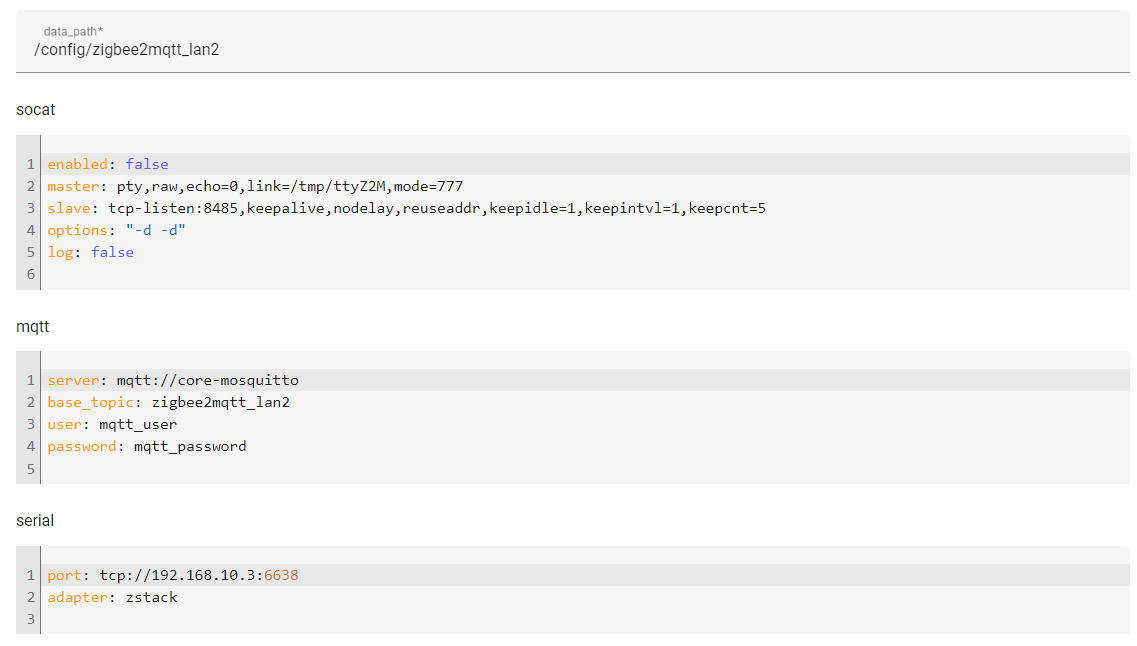
data_path: The directory where the Zigbee2MQTT configuration file is located. By default, this is the /config/zigbee2mqtt directory (the same as homeassistant/zigbee2mqtt/ in File Editor"). For the second network, I created a new directory by changing its name in the add-on settings to /config/zigbee2mqtt_lan2
base_topic: The MQTT topic for publishing messages to and from the Zigbee network. By default, the base topic is called zigbee2mqtt and is used by the first instance. For the second network, I created a different topic by changing its name to zigbee2mqtt_lan2 in the add-on settings.
Network port: By default, port 8485 is used. This port is occupied by the first add-on. For the second instance, I used port 8486 and saved the port settings.

As a result, we will have two instances of Zigbee2MQTT with two different Zigbee networks running independently of each other. Following the example of the second instance, more Zigbee2mqtt instances can be set up.
Advanced Config
For advanced Zigbee network configuration, including pan ID, coordinator transmit power, device last seen time, and Z2M logging level, you can utilize a separate Zigbee2MQTT configuration file named configuration.yaml.
If the addon has not been started after changing the configuration, the folder and file must be created manually.
For example, if your data path in the addon configuration is called config/zigbee2mqtt_lan2, then the directory that needs to be created will be named zigbee2mqtt_lan2 in the homeassistant folder This is the same thing. Then you need to create a new file called configuration.yaml and paste the configuration below.
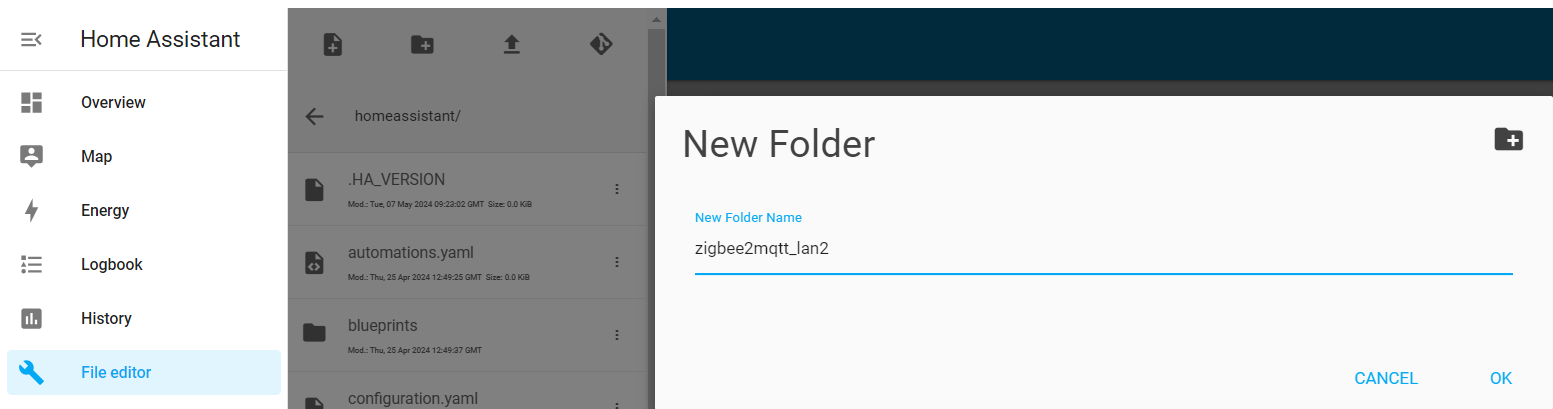
If the addon is running, stop it and completely delete its directory with all subfolders. Create a folder with the same name again, and create a configuration.yaml file inside it. After that, you can start the Zigbee2MQTT addon.
mqtt:
  server: mqtt://core-mosquitto:1883
  user: mqtt_user
  password: mqtt_password
  base_topic: zigbee2mqtt_lan2
  version: 5
serial:
  port: tcp://192.168.10.3:6638
  adapter: zstack
  baudrate: 115200
  disable_led: false
advanced:
  transmit_power: 20
  channel: 15
  pan_id: GENERATE
  network_key: GENERATE
  availability_blocklist: []
  availability_passlist: []
  last_seen: ISO_8601
7. Pairing Zigbee devices on a remote coordinator
Adding Zigbee devices to a remote WireGuard coordinator is the same as adding them to a local network coordinator.
8. Conclusion
As a result of following this guide, we established a secure connection to a remote Zigbee LAN coordinator using a custom Wireguard VPN client.
9. Troubleshooting
z2m: MQTT error: Connection refused: Not authorized
Check the correctness of the mqtt_user data. Wrap mqtt_user and mqtt_password in quotes like this "
Zigbee2MQTT not adding to MQTT Bridge
Delete the MQTT integration settings and reconfigure it
502: Bad Gateway
Zigbee2MQTT is still starting up, or failed to start. Zigbee2MQTT takes about 1 minute to start. The error also occurs with various addon startup errors. See the logs for Zigbee2MQTT add-on errors.
Changelog SLZB-OS
📦 v3.4.3.dev1 - Release Notes
New features
- USB Passthrough now supports up to two USB devices simultaneously. More information
- New Berry module USBH: scripts can take over a USB Passthrough port and talk to the USB device directly.
- New methods for the ZB module:
chipModel(),isEFR(),isCC(),isZW(),getFirmwareRev(),getFirmwareType().initUart()got thehwFlowoption.
Improvements
- The USB Passthrough page has been redesigned and updated: connected devices, USB host channel usage, device status and a button to put a dongle into bootloader mode (BSL).
- The OS will now apply adaptive timing and UART FIFO configurations based on the selected baud rate.
- Berry scripts can no longer hang the OS: a callback (TIMER, MQTT, ZB, ...) running longer than 1 second is stopped with an error, and a busy loop in a script gives CPU time to the rest of the system.
- Logging level selectors (OTBR, Tailscale) now warn that levels above Warning are meant for debugging only.
Fixes
- HUE module fixes (again). The HUE module will now attempt HTTPS if the HTTP connection is rejected.
- Fixed corrupted data for FTDI USB devices.
- Fixed the VPN page not saving settings, and validation errors are now shown on it.
- Tailscale: fixed peers relaying through the wrong DERP region (the device showed online but was unreachable without a direct connection).
- Tailscale: fixed STUN probes being rejected by Headscale's STUN server, more accurate nearest DERP region detection.
- Fixed possible crashes when other tasks write to the device log.
- Berry NETWORK module: fixed a possible crash when streaming large HTTP responses.
- Radio firmware auto-update no longer blocks other updates while it only checks for a new version.
Thread+OTBR running on device
- Custom OMR config support: automatic, custom prefix with preference or disabled. The page also shows the local, favored OMR and on-link prefixes.
- NAT64 can now be disabled.
- Added button to stop/start OTBR. Stopping leaves the Thread network gracefully: routes are withdrawn and the border router is removed from the Network Data.
- A device reboot keeps the Thread router ID and role, so the mesh no longer rebuilds around the border router after a quick reboot.
- More NAT64 fixes. Now we are absolutely certain that this works.
- Fixed a wrong Border Agent port advertised over mDNS after Thread was restarted.
- High OTBR logging levels no longer cause crashes.
- Task buffers and priorities have been optimized to increase performance and improve stability. RCP errors have now been minimized.
Berry apps (preview)
- App permissions: apps run in a sandbox, the installer shows the permissions an app requests before it is installed.
- Apps can import their own Berry modules from the app folder.
- Developer mode: an app with
"dev": truegets a file manager and the script editor for its files. - App README: rendered in the app details, the installer checks the minimum OS version and supported models.
- App backend errors are written to the app's own log.
Socket Server refactoring
- Fixed TCP_NODELAY not being applied: one lost TCP packet could delay all following radio frames by up to several seconds.
- The logic for detecting connection losses has been modified to minimize false positives.
- Each server received an additional stash for packets from the radio module to compensate for potential delays in TCP/IP networks.
- The stash will be sent to the client whenever possible. If the stash does not move for 5 seconds, the connection will be considered lost.
- A radio frame is now sent as a single TCP packet instead of several small ones.
- Lower latency of data sent to radio modules without flow control.
- Delays in the data path are now reported in the device log.
📦 v3.4.1.dev1 - Release Notes
New features
- Tailscale VPN for U-series devices (yes, you are awake).
- New Berry modules: LTE, WG, NETWORK, TCP, UDP
- Preview: Berry apps.
Improvements
- Added more socket server debug info to device log.
- Added support for parsing V3 sililabs-firmware-builder manifests for EFR32 firmware.
- Zigbee OTA API has been switched to the POST method.
- WireGuard refactoring and fixes for better LTE modem compatibility.
- The VPN page now displays the status.
- MQTT and BLE traffic can now be routed to WireGuard peers.
- LTE driver rework: improved stability, better connection recovery.
- LTE now supports two connection modes:
- primary (all internet traffic is routed via LTE)
- backup (default. internet traffic switches to LTE only if there are no internet connection via Ethernet or Wi-Fi). - LTE received support for reading/sending SMS.
- RAM optimizations for U-series devices.
- Allowed ZHB and IoT AP at same time for U-series devices.
- Increased the keepalive setting for the socket server to 60 seconds.
Fixes
- HUE module fixes.
- Ultima3: fixed custom RTTTL play button.
- Fixed WDT triggering during local CORE firmware update.
Thread+OTBR running on device
- Fixed a race condition where the BR could listen on the wrong IP, causing Thread devices to become unreachable.
- NAT64 fixes.
- Fixed "Failed to get LL address".
- Now generates true random Thread network upon the first launch.
- Logging level setting.
Zigbee Hub mode
- Backup support for EFR32 radio modules.
- Added a watchdog to monitor the connection to the radio module and automatic Zigbee network restart upon loss of connection.
- Automatic Zigbee network restart if an RST frame is received from the radio module.
- Zigbee Hub will not remove records with the status "unsupported attribute" from memory.
📦 v3.3.8.dev7 - Release Notes
New features
- New Berry modules: ISC, UI, BEAPP
Improvements
- Minor socket server improvements.
- Added more missing localizations.
- Improved the layout of the "Zigbee Automatic Update" block on mobile devices.
- Added RAM watchdog for U devices. The device will reboot if the amount of free RAM drops to a critical level.
Fixes
- Thread+OTBR running on device: fixed IPv6/OMR forwarding breaks after Ethernet link loss or device reboot.
- Ultima: fixed a crash on the RF add-on page if RF addon is not installed.
- Berry: fixed large scripts saving.
- Berry: fixed TIMER can fire immediately.
Zigbee Hub mode
- Fixed incorrect parsing of Zigbee packets containing a manufacturer code.
- Logging refactor.
📦 v3.3.8.dev5 - Release Notes
New features
- New advanced Berry Script Editor with type/class parser, advanced autocomplete and built-in documentation.
When you visit the "Script Engine & Editor" page, you will be prompted to try the advanced editor.
Fixes
- Fixed OS deadlock when syslog and "Thread+OTBR running on device" is enabled together.
- Fixed OTA update issues on non-U devices that occurred in v3.3.8.dev1 and dev3.
If you have the error "req code -1" or "FW size mismatch, written: 0kb of total: 2821kb", please read this update guide
📦 v3.3.8.dev3 - Release Notes
New features
- New socket server IP whitelist: up to 3 IP addresses, with subnet support via CIDR
- Thread+OTBR running on device REST API now supports IP whitelist: up to 2 IPs. Check it out on the security page!
Improvements
- Added some missing localizations
- Added 125000 baud rate for \"USB Passthrough\"
Fixes
- Thread+OTBR running on device: fixed meshcop state bitmap which caused problems with adding Thread devices in some cases
- Fixed OS crash on SLZB-Ultima3 when receiving IR code (this time we fixed it for sure)
📦 v3.3.8.dev2 - Release Notes
New features
- Experimental TREL support for "Thread+OTBR running on device" mode.
Dev comment: In a previous releases we already tried to add TREL support but it caused TCP/IP deadlocks. Our tests for this release did not find any deadlocks, we also tested TREL between OTBRs and it works fine.
If you have deadlocks after the update please open a support ticket!
Improvements
- Updated helper text on BLE page
- Added warning about using a proxy to the OTBR page
Fixes
- Fixed OS crash on SLZB-Ultima3 when receiving IR code
📦 v3.3.8.dev1 - Release Notes
New features
- New login page: the web interface now uses a modern sign-in page with a session cookie instead of the browser's native password prompt. API clients (Home Assistant integration, curl, etc.) keep working with HTTP Digest auth as before
- Zigbee Hub can now run on EFR32 radios (SLZB-06M/g24/Mg26 and the EFR32 radio of MR devices). On multi-radio devices you can choose which radio runs the hub. No Zigbee network backups for EFR32 at this stage
- (Preview) Zigbee Hub: new ZCN Builder page — a visual constructor that generates the Berry converter code, with built-in examples, and can run/update the converter script directly on the device
- RF Transceiver add-on support for SLZB Ultima (CC1101, 315/433/868/915 MHz): sniff, replay and save OOK/ASK commands from remotes, wireless sockets, doorbells, etc. New RF page, REST API, MQTT topic
status/rfand BerryRFmodule - BLE: configurable scan interval and scan window
- New Berry integration: Prowl (iOS push notifications)
- Berry ZHB module:
ZHB.await(),ZHB.on_response()andZHB.lastStatus()— wait for the device's reply to a Zigbee request (sync or async);ZHB.mqttAction()also supports await
Improvements
- Socket server (LAN/USB bridge to the radio) refactored: select()-based loop, larger UART buffers, async UART writes, stalled TCP clients are dropped instead of blocking the radio path
- Web interface assets are now minified and cached by the browser — faster page loads, no stale files after an update
- Wi-Fi TX power is now fixed at 20 dBm
- MQTT broker address field extended to 64 characters
- OTBR: the UI respects a custom REST API port on the OTBR and Mode pages
- OTBR: REST API returns 404 for unknown URLs (fixes OTBR flavor auto-detection for matter.js)
- OTBR: (Experimental change) increased the limit of Thread devices that can be connected from 10 to 32.
Dev comment: this is a theoretical limit, currently only 16 devices have been successfully tested but we do not have more devices to test yet - LTE add-on: better modem init and restart, forced modem reset on start
- IR receiver: repeated IR frames are ignored — only the first frame of a button press is reported via MQTT/SSE/Berry
- U2L: the mode button no longer switches USB mode
- Updated Berry to the latest version; Berry scripts embedded in the firmware are now pre-compiled (solidified)
- Berry: errors raised inside custom scripts are handled and logged instead of crashing the VM
Fixes
- Fixed NAPT on Wi-Fi bridge (WBR) mode
- Fixed MQTT port being overridden on MQTT page load
- OTBR: fixed infinite loop on startup if the RCP radio does not respond
- OTBR: fixed SecurityPolicy flags that could not be set to false
- LTE add-on: fixed Wi-Fi AP not starting with the modem
- Berry: fixed heap corruption on VM delete
Zigbee Hub
- Status feedback for device controls: binding, reporting and other ZCL requests now show whether the device accepted or refused the command
- Reporting configuration is built from the actual device clusters, with an optional multiplier override
- Option to publish
/zhub/data/MQTT messages with the retain flag - Confirmation dialog before removing a device
- Improved IAS Zone enrollment (correct enroll attribute, delay after writing IEEE, fixed enroll stage)
- Interview timeouts adjusted to match fast polling; fixed attribute read spam during interview
- Converter for Sonoff SNZB-03P motion sensor
- Converter for Tuya ZY-M100-S presence sensor (TS0601 _TZE284_iadro9bf / _TZE204_qasjif9e / _TZE200_qasjif9e / _TZE204_ztqnh5cg / _TZE204_iadro9bf)
- Converter for Tuya NAS-AB02B2 siren (TS0601 _TZE200_t1blo2bj / _TZE204_t1blo2bj / _TZE204_q76rtoa9)
- Converter for Tuya TS0601 presence sensor (_TZE204_ex3rcdha / _TZE204_lbbg34rj)
- Better matcher for Lumi/Aqara temperature & humidity sensors
- Fixed wrong firmware offered for the P10 radio
- Updated slider UI
💙💛 Special congratulations to our Ukrainian team on Independence Day and to everyone who supports Ukraine during this difficult time 💙💛
📦 v3.3.5.dev1 - Release Notes
Breaking changes in this update!
Please read breaking changes note before this update: documentation
Improvements
- The dashboard now shows a full list of IPv6 addresses when the device is in OTBR mode
- Optimized main loop
- Improved SBL synchronization for EFR32 radios
- Updated Berry ZB module
- Updated Berry HTTP module
- Updated Berry TG module
- Guarded all network-dependent Berry modules from calling before network interface is created. Now this will throw an error instead of a crash.
- MQTT client now supports MQTTS
- Logging system and syslog optimizations
- Blocking multicast traffic at the PHY layer if mDNS is disabled
- OTBR: Now you can change individual network parameters
- OTBR: Added the ability to reset the node, which may be useful if you accidentally specified a broken TLVs and the TLVs are no longer updated
- OTBR: You can change the OTBR REST API port
Fixes
- Fixed Berry TG module not sending long messages
- Fixed Berry TG module crashing if many messages arrived while it was offline
- Fixed LTE addon not working on Ultima3
- Fixed broken transparent bridge for non-U devices (again)
- Fixed Berry HTTP.isOpened()
- Fixed memory leak in Berry HTTP module
- Fixed broken packet mode for EFR32Mg24 and Mg26
- Fixed race condition on EZSP start for IEEE read/write via web interface
Zigbee Hub
📦 v3.3.3.dev7 - Release Notes
Improvements
- Improved firmware rollback mechanics after OTA update. The device will roll back to the previous firmware if a crash occurs within 30 seconds after the update.
- Increased tcp keep alive timeout to prevent socket drops on unstable networks.
- New BLE page and BLE proxy for U line and Ultima devices documentation
- New BLE Berry module for U line devices documentation
- All Berry scripts on U line and Ultima devices now use PSRAM by default and no longer crash when trying to access the file system.
- RAM optimization for U line and Ultima devices.
- Improved deinitialization for "Thread+OTBR running on device" mode.
Fixes
- Fixed an issue where a user could accidentally copy the text of a crash message even if the crash did not occur.
Zigbee Hub
- Fixed JSON validation for system_control topic
📦 v3.3.3.dev4 - Release Notes
Improvements
- Added the ability to select a firmware update channel on the \"Firmware update\" page. After selecting, you will only see firmware of the selected channel in the coordinator interface. As of now, this only applies to the coordinator interface (in Home Assistant, you can still see notifications about firmware of another channel)
- For coordinators with EFR32 radio modules, an option to clear NVM has been added to the firmware update dialog. This option is enabled by default to prevent problems when migrating between firmwares. You can still uncheck this in the dialog to not clear NVM.
- Automatic updates will now only use stable Zigbee firmware
Fixes
- Fixed an issue where empty DNS could be assigned in some cases
- Fixed automatic OTA baudrate update issues
- Fixed IEEE read/write functionality for firmware 20260416 of the EFR32 radio module
Zigbee Hub
- Fixed discovery payload for illuminance cluster
- Minor improvements to electric valve support
- Fixed handling of custom MQTT commands for cluster ON/OFF
📦 v3.3.3.dev1 - Release Notes
Improvements
- Experimental support for SLZB-OS configuration backup/restore
- Optimized the processing speed of SSE messages
- Added a button to copy the device log
- Added autocomplete for TIMER module
- SUN module redesigned documentation
- OTBR on device moves from experimental to beta
- U-series coordinators now store 12x larger device log in PSRAM (50KB vs 4KB)
- (SLZB-Ultima) New "Audio" page and MP3 audio player support!
- (SLZB-Ultima) Added new Berry audio player module documentation
- (SLZB-Ultima) Added optional argument for number of repetitions for sending IR command for berry IR module documentation
- (SLZB-Ultima) Improved stability of Z-Wave addon
- (SLZB-Ultima) Improved 4G modem processing
- (SLZB-Ultima) The IR receiver will be disabled while transmitter active
- Added 10s timeout for OTBR startup. If after that the radio module still does not respond - you will see an error on the OTBR page
Fixes
- Fixed an OS crash that caused OTBR in some cases
- Fixed ZigBee network scanning not working if OTBR is running on radio module 2
- Fixed DNS issues for NAPT bridge mode
- Fixed SPAM in device log when using SMLIGHT SLZB integration
Zigbee Hub
- Added experimental ZigBee Hub backup functionality
- Added missing subscriptions to new zHub control topics. Now new topics will work (attribute read request, system_control)
- When creating a new random network, only channels 11, 15, 25 will be used
- Automatic firmware updates of the radio module will be disabled if the Zigbee Hub is active
- Fixed an issue that caused a ZigBee network start error when the network was actually started
- Fixed issues with network key comparing
- Fixed broken Zigbee buttons triggers
📦 v3.3.1 - Release Notes
Improvements
- OS will now reboot the EFR32 radios at startup
Fixes
- Fixed broken static IP config for Trasparent WiFi bridge mode
Zigbee Hub
- Added attribute read request for MQTT API: documentation
- Added new system_control MQTT API: documentation
- Added test converter for "Moes ZS-EUB_2gang"
📦 SLZB-OS 3.2.9 - Release Notes
Fixes
- Fixed Berry Telegram integration
- Fixed boot-loop in WiFi mode when activating OTBR on the device
- Fixed crash when ping is enabled for Wireguard
Zigbee Hub
- Added a new tab "Exposes"
- Fixed crash when saving settings if Zigbee Hub is not enabled
- Fixed LQI unit warning
- Fixed Tuya DP sensor update
- Fixed: ZigBee network always reset when saving settings, even if channel/panId or key was not changed
📦 SLZB-OS 3.2.8 - Release Notes
Highlights
- Integrated 30+ services for local automatiations, including WLED, Telegram, Weather, Slack, Wake-on-Lan, MS Teams, E-mail, OpenWRT, and more.
- AI is here: Added AI Assistant to help users write automation scripts more easily. in Beta test. Requires AI credentials (so far - Anthropic only). Watch the quick 4-minute YouTube overview .
- SLZB-xU devices can now try a new experimental mode with native OTBR app running directly on the SLZB-xU device. Mode is still experimental, and there is reported bug in some installations - the coordinator may become unavailable after some time. Pattern is unknown, that is why still experimental status.
Improvements
- Moved Ethernet processing to Core 0 for better load balancing.
- Optimized the scripts virtual machine for better performance.
- For U devices, the BT Proxy option now links directly to the activation manual.
- IPv6 has been temporarily disabled for rework.
- All localizations except EN have been moved to a cloud server to reduce firmware size. On first opening the coordinator interface, the localization will load in the browser if internet access is available. Without internet access, EN will be used.
Fixes
- Fixed crash on "Playground: AI Assistant" page.
- Fixed visibility of "Playground: AI Assistant" and "Scripts Integrations" pages.
- Fixed metadata overflow crashes for older
.gblupdate files. - MRW10/10U now use the Z-Wave packet parser, improving socket stability.
- Fixed a crash in the hard reset handler.
Zigbee Hub
- Replaced the LQI unit with "none".
- Fixed logging of values for Tuya DP.
- MQTT now sends correct values even for unsupported devices, allowing them to be used in automations.
- Added support for new Zigbee devices.
📦 SLZB-OS 3.2.7 - Release Notes
Highlights
- Integrated 30+ services for local automatiations, including WLED, Telegram, Weather, Slack, Wake-on-Lan, MS Teams, E-mail, OpenWRT, and more.
- AI is here: Added AI Assistant to help users write automation scripts more easily. in Beta test. Requires AI credentials (so far - Anthropic only). Watch the quick 4-minute YouTube overview .
- SLZB-xU devices can now try a new experimental mode with native OTBR app running directly on the SLZB-xU device. Mode is still experimental, and there is reported bug in some installations - the coordinator may become unavailable after some time. Pattern is unknown, that is why still experimental status.
Improvements
- Moved Ethernet processing to Core 0 for better load balancing.
- Optimized the scripts virtual machine for better performance.
- For U devices, the BT Proxy option now links directly to the activation manual.
- IPv6 has been temporarily disabled for rework.
- All localizations except EN have been moved to a cloud server to reduce firmware size. On first opening the coordinator interface, the localization will load in the browser if internet access is available. Without internet access, EN will be used.
Fixes
- Fixed metadata overflow crashes for older
.gblupdate files. - MRW10/10U now use the Z-Wave packet parser, improving socket stability.
- Fixed a crash in the hard reset handler.
Zigbee Hub
- Replaced the LQI unit with "none".
- Fixed logging of values for Tuya DP.
- MQTT now sends correct values even for unsupported devices, allowing them to be used in automations.
- Added support for new Zigbee devices.
📦 SLZB-OS 3.2.6.dev3 - Release Notes (dev)
🛠️ Improvements
- SLZB-MRW10 and MRW10U: rewritten socket handling for ZWave to improve stability
- Add Window Covering cluster (0x0102) support to Zigbee Hub mode
- Add Occupancy Sensing cluster (0x0406) support to Zigbee Hub mode
- Added speed 2400 for USB page
- Updated localizations
- Updated datapoint /ha_sensors
- Added presets for the SLZB-Ultima3 buzzer
🐛 Fixes
- ✅ Fixed logging and sending Tuya DP data for Zigbee Hub mode
- ✅ Fixed running multiple berry scripts
- ✅ Fixed Wireguard (which was broken in a previous build)
📦 SLZB-OS 3.2.6.dev2 - Release Notes (dev)
✨ Thread + OTBR running on the device - update
Many users have asked for the ability to set TLVs for this mode via SLZB-OS and now you can do this on /otbr page!
🛠️ Improvements
- New Ambilight effects for SLZB-Ultima3
- New Berry modules and integrations (documentation)
🐛 Fixes
- ✅ Fixed Zigbee automatic update ignores speed change in new firmware
- ✅ Fixed a crash in Berry error handler
📦 SLZB-OS 3.2.6.dev0 - Release Notes (dev)
✨ New: Thread + OTBR running on the device (SLZB-xU only) - evaluation/beta mode.
You can now run OpenThread Border Router (OTBR) directly on the SLZB device, instead of running the OTBR add-on/app in Home Assistant.
✅ Why this could be a no-brainer:
- Home Assistant connects to OTBR via network REST API, so you no longer rely on the Serial-over-IP link used in “Thread to external OTBR” mode.
- This aims to improve reliability of Thread connectivity between Home Assistant and SLZB devices fpr those, who experiences issues with connectivity.
🏠 Home Assistant setup:
- OTBR REST API is available at http://device-ip:8080
⚠️ Important notes / limitations:
- 🧪 Initial (beta) integration — may have limitations or unexpected behavior.
- 🌐 IPv6 is required and will be force-enabled when this mode is activated.
- 🧠 "Thread + OTBR running on the device" mode can't work with "router (standard)" mode for Ethernet ↔ WiFi bridge and Zigbee Hub mode. To activate back these features, device mode should be othar than "Thread + OTBR running on the device".
- "Transparent" mode for WiFi ↔ Ethernet bridge is incompatible with "Thread + OTBR running on the device". If you need "Transparent" mode for WiFi ↔ Ethernet bridge - please use any of the previous versions of the SLZB-OS.
- 🔒 Availability: only on SLZB-xU series.
- 🔁 Alternative: you can still use Thread + remote OTBR mode (USB/Ethernet) if you prefer OTBR running elsewhere.
🛠️ Improvements
- ⏱️ Added uptime info for Socket2 and Socket3 in /ha_sensors
🐛 Fixes
- ✅ Fixed a crash in Zigbee Hub mode when a received value is larger than expected
🚀 SLZB-OS v3.2.5.dev1 - Release Notes
✨ New Features & Enhancements
- ✅ Zigbee Hub mode: support for Tuya datapoint data writes.
!BREACKING CHANGE! Changed the format of the write topic Zigbee Hub for Tuya Zigbee Hub MQTT API - ✅ Zigbee Hub mode: Added support for MOES Star Feather (2-key models)
- ✅ Berry: New BUZZER module for Ultima3 documentation
- ✅ Berry: New BUTTON module documentation
- ✅ Increased the web server authentication password limit length from 63 to 64 characters
🐞 Fixes & Improvements
- 🐞 Fixed corrupted date/time in time settings
- 🐞 Fixed script list reload on error
- 🐞 Fixed crash when parsing metadata in .gbl files
- 🐞 Fixed random ISR crash on startup
- 🐞 Fixed wrong baudrate for CC26XX radio after factory IEEE read
- 🐞 fixed EFR32 custom firmware flashing issues
- 🐞 Fixed LTE addon start on Ultima3
- 🐞 Fixed Blue LED logic on Ultima3
- 🐞 Fixed AP delay if SSID and password are empty
- 🐞 Fixed memory leak in usb_list API
- 🐞 Fixed web server lockup when option "Disable web server when socket is connected" is active
🚀 SLZB-OS v3.2.4 - Release Notes
The latest version of SLZB-OS (v3.2.4) brings improvements to MQTT integration, internal scripting (automations), Zigbee diagnostics, and overall system stability.
✨ New Features & Enhancements
- ✅ Added MQTT module support for scripts, so internal automations can send/receive MQTT messages - View usage examples
- ✅ Introduced MQTT API support for SLZB-Ultima - control IR receiver, Transmitter, Buzzer, WS2812 via MQTT (alongside with HTTP control method) - Read MQTT API docs
- ✅ MQTT can now be activated independently of Zigbee Hub
- ✅ Pinned socket tasks to dedicated core for improved performance
- ✅ Zigbee channel scanning added for MR devices (on Z2M/ZHA page)
- ✅ Display of USB mode added for non-U series devices
- ✅ IEEE-related controls disabled for Thread or Zigbee Router firmware
- ✅ Added SSE module for internal scripting
🐞 Fixes & Improvements
- 🐞 Fixed possible web server overflows during reboot waits
- 🐞 Fixed MQTT discovery crashes in Zigbee Hub mode
- 🐞 Optimized overall web server performance
- 🐞 Fixed incorrect baudrate info for radio3 on Ultima
- 🐞 Fixed syslog-related crashes
- 🐞 Hidden socket statuses for USB mode on U devices
- 🐞 Fixed incorrect display of Z-W addon info on Ultima
- 🐞 Tuned serial settings for improved communication
- 🐞 Fixed router reconnect issue on MR4
- 🐞 Fixed incorrect baudrate / crash during .gbl metadata parsing
- 🐞 Fixed radio module OTA updates in USB mode (U series)
- 🐞 Fixed IEEE read issue for MR1U
- 🐞 Fixed bs-target display issue in addons accordion
- 🐞 Fixed socket time/status reporting
🚀 SLZB-OS v3.2.0 - Release Notes
We’re happy to announce the release of SLZB-OS v3.2.0 - a stability-focused update with new device support, major improvements for U-series USB functionality, and multiple Zigbee Hub reliability enhancements.
✨ Highlights
- ✅ FULL support of SLZB-Ultima added - SLZB‑Ultima
- ✅ Improved USB capabilities for U series (new alternative driver)
- ✅ Better stability during OTA updates and Zigbee Hub operation
- ✅ Updated dashboard layout
🆕 New Features
- ✅ Added Full support for the new SLZB-Ultima device - Learn more
- ✅ New alternative USB driver can be selected on the "USB" page (U series)
- Provides advanced USB capabilities
- ✅ USB passthrough now supports 1200 baud
📡 Zigbee Hub Improvements
- ✅ Zigbee Hub now includes a Reset option if startup fails
- ✅ Zigbee Hub now stops automatically when an OTA update is in progress
- ✅ Added missing Zigbee Hub device configurations after reboot
- ✅ Added Zigbee Hub reset option for recovery when startup fails
- ✅ Fixed a Zigbee Hub crash that could occur in some situations on the U series
🔌 USB & Passthrough
- ✅ Added selectable new alternative USB driver on the USB settings page (U series)
- ✅ USB passthrough now supports 1200 baud
- ✅ Zigbee OTA now working in USB mode on U series devices
🌐 Wi‑Fi & Network
- ✅ Wi‑Fi connection now checks hidden SSIDs when connecting
- ✅ Fixed rare crash when using Wi‑Fi in some cases
⚙️ OTA & System Stability
- ✅ Reboot confirmation modal is now shown only when reboot is actually required
- ✅ Dashboard layout updated for improved usability
- ✅ Fixed WDT (watchdog timer) triggering during OTA updates in some cases
🛠️ Other Fixes and Improvements
- ✅ Fixed Berry VM manager free logic
- ✅ Fixed language cache issues
- ✅ Fixed MR3U EFR32 bootloader issues
- ✅ Fixed wrong IEEE writes after reboot for CC radio modules
- ✅ SLZB‑06Mg26U now uses a separate Zigbee OTA firmware
SLZB-OS v3.0.9
We’re excited to release SLZB-OS v3.0.9, bringing major improvements to Zigbee Hub, Thread, and network stability, along with performance boosts, script engine fixes, and a few critical updates.
⚠️ BREAKING CHANGES - ONLY FOR ZIGBEE HUB MODE USERS - NO EFFECT ON ZIGBEE2MQTT OR ZHA USERS!!!
If you use device as Zigbee coordinator (with Zigbee2MQTT or ZHA) / Thread router - it does not affect you. Again, this change is only for those who use device in a Zigbee Hub Mode.
- ❗ Zigbee Hub Users: All Zigbee devices must be re-paired after this update due to core changes in the Zigbee stack and API.
- ❗ MQTT Broker Format Changed:
- Old format: '
mqtt://example.com' - New format: '
example.com' (or, IP format: '127.0.0.1')
You can now use DNS and DDNS hostnames for your MQTT broker.
- Old format: '
- 📘 Updated MQTT API for Zigbee Hub: View the new MQTT API documentation
📡 Zigbee Hub Improvements
- ✅ Redesigned Zigbee Hub network startup - now significantly faster
- ✅ Hub now responds to Time attribute and Identify queries
- 🐞 Fixed: Some Zigbee devices not sending reports in Hub mode
- 🐞 Fixed: Zigbee Hub mistakenly available for EFR32 on MRx devices
🌐 MQTT & DDNS Enhancements
- ✅ MQTT Broker now accepts plain domain names, not only IP addresses
- ✅ "IP Provider" setting for DDNS is now optional
- 🐞 Fixed DDNS update interval and max value behavior
- 🐞 Fixed excessive DNS requests from NTP client
⚡ Performance & System Stability
- 🔧 Increased socket task priority for better responsiveness
- 🔧 Moved secondary tasks on U series to PSRAM for improved memory usage
- 🔧 Improved Thread stability for U series devices
- 🔧 Enhanced EFR32x bootloader activation routine
- 🔧 Improved USB power switch logic on U series
- 🐞 Fixed second radio status display in web interface header
🧩 Berry Script Engine (zHub)
- 🛠 Improved support for
sendTuyaData() - 🛠 Fixed
readAttr()not returning correct values
🌍 Localization
- 📘 Updated and improved UI translations across supported languages
💡 How to Update SLZB‑OS
You can update your coordinator using one of the following methods:
- 🔄 OTA Update (Recommended):
Open the SLZB Web UI →Settings and Tools → Firmware updates → Check for updates (SLZB-OS) - 🔌 USB Update (Manual Flash):
Go to smlight.tech/flasher, select your model, and follow the flashing instructions.
Bluetooth Low Energy
Please note!
To use this functionality, you need to update your Home Assistant to 2026.8 or higher and update SLZB-OS to v3.3.3.dev7 or higher.
General information
SLZB-OS supports receiving BLE advertisements for U series and Ultima devices (ESP32-S3 devices).
Active BLE connections are not supported.
Only support passive/active scanning.
The system consists of two parts:
- SLZB-OS with "Proxy advertisements" enabled. Responsible for physically receiving BLE packets and sending them to HA.
- SMLIGHT SLZB Home Assistant integration. Manages scanning on the SLZB-OS side, receives raw BLE and forwards them to the HA core.

BLE proxy
BLE proxy uses port 5050 so please make sure it is not blocked on your network!
SLZB-OS supports proxying BLE packets to Home Assistant using optimized UDP protocol.
To use BLE proxy you need:
- Have SLZB-OS v3.3.3.dev7 or later
- Have Home Assistant 2026.8 or later
- Have active SMLIGHT SLZB integration
- Have "BLE" and "Proxy advertisements" enabled in SLZB-OS
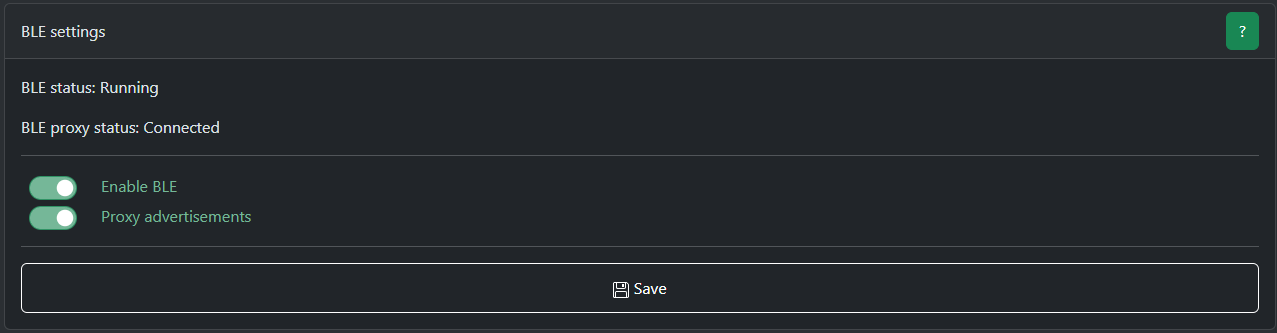
Breaking changes
v3.3.5.dev1
Where did the changes take place?
Zigbee Hub mode users (Does not apply to you if you are using ZHA or Zigbee2MQTT)
USB to Ethernet passthrough mode
Berry: HTTP and ZB modules
Zigbee Hub mode breaking changes
Applies only to those using Zigbee Hub mode
What happened?
In some cases, the ZigBee network key was written to the radio module incorrectly. We fixed this and now it will always written correctly.
Impact
There is a possibility that after the update your zigbee network will break because the network key will now be written correctly (not shifted) and it will not match what is your zigbee network already use.
Migration
All Zigbee Hub backups made before this update will become incompatible!
Please delete old backups and create a new one after update to prevent conflicts!
In most cases, the migration should go smoothly.
If you see the message:
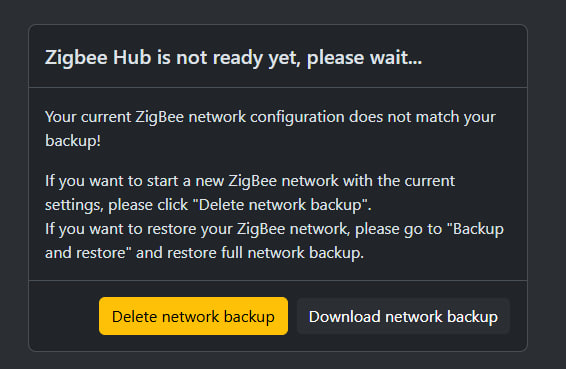
Click on "Delete network backup" and restart your device. You will probably have to re-pair your devices after this.
USB to Ethernet passthrough mode
What happened?
We are completely switching to a new USB host driver.
Why are we doing this?
The old driver does not provide enough stability for our users, the device can often crash or not start at all when a USB device is connected. There is also a degradation in performance over time.
Therefore, we are switching to a new improved driver that solves all these problems!
Impact
The old driver looked for the first available serial interface and used it automatically.
The new driver allows you to choose which interface to use (some USB devices provide more than one interface) so you will now need to choose which interface you want to use.
Migration
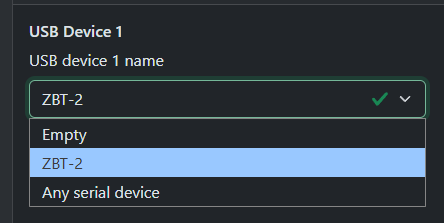
Make sure your USB device is selected
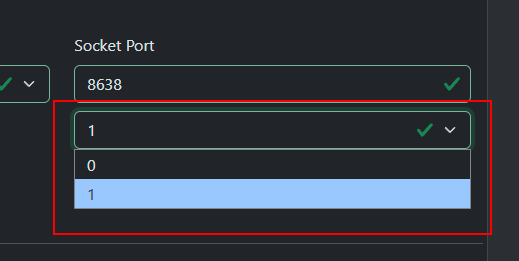
From the drop-down list under Port, select the interface you want to use.
Save the settings and restart the device.
If there are several interfaces and you don't know which one you need, try them all in turn or ask the manufacturer of this USB device which interface to choose.
For ZWA-2 and ZBT-2 you need to select interface 1
Berry: HTTP
What happened?
Stream mode APIs has been changed because the old one did not allow stream POST requests.
Impact
If you don't use HTTP stream mode, nothing impact for you.
HTTP.open() now requires explicit specification of whether stream mode is used (last parameter, optional). If not specified, stream mode is disabled.
For stream mode:HTTP.setHeader() should be called after HTTP.open() but before HTTP.completeStreamConfig()
The buffer size in HTTP.open() for stream mode now means how much data you are going to send in a POST.
Required HTTP.completeStreamConfig() call to complete configuration.
Migration
Update your script according to this example https://github.com/smlight-tech/slzb-os-scripts/blob/v3.3.5.dev0/docs/modules/http.md#quick-example-1
Berry: ZB
What happened?
The ZB module had a significant limitation from the very beginning - it could only work with Radio1 while MR coordinators had 2 radio and Ultima3 can have 3.
Therefore, the ZB module was updated to support work with any number of radio modules.
Impact
Now each ZB function requires specifying the number of the radio module to which it will be applied!
Migration
Update your script according to this example: https://github.com/smlight-tech/slzb-os-scripts/blob/v3.3.5.dev0/examples/basic/zb_reboot_on_drop.be
New API description: https://github.com/smlight-tech/slzb-os-scripts/blob/v3.3.5.dev0/docs/modules/zb.md
Known issues
We know this exists and are working on a fix
v3.3.8.dev1 (non-U devices)
OTA updates not working
What happened?
Starting with v3.3.8.dev1, OTA updates do not work on non-U devices.
Due to a bug, native OTBR support was enabled for non-U devices, which resulted in low available RAM values. Due to the low amount of available RAM, the device can no longer perform HTTPS requests, so OTA updates via our update server no longer work.
Solution
You need to update your device locally.
- Download the update file from this link https://updates.smlight.tech/firmware/slzb06x/core/slzb-os-v3.3.8.dev5-ota.bin
- Go to the menu "Settings and Tools" -> "Firmware update"
- Select "Flash the custom firmware" for "SLZB-OS Update"
- Select downloaded update file and press "Update firmware"
- Wait for the update to finish
All OS versions
Authentication does not work through a proxy
Solution
Add proxy to config:
error_page 403 https://domain;
error_page 404 https://domain;

location ~ ^/ {
proxy_pass http://192.168.xxx.xxx:80;
proxy_http_version 1.1;
proxy_set_header Host 192.168.xxx.xxx;
proxy_set_header Authorization $http_authorization;
proxy_set_header X-Forwarded-Proto $scheme;
proxy_set_header X-Real-IP $remote_addr;
proxy_set_header X-Forwarded-For $proxy_add_x_forwarded_for;
proxy_set_header Upgrade $http_upgrade;
proxy_set_header Connection $http_connection;
proxy_buffering off;
proxy_cache off;
proxy_read_timeout 3600s;
}
CC26XX radio modules (Texas instruments) freeze / hang / crash
Known problem for a long time
What happened?
CC2652P, CC2652P7, and CC2674P10 have a critical bug in the SDK and may hang, especially under high load.
Main symptom: "Error: SRSP - SYS - ping after 6000ms" error, i.e. the radio module is no longer sending any traffic.
In this state, the radio module may also not respond to RST pin, so sometimes this requires a physical power cycle.
Solution
Partial solution: limit traffic in the ZigBee network, remove spamming ZigBee devices. This will postpone the problem but will not solve it completely.
Complete solution: no complete solutions have been found yet.
Spontaneous device reboots: TASK_WDT
What happened?
The device reboots from time to time with the reboot reason TASK_WDT.
Solution
Usually the cause is spam mDNS traffic on your network.
The device can handle traffic of up to about 1000 multicast packets per second, if the flow is higher the device will reboot after a while.
To resolve this you need to do one of the following:
Disabling mDNS
Completely disable mDNS traffic at the router level or on the "Network" page in the coordinator settings.
Will work if you are not using mDNS and are not using Thread.
Finding the source of multicast traffic
Yes, you need to analyze and find the device that is spamming the network. What to do with this device is up to you. Usually, the device that generates such traffic have a bug in its firmware.
Additional router settings
IGMP Snooping in combination with the settings in the card below can help