
About Zigbee Hub mode
4. About Zigbee Hub mode
It is highly recommended to use U series coordinators for this mode (SLZB-06xU / MRxU / Ultima)
Limitations:
- no support for ZigBee devices that require a manufacturer code (Added starting from v3.4.3.dev3)
- no support for ZGP and Touchlink
- no OTA updates for ZigBee devices
- limited support for ZigBee devices that use non-standard clusters (about 3,000 converters generated by AI since v3.4.3.dev3)
- limited number of devices that can be paired:
U series coordinators - up to 80 devices.
non-U series - up to 16 devices.
4.1 What is Zigbee Hub in SLZB-OS?
The Zigbee Hub feature allows the SLZB device to run its Zigbee network directly on the device — without needing an external computer, Raspberry Pi, or NAS to host the Zigbee stack.
In Zigbee Hub mode, SLZB-OS launches an integrated Zigbee stack service that can connect directly to your smart home platform over MQTT.
This mode is ideal for:
-
Self-contained setups where the device acts as both the coordinator and the host.
-
Reducing complexity by eliminating extra hardware.
-
PoE/Ethernet-based installations for maximum stability.
When Zigbee Hub is active, a dedicated Zigbee Hub menu appears in the SLZB-OS interface, containing the following pages:
-
Dashboard – Live overview of Zigbee network status.
-
Devices – List and manage all paired Zigbee devices.
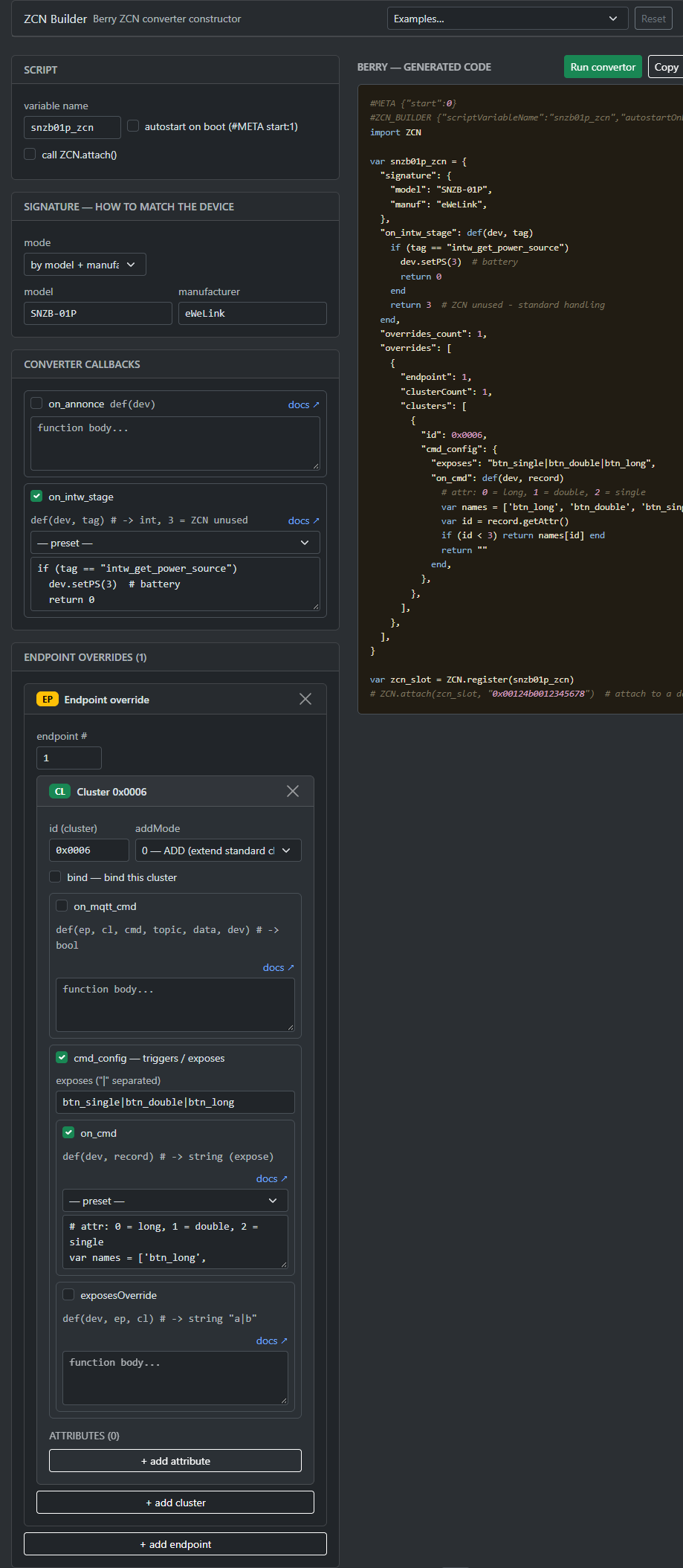
- ZCN Builder - A tool that helps create custom converters for Zigbee devices.
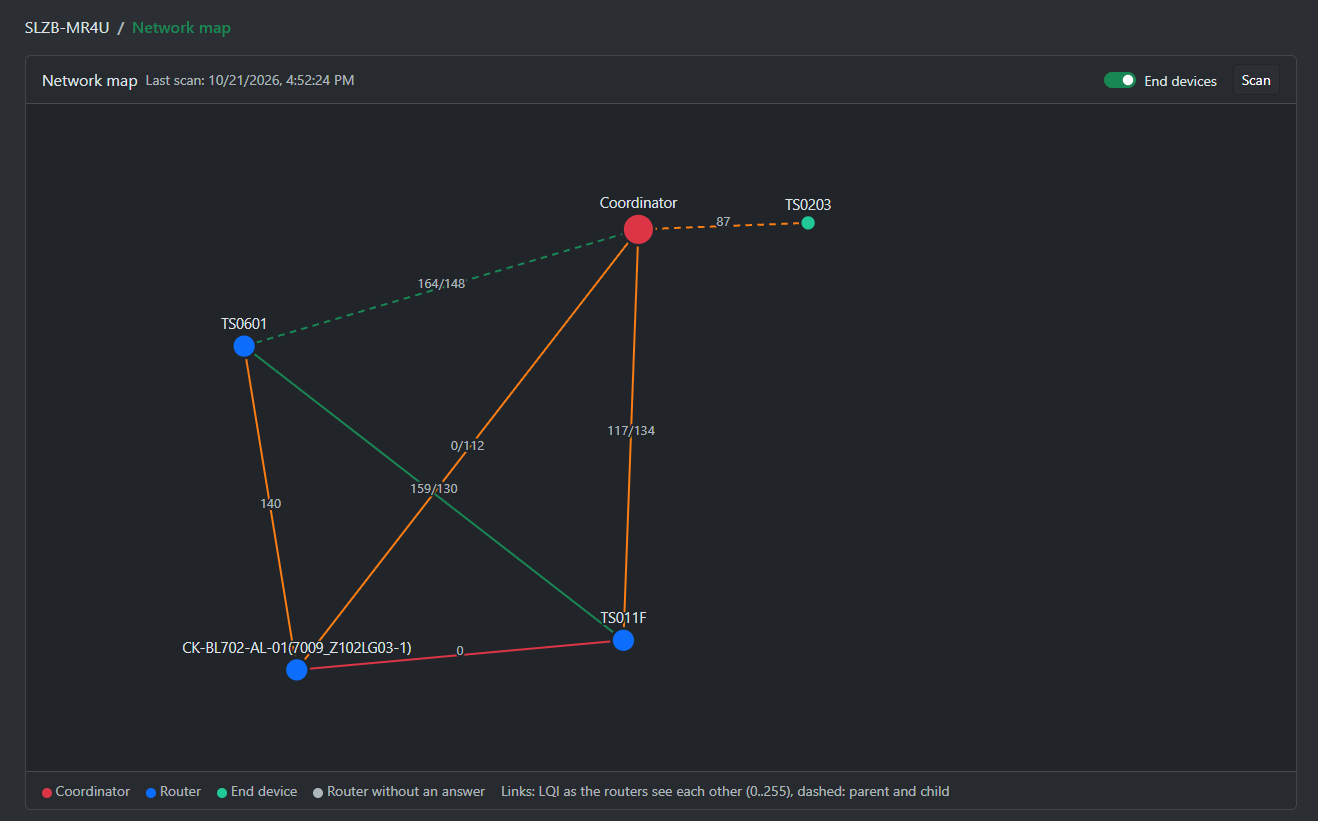
- Network map - Map of your Zigbee network (v3.4.3.dev3+)
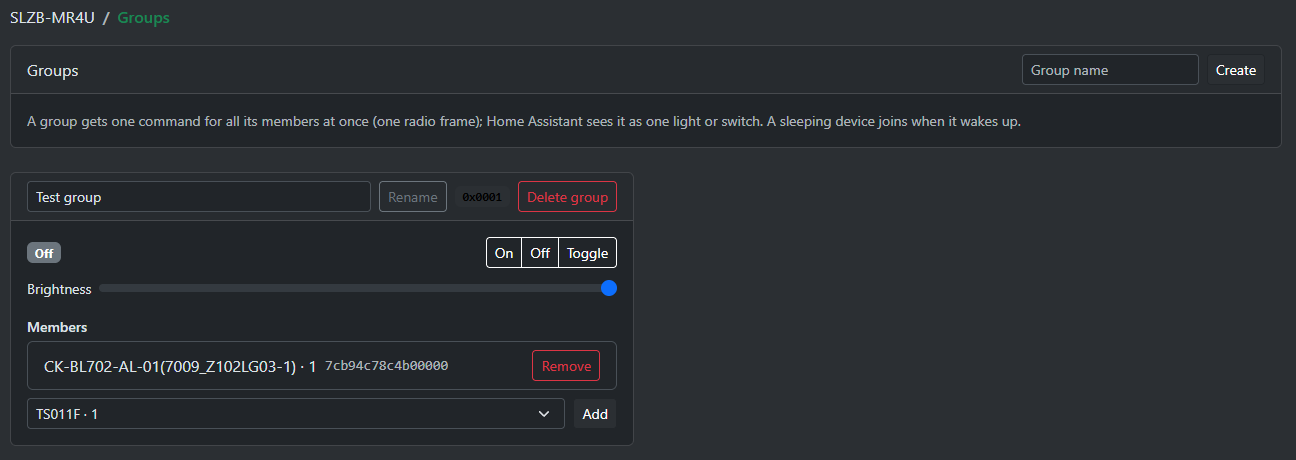
- Groups - Creating and managing Zigbee groups (v3.4.3.dev3+)
-
MQTT – Configure the MQTT broker connection.
- Backup and Restore - Creating and restoring Zigbee network backups.
-
Settings – Advanced Zigbee network and coordinator options.
Feature overview
- Pairing
- Permit join for the whole network or through one router, at most 254 s; the hub closes the network again by itself.
- Install codes (QR code text of Aqara, Hue and Zigbee 3.0 devices).
- Automatic interview of every new device:
- node descriptor, endpoints, manufacturer, model, power source.
- binding and attribute reporting configured config.
- IAS zone enrollment for alarm sensors.
- Tuya initialization.
- Polling fallback: a mains device that cannot report an attribute (many Tuya plugs) has it polled automatically.
- Thousands of supported device models: standard Zigbee devices work without a converter. Device-specific converters.
- Home Assistant MQTT discovery for sensors, switches, lights, covers, climates, fans, locks, sirens, numbers, selects, buttons, texts and device triggers (buttons, remotes, scenes).
- Device availability: a device silent for too long is marked offline in Home Assistant and on the dashboard. Defaults: 10 min for mains devices, 25 h for battery devices.
- Groups: one Zigbee group command switches all members at once. Each group appears in Home Assistant as a light or switch.
- Network map of routers and their links with link quality (LQI).
- Channel change without re-pairing: the running network moves to the new channel together with its devices.
- Network key change without re-pairing.
- Backup and restore of the network, the devices and the settings. A backup is also made automatically after a channel or key change.
- Device tools in the web interface:
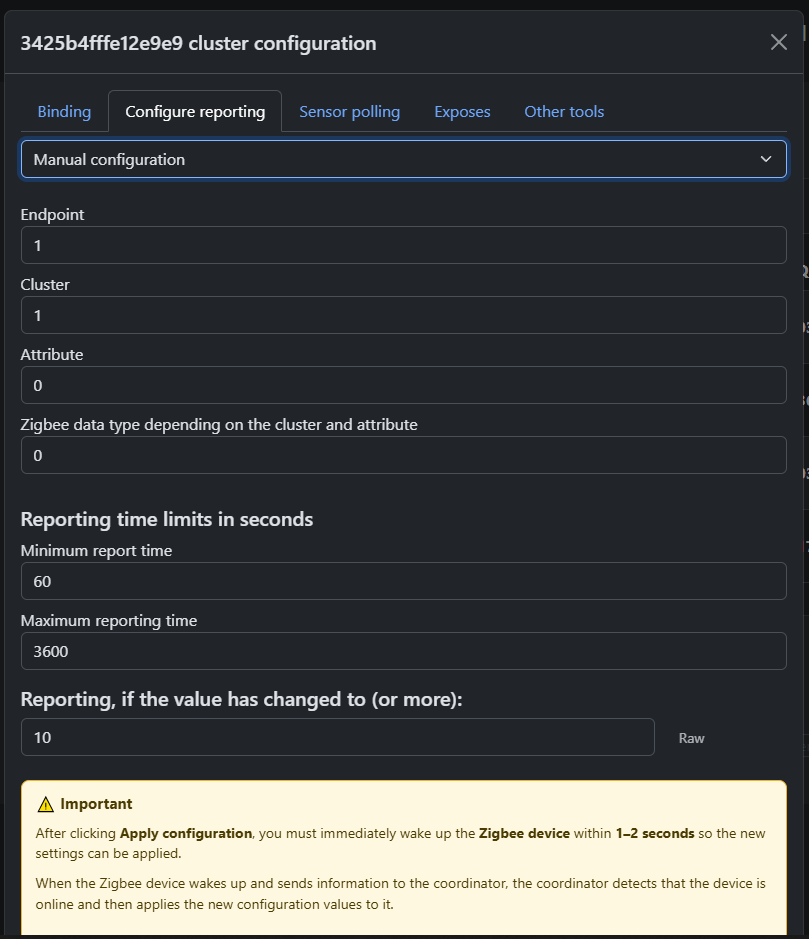
- bindings (to the hub or to another device), reporting and polling;
- read and write attributes, send any ZCL command;
- choose or update the device's converter.
- Local automation scripts: read device values and control devices from scripts running on the SLZB device.
- History for sensor values: U devices stores the history of value changes for your Zigbee sensors over the past 24 hours, with a sampling interval of 5 minutes.
Device support
Most devices that follow the Zigbee Cluster Library standard work without any converter: the hub reads the clusters the device has.
Devices with their own data formats (Tuya datapoint devices, Xiaomi / Aqara, manufacturer-specific clusters) need a converter. There are three types:
- Built-in converters: a few dozen popular devices (Tuya, Lumi / Aqara, SONOFF, MOES, Third Reality), compiled into the firmware.
- Generated converters: about 3,900 converters, generated by AI.
- Coverage:
- Tuya: about 630 datapoint device models, 508 of them with every datapoint mapped;
- Philips Hue, IKEA, Aqara / Lumi, SONOFF, Innr, Gledopto, Heiman, Schneider Electric, Sunricher, Namron, Ledvance, Osram, MOES, Legrand, Danfoss, Shelly, Yale, Third Reality and many more.
- What they carry:
- the device's entities (with fields, composite climates / covers / lights / fans, schedules, button actions);
- the device configuration for pairing (bindings, reporting, attribute writes, time sync, periodic queries).
- Delivery: converters are not part of the firmware. The hub fetches the converter of a paired device from the SMLIGHT server and stores it.
- U devices download it themselves, and check for a newer version daily.
- Older devices get it through your browser while the web interface is open.
- Both are controlled by the setting "Allow downloading device converters from the SMLIGHT server" on the Zigbee Hub settings page.
- A converter fragment file (
.zcf) can also be installed by hand in the device dialog.
- Coverage:
- Berry ZCN converters: your own converters written in Berry (ESP32-S3 devices). Zigbee Hub → ZCN Builder generates the code. See the Berry ZCN manual.
Supported Zigbee clusters
These clusters are handled for every device. The hub binds them and configures their reporting at the interview where needed.
| Cluster | ID | What you get |
|---|---|---|
| Power Configuration | 0x0001 | Battery % and battery voltage (battery devices) |
| Identify | 0x0003 | Answered as Zigbee 3.0 requires |
| Scenes | 0x0005 | Scene recall / store of remotes as actions (recall_1, ...) |
| On/Off | 0x0006 | State and control; remote commands as actions (on, off, toggle, per button) |
| On/Off Switch Configuration | 0x0007 | Switch type and switch actions of relays |
| Level Control | 0x0008 | Brightness, Level settings (on level, transition times, start-up level); remote commands as actions (brightness_move_up, ...) |
| Analog / Binary / Multistate Input | 0x000C / 0x000F / 0x0012 | Values named after the device's description, with units and state names |
| Time | 0x000A | The hub answers the device's time requests (time zone and DST) |
| Poll Control | 0x0020 | Check-ins answered; queued requests are sent to sleepy devices quickly |
| OTA Upgrade | 0x0019 | Answered "no image available" (no firmware updates) |
| Door Lock | 0x0101 | Lock / unlock, lock state, door state, lock operation events as actions |
| Window Covering | 0x0102 | Open / close / stop, position and tilt |
| Thermostat | 0x0201 | One climate entity: temperature, setpoint, modes, running state |
| Fan Control | 0x0202 | Fan mode |
| Thermostat User Interface | 0x0204 | Display unit, keypad lock |
| Color Control | 0x0300 | Color, color temperature with the light's own range; remote color commands as actions |
| Illuminance | 0x0400 / 0x0401 | Illuminance in lux, level status |
| Temperature / Pressure / Flow / Humidity | 0x0402 / 0x0403 / 0x0404 / 0x0405 | Measurements |
| Occupancy | 0x0406 | Occupancy |
| CO2 / PM2.5 | 0x040D / 0x042A | CO2 in ppm, PM2.5 in µg/m³ |
| IAS Zone | 0x0500 | Alarm by zone type (motion, door, smoke, water leak, CO, vibration, ...), tamper, battery low |
| IAS ACE | 0x0501 | Keypads / alarm remotes: arm / disarm / panic as actions; the hub answers the keypad and keeps the panel status (a select in Home Assistant) |
| IAS WD | 0x0502 | Siren entity: tone, volume, duration |
| Metering | 0x0702 | Energy / gas / water totals in the meter's own unit, instantaneous demand (power) |
| Electrical Measurement | 0x0B04 | Voltage, current, power with the device's own multipliers and divisors |
| Tuya | 0xEF00 | Datapoints through converters |
A dimmable endpoint (On/Off + Level, optionally Color) appears as one light, not as a switch and a number. An attribute the device answers as "unsupported" gets no entity.
Home Assistant
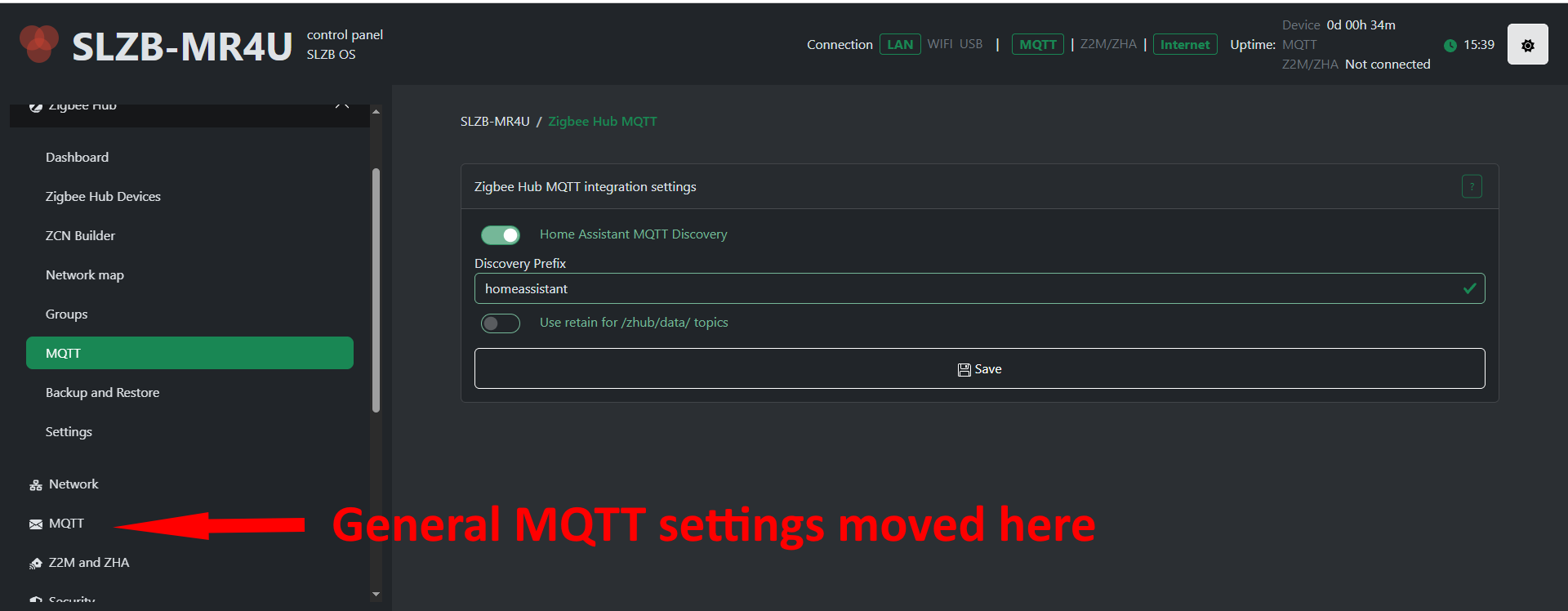
Enable Home Assistant MQTT Discovery on the Zigbee Hub → MQTT page (discovery prefix: homeassistant by default). The hub then publishes the discovery of every device after each MQTT connection.
- Devices: every Zigbee device becomes a Home Assistant device, named with the name you give it in the hub, with its model and manufacturer.
- Entities: sensor, binary sensor, switch, light, cover, climate, fan, lock, siren, number, select, button, text.
- Actions: buttons and remotes appear as device triggers, ready for automations.
- Availability: with device availability on, entities become unavailable while the device is offline.
- Groups: a group appears as a light (members with brightness / color) or a switch.
- Stale entities: when a device gets a new converter, the old entities it no longer has can be deleted. Use Delete all Home Assistant discovery of the device in the device dialog; the current entities are published again right after.
- Retain: "Use retain for data topics" keeps the last values on the broker. With the timestamp on, you can see how old a retained value is.
Zigbee network management
- Channel change: pick a new channel on the settings page, or send the MQTT action
channel_change. The hub tells the devices to move with it; sleeping devices follow when they wake up. No re-pairing is needed. The result arrives onsystem_info/channel. - Network key:
- Use your own key: the default key is the same on every hub, so generate your own for a new network. A new key on the settings page forms a new network.
- Change the key keeping the devices: the hub sends the new key to every device, then switches the network to it. A device that missed the key rejoins through the trust center.
- Install codes: for devices that join only with their install code. Enter the code in the permit join dialog, or send the MQTT action
add_install_code. Accepted formats: QR code text (Z:...$I:...), Aqara, Hue,<ieee>|<code>. - Leaves and rejoins:
- A device that leaves the network is removed after 60 s, unless it comes back.
- A factory-reset device paired again keeps its name and settings.
- A device unknown to the hub (for example, from an old network) is asked to leave.
- Radio watchdog: the hub checks the radio regularly and restarts it if it stops answering.
4.2 Zigbee Hub → Dashboard
The Dashboard is the central monitoring page for your Zigbee network.
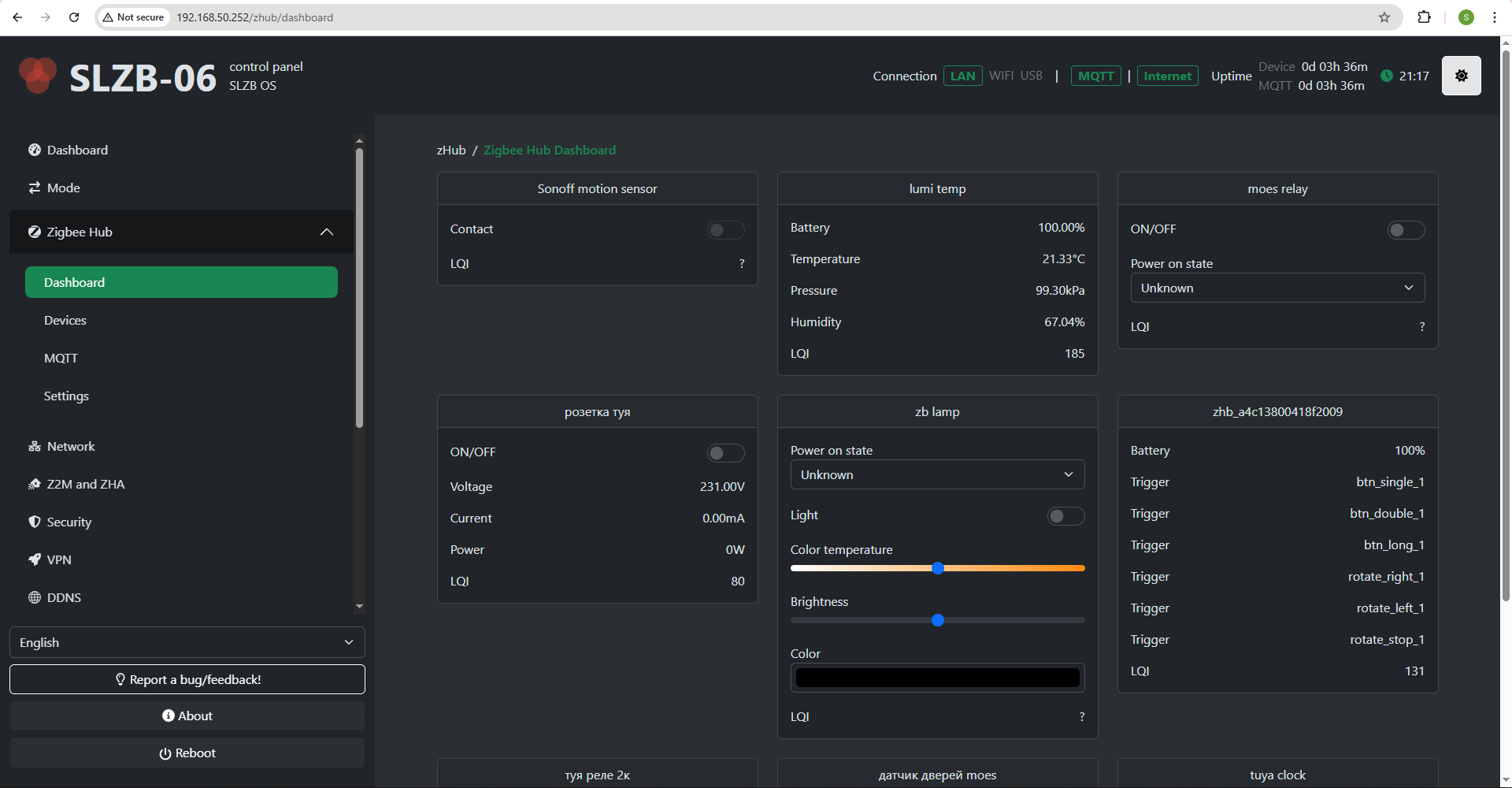
The dashboard contains cards of your ZigBee devices with the data they provide and controls.
The dashboard is updated in real time via SSE.
Sensor history
Numeric sensors store a history of changes over the last 24 hours with a 5-minute interval; in the dashboard, such sensors are marked with a graph icon.
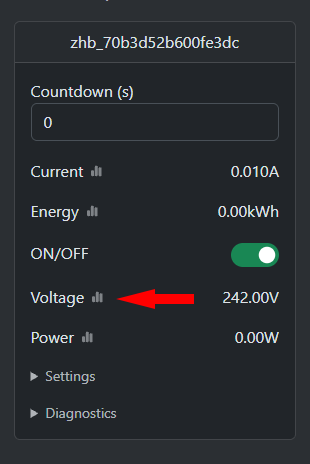
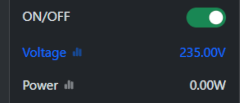
To check the history, hover the cursor over the sensor and left-click.
You will see a modal window with a graph of sensor changes. You can select a time range: 1h, 6h, or 24h.
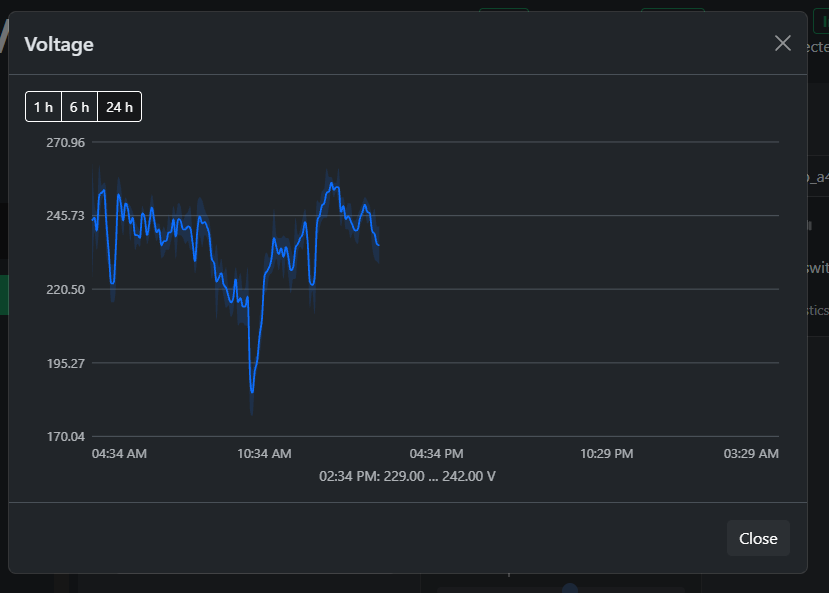
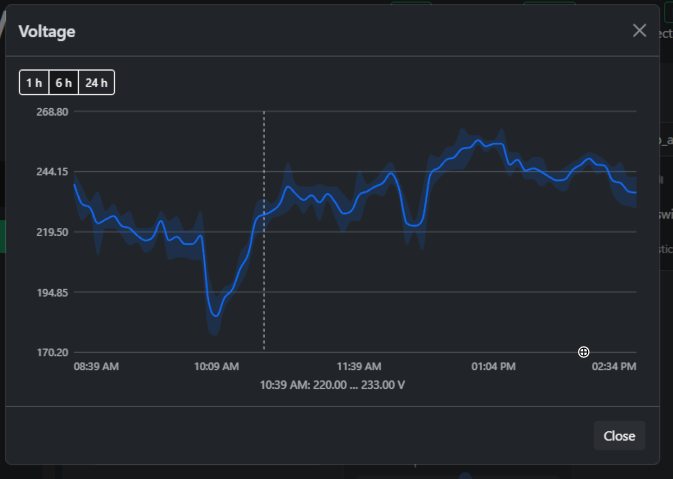
The hub stores information in 5-minute intervals, including the maximum, minimum, and average.
This functionality is available only on U devices.
4.3 Zigbee Hub → Devices
The Devices page lists every Zigbee device paired to your coordinator.
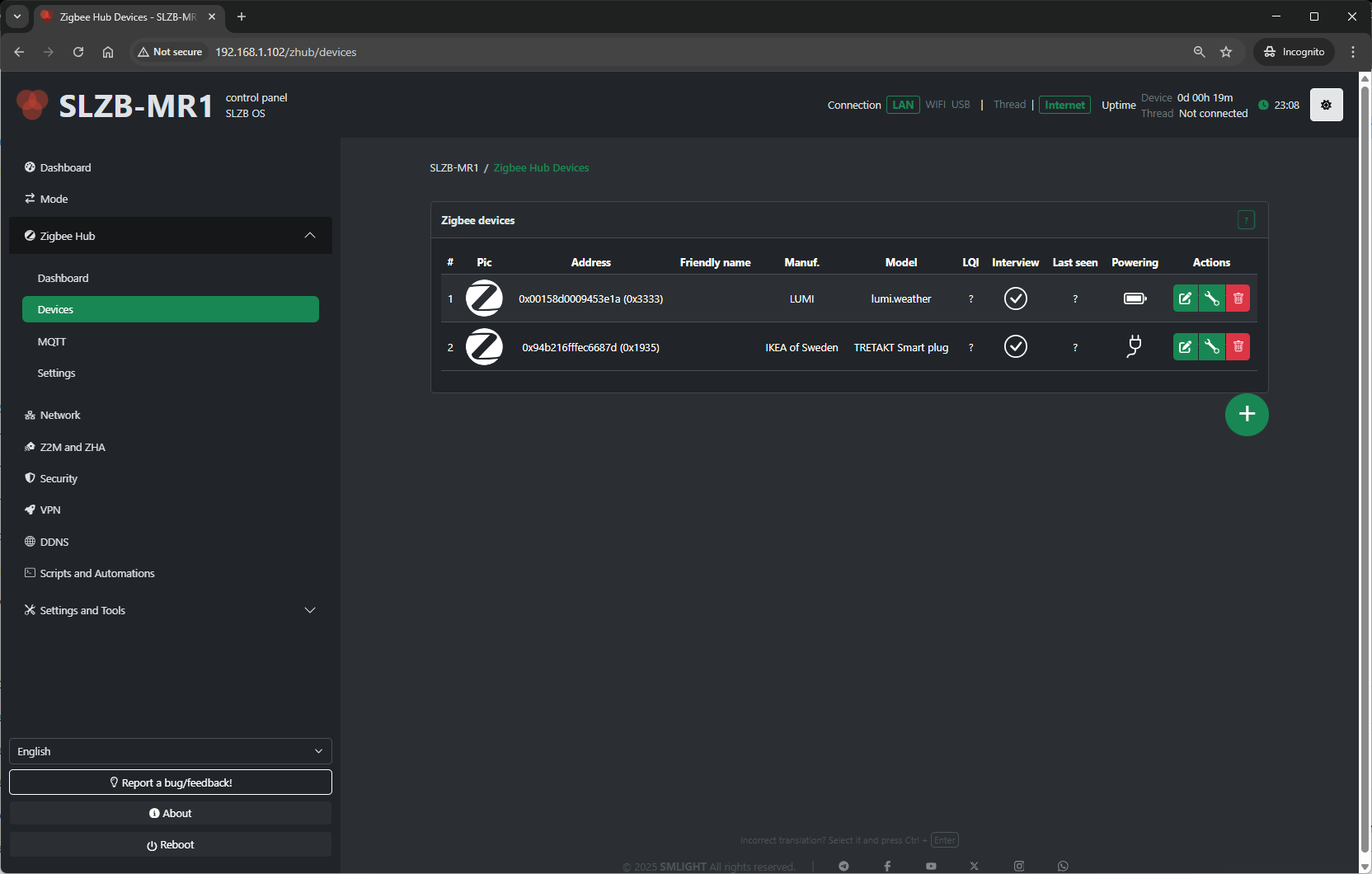
Pairing control:
- Permit Join (+ button on the bottom right side of the device table) – Allow or deny new devices joining the network.
For each device, you’ll see:
-
Name / Friendly Name – Human-readable identifier.
-
IEEE Address – Unique device ID.
-
Network Address – Short Zigbee address assigned by the coordinator.
-
Last Seen – Timestamp of the last communication.
- Powering – Device power source (AC/battery) or ? if the device does not provide information.
-
Link Quality (LQI) – Signal strength indicator.
-
Actions:
-
Rename device
-
Remove/unpair device
-
View device details (clusters, endpoints, bindings)
-
Bind/unbind devices (if supported)
-
Typical uses:
-
Verify devices are online and responsive.
-
Rename devices for easier identification in automations.
-
Remove devices no longer in use.
Device config
How to rename device
Select the pencil icon 
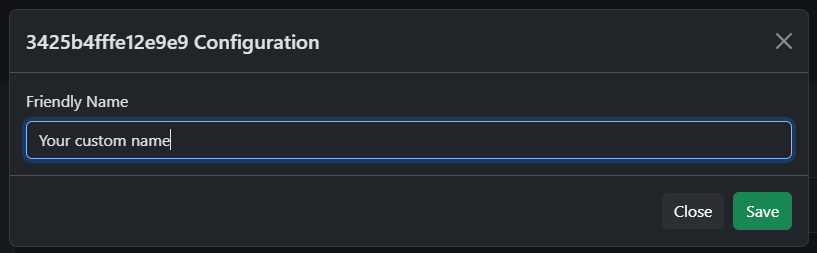
Enter new name and press "Save". Maximum length - 50 characters.
Device config
Click on the wrench
Binding
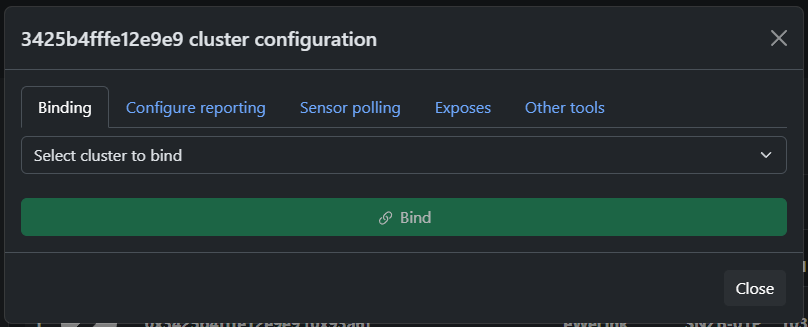
Configure reporting
Polling
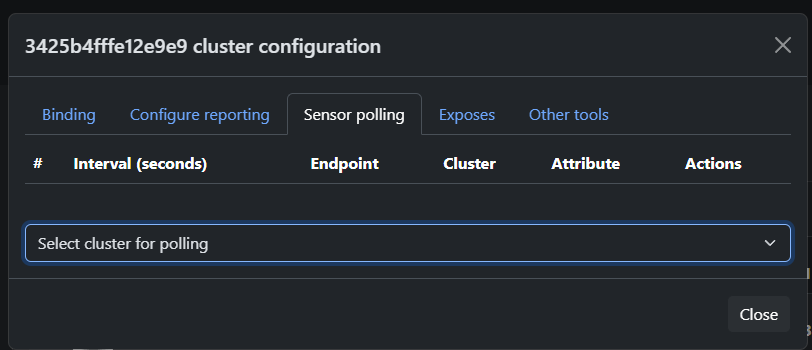
Allows you to configure polling of the selected attribute after a certain time interval
Exposes
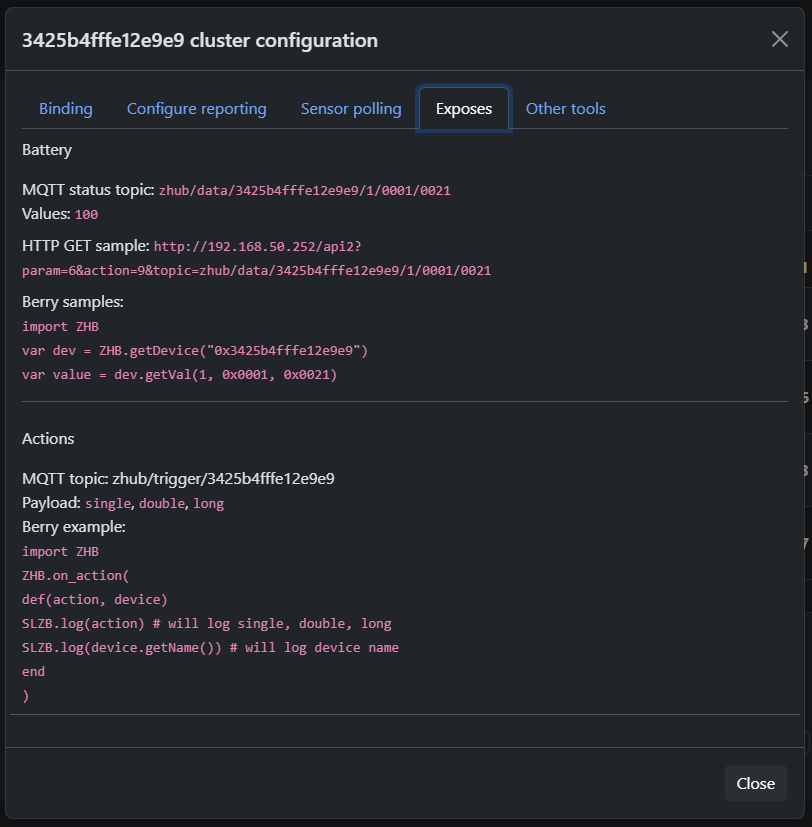
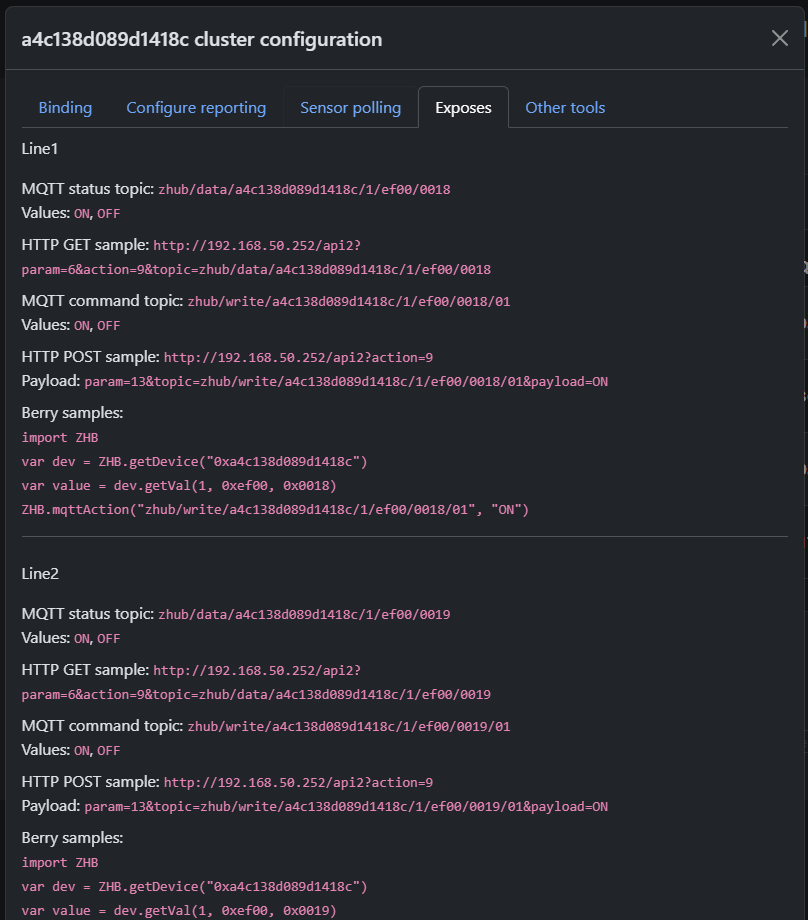
Provides information about expected data from the device and examples of using MQTT, HTTP, and Berry API to get or set device state.
IMPORTANT!
This section provides information about EXPECTED data from the device, based on information about the device clusters or converter (if it exists).
This information may not match the actual behavior of the device if it uses non-standard clusters!
If this is a Tuya DP device, then information will be displayed here only if a converter exists for the device!
Other tools
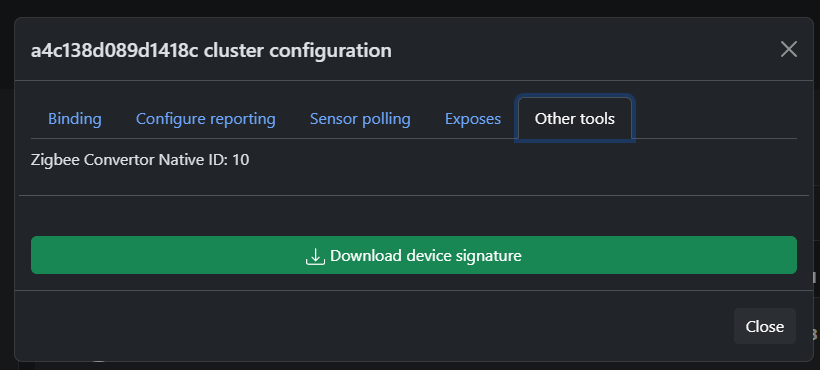
Here you can find the ZCN converter number (if used) and download device information
ZCN Builder
A helper tool to facilitate the creation of custom Berry converters for your Zigbee devices.
Full manual: https://smlight.tech/support/manuals/books/slzb-os/page/berry-zcn-system-manual
Network Map
Visual representation of your Zigbee network.
Groups
This page allows you to combine multiple Zigbee relays or lamps into a single group and control them all simultaneously with a single command.
Supports up to 32 groups of 32 members each.
4.4 Zigbee Hub → MQTT
v3.2.4 and later OS versions
Starting with v3.2.4, MQTT can be used independently of the Zigbee Hub and all general MQTT settings have been moved to a separate page.
OS versions up to v3.2.4
This page configures the MQTT connection that SLZB-OS uses to communicate with your smart home platform.
This screenshot shows an older version of the page
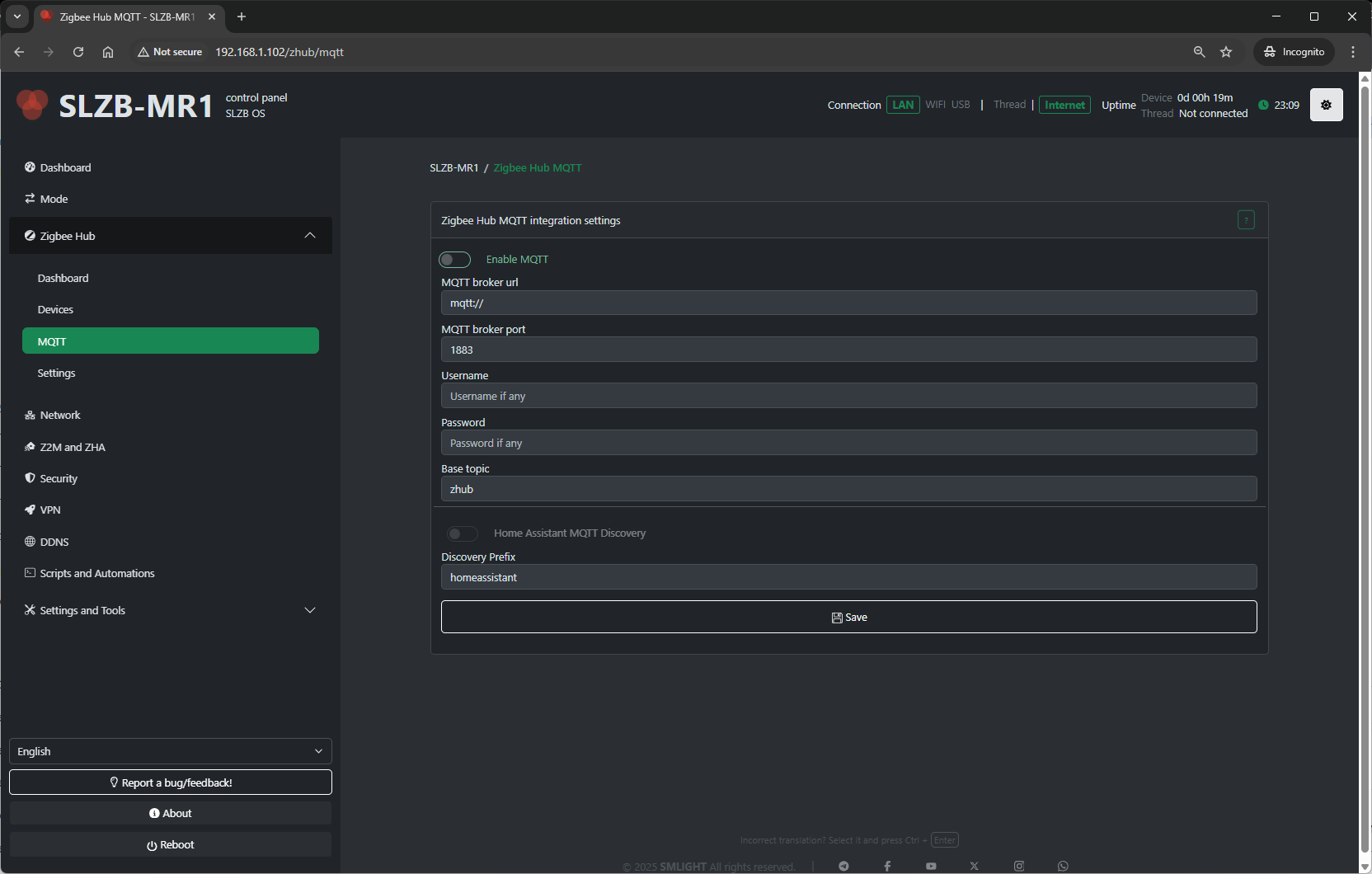
Configuration fields include:
-
MQTT Server Address – IP or hostname of your broker (e.g.,
mqtt://192.168.1.100). -
Port – Default 1883 for MQTT, 8883 for MQTT over TLS.
-
Username / Password – Broker authentication (if required).
-
Base Topic – Topic prefix for Zigbee messages (default:
zhub). - Discovery Prefix - Home assistant main topic name.
Tips:
-
For Home Assistant with Mosquitto add-on, use the HA IP and port
1883. -
Always use a unique base topic if you run multiple Zigbee networks.
-
Save and restart Zigbee Hub after making MQTT changes.
Backup and Restore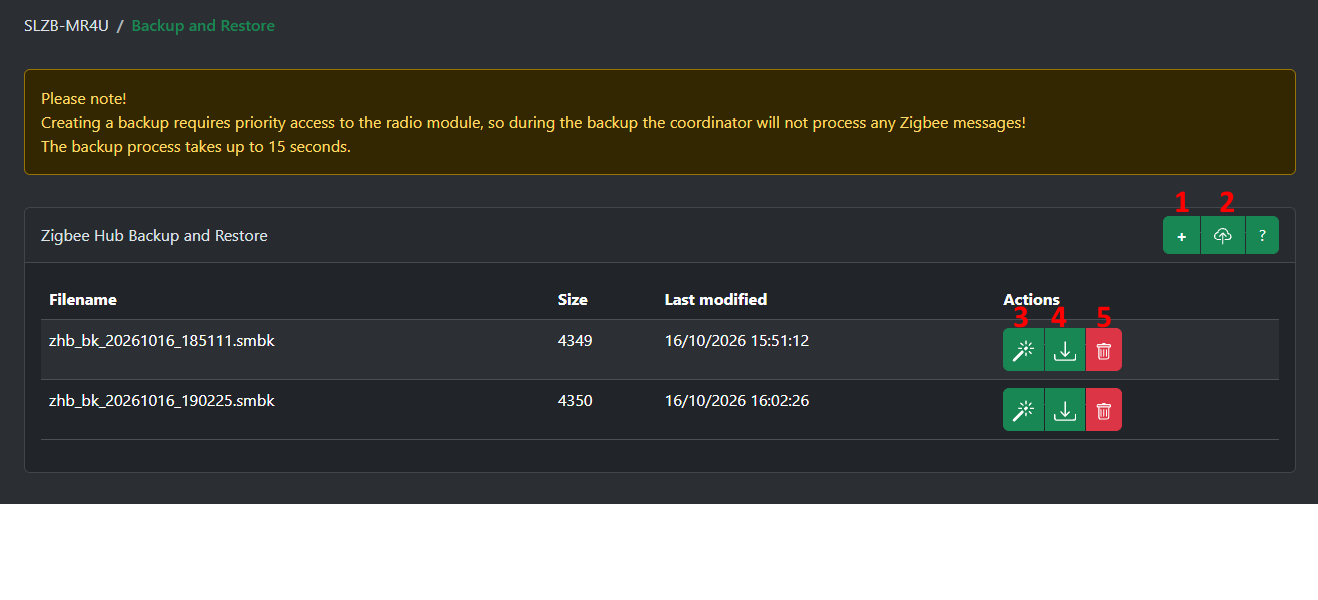
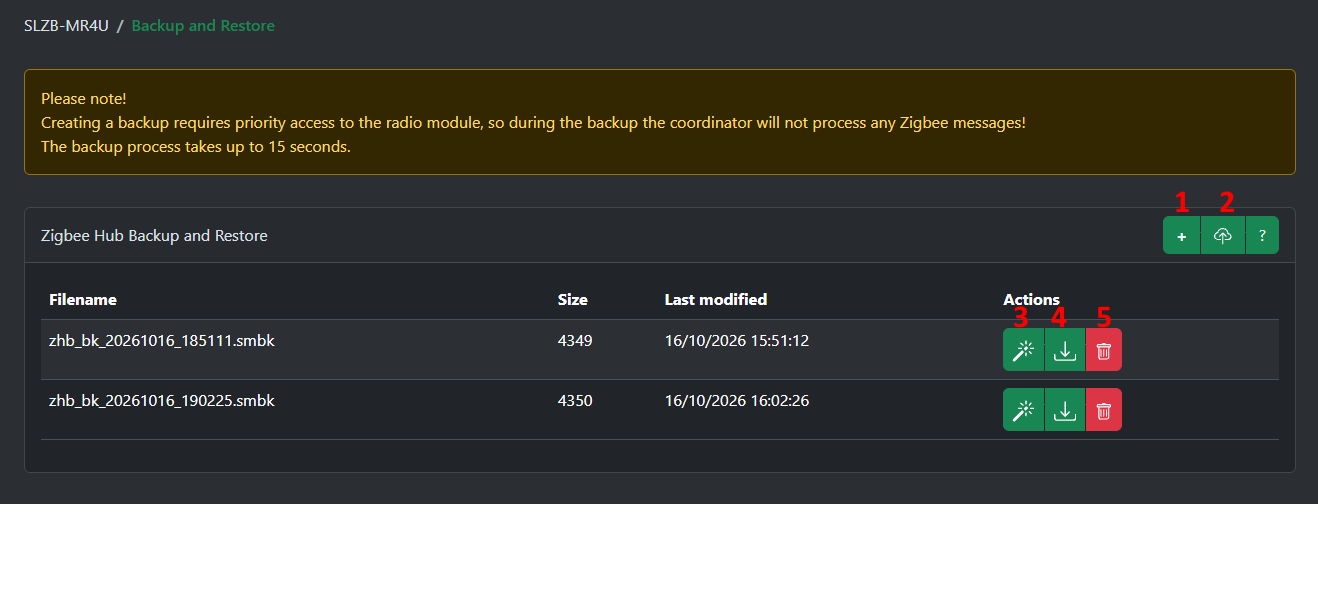
- Creates a new full backup
- Allows you to upload a backup to the device's storage
- Specifies to restore this backup
- Downloads this backup to your PC
- Delete this backup
4.5 Zigbee Hub → Settings
The Settings page contains deeper configuration for the Zigbee coordinator.
v3.4.3.dev3 and later
SLZB-OS uses a well-known default network key!
If you want to achieve maximum security, you should generate a random network key.
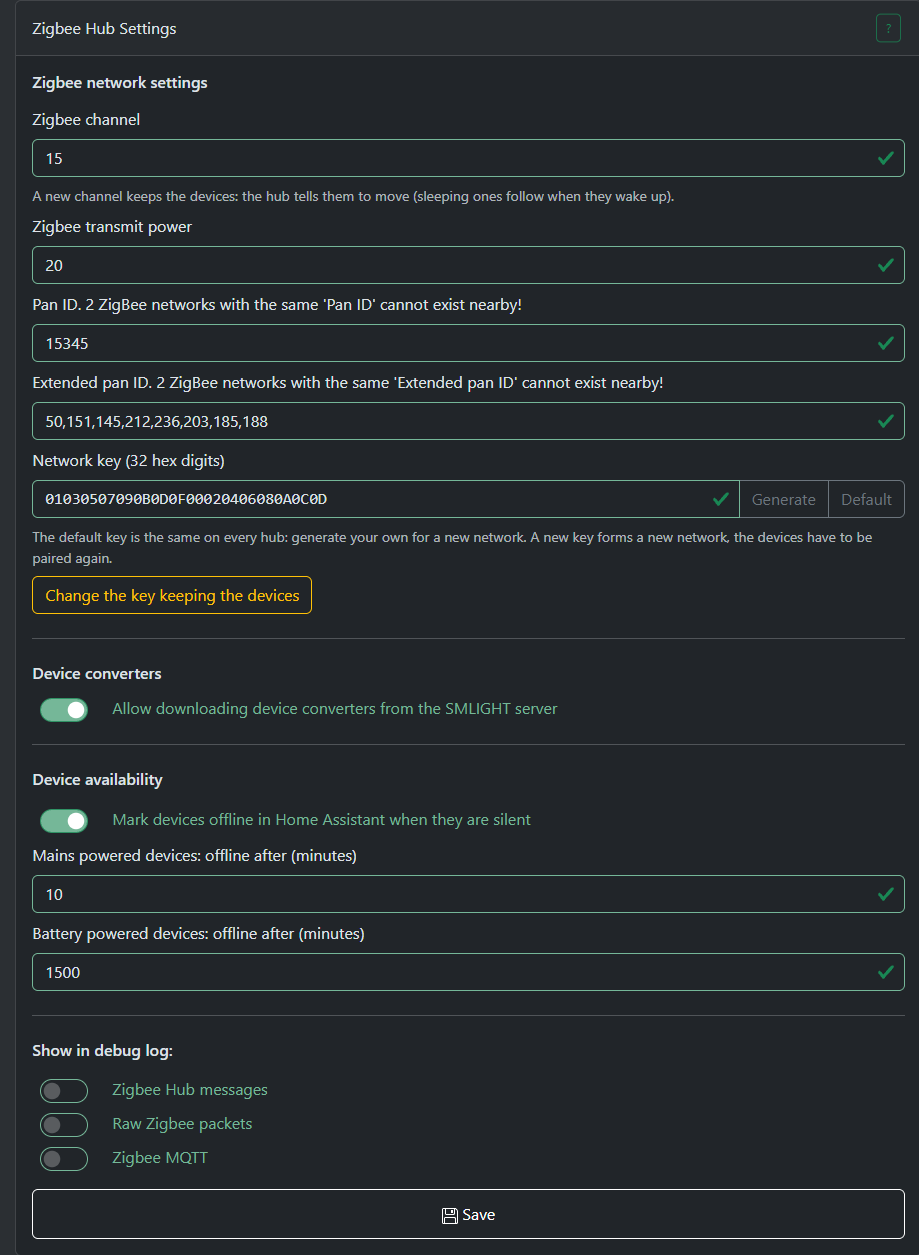
Network key
Generate - generates a new random network key.
Default - sets the default network key.
Change the key keeping the devices - Initiates the network key migration procedure while retaining most of your devices. Some sleeping devices may not receive the new key if they are asleep at the time of migration.
Device converters
Allow downloading device converters from the SMLIGHT server - Enables the downloading (and periodic updating) of special .zcf converters for your paired Zigbee devices. These converters are required to provide support for non-standard Zigbee devices and vendor-locked devices.
When this option is enabled, the Zigbee Hub will send the model and manufacturer of a newly paired Zigbee device to our server to search for an available converter, if one is found, it will be downloaded. NO ANY PERSONAL DATA IS SENDED!
The Zigbee Hub will check for converter updates every 24 hours.
If this option is disabled, support for non-standard Zigbee devices will not be available.
Device availability
Tracks Zigbee packets from your devices and stores the timestamp of the last received packet. If this time exceeds the limit specified in the settings, it will mark the device as unavailable in the dashboard and via MQTT discovery.
Older OS versions
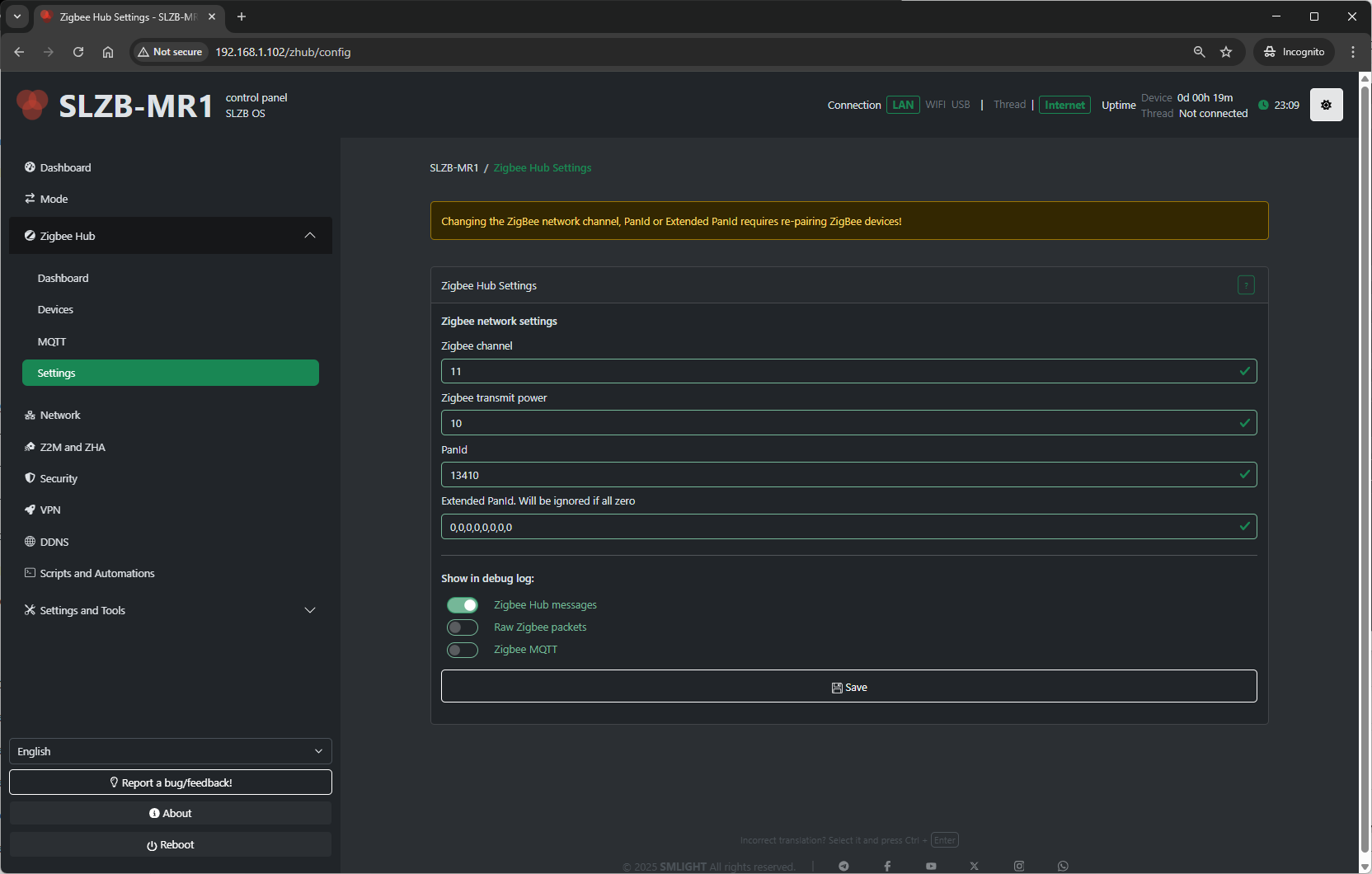
Typical settings available:
-
Network Parameters:
-
PAN ID – Zigbee network identifier.
-
Channel – RF channel (11–26; avoid Wi-Fi overlap if possible).
-
Extended PAN ID – Long network identifier.
-
-
Transmit Power – Radio TX power in dBm (higher = longer range, more power draw).
- Show in debug log - Select which categories of Zigbee-related information are recorded in the Log & Debug page.
-
Zigbee Hub messages – Logs high-level events from the Zigbee Hub service (e.g., device joins, status updates).
-
Raw Zigbee packets – Logs low-level Zigbee frame data; useful for deep protocol debugging.
-
Zigbee MQTT – Logs MQTT messages related to Zigbee communication, including publishes and subscriptions.
-
Best practices:
-
Change the Zigbee channel only on a fresh network (re-pair required after change).
-
Keep
Permit Joindisabled most of the time for security. -
Adjust transmit power to match your coverage needs and regulatory limits.
4.6 Troubleshooting
Problems when starting a Zigbee network
OS v3.0.9 update is breaking. If you updated OS to v3.0.9 and started getting this error then follow the instructions below
- turn off coordinator
- turn off ALL Zigbee routers that were connected to Zigbee Hub. This is important, it will not work without this
- turn on coordinator. Zigbee Hub should start now but zigbee devices will be unavailable
- remove all devices (click on the red trash can)
- download and run berry script below, this script will keep permit join enabled as long as it is running
#META {"start":0}
#Insert your code below
import ZHB

ZHB.waitForStart(0xFF)

while 1
  ZHB.permitJoin(254)
  SLZB.delay(255 * 1000)
end
- repair all devices
- after devices repaired you can stop and delete script
- move the coordinator away from the wifi router
- make sure there is no other coordinator nearby with the same zigbee network settings