
Thread setup (network and USB connection)
Thread setup for Home Assistant: two options
SLZB devices support two ways to run a Thread network with Home Assistant:
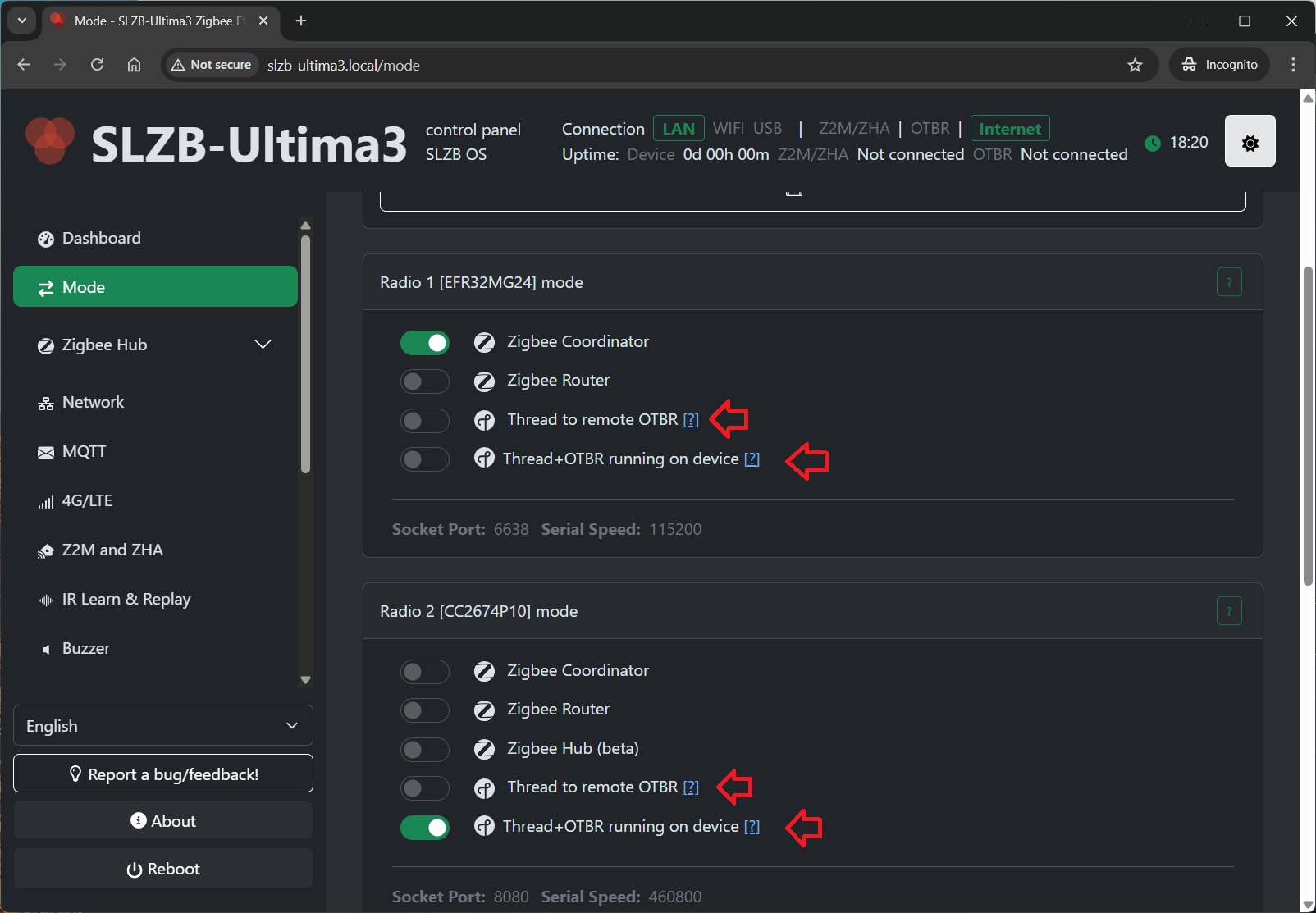
- Option A
—- “Thread to remote OTBR”: OTBR runs on Home Assistant (OTBR add-on)on, or, since Jan-2026, called "App"), SLZB works as a Thread RCP (radio). - Option B
—- “Thread + OTBR running on device”: OTBR runs directly on the SLZB device, Home Assistant connects to it via REST API.
Prerequisites
- A server with Home Assistant installed and running (example: Raspberry Pi 4 with HAOS).
- An SLZB device with a Thread-capable radio module.
- The Matter device you want to connect (example: Eve Energy EU).
- An Android or iOS smartphone.
AdditionalAdditional: requirements per option
- Option A (Thread to remote OTBR):
SLZBAvailablemuston SLZB-06x and SLZB-06xU series. Can runThread RCP firmwareand be connected to HAover eitherviaUSB - Option B (Thread + OTBR on device): Available on SLZB-06xU series only. OTBR requires IPv6 on your LAN (IPv6 will be force-enabled on the device when this mode is activated).
Step 1 —- Choose your setup option
Option A: “Thread to remote OTBR” (OTBR add-onon/app runs on Home Assistant)
Choose this if you want OTBR to run on Home Assistant.Assistant or other smart home systems. SLZB acts as a Thread RCP (radio only). This is the traditional setup, and supports USB or network connection.
Option B: “Thread + OTBR running on device” (OTBR runs on SLZB)
Choose this if you want OTBR to run directly on the SLZB device. Home Assistant connects via network API (<http://device-ip>:ip:8080), and you don’t need the OTBR add-on in HA.
Note: this is an initial (beta) integration and may have limitations or unexpected behavior.
Step 2 —- Set SLZB mode / firmware
Option A (Thread to remote OTBR): Flash / select Thread RCP mode
- Your device must have an internet connection.
- Go to
Modeand select the "ThreadRCPto/remoteMatter-over-Thread radio mode (RCP)OTBR". The device will be reflashed; wait until the update completes.
Option B (Thread + OTBR on device): Enable OTBR on the device
- Your device must have an internet connection.
- Go to
Modeand select “Thread + OTBR running on device”. The device will apply the required configuration andservices.services and reboots. - OTBR REST API will be available at
<http://device-ip>:ip:8080.
Step 3 —- Home Assistant software setup
3.1 Install and start Matter Server (required for both options)
- In Home Assistant go to
Settings→Devices & Services. - Click
Add integrationand search forMatter. - Keep
Use the official Matter Server Supervisor add-onenabled and clickSubmit. - Wait until Matter Integration and Matter Server add-on are installed.
- Go to
Settings→Add-ons→Matter Serverand clickStart. Recommended: enableStart on bootandWatchdog.
Step 4 —- Thread / OTBR setup in Home Assistant
Option A: OTBR add-on on Home Assistant
Install the OpenThread Border Router add-on and connect it to the SLZB radio (USB or network).
- Go to
Settings→Add-ons→Add-on Store. - Search for
OpenThread Border Routerand clickInstall. - Open the add-on and go to the
Configuretab.
Option A —- OTBR add-on with USB connection
- Switch the coordinator to USB connection mode (if applicable).
- Set OTBR add-on parameters:
Port: select your SLZB USB serial port.Hardware flow control: NoBaud rate: 460800Flash firmware: No (use pre-flashed RCP firmware)- Click
Save
- Go to
Infotab and clickStart. - Recommended: enable
Start on bootandWatchdog.
Option A —- OTBR add-on with Network connection (Serial-over-IP)
Configure the OTBR add-on to connect to the SLZB network serial endpoint (example: 192.168.1.10:6638).
EnableShow unused optional configuration options.Hardware flow control:NoBaud rate:460800Flash firmware:No(use pre-flashed RCP firmware)Network Device:<slzb-ip>:6638ClickSave, then go toInfo→Start
Option B: OTBR runs on the SLZB device (no OTBR add-on needed)
In this option, you do not install/use the OTBR add-on in Home Assistant. OTBR is already running on the SLZB device.
Make sure SLZB mode is set to“Thread + OTBR running on device”.OTBR REST API address:<device-ip>:8080
Step 5 — Configure Home Assistant integrations (both options)
Go toSettings→Devices & Services.Add (or confirm autodiscovery of) these integrations:
ThreadOpenThread Border Router
Notes:
If you useOption A, the “OpenThread Border Router” integration will typically use the OTBR add-on.If you useOption B, when asked for the Border Router address, use:<device-ip>:8080.
In the Thread integration:
SetOpenThread Border Routeras thePreferred network.If available, enableUse router for Android + iOS credentials.
Step 6 — Reboot Home Assistant
After installing and configuring Matter + Thread components, reboot your Home Assistant server.
Step 7 — Pre-set up your phone
InstallHome Assistantapp on your phone.InstallGoogle Homeapp (often required for Thread credential handling on Android).Open Home Assistant app and connect it to your Home Assistant server (same Wi-Fi network).In the app go toSettings→Companion app→Troubleshooting→Sync Thread Credentials.Repeat until you see:Home Assistant and this device use the same network.If it fails repeatedly, try resetting Google Play Services data (Android) and try again.
Step 8 — Add the Matter-over-Thread device
Ensure Bluetooth is enabled on your phone.In Home Assistant app:Settings→Devices & Services→Devices.Tap+ ADD DEVICE→Add Matter device.Scan the QR code (or enter the pairing code) and follow the on-screen steps.If prompted “Which app to open?”, chooseOther→Home Assistant.
The pairing flow usually goes through:
Connecting to device…Generating Matter credentials…Connecting device to network…Checking network connectivity…Connecting device to Home Assistant…Device connected!
Tips:
If the device was powered for a long time, you may need to reset it to enter pairing mode again.If you have Google/Nest Thread devices and pairing is unstable, try turning them off temporarily while pairing.
Step 9 — Verify connection and control
After pairing, the device should appear in Home Assistant underDevices.Open it and confirm you can control it (e.g., switch on/off).
Congratulations! You’ve successfully connected a Matter-over-Thread device to Home Assistant.
TIP:Home Assistant Thread documentation: https://www.home-assistant.io/integrations/thread/
---------------------------------------------------------------------------------------
Prerequisites
A server with Home Assistant installed and running. In this manual, we are using Raspberry Pi 4 with clean fresh install of HAOS.An SLZB-06 or MR families Coordinator flashed withOpenThread Border Routerfirmware. In this manual, we useSMLIGHT SLZB-06flashed with Thread RCP firmware. This is available in the Core firmware v2.1.0-dev and up.The Matter device you want to connect (in this manual, we use the Eve Energy-EU socket).An Android or IOS smartphone.
OpenThread Border Router firmware flashing
Your device must have an internet connection.Go to theModesection, select theMatter-over-Threadmode, the device will be reflashed, wait for the firmware update to complete.
Software set-up
We'll need to install theOpenThread Border Router add-onin Home Assistant. Head over to the Left panel within Home Assistant and ClickSettingsand chooseAdd-ons.Navigate to the Add-on Store and search forOpenThread Border RouterAdd-on. ClickInstalland wait for the installation to complete.Once installed, clickConfiguretab on the top side of the add-on.
Setting Up the Thread Border Router Add-on (USB connection)
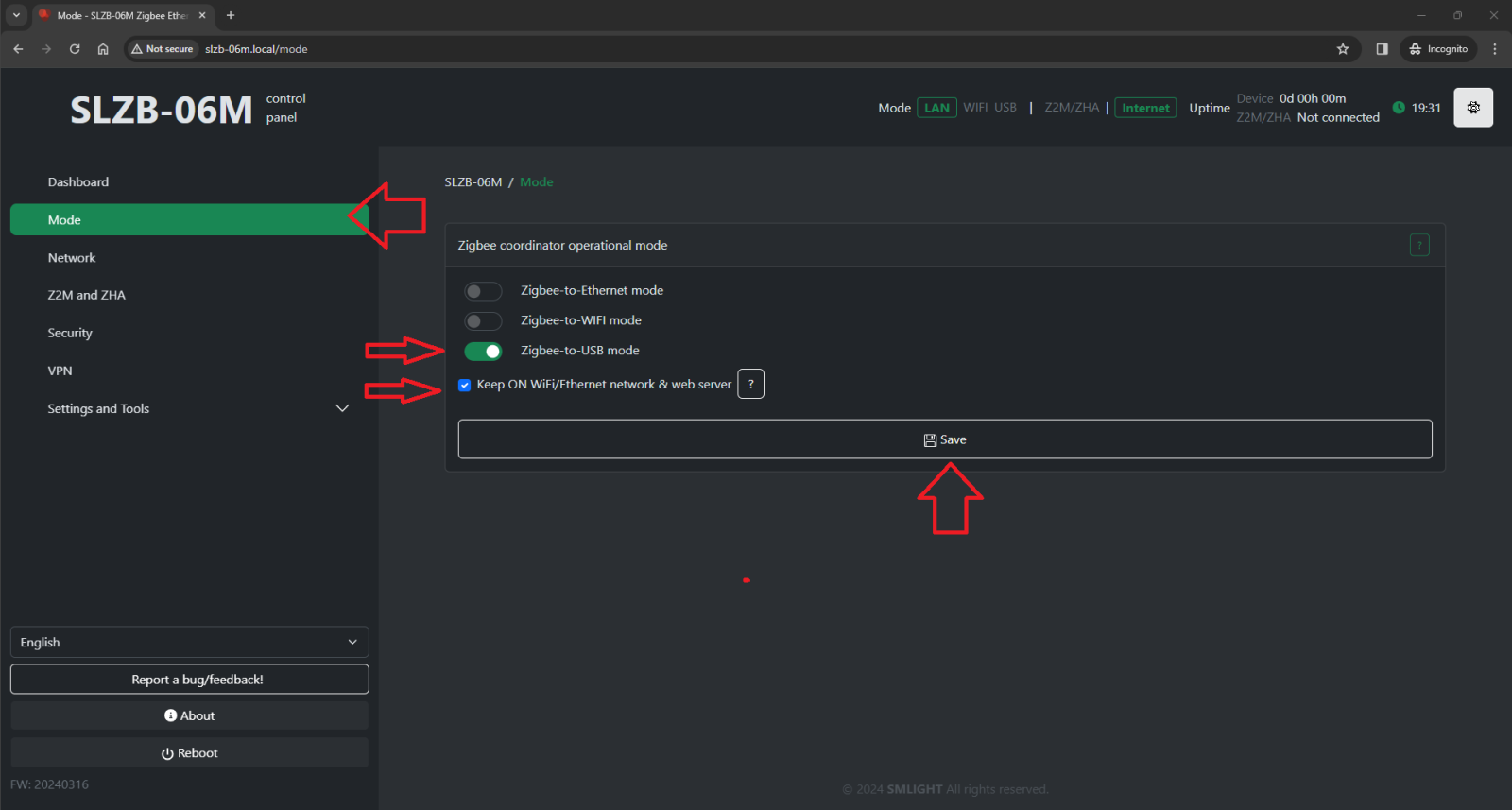
Switch coordinator to USB mode.Make the following OTBR addon settings:-Port: choose port of your device. If you do not know which one, I recommend you to leave just once device in your USB ports and choose it.-Hardware flow control:No.-Baud rate:460800.-Flash firmware:No(we use pre-flashed coordinator)- Click Save.
Go back to the INFO tab andStartthe OpenThread Border Router add-on. It may take a moment to initialize. We would suggest to activate bothStart on bootandWatchdog.You can check logs, they should say that addon started, although they can contain some errors as Thread and Matter are still under development in Home Assistant.
Setting Up the Thread Border Router Add-on (Network connection)
- IMPORTANT: Due to config validation issues, you need to connect
anyANY USB serial device to your HAOS so you can save the configuration.
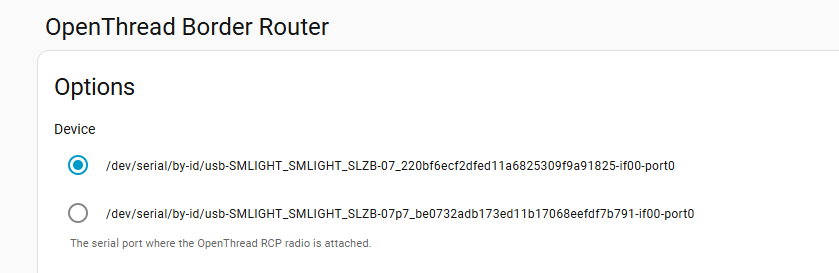
Select USB device, this will allow you to save the configuration, after the addon is configured and the configuration is saved you can disconnect the USB device, the addon still will be able to run but if you need to change the configuration you will need to connect the USB device again. 
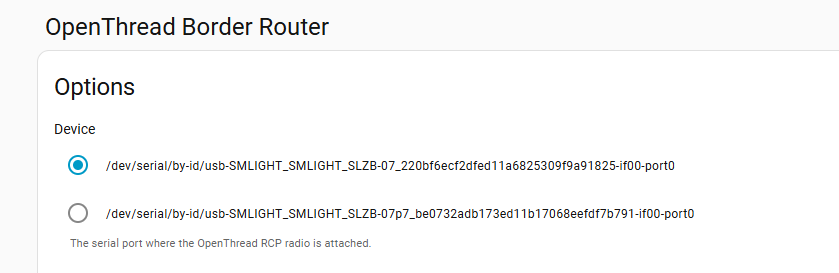
- Select
Show unused optional configuration options Hardware flow control: No.Baud rate: 460800.Flash firmware: No (we use pre-flashed coordinator)Network Device: Enter the IP and port of your coordinator. (for example 192.168.1.10:6638)- Click
Save.
- Go back to the INFO tab and
Startthe OpenThread Border Router add-on. It may take a moment to initialize. We would suggest to activate bothStart on bootandWatchdog. - You can check logs, they should say that addon started, although they can contain some errors as Thread and Matter are still under development in Home Assistant.
SettingOption UpB: OTBR runs on the MatterSLZB device (no OTBR add-on andneeded)
In this option, you do not install/use the OTBR add-on in Home Assistant. OTBR is already running on the SLZB device.
- Make sure SLZB mode is set to “Thread + OTBR running on device”.
Step 5 - Configure Home Assistant integrations (both options)
- Go to
the Home Assistant interface and navigate toSettings>→Devices & Services. Click onAdd(orintegrationandconfirmsearchautodiscoveryforof)Matter.these Keep checkboxUse the official Matter Server Supervisor add-onand clickSubmit.Wait untill installation of Matter Integration and Matter Server add-on is completed.Head over to the Left panel within Home Assistant and ClickSettingsand chooseAdd-ons. Go to the Matter Server add-on. Start the Matter Server add-on. Here we would suggest as well to click bothStart on bootandWatchdog.
Set-up and configuring the Integrations
Now, let's install the required integration:ThreadandOpenThread Border Router.Go back to the Home Assistant interface and navigate toSettings>Devices & Services.Basically, all two should be autodiscovered so you just need to configure them. If they are not, click onAdd integrationand search for them there.OpenThread Border Router – no configurations, just add.Thread Integration – clickConfigureand make sure you haveOpenThread Border RouterunderPreferred networkline, and it contains an icon with key+phone. If not, do the following:integrations:
clickThread- OpenThread Border Router
Notes:
- If you use Option A,
choosetheAdd“OpenThreadtoBorderpreferredeRouter”network - If you use Option B, when asked for the Border Router address, use: <device-ip>:8080.
Under
In the preferredThread networkintegration:
- Set
again three dots on the right toOpenThread Border Router,andaschoosethePreferred network. - If available, enable Use router for Android + iOS credentials.
Start the add-on. Here we would suggest as well to click bothStart on bootandWatchdog.
Step 6 - Reboot your Home Assistant server
OnceAfterallinstallingHomeandAssistantconfiguringcomponentsMatterare+installed,Threadwe reccomend tocomponents, reboot your Home Assistant server.
Step 7 - Pre-set up your phone
- Install
Home Assistantapp on yourAndroid phone from Play store. At the time of this video, we were unable to pair Matter-over-Thread device via iPhone.phone. - Install
Google Homeappfrom(oftenPlayrequiredstore. It is recommended byHome Assistantdevelopers and we were not able to pair ourfor ThreaddevicescredentialwithouthandlinginstalledonGoogle Home app.Android). - Open
Home Assistantapp andsyncconnect itwithto your Home Assistantserver. Your phone and Home assistantservershould be in the(same Wi-Finetwork.network). - In
app,the app go toSettings–→Companion app-> Click→Troubleshootingand click→Sync Thread Credentials. WaitRepeat untilmessageyou see:Home Assistant and this device use the same network.If you see another message, namelyAdded network from Home Assistant to this device– you need to click onSync Thread Credentialsagain, until you get that message about the same network.- If
youitarefailsnot getting messageHome Assistant and this device use the same network-repeatedly, tryto reset yourresetting Google Play Services(remove all data, usually by App settings -> Erasedata->(Android)ClearandAlltryData, but namings depend on the smartphone model).again.
AddingStep 8 - Add the MatterMatter-over-Thread Devicedevice
With the Matter integration set up, grab your Matter device and Android smartphone. Make sureEnsure Bluetooth is enabled on your phone.Open theIn Home Assistantapp and navigate toapp:Settings>→Devices & Services->→DevicesTab..Click theTap+ ADD DEVICEbutton at the borrom right part of the screen to add a device, choose→Add Matter device.FollowScan the QR code (or enter the pairing code) and follow the on-screeninstructions in the app. You'll likely need to scan a QR code located on your Eve Energy socket or enter pairing code manually. We did it with QR-code scanning.steps.HomeIfAssistanpromptedapp on your phone can as“Which app to open?”,SelectchooseotherOtherand then→Home.assistantAssistant
The app will guide you through pairing theflow deviceusually withgoes your Thread network. It should pass through this satuses:
through:
- Connecting to
device...device… - Generating Matter
credentials...credentials… - Connecting device to
network...network… - Checking
netwoeknetworkconnectivity...connectivity… - Connecting device to Home
Assistant...Assistant… - Device connected!
Note:
Tips:
- If
atheMatter-over-Thread end-devicehas beenwas poweredupfor a long time,ityou mayrequireneedato resetof deviceit toput back intoenter pairingmode.mode again. In caseIf you haveGoogleGoogle/NesthomeThread devices(Nest hub)andexperiancespairingissuesiswith pairing,unstable, tryto turnturning them offbeforetemporarilystartingwhileOpenThreadpairing.
Step on9 your- Verify connection and control
- After pairing, the device should appear in Home Assistant
and your Home Assistant app. Once the pairing is complete, head back to the Home Assistant interface. You should see your Eve Energy socket listed on yourDashboardorundertheDevicessection.ClickOpenon the device to access its controls. You should be able to turn the socket onit andoffconfirmremotelyyouwithincanthecontrolHomeitAssistant(e.g.,interface.switch on/off).
Verifying Connection and Control
CongratulationsCongratulations!! You'You’ve successfully connected youra Matter-over-Thread device to Home Assistant using the OpenThread Border Router and Matter Integrations. Now you can enjoy the benefits of Matter's secure and interoperable smart home ecosystem.Assistant.
TIP:You can refer to the Home Assistant documentation for Matter and Thread for more troubleshooting stepsdocumentation: https://www.home-assistant.io/integrations/thread/