
USB to Ethernet passthrough mode
General information
This feature is supported only by "U" series devices and SLZB-Ultima
(CPU model: ESP32S3)
USB to Ethernet passthrough mode allows connecting a USB device to your coordinator USB port (directly or via a USB hub) and using such USB devices remotely over IP.
For example, a USB Z-Wave adapter can be connected and used remotely, similarly to an Ethernet-based Z-Wave coordinator.
What devices can be connected?
- Devices on CP210x chipset
- Devices on PL2303 chipset
- Devices on CH340 chipset
- Devices on CH341 chipset
- Devices on CH9102 chipset
- Other CDC-ACM devices
We cannot guarantee support for all third-party CDC-ACM devices.
How many USB devices can be connected?
SLZB-OS versions up to v3.4.2.dev1
Only one USB device.
v3.4.2.dev1 and later
|
Device1 Device2 |
CP210x | FTDI | CDC-ACM | CH34x |
|---|---|---|---|---|
| CP210x | ✅ | ✅ | ✅ | ❌ |
| FTDI | ✅ | ✅ | ✅ | ❌ |
| CDC-ACM | ✅ | ✅ | ✅ | ❌ |
| CH34x | ❌ | ❌ | ❌ | ❌ |
- Any pair without CH34x fits.
- No CH34x-based pair fits.
USB hub rules
- If two devices are open, there cannot be a third one connected on the hub
- If only one device is open: you can keep 3 unopened devices connected.
- Additional USB hubs are not permitted.
How much power can the coordinator provide via USB?
The coordinator can provide up to 1A.
The optimal current is 500mA.
If you are using a powered USB hub, please make sure that PoE is disabled!
It is forbidden to use PoE and a powered USB hub at the same time!
USB to Ethernet passthrough setup
1. Mode select
Open the "USB" page and activate "Enable USB to Ethernet passthrough mode" and "Use new USB driver"
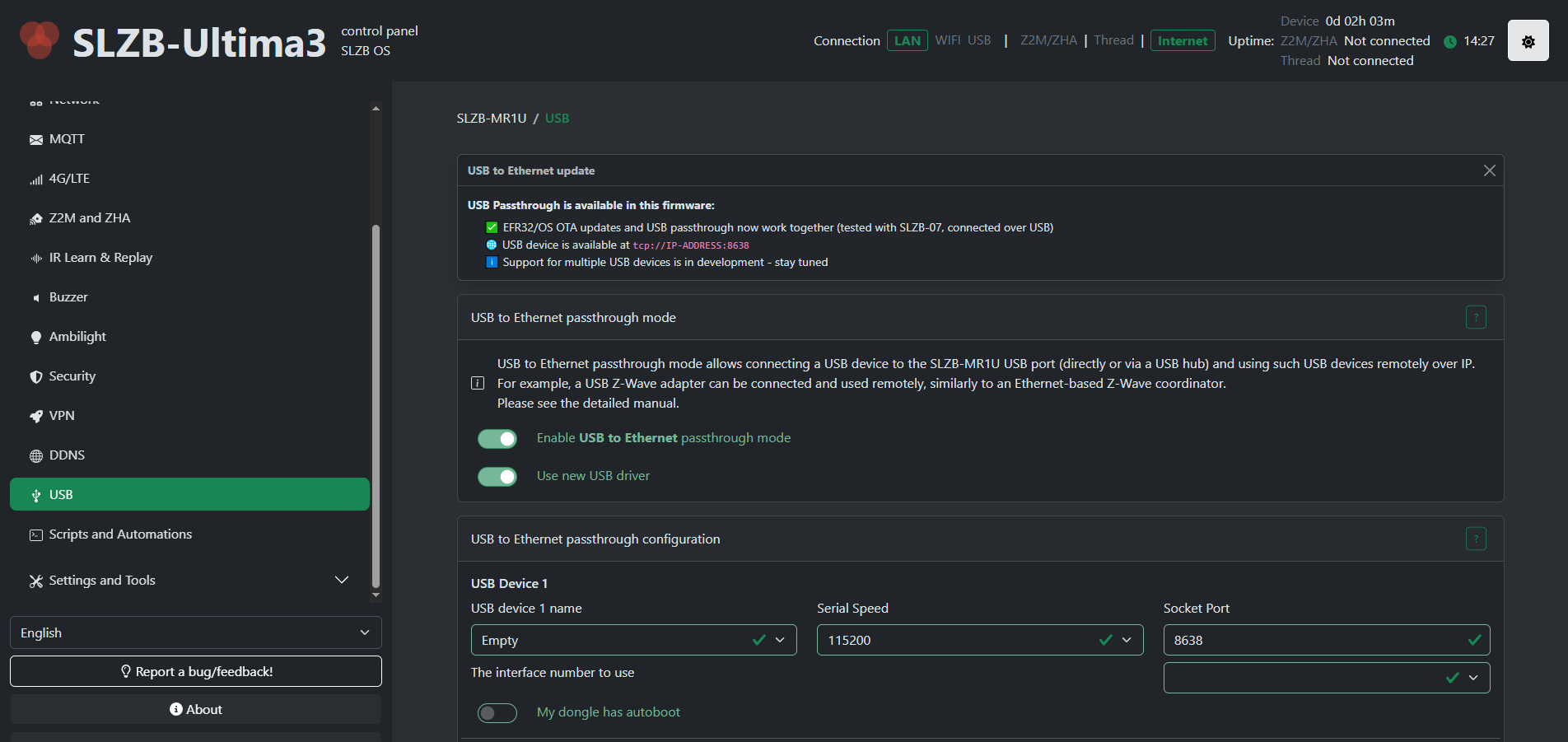
We recommend using the "Use new USB driver" option as the new driver provides greater stability and a wider list of supported USB devices.
The old driver will be removed in future updates!
Starting with v3.4.2.dev1 new driver is used by default. There no more driver selector!
2. Connect your USB device and reboot your coordinator
3. Select your USB device
Select your USB device from the list.
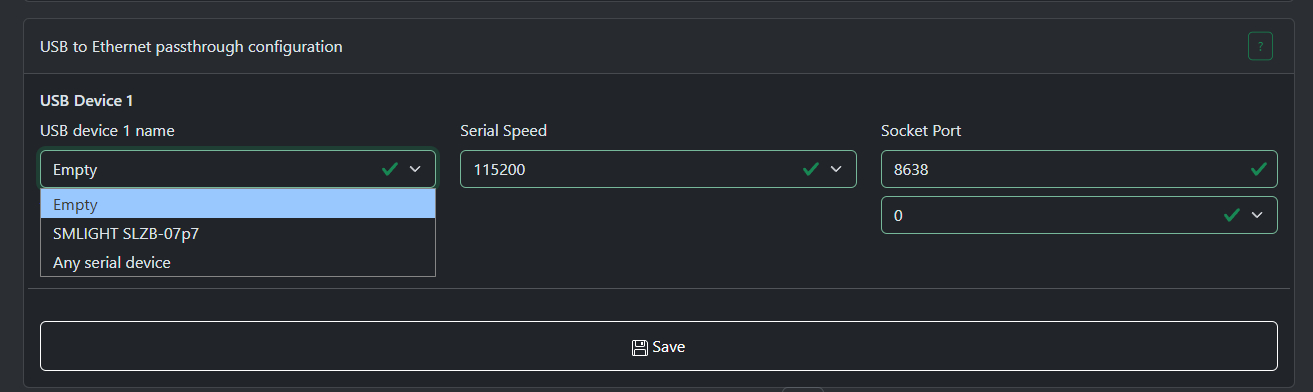
"Empty" - passthrough server disabled.
"Any serial device" - the system will select the first device found and try to open interface 0.
The interface has been redesigned starting from v3.4.2.dev1
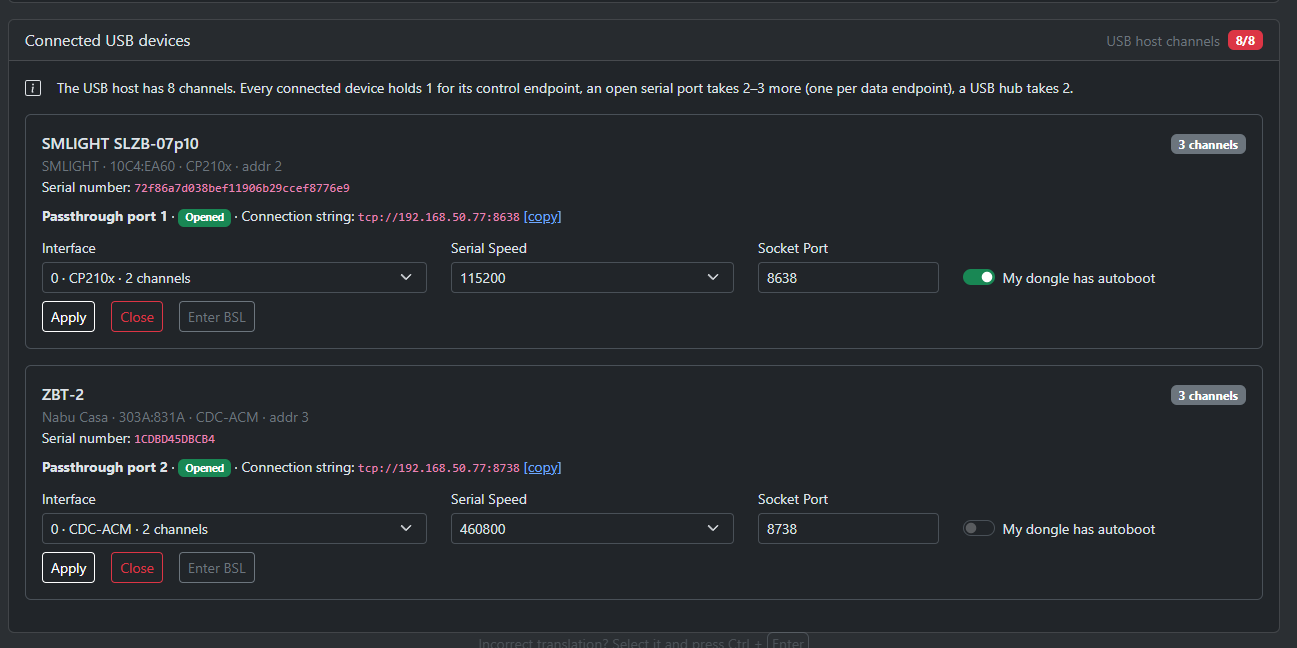
Now you need to click the "Open" button on the card for the desired device to enable USB pass-through for it.

4. Set the serial speed
The most common setting is 115200.
The serial speed depends on the firmware of your dongle. If you don't know what to choose, please contact the support service of the dongle manufacturer.
5. Choose an interface
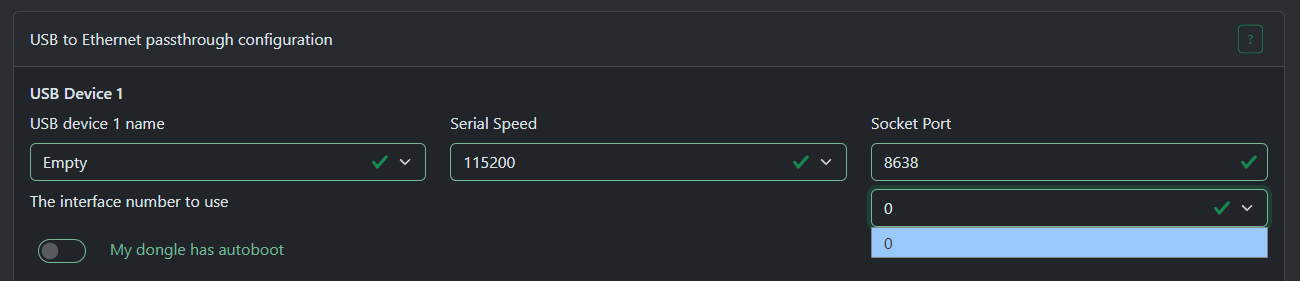
Most USB devices will only have one interface - interface 0.
But some devices may have several: for example one for firmware update/debug and another for communication.
If your device has multiple interfaces then you will have to try them all until you find correct one.
For ZWA-2 you need to select interface 1
The interface has been redesigned starting from v3.4.2.dev1

Key changes in v3.4.2.dev1
- The interface selector now displays only those supported by the driver. You will no longer see interfaces that the driver cannot open.
- The new BSL button uses the DTR/RTS lines to activate your dongle's bootloader (if supported by the dongle).
- You can open and close devices, as well as change the baud rate and other settings, in real time. A restart is no longer required.
- The list of connected USB devices updates in real time.
6. About autoboot
Some dongles have an autoboot circuit that puts the radio module into bootloader mode using the DTR/RTS lines, for example SLZB-07p7/p10.
For such a dongle to work you need to select the option "My dongle has autoboot".
Most dongles that have autoboot use the CH340 or CP2102x chipsets.
If you don't know if your dongle has autoboot, please contact the support service of the dongle manufacturer.
7. After setup
After you have selected all the settings, please click the "Save" button and restart the coordinator for the changes to take effect.
8. Host application settings
Most programs use the format tcp://ip:port or socket://ip:port, less often just ip:port
Examples:
tcp://192.168.50.196:8638
socket://192.168.50.196:8638
192.168.50.196:8638
If your host program has "RTS/CTS" or "Hardware flow control" settings, you should select "disabled"