
Using SMHUB as Thread Border Router for Matter devices
This guide explains how to run an OpenThread Border Router (OTBR) on SMHUB and connect it to Home Assistant for Matter-over-Thread devices.
Requirements
Hardware
-
Any SMHUB model (Essential, Premium, Nano, etc.)
Firmware & apps (tested on)
-
smhub-os ≥ 0.3.10
-
smhub-services ≥ 0.2.7
-
smhub-web ≥ 0.2.23
-
OpenThread app ≥ 0.3.0
Important note about radios
-
SMHUB Essential/Premium:
-
Use Radio 2 (EFR32MG21 / EFR32MG24) for Thread
-
CC26XX is not supported yet for Thread (support will be added later)
-
- SMHUB NanoMg24
- Use Radio 1 (EFR32MG24) for Thead
Prepare SMHUB for Thread
Flash Thread firmware to the radio
Do the following in the SMHUB Web UI:
-
Go to Settings → Radio
-
Select Radio mode: Thread
-
Select a Thread firmware version
-
Click Update
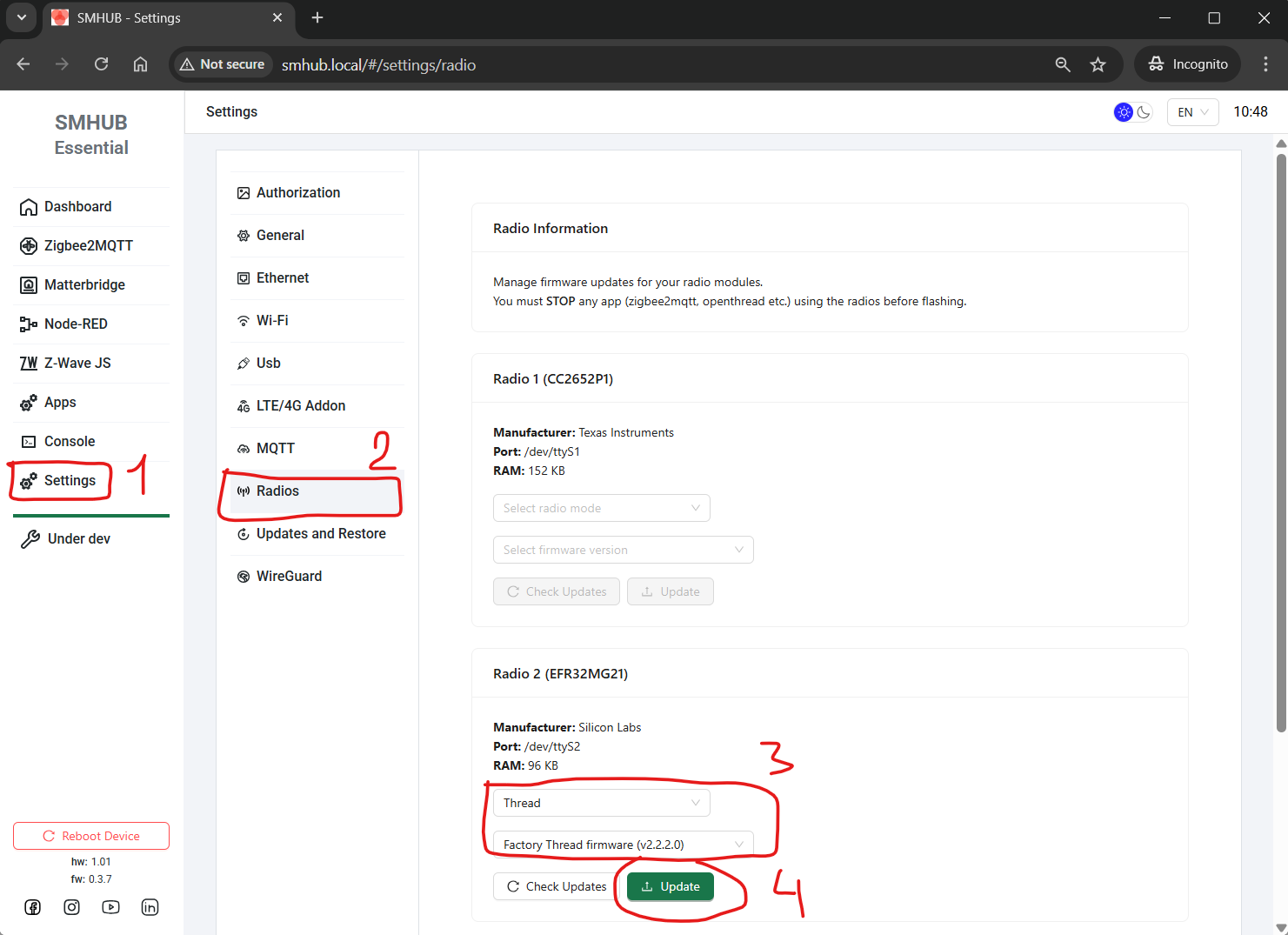
✅ The radio is now prepared for Thread networks.
Install and start OpenThread Border Router on SMHUB
What to do
-
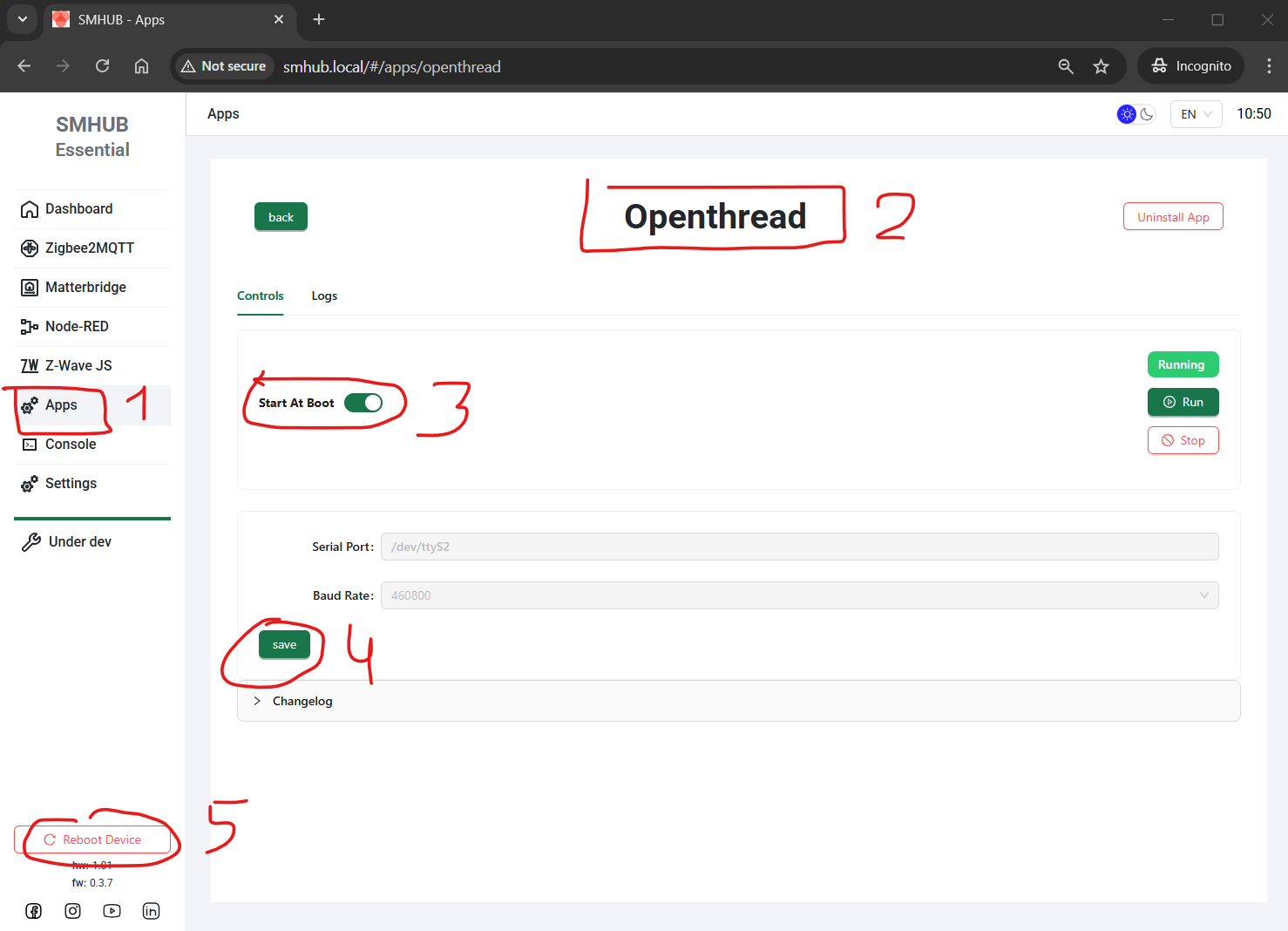
Go to Apps
-
Click Refresh
-
Install or upgrade Openthread Border Router
-
Latest version: 0.3.0-2
-
-
Enable Start on boot
-
Reboot the SMHUB device or press Stop, wa,it until it stops, and then Run buttons.
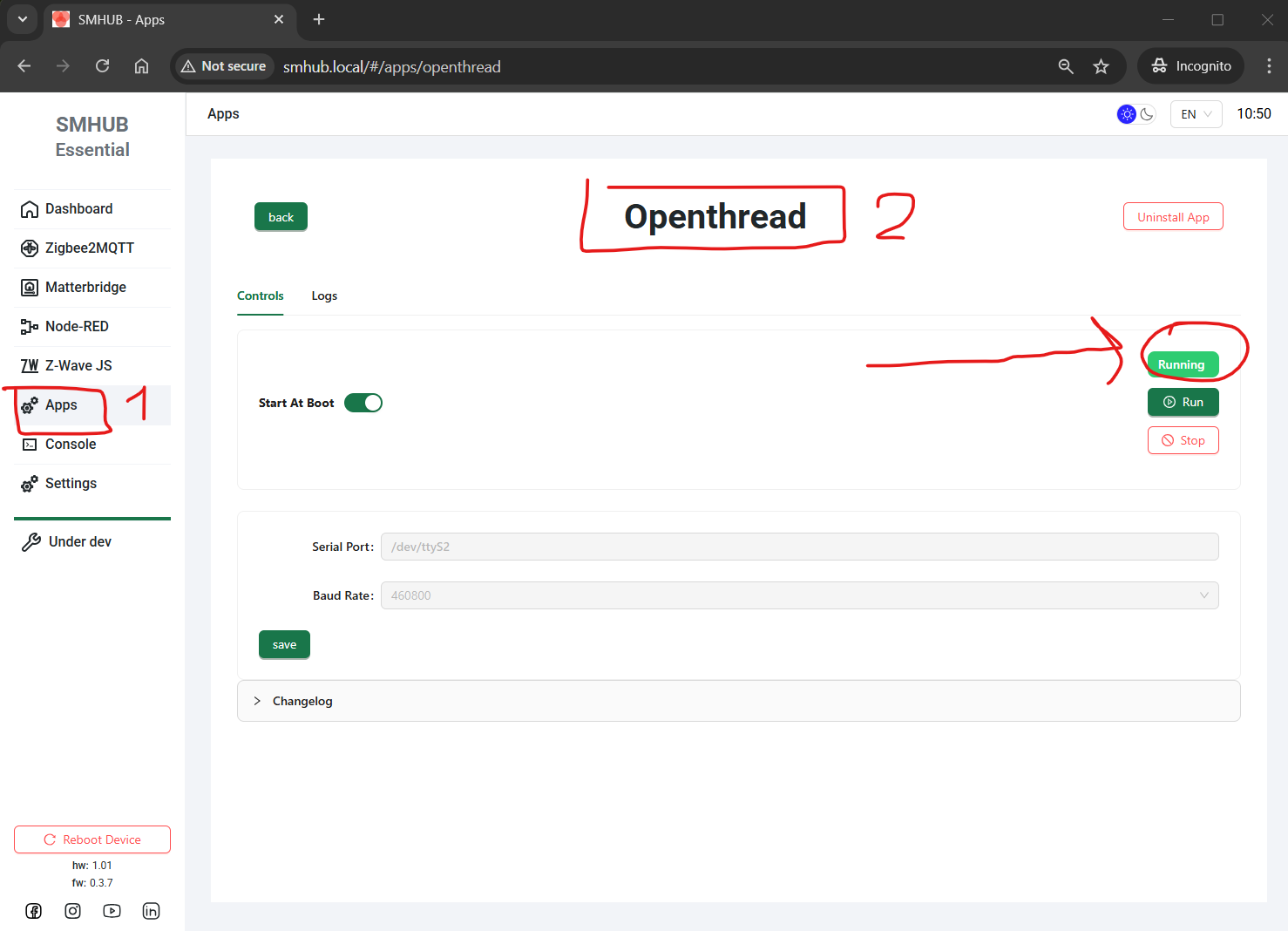
After reboot or re-launching the app:
-
Go to Apps → Openthread
-
Verify that Status = Running
Connect OpenThread Border Router to Home Assistant
Add the integration in Home Assistant
In Home Assistant:
-
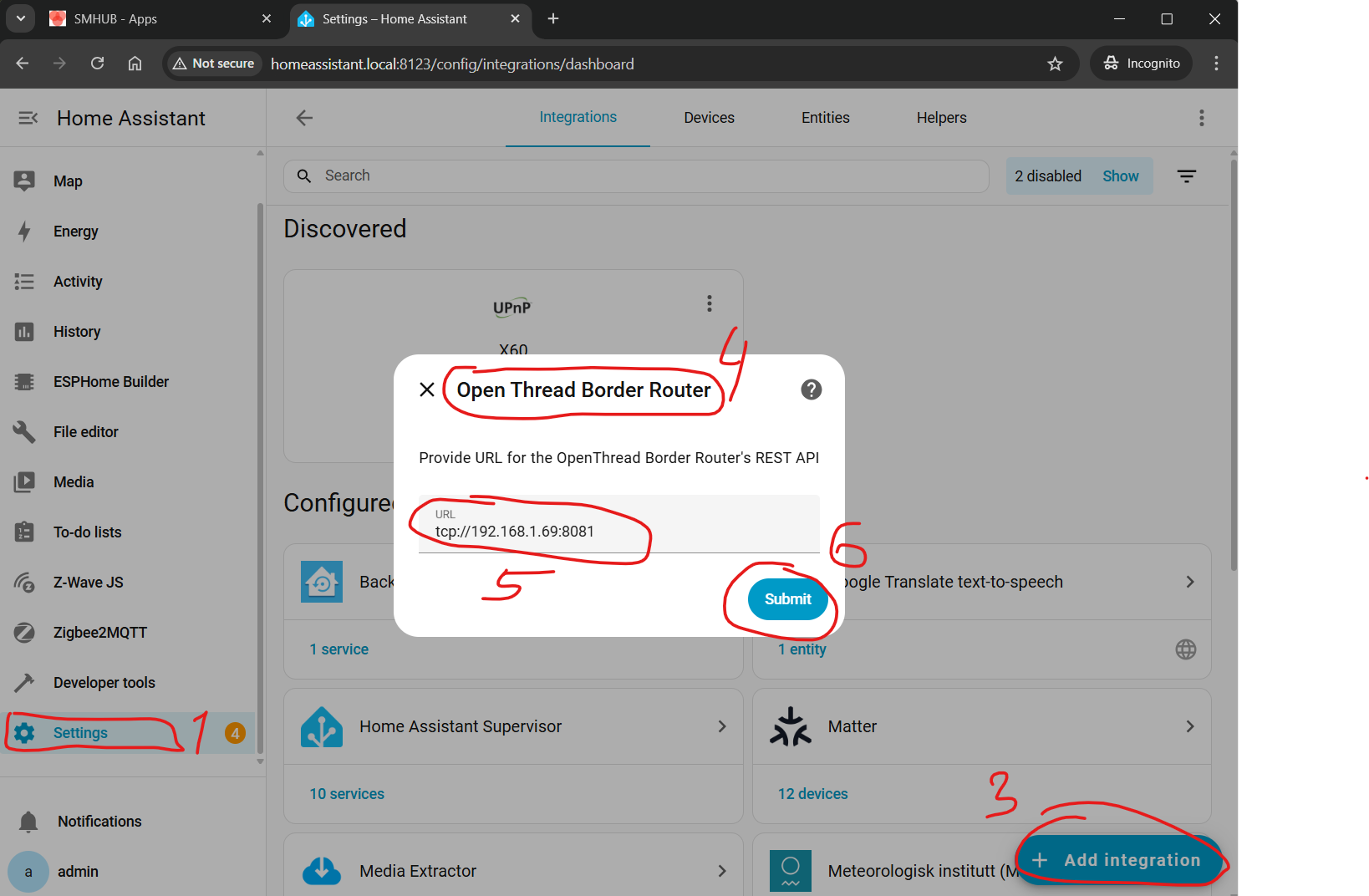
Go to Settings → Devices & Integrations
-
Click Add Integration
-
Search for OpenThread Border Router
In the connection dialog, enter: tcp://SMHUB_IP:8081
Example: tcp://192.168.1.69:8081
-
Confirm and wait for successful connection

Verify Thread integration
-
Home Assistant should automatically install the Thread integration
-
If it does not:
-
Go to Settings → Devices & Integrations
-
Manually add Thread (no settings required)
-
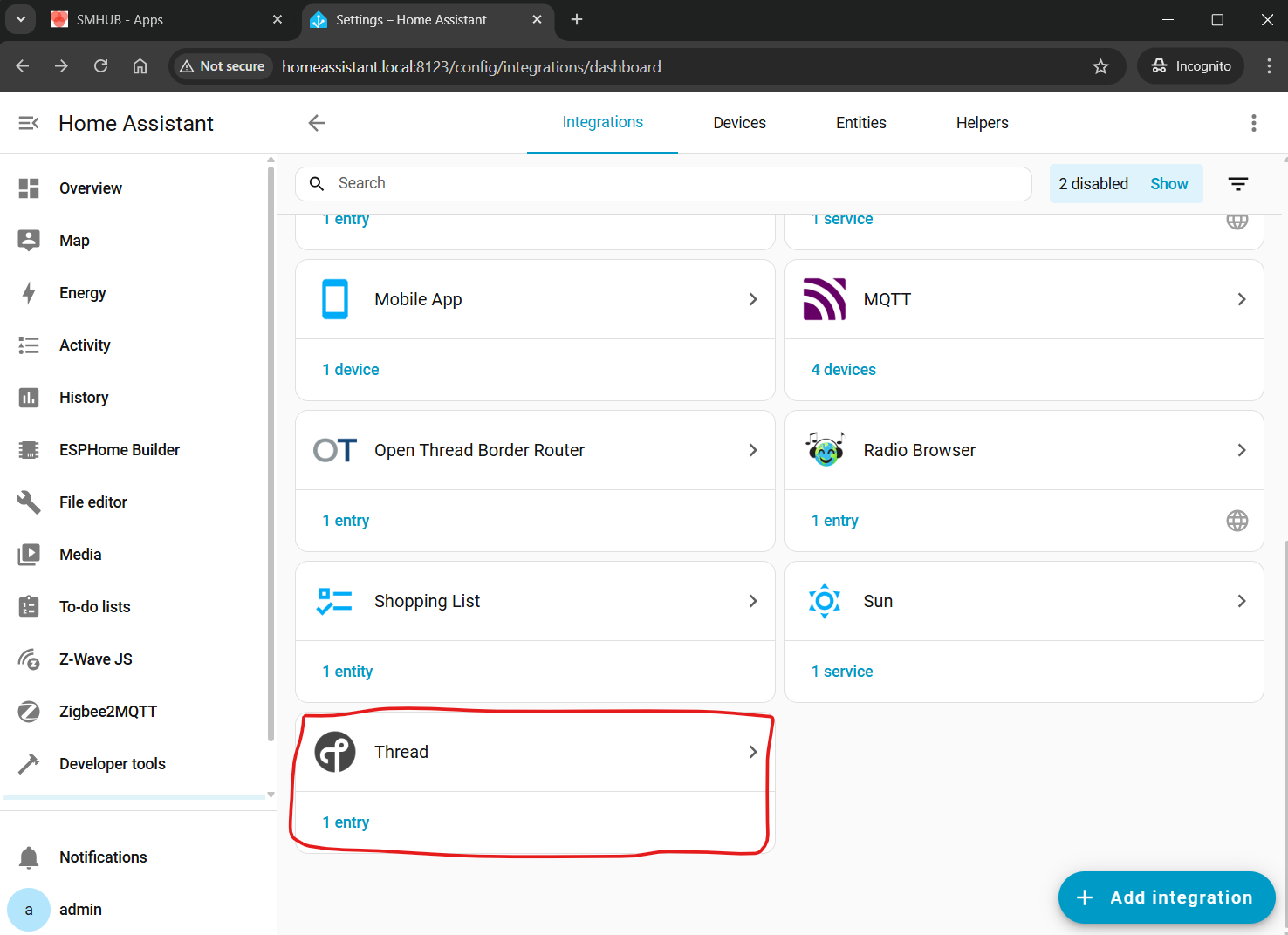
Home Assistant Settings
All the information below relates to setting up a Matter-over-Thread controller (in this particular case, Home Assistant) and is outside the scope of SMHUB functionality (i.e., this is a third-party configuration topic). Therefore, the instructions below may change over time, and we do not track or maintain updates.
Setting Up the Matter add-on and Integration
While Thread is a physical network, to control Matter-over-Thread devices, users need to installa Matter server on Home Assistant.
- Go to the Home Assistant interface and navigate to
Settings>Devices & Services. - Click on
Add integrationand search forMatter. - Keep checkbox
Use the official Matter Server Supervisor add-onand clickSubmit. - Wait untill installation of Matter Integration and Matter Server add-on is completed.
- Head over to the Left panel within Home Assistant and Click
Settingsand chooseAdd-ons. Go to the Matter Server add-on. Start the Matter Server add-on. Here we would suggest as well to click bothStart on bootandWatchdog.
Set-up and configuring the Integrations
- Thread Integration – click
Configureand make sure you haveOpenThread Border RouterunderPreferred networkline, and it contains an icon with key+phone.
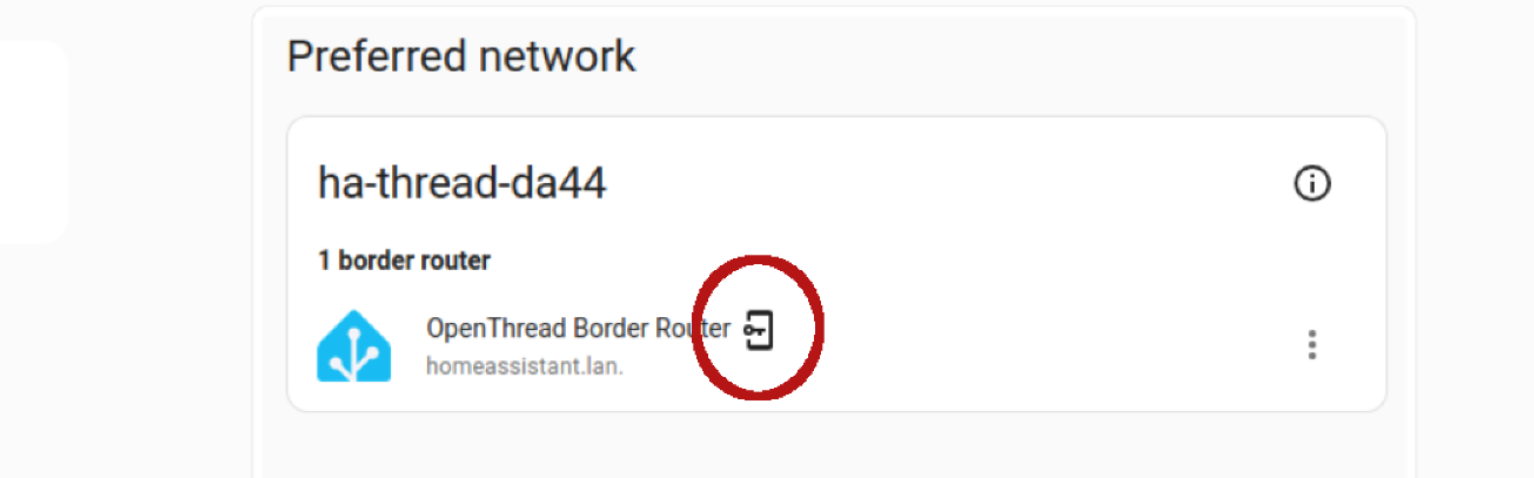
- If not, do the following:
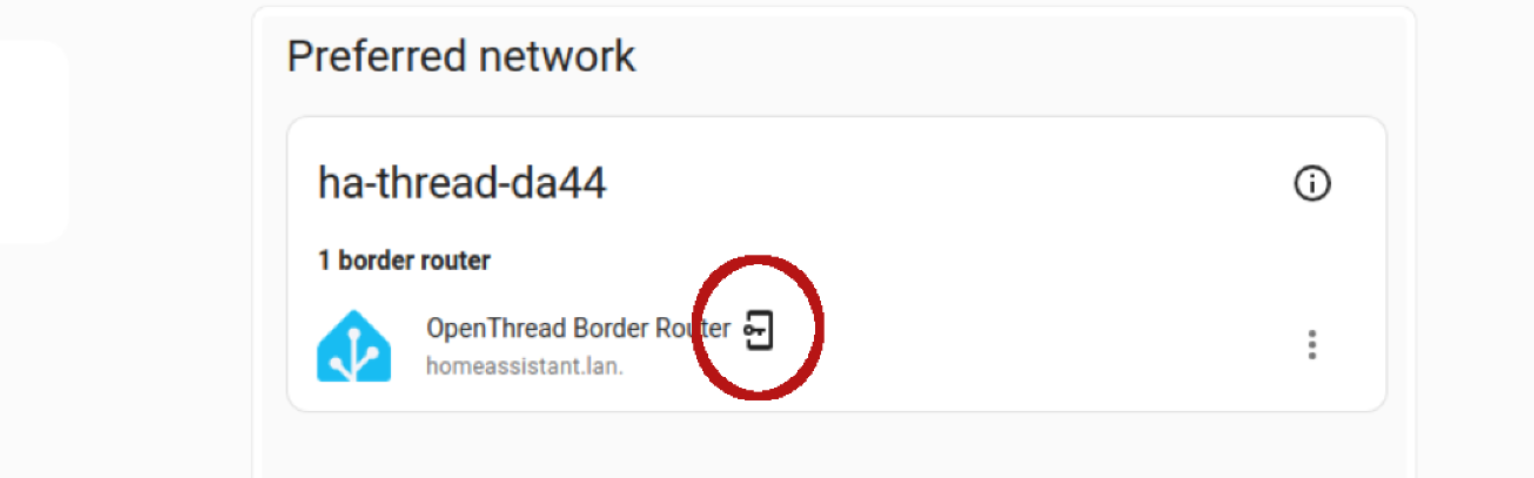
- click three dots on the right to
OpenThread Border Router, chooseAdd to preferrede network. - Under the preferred network now, click again three dots on the right to
OpenThread Border Router, and chooseUse router for Android + iOS credentials.
Reboot your Home Assistant server
- Once all Home Assistant components are installed, we reccomend to reboot your Home Assistant server.
Result
-
SMHUB is running an OpenThread Border Router
-
Home Assistant is connected to it
-
Your system is ready for Matter-over-Thread devices
Pairing Matter-over-Thread devices
Pre-set up your phone
This paragraph is an extended version of the official documentation Home Assistant: https://www.home-assistant.io/integrations/thread/#to-make-home-assistant-your-first-thread-network
- Install
Home AssistantApp on your Android phone from the Play Store. At the time of this video, we were unable to pair a Matter-over-Thread device via iPhone. - Install
Google Homeapp from the Play Store. It is recommended byHome Assistantdevelopers and we were not able to pair our Thread devices without installed Google Home app. - Open
Home Assistantapp and sync it with your Home Assistant server. Your phone and Home Assistant server should be in the same Wi-Fi network. - In the app, go to
Settings–Companion app-> ClickTroubleshootingand clickSync Thread Credentials. - Wait until the message
Home Assistant and this device use the same network. If you see another message, namelyAdded network from Home Assistant to this device– You need to click onSync Thread Credentialsagain until you get that message about the same network. - If you are not getting my message
Home Assistant and this device use the same network- try to reset your Google Play Services (remove all data, usually by App settings -> Erase data -> Clear All Data, but names depend on the smartphone model).
Adding the Matter Device
- With the Matter integration set up, grab your Matter device and Android smartphone. Make sure Bluetooth is enabled on your phone.
- Open the Home Assistant app and navigate to
Settings>Devices & Services->DevicesTab. - Click the
+ ADD DEVICEbutton at the bottom right part of the screen to add a device, chooseAdd Matter device. - Follow the on-screen instructions in the app. You'll likely need to scan a QR code located on your Eve Energy socket or enter the pairing code manually. We did it with QR-code scanning.
- Home Assistant app on your phone can as which app to open? Select
otherand thenHome assistant. - The app will guide you through pairing the device with your Thread network. It should pass through this satuses:
- Connecting to device...
- Generating Matter credentials...
- Connecting device to network...
- Checking netwoek connectivity...
- Connecting device to Home Assistant...
- Device connected!
- Note:
- If a Matter-over-Thread end-device has been powered up for a long time, it may require a reset of device to put back into pairing mode.
- In case you have Google home devices (Nest hub) and experiances issues with pairing, try to turn them off before starting OpenThread Border router add-on on your Home Assistant and your Home Assistant app.
Verifying Connection and Control
- Once the pairing is complete, head back to the Home Assistant interface. You should see your Eve Energy socket listed on your
Dashboardor under theDevicessection .
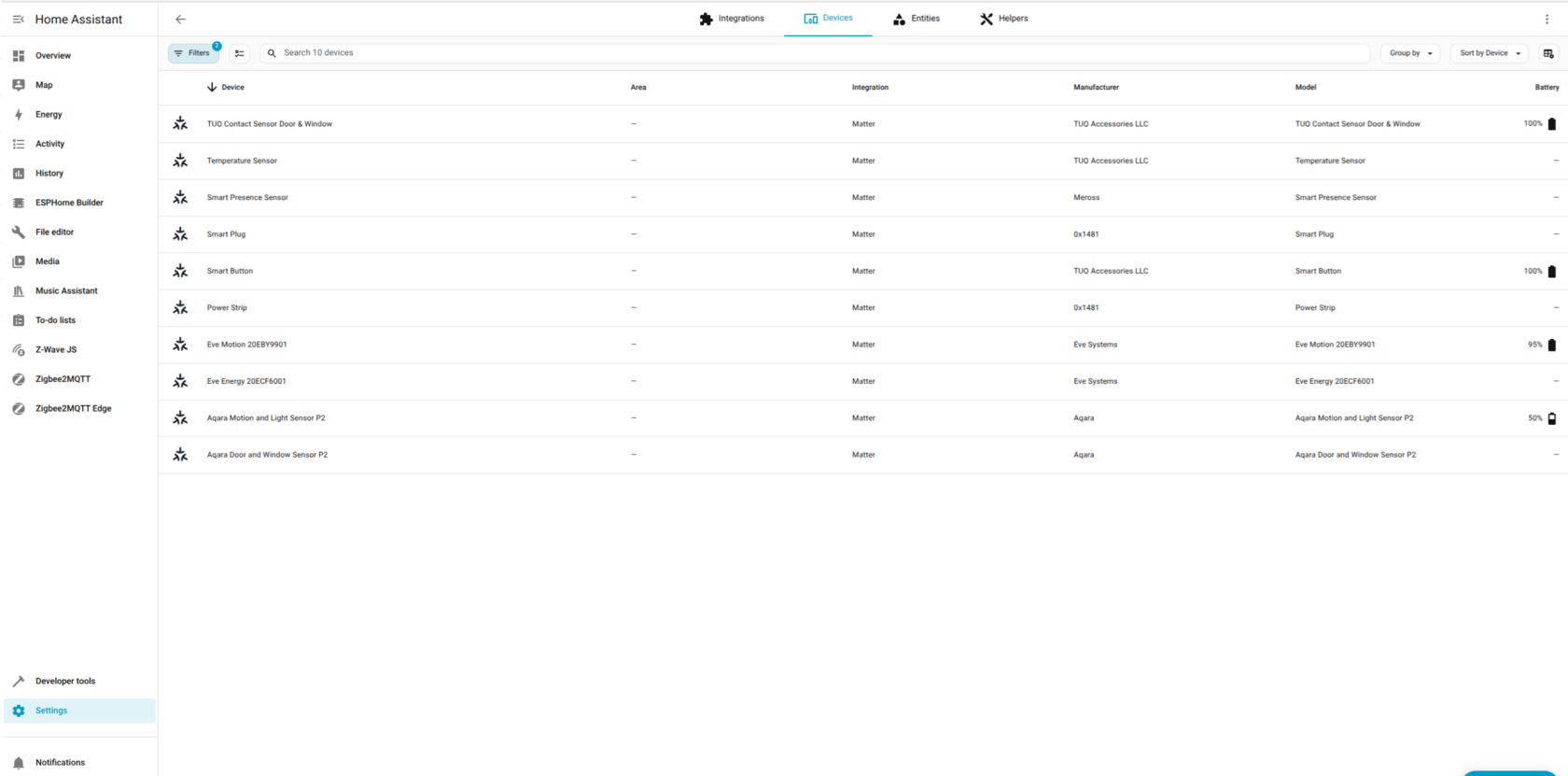
- Click on the device to access its controls. You should be able to turn the socket on and off remotely within the Home Assistant interface.
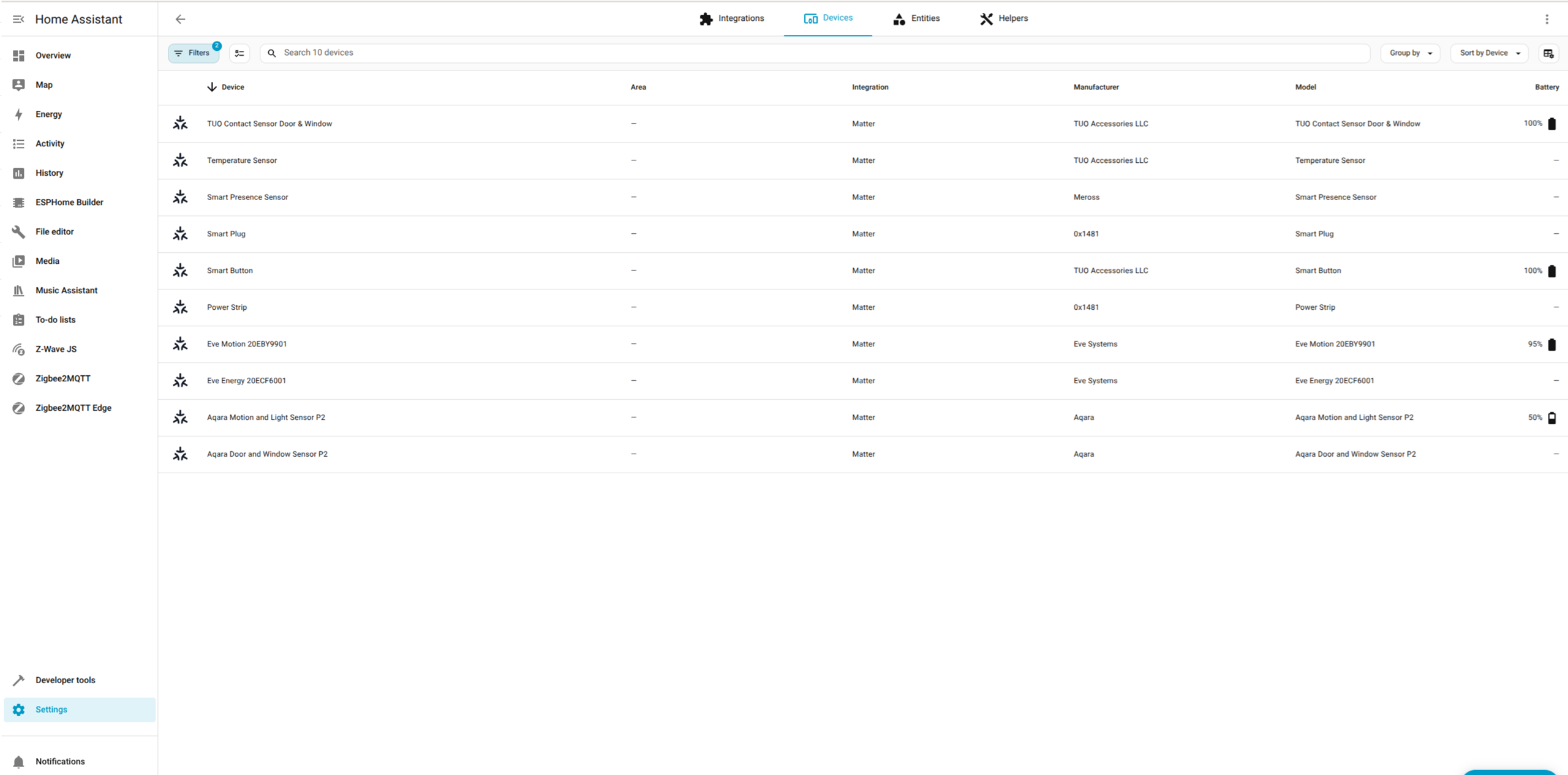
Congratulations! You've successfully connected your Matter-over-Thread device to Home Assistant using the OpenThread Border Router and Matter Integrations. Now you can enjoy the benefits of Matter's secure and interoperable smart home ecosystem, connected via SMHUB.