
Zigbee Hub
4. Zigbee Hub
4.1 What is Zigbee Hub in SLZB-OS?
The Zigbee Hub feature allows the SLZB device to run its Zigbee network directly on the device — without needing an external computer, Raspberry Pi, or NAS to host the Zigbee stack.
In Zigbee Hub mode, SLZB-OS launches an integrated Zigbee stack service that can connect directly to your smart home platform over MQTT.
This mode is ideal for:
-
Self-contained setups where the device acts as both the coordinator and the host.
-
Reducing complexity by eliminating extra hardware.
-
PoE/Ethernet-based installations for maximum stability.
When Zigbee Hub is active, a dedicated Zigbee Hub menu appears in the SLZB-OS interface, containing the following pages:
-
Dashboard – Live overview of Zigbee network status.
-
Devices – List and manage all paired Zigbee devices.
-
MQTT – Configure the MQTT broker connection.
-
Settings – Advanced Zigbee network and coordinator options.
4.2 Zigbee Hub → Dashboard
The Dashboard is the central monitoring page for your Zigbee network.
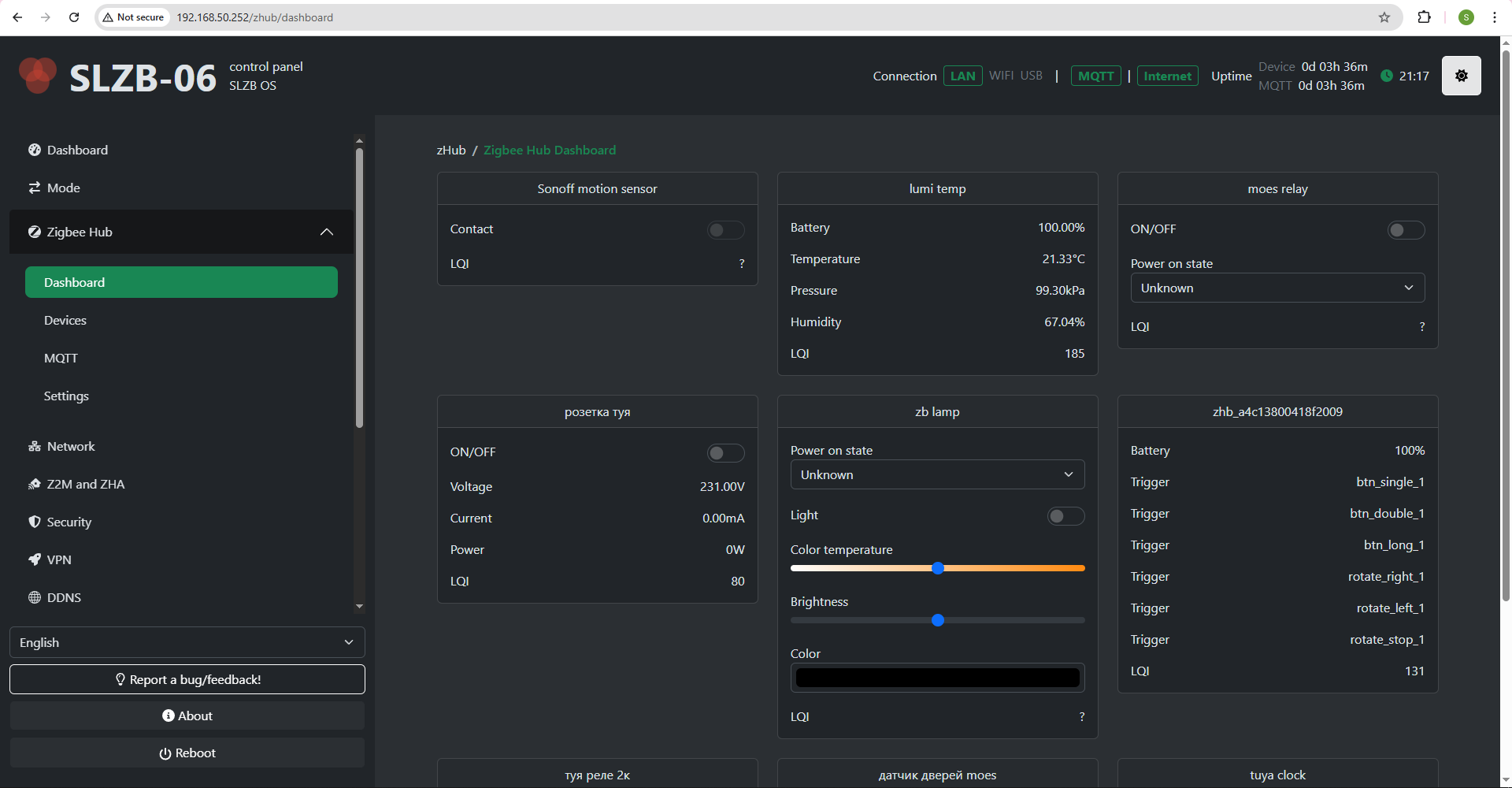
KeyThe elementsdashboard displayed:
The dashboard is updated in
Connected Devices Control – Let the user control paired Zigbee devices.SSE.
Use cases:
Check network health at a glance.
Quickly restart services if devices appear offline.
Access the full Z2M UI for deeper diagnostics.
4.3 Zigbee Hub → Devices
The Devices page lists every Zigbee device paired to your coordinator.
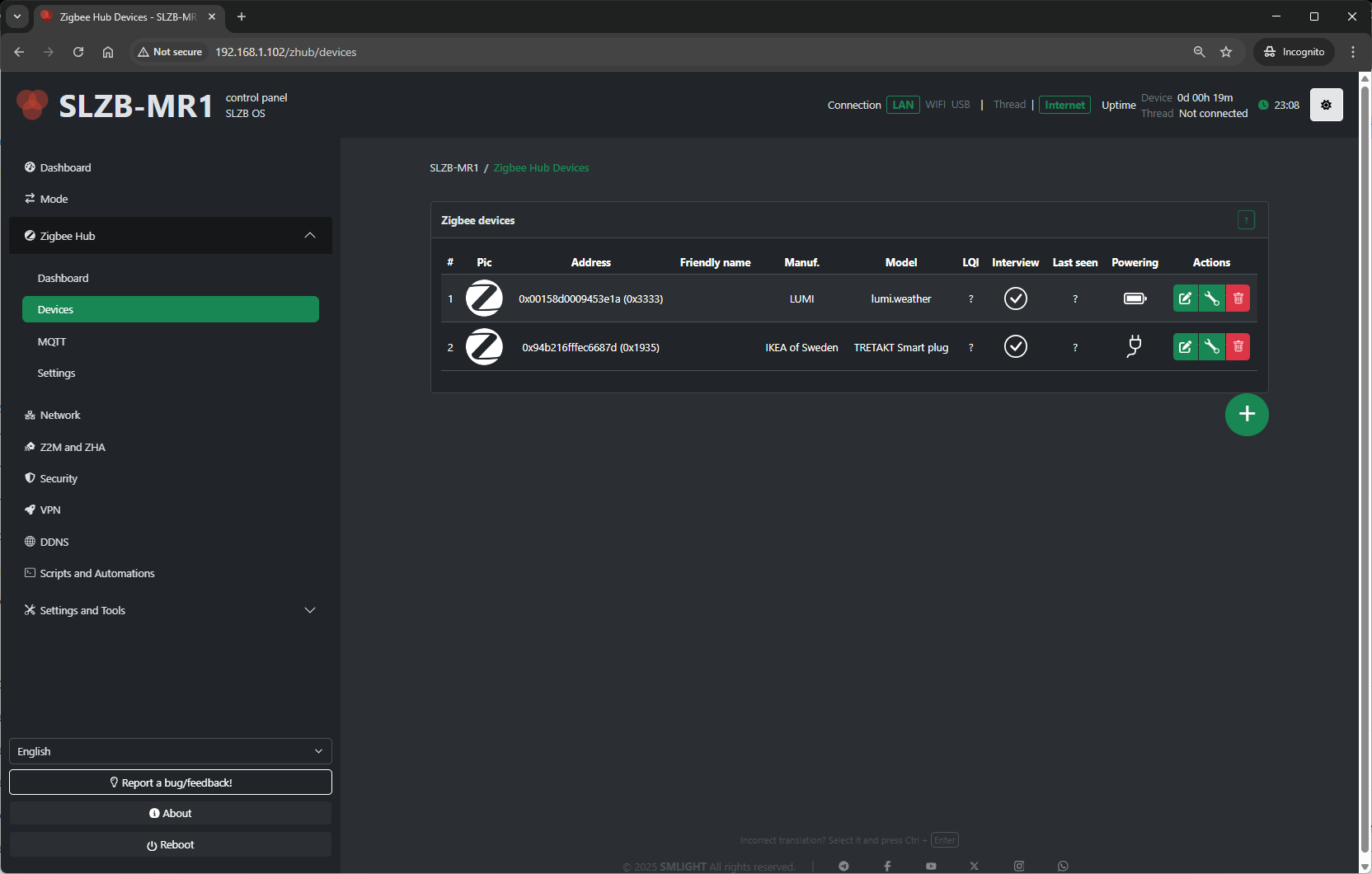
Pairing control:
- Permit Join (+ button on the bottom right side of the device table) – Allow or deny new devices joining the network.
For each device, you’ll see:
-
Name / Friendly Name – Human-readable identifier.
-
IEEE Address – Unique device ID.
-
Network Address – Short Zigbee address assigned by the coordinator.
-
Device Type– Coordinator, Router, or End Device.
Last Seen – Timestamp of the last communication.
Powering – Device power source (AC/battery) or ? if the device does not provide information.Link Quality (LQI) – Signal strength indicator.
Actions:
-
Rename device
-
Remove/unpair device
-
View device details (clusters, endpoints, bindings)
-
Bind/unbind devices (if supported)
Typical uses:
-
Verify devices are online and responsive.
-
Rename devices for easier identification in automations.
-
Remove devices no longer in use.
4.4 Zigbee Hub → MQTT
This page configures the MQTT connection that Zigbee2MQTT (running on SLZB-OS) uses to communicate with your smart home platform.
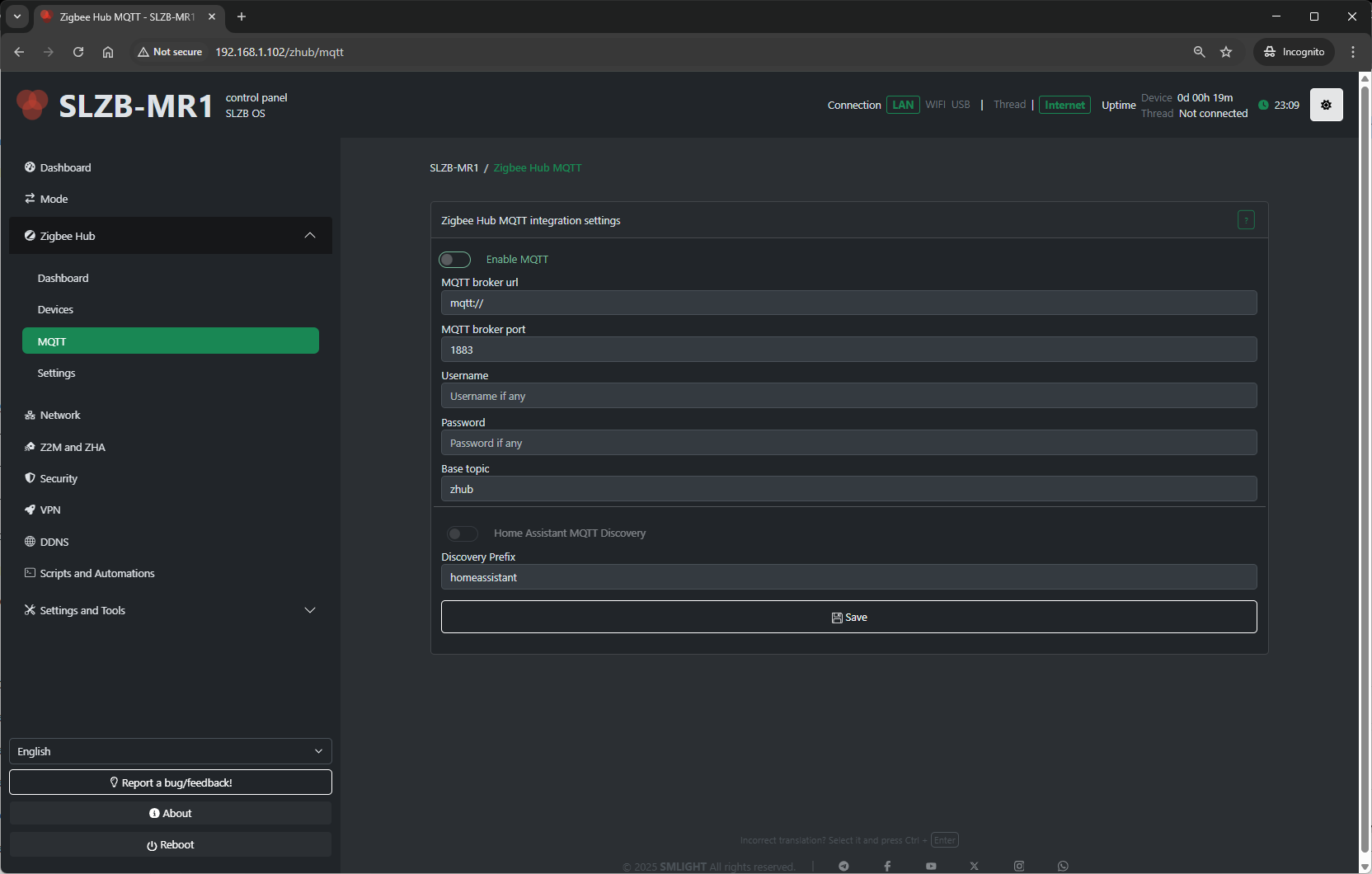
Configuration fields include:
-
MQTT Server Address – IP or hostname of your broker (e.g.,
mqtt://192.168.1.100). -
Port – Default 1883 for MQTT, 8883 for MQTT over TLS.
-
Username / Password – Broker authentication (if required).
-
Base Topic – Topic prefix for Zigbee messages (default:
zigbee2mqtt). - Discovery
RetainPrefixmessages-–HomeOptionassistanttomainkeeptopiclast known state on the broker.
TLS/SSL options – Certificates and secure connection settings.
Tips:
-
For Home Assistant with Mosquitto add-on, use the HA IP and port
1883. -
Always use a unique base topic if you run multiple Zigbee networks.
-
Save and restart Zigbee Hub after making MQTT changes.
4.5 Zigbee Hub → Settings
The Settings page contains deeper configuration for the Zigbee coordinator and Zigbee2MQTT service.
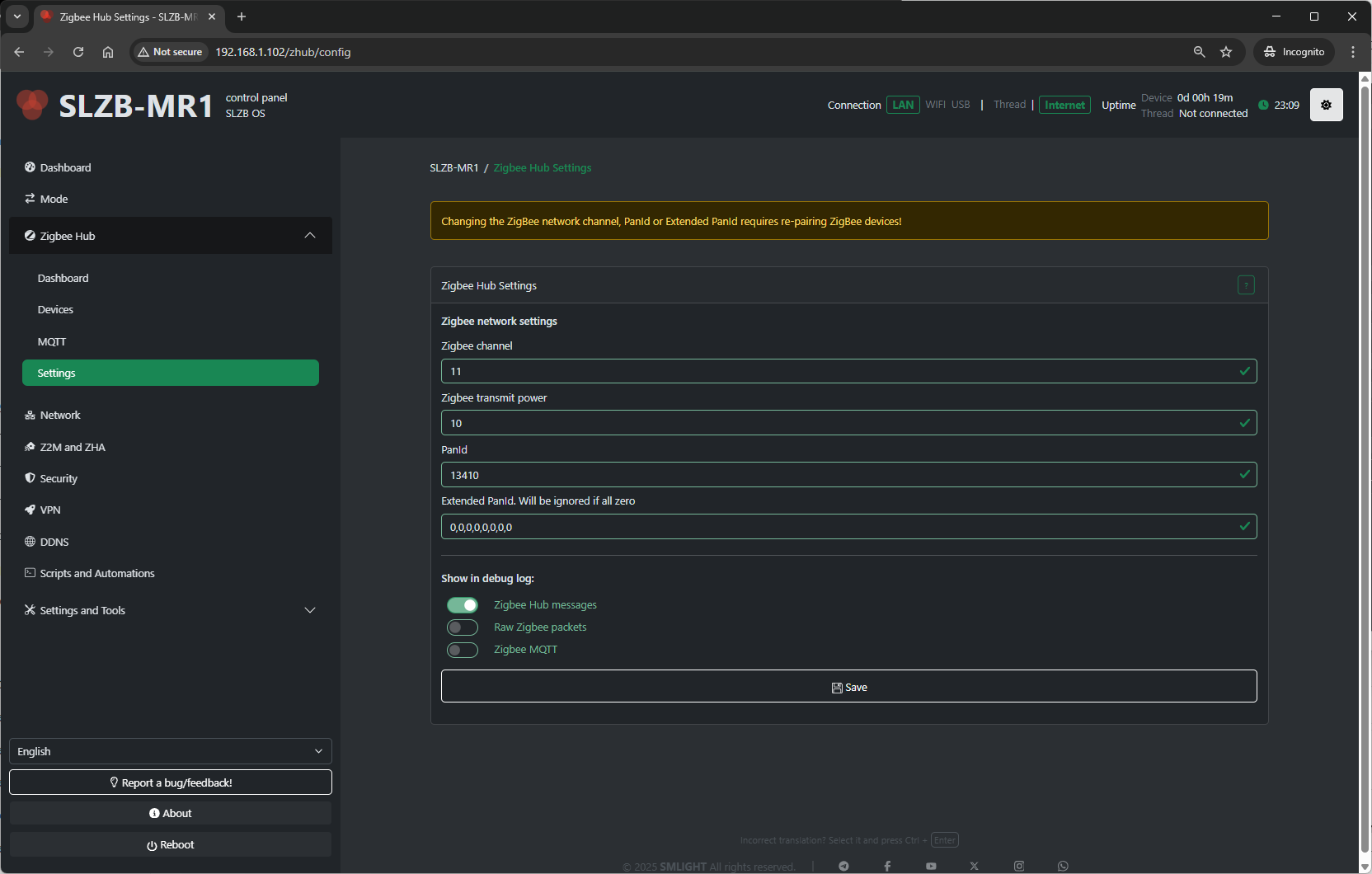
Typical settings available:
-
Network Parameters:
-
PAN ID – Zigbee network
identifier (hex).identifier. -
Channel – RF channel (11–26; avoid Wi-Fi overlap if possible).
-
Extended PAN ID – Long network identifier.
-
-
Transmit Power – Radio TX power in dBm (higher = longer range, more power draw).
- Show in debug log - Select which categories of Zigbee-related information are recorded in the Log & Debug page.
-
Zigbee Hub messages – Logs high-level events from the Zigbee Hub service (e.g., device joins, status updates).
-
Raw Zigbee packets – Logs low-level Zigbee frame data; useful for deep protocol debugging.
-
Zigbee MQTT – Logs MQTT messages related to Zigbee communication, including publishes and subscriptions.
-
Best practices:
-
Change the Zigbee channel only on a fresh network (re-pair required after change).
-
Keep
Permit Joindisabled most of the time for security. -
Adjust transmit power to match your coverage needs and regulatory limits.