
Connecting Zigbee2MQTT on SMHUB to Home Assistant
This guide explains how to connect any SMHUB Series device to Home Assistant using Zigbee2MQTT.
Requirements
-
Any SMHUB model (Essential, Premium, Nano, etc.)
-
Home Assistant running in your network
-
Minimum SMHUB firmware:
-
smhub-os≥ 0.3.7 -
smhub-services≥ 0.2.4 -
smhub-web≥ 0.2.18 zigbee2mqtt≥ 2.7.1-2
-
💡 Tip: You can check and update these versions in the SMHUB web interface
- smhub-os: under Settings → Updates and Restore.
- smhub-services and smhub-web: under Apps → Refresh → Upgrade smhub-services and smhub-web.
Note (as of 12 Dec 2025):
Zigbee2MQTT is currently not released in the production channel. It will be released on 13 Dec 2025 morning.
To update Zigbee2MQTT to v2.7.2-2, please do the following:
Go to the Console tab and run:
Press Enter and enter the password: smlight
Go back to Apps, click Refresh, and update Zigbee2MQTT to 2.7.2-2
Connection options
You can use Zigbee2MQTT on SMHUB in two ways:
-
Option 1 (simple):
Zigbee2MQTT connects directly to Home Assistant’s MQTT broker -
Option 2 (advanced):
Zigbee2MQTT uses SMHUB’s local MQTT broker, which is bridged to MQTT on Home Assistant
Option 1 – Direct Z2M connection to Home Assistant
What to do
-
Open SMHUB Web UI
-
Go to Apps → Zigbee2MQTT
Configure the following:
-
MQTT Broker URL
mqtt://HOME_ASSISTANT_IP:1883 -
MQTT User / MQTT Password
Use your Home Assistant MQTT credentials (often the same as Home Assistant login) -
In Home Assistant Settings → Enable
- Enable Experimental Events
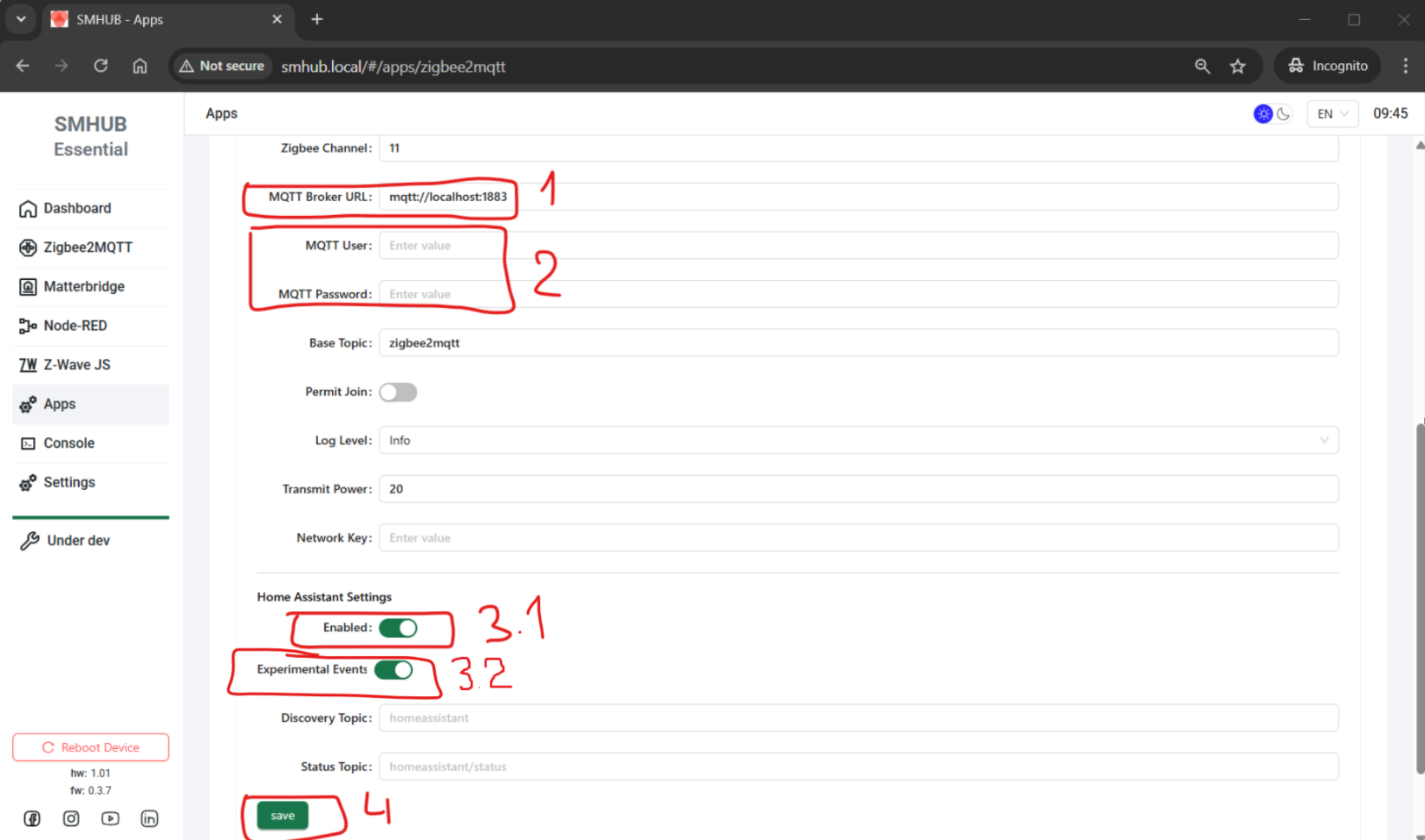
Then:
-
Click Save
-
Stop and start Zigbee2MQTT
(or simply reboot SMHUB)
Result
-
Zigbee2MQTT on SMHUB connects directly to MQTT on Home Assistant
-
Zigbee devices appear automatically in Home Assistant
-
Multiple SMHUBs can connect to the same Home Assistant
Option 2 – Local MQTT on SMHUB with bridge to Home Assistant's MQTT
What to do
-
Open SMHUB Web UI
-
Go to Apps → Zigbee2MQTT
-
Enable Home Assistant Settings
-
Click Save
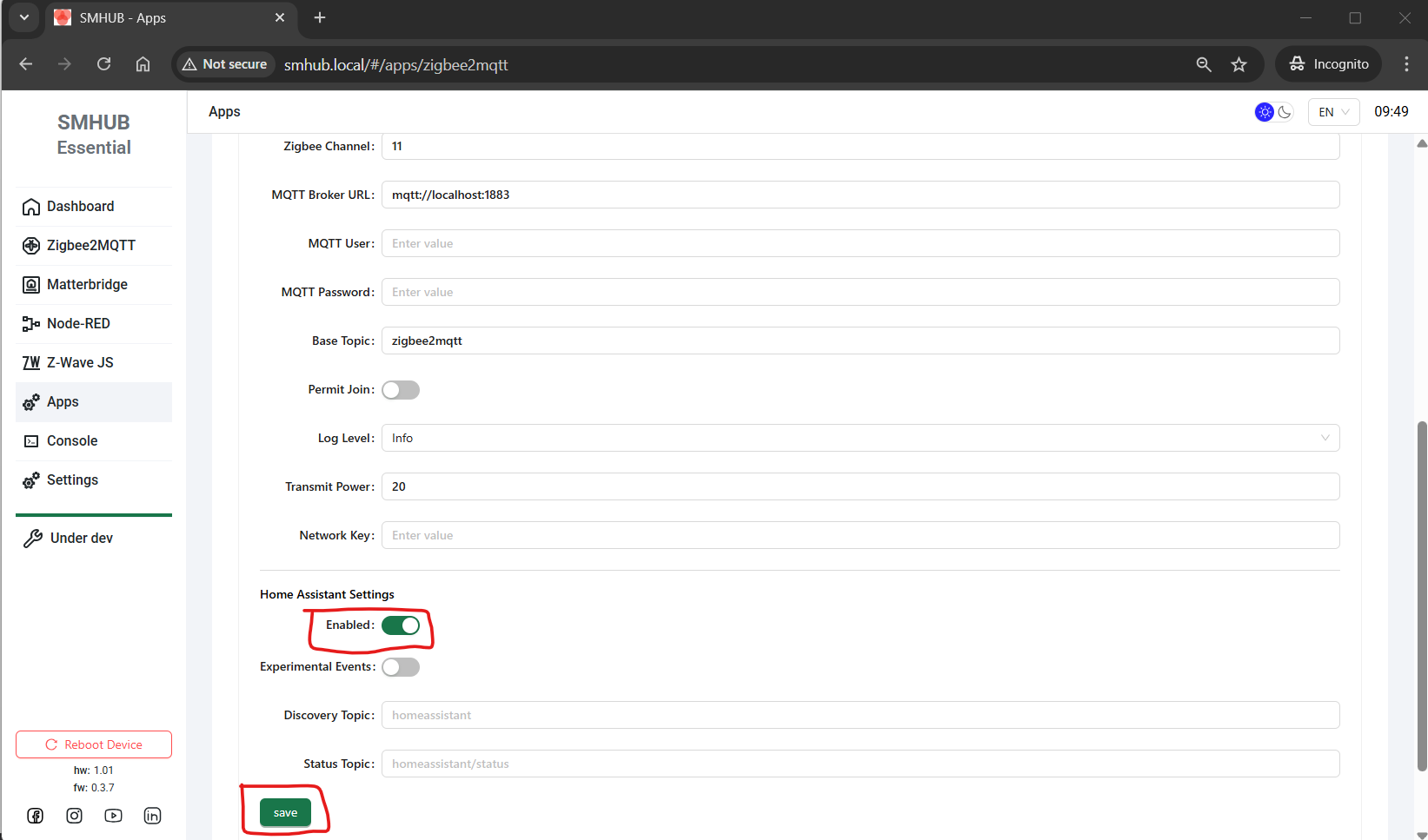
Then configure MQTT bridge:
-
Go to Settings → MQTT
Set the following:
-
Allow External → Enabled. This lets the remote broker send MQTT messages to SMHUB's broker.
-
Allow Anonymous → Enabled (simplest option) - but be careful. You can tweak this by adding credentials and making the respective settings on the remote broker.
-
Enable Bridge Mode → True
Remote broker settings:
-
Remote Address
HOME_ASSISTANT_IP:1883 -
MQTT User / MQTT Password
Home Assistant MQTT credentials -
Bridge Topic
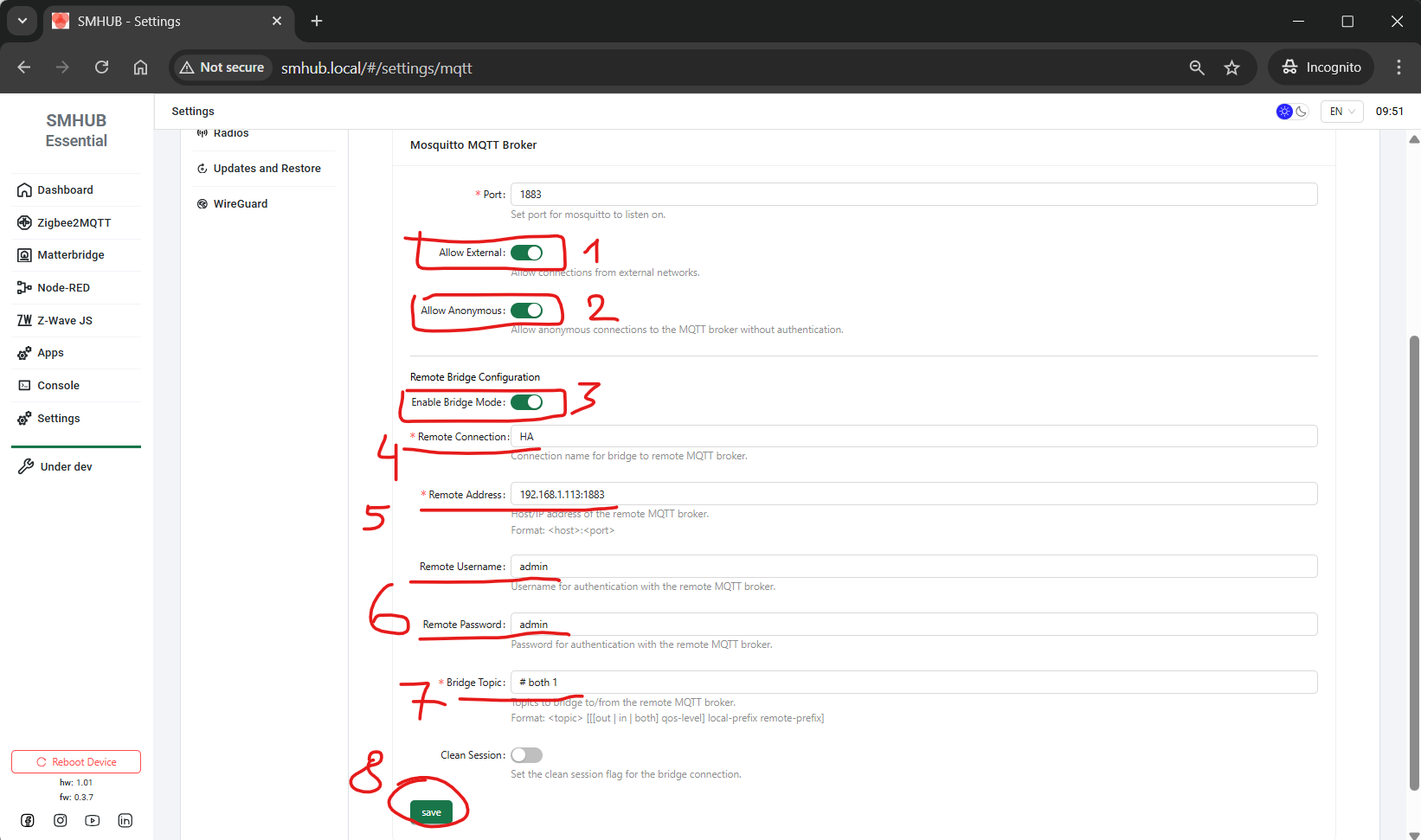
Then:
-
Click Save
-
Reboot SMHUB (recommended)
Result
-
SMHUB keeps its own MQTT broker
-
MQTT data is bridged to Home Assistant
-
Zigbee devices appear in Home Assistant
-
Multiple SMHUBs can connect to one Home Assistant
Which option should I choose?
-
Choose Option 1 if you want the simplest and fastest setup
-
Choose Option 2 only if you need local MQTT on SMHUB