SMHUB-OS release notes
🚀 Key Highlights
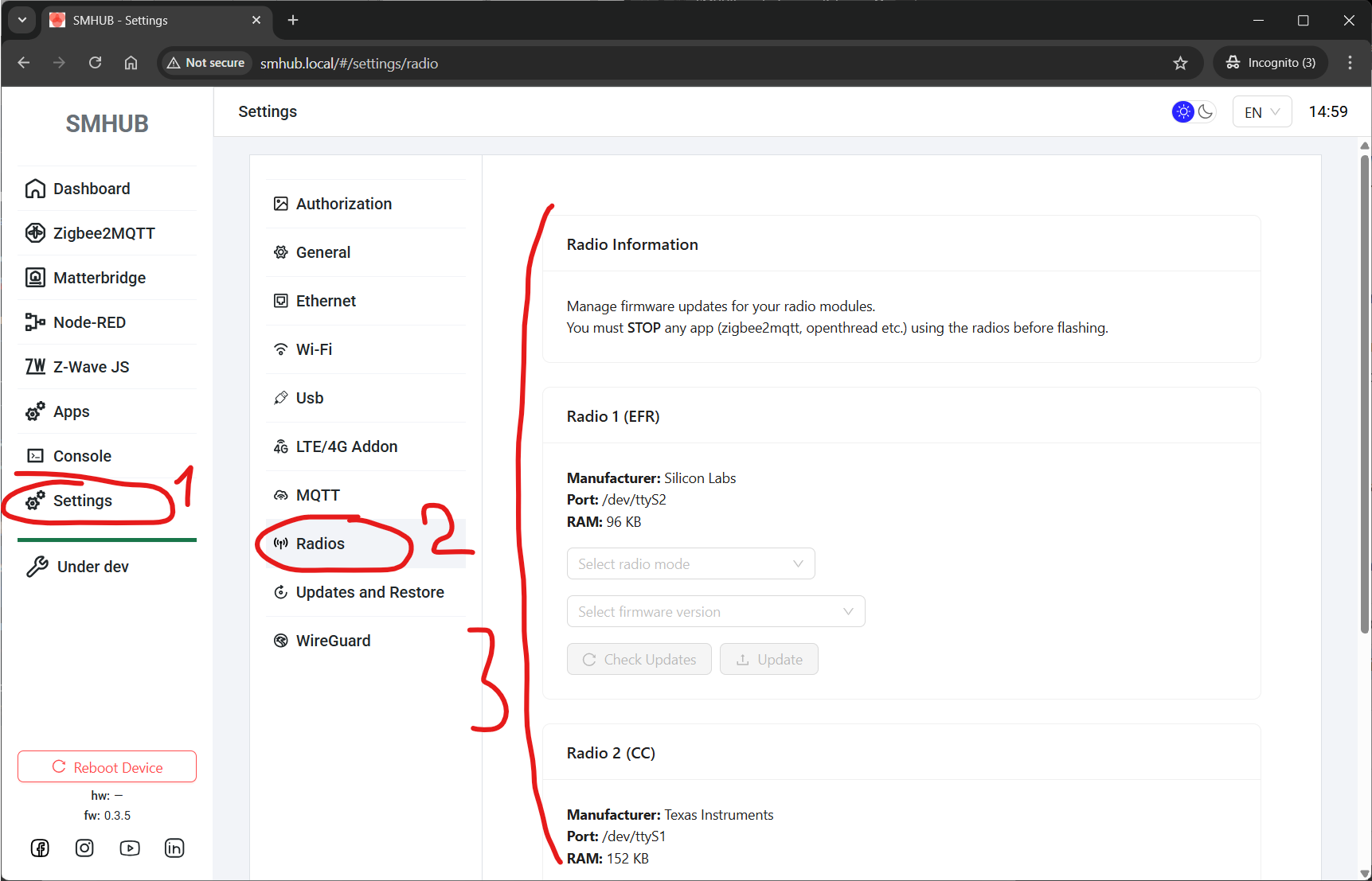
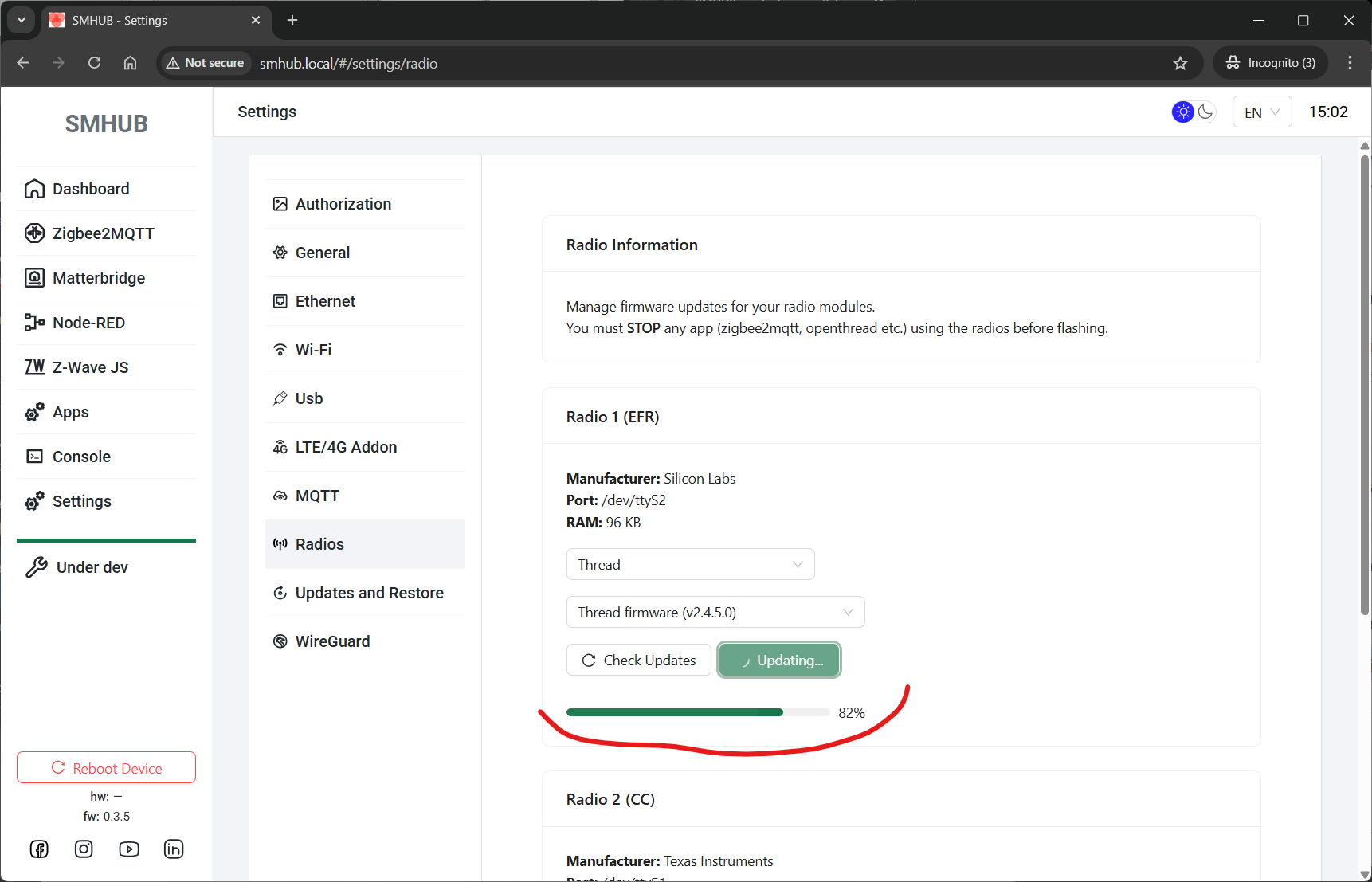
CC Radio Flashing AddedSMHUB now supports flashingTexas Instruments CC26xx/CC27xx radiosdirectly from the Web UI.No external tools or scripts required — everything is handled via the integrated flasher inside the Radio page.(screenshot placeholder)
Improved Flashing UXFlashers for both CC and EFR32 radios now provide:- smoother and more accurate progress bar updates- clearer and more detailed error messages- improved reliability during flashing operations(screenshot placeholder)
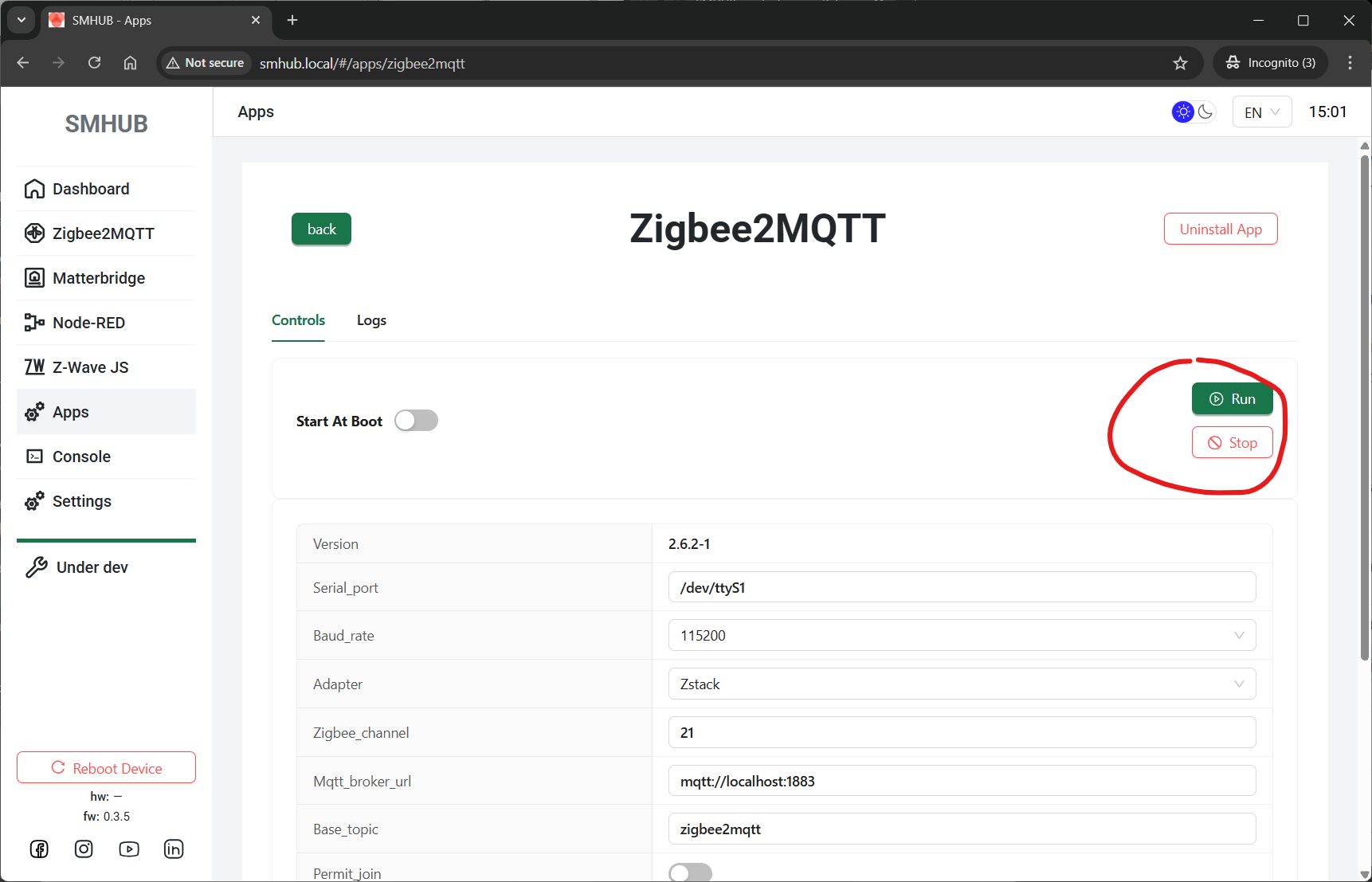
App Logs + Restart ButtonsThe Web UI now includes:-App Logs(accessible directly inside the app iframe)- Restartbuttons for supported apps(screenshot placeholder)These make debugging and managing apps significantly easier, without leaving the Web UI.
Run/Stop App Control FixesRun/Stop buttons have been refined to work more consistently across all app types.A more user-friendly and reliable experience when managing your apps.
Log Formatting FixResolved the issue where logs were incorrectly displayed inTitle Case.Logs now appear in their original formatting for easier reading and debugging.
Backend Updates (smhub-services)Addedsmlight-cc-flasherwith full integration for CC radio flashingCorrected Zigbee2MQTT default values shown in the Web UIFixed Node-RED logs not being displayed properly
OS Updates (v0.3.6)Configured correct system paths for:smlight_cc_flasheruniversal-silabs-flasherUpgraded the base OS image toBuildroot v2025.08.1for improved stability and future compatibility
⚙️Update InstructionsUI update or Console update:UI (smhub-services restart after update can take up to 4 minutes):Web→ Apps→ Refresh → smhub-services/smhub-web → UpgradeConsole (smhub-services restart after update can take up to 4 minutes):sudo opkg updatesudo opkg upgrade
- 2025-Nov-16:
smhub-service 0.2.0, smhub-web 0.2.14 Released
🚀 Key Highlight
- Radio Page Added
A dedicated Radio page is now available in the Web UI for managing and monitoring connected radios (so far - EFR32).
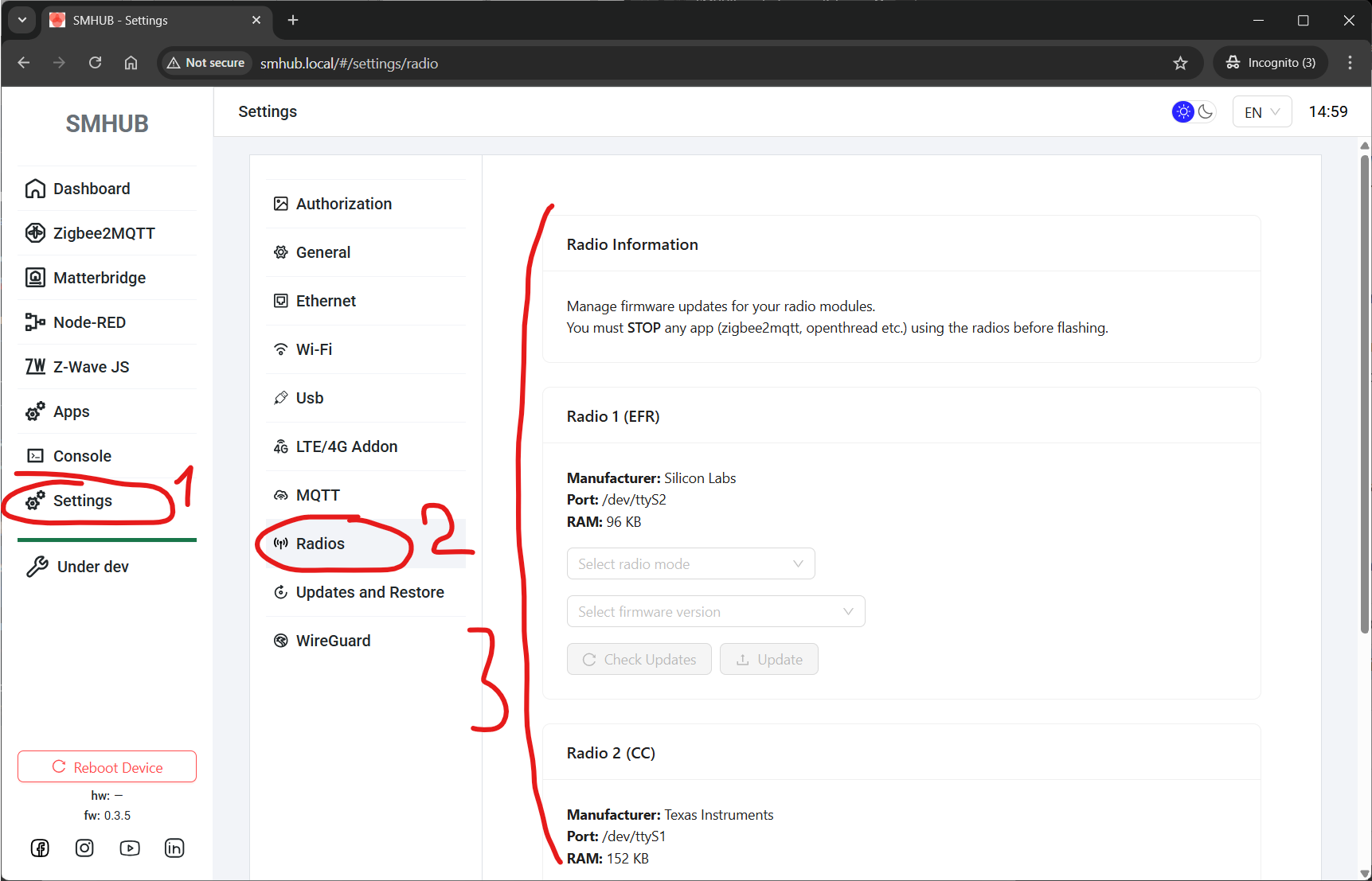
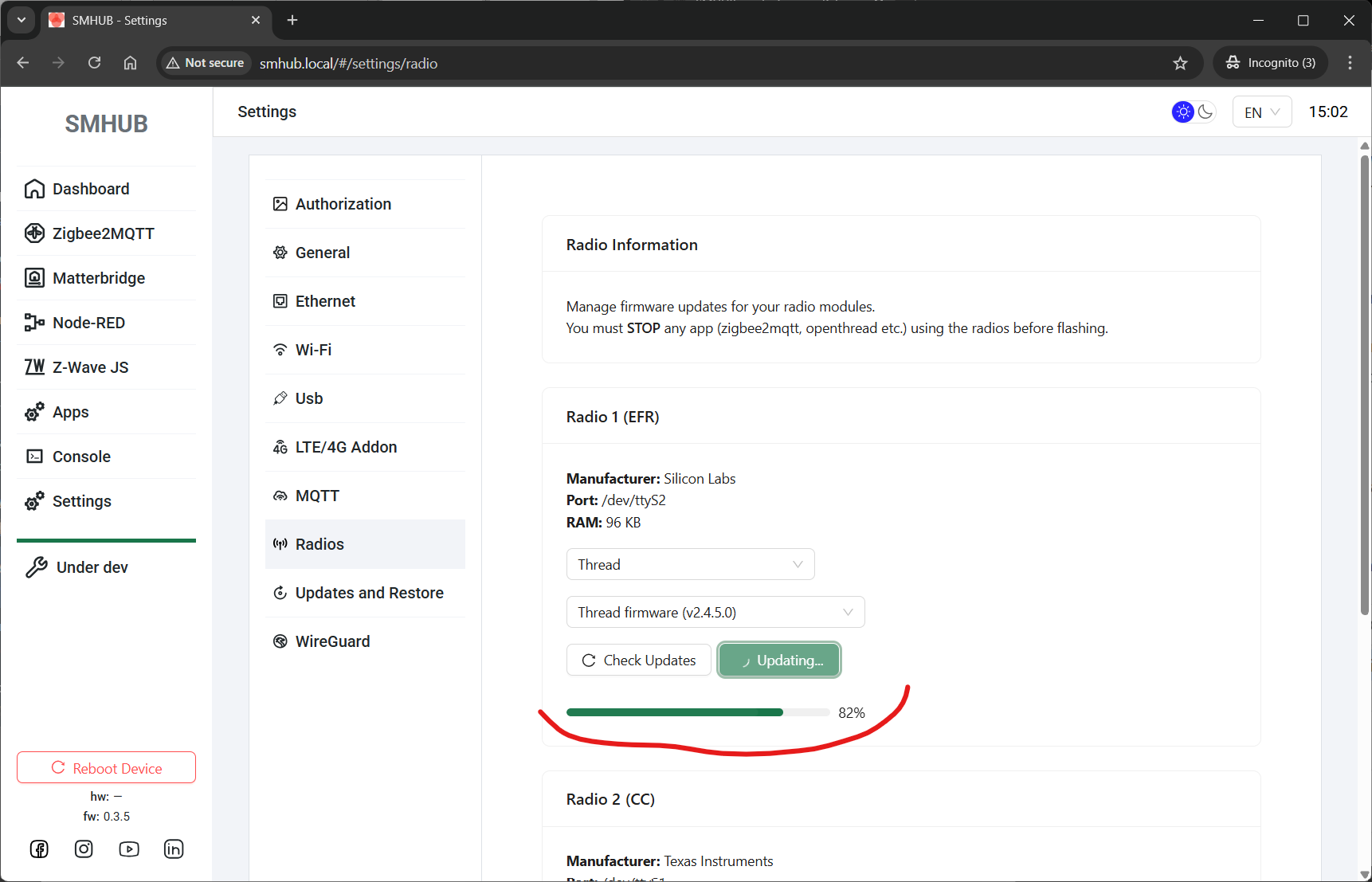
- EFR32 Firmware Flashing
Added built-in support for flashing EFR32 radio firmware directly from the SMHUB interface.
No external tools or manual commands needed - handled via the new integrated flasher.
- Firmware Look-up Utility
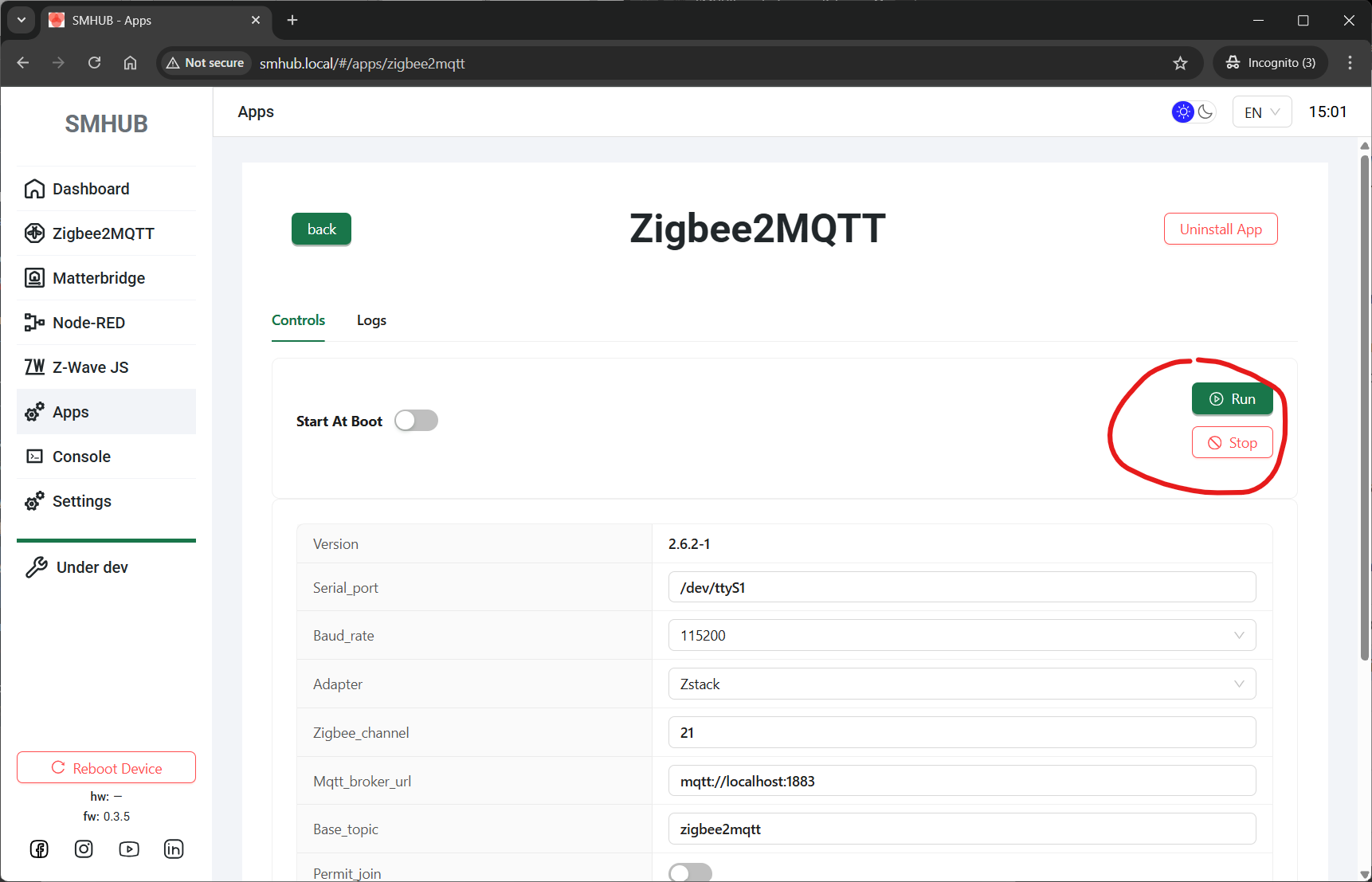
A new backend utility has been added to enable fast and proper firmware look-up for further updating and flashing. - App Control Buttons
New Run and Stop buttons allow you to start or stop apps directly from the Apps section - more user friendly and no console access required.
- OpenThread App Added
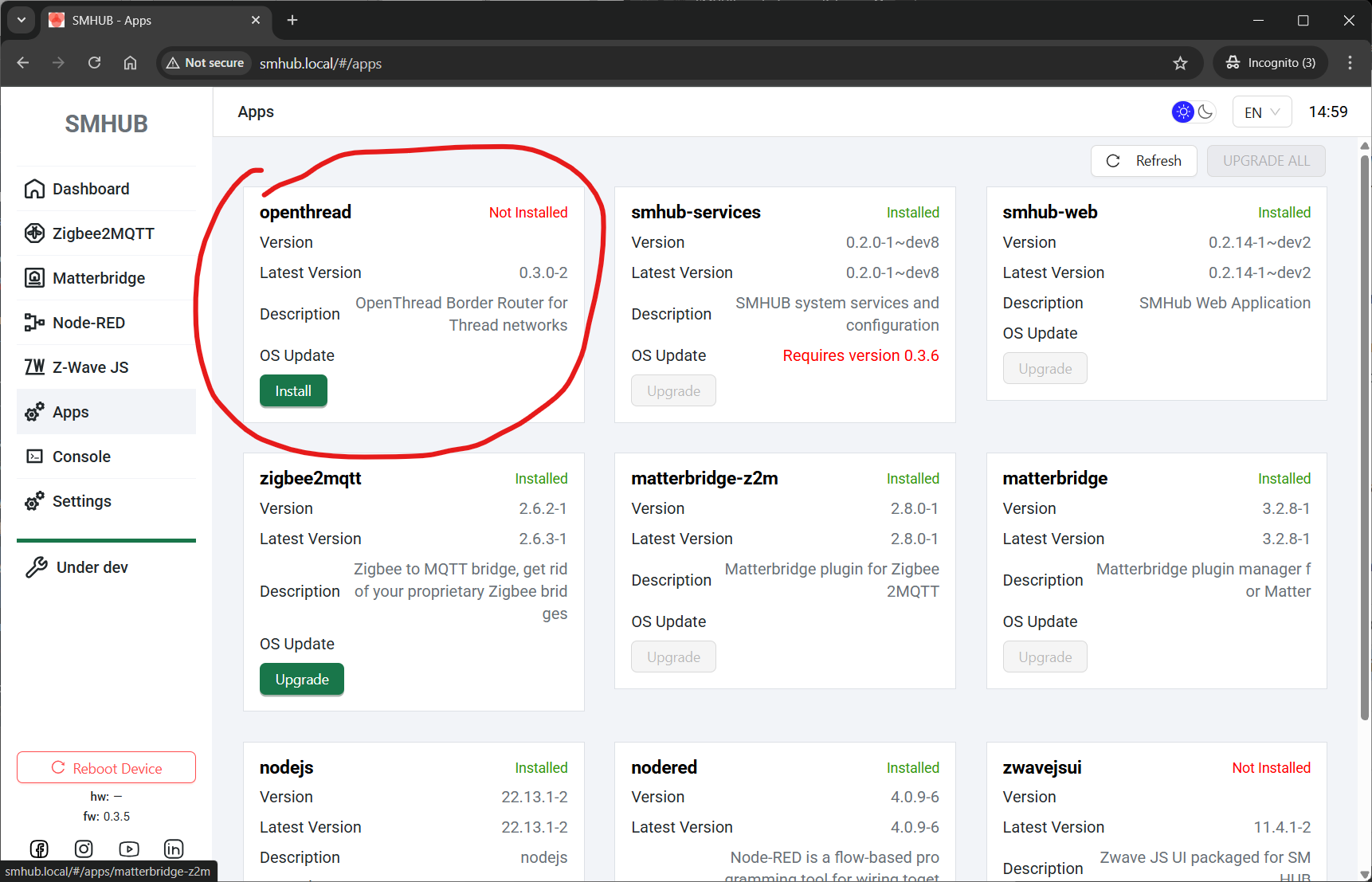
SMHUB can now be configured as an OpenThread Border Router directly through the UI.
The system handles:-
flashing the required EFR32 Thread firmware,
-
installing the OpenThread app,
-
launching and managing it.
No manual/console setup needed - all actions are available from the Web UI now.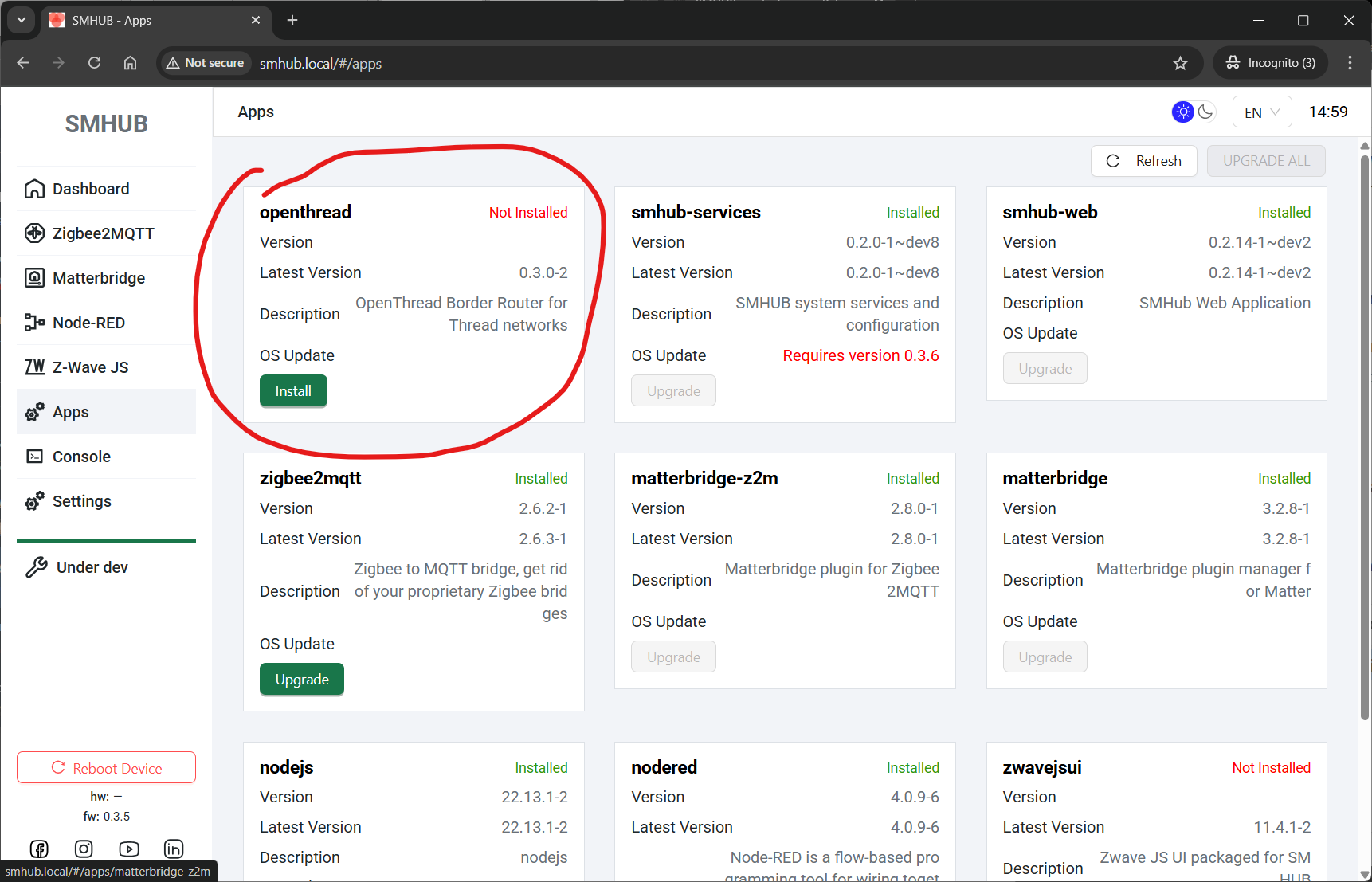
-
- UI update or Console update:
- UI (smhub-services restart after update can take up to 4 minutes):
Web → Apps → Refresh → smhub-services/smhub-web → Upgrade - Console (smhub-services restart after update can take up to 4 minutes):
sudo opkg updatesudo opkg upgrade
- UI (smhub-services restart after update can take up to 4 minutes):
2025-Nov-09:
smhub-os 0.3.4 Released
🚀 Key Highlight
- Set default apps channel to “stable”
All devices now default to the stable application update channel. This guarantees that future OTA updates for core apps (Web, Services, etc.) are synchronized and verified before deployment. - Fixed SMHUB-OS OTA issues for firmware v0.3.2 / v0.3.3
Some users experienced incomplete or failed OTA updates to OS v0.3.3 due to variations in installed app sets. The update logic has been reworked - upgrading to v0.3.4 now works seamlessly for all installations, regardless of configuration. - Fixed UART baud rate handling above 115200
Resolved communication issues affecting high-speed UART configurations. The serial subsystem now correctly supports and maintains baud rates higher than 115200 bps. - OS: Setting -> Update and Restore -> Update
2025-Nov-07:
smhub-service 0.1.19, smhub-web 0.2.12 Released
For those, who can't update, please flash 0.3.3 via Type-C or SD-Card and than update smhub-web and smhub-services. Here is the source for smhub-os 0.3.3: https://updates.smlight.tech/firmware/smhub/os/smhub_os_v0.3.3.zip
This release focuses on localization, system transparency, and stability improvements — adding timezone management, EEPROM hardware data access, and UI refinements across 4G/LTE and Z-Wave JS UI pages.
🚀 Key Highlight
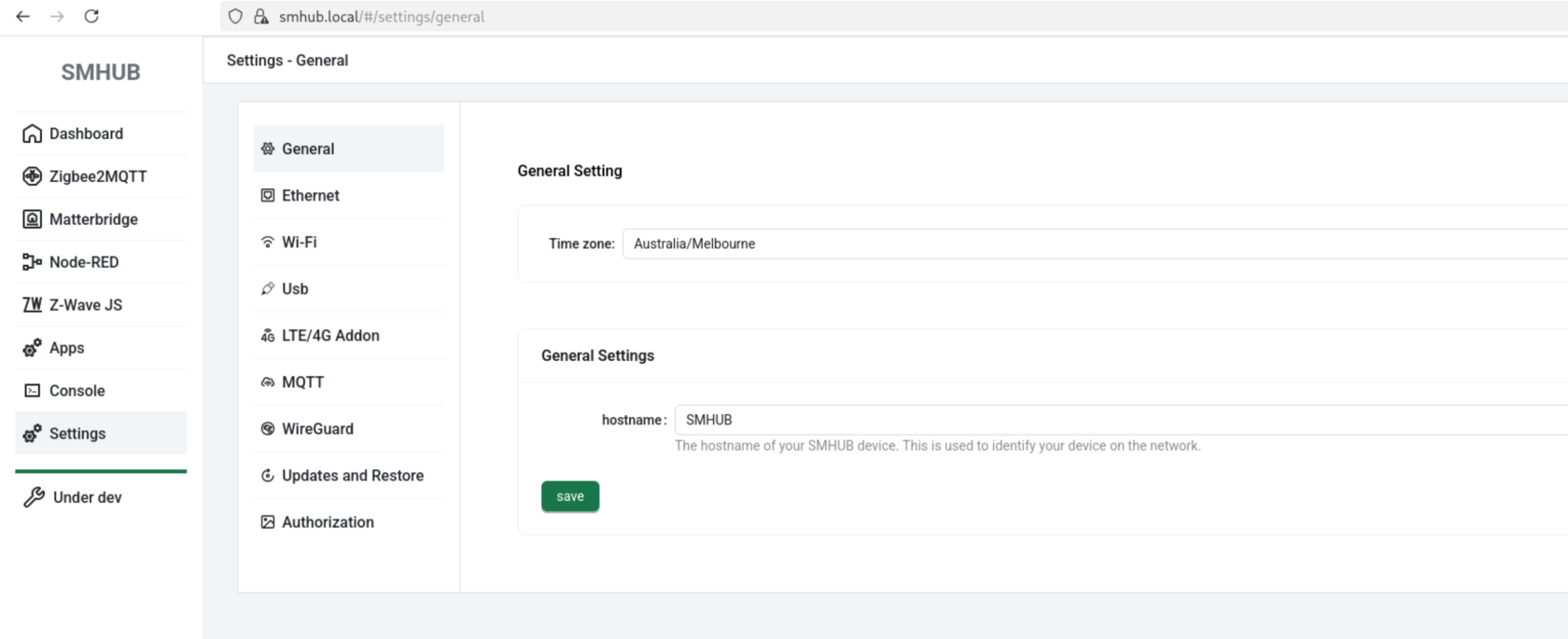
- Added timezone selector in General Settings
-
Added support for listing and setting timezone
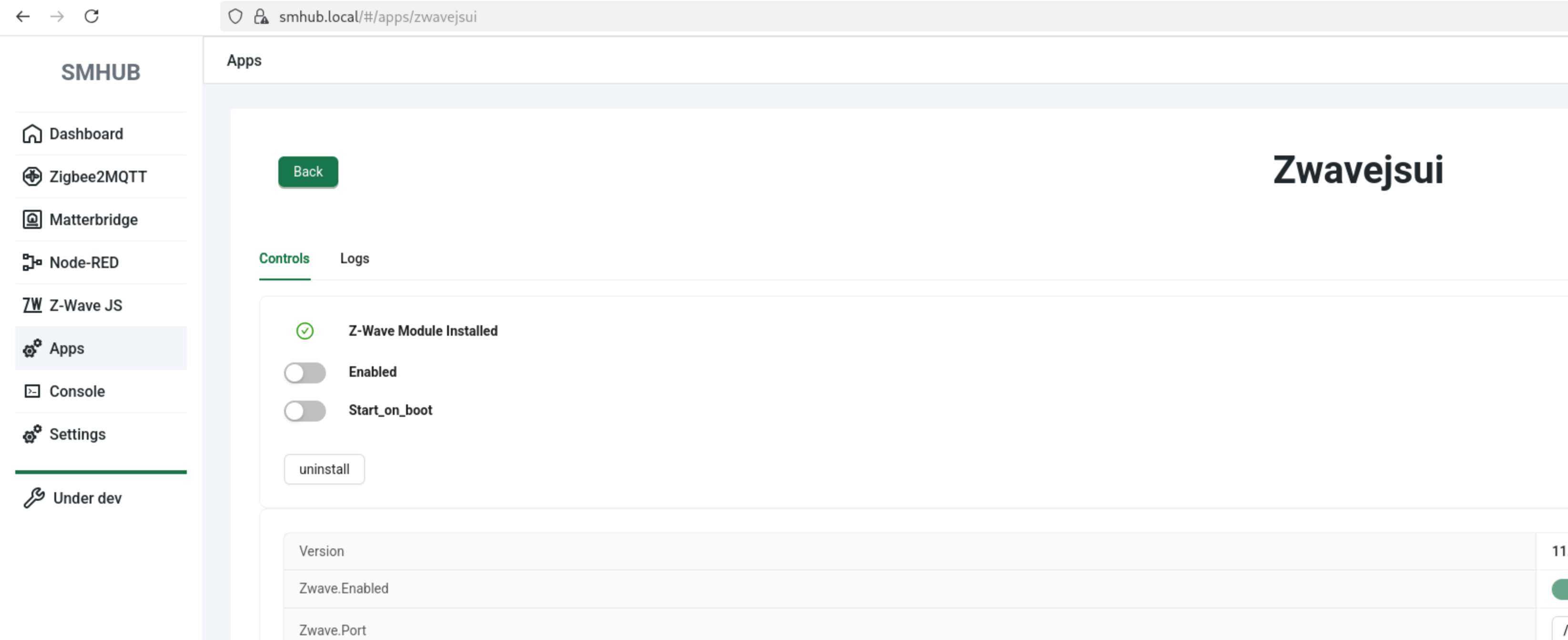
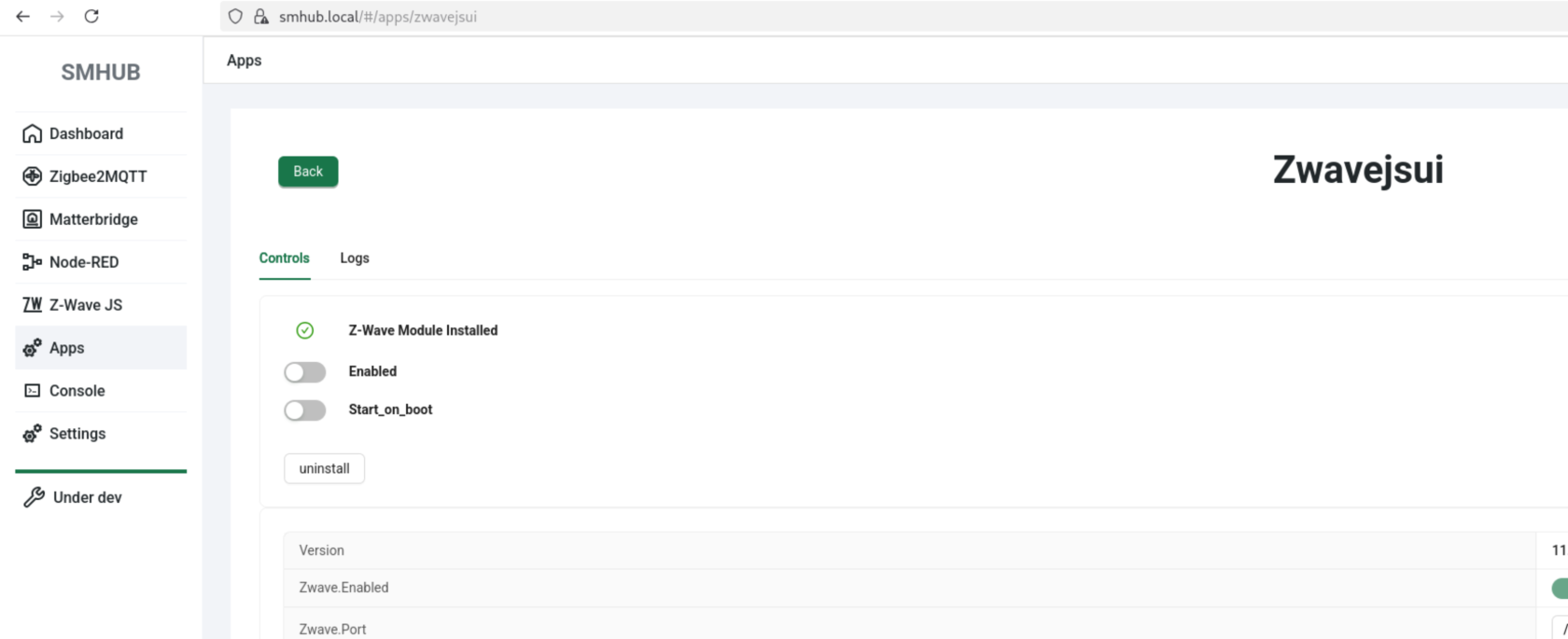
- Z-Wave JS settings page now shows if addon (hardware) is installed
-
Added support to read product data from EEPROM
-
Fixed status display issues on 4G/LTE pages
-
Fixed version comparison and update channel logic for apps - become broken with previous release (please update with
sudo opkg updateandsudo opkg upgrade. -
Fixed version comparison bug on apps tile page
- UI update or Console update:
- UI (smhub-services restart after update can take up to 4 minutes):
Web → Apps → Refresh → smhub-services/smhub-web → Upgrade - Console (smhub-services restart after update can take up to 4 minutes):
sudo opkg updatesudo opkg upgrade
- UI (smhub-services restart after update can take up to 4 minutes):
2025-Nov-04:
smhub-os 0.3.3, smhub-service 0.1.17, smhub-web 0.2.10 Released
🚀 Key Highlight
-
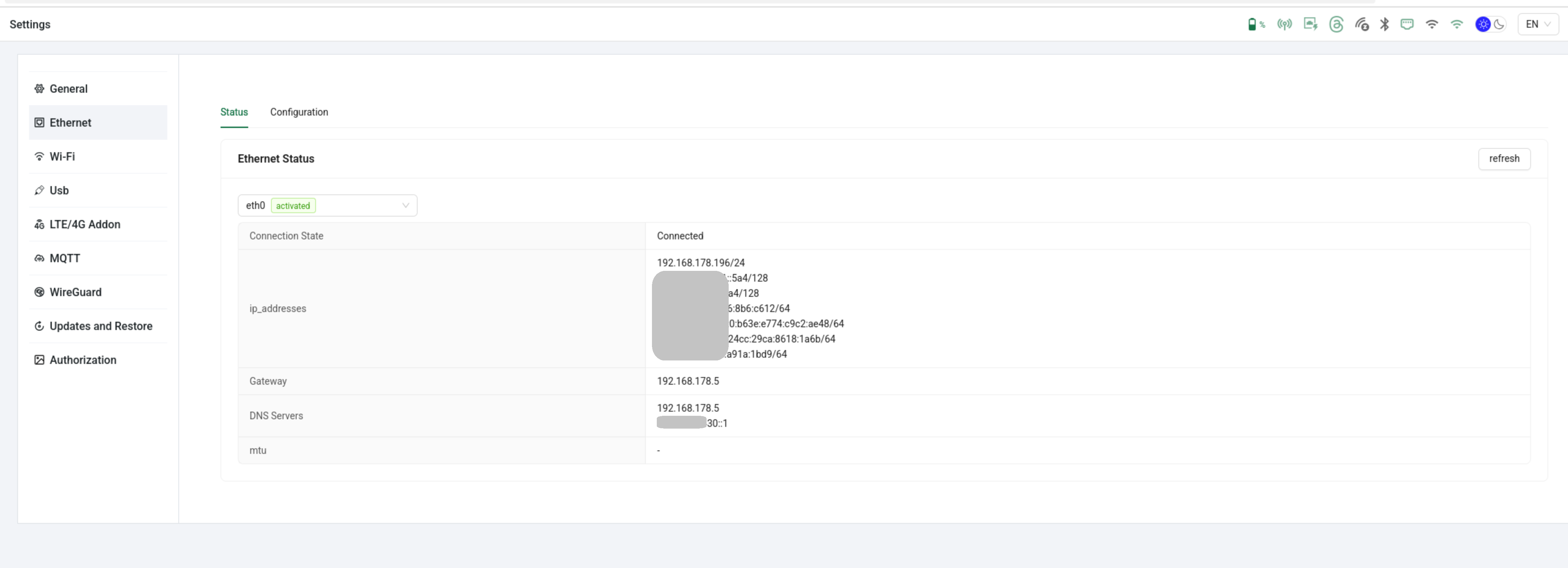
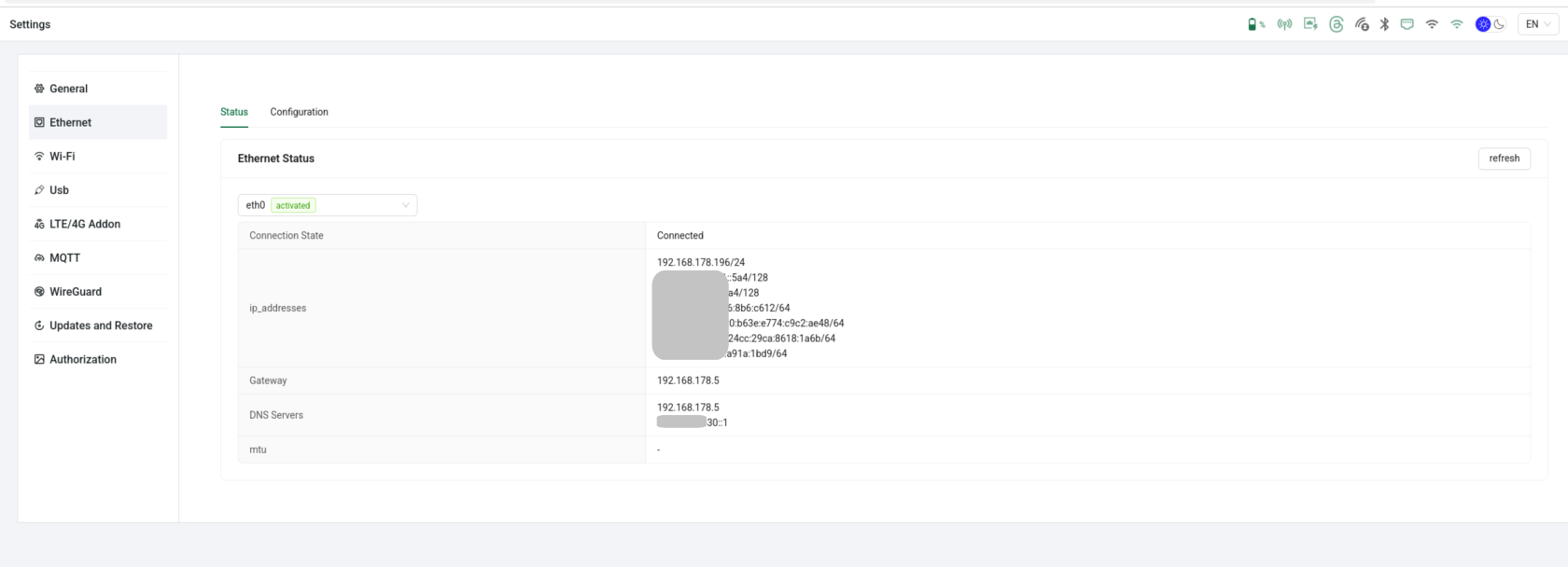
Added Ethernet configuration page — manage wired network settings directly from the Web UI.
-
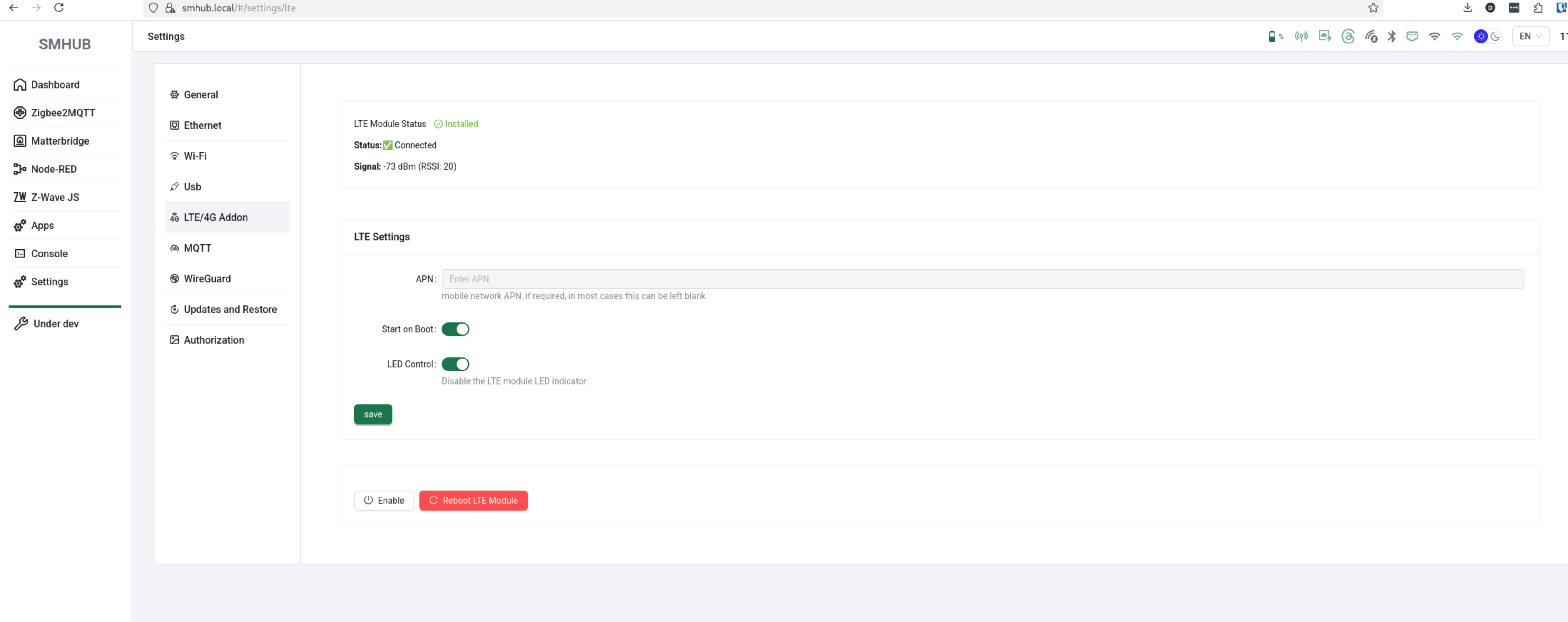
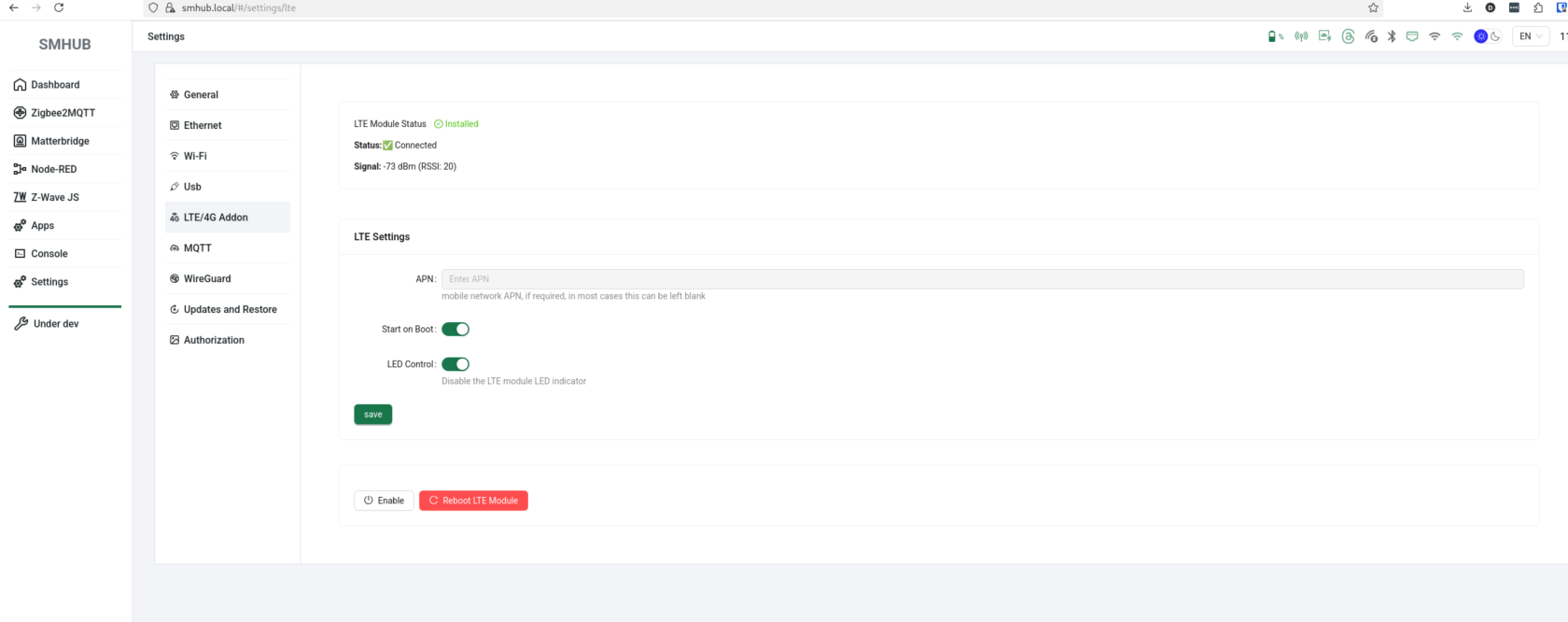
Added 4G/LTE support - added modem integration across the system.
-
Peripherals backend added - foundation for future hardware and peripheral control
-
Timezone data added to the OS/backend system (UI integration coming soon)
- OS: Setting -> Update and Restore -> Update
- UI update or Console update:
- UI (smhub-services restart after update can take up to 4 minutes):
Web → Apps → Refresh → smhub-services/smhub-web → Upgrade - Console (smhub-services restart after update can take up to 4 minutes):
sudo opkg updatesudo opkg upgrade
- UI (smhub-services restart after update can take up to 4 minutes):
2025-Oct-28:
smhub-service 0.1.17, smhub-web 0.2.10 Released
🚀 Key Highlight
-
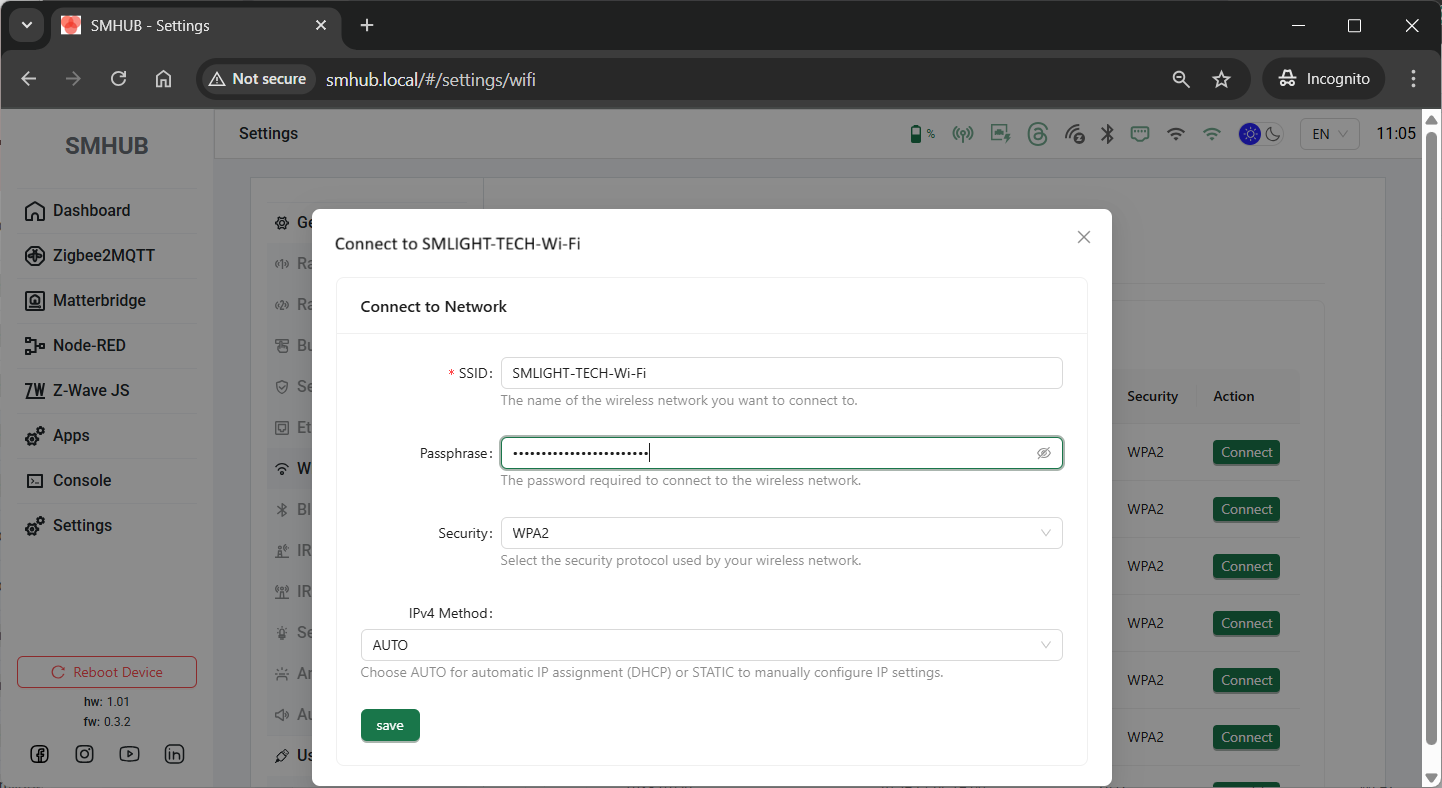
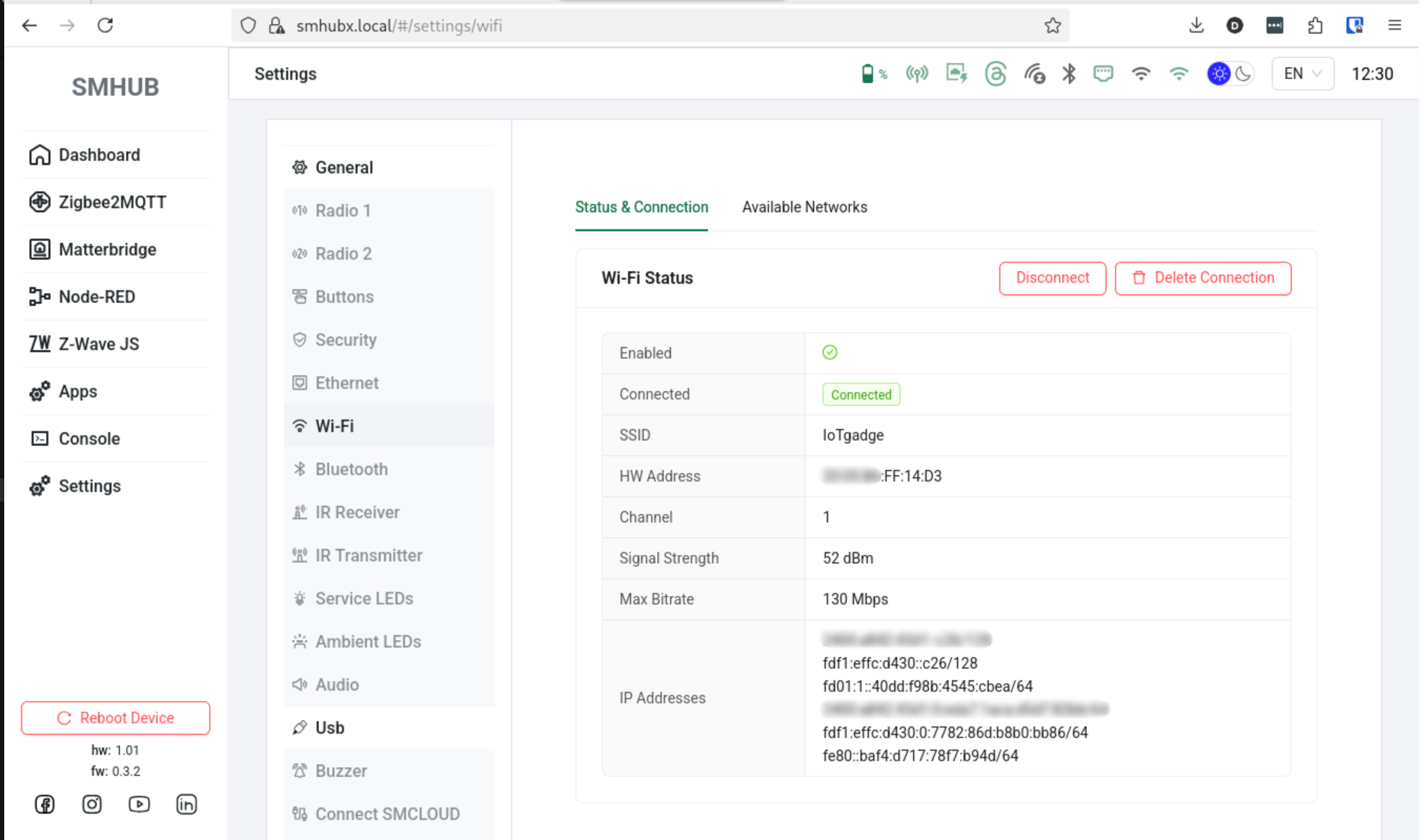
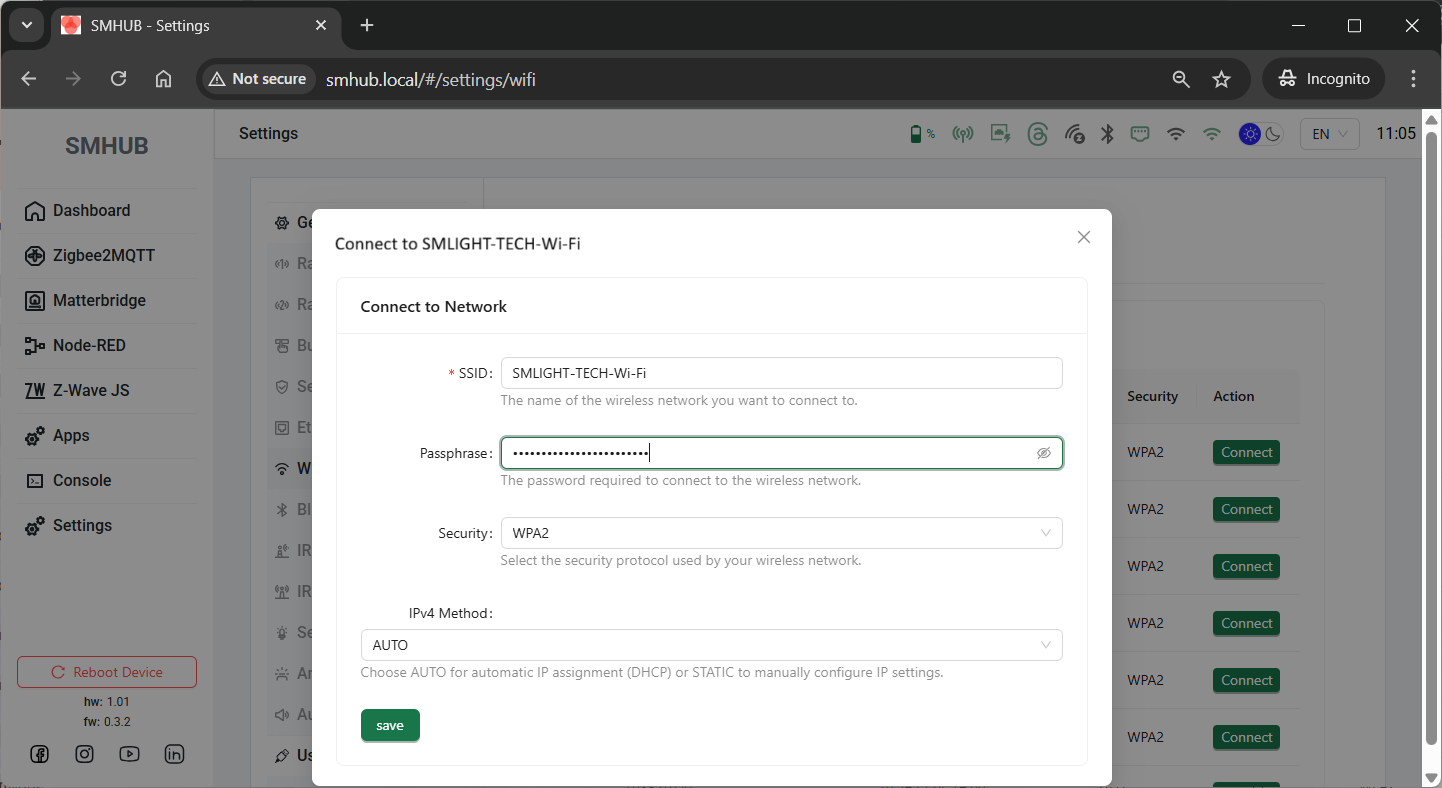
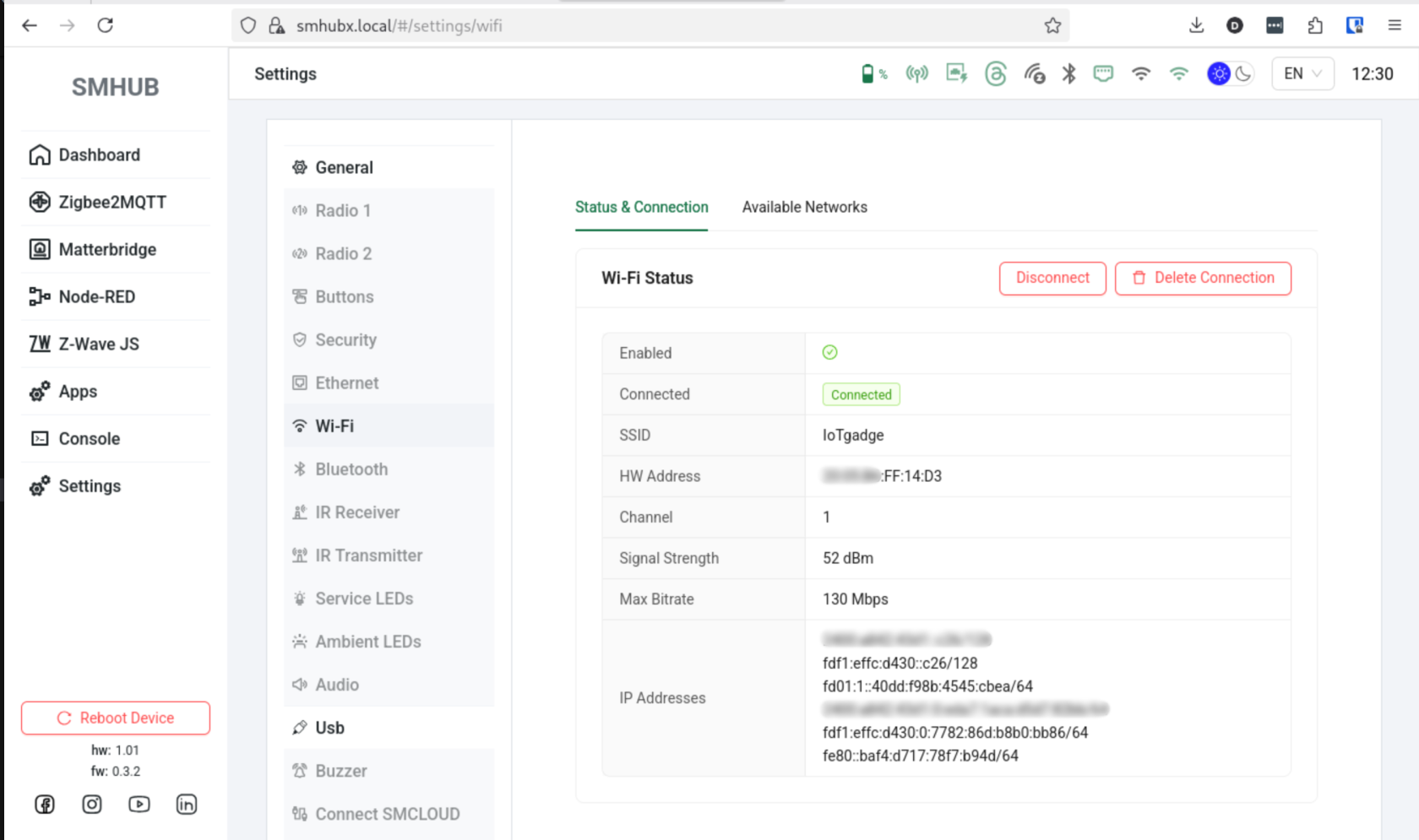
Added Wi-Fi settings to the UI – scan 2.4 GHz/5 GHz networks and connect to listed or hidden ones.
-
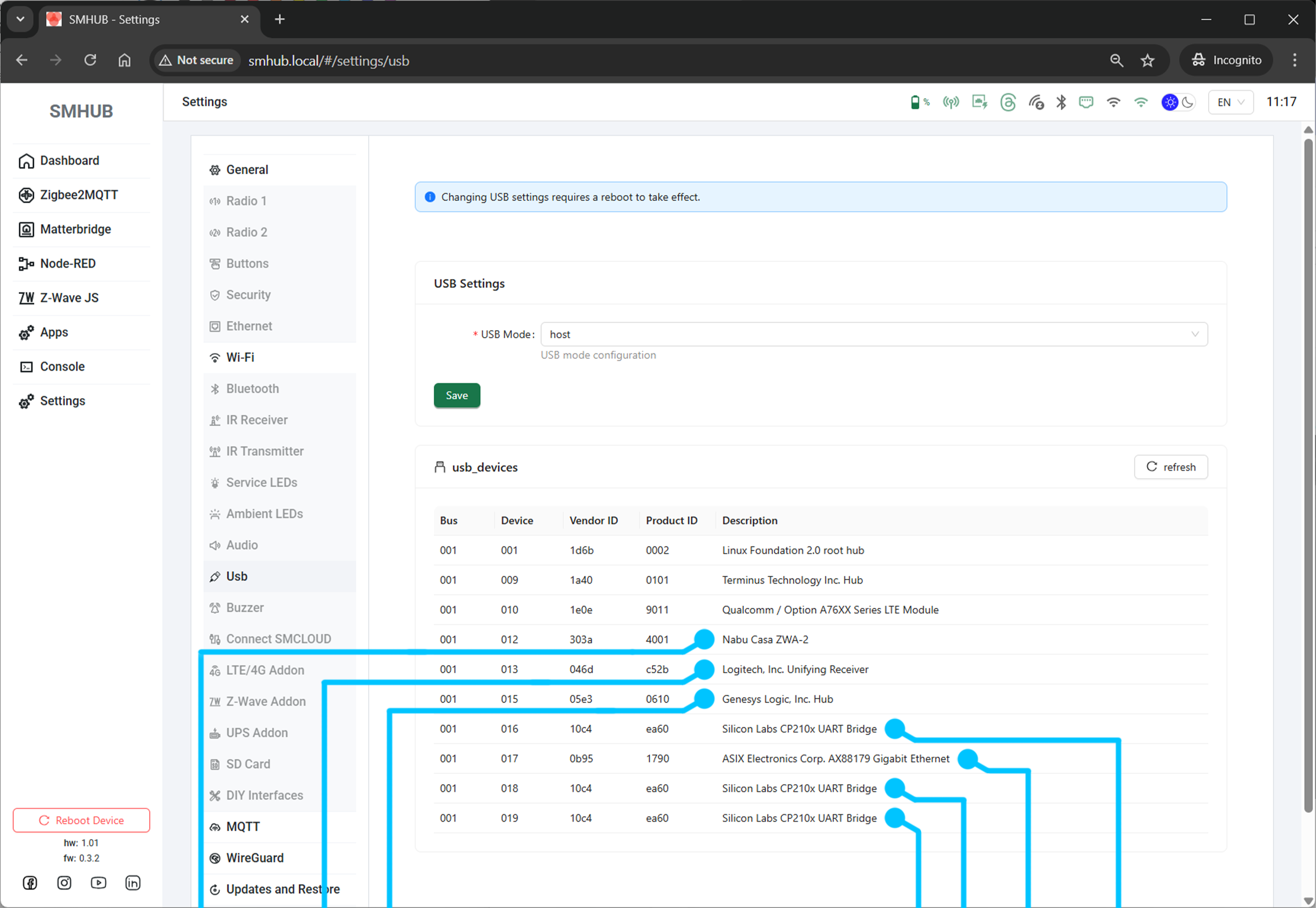
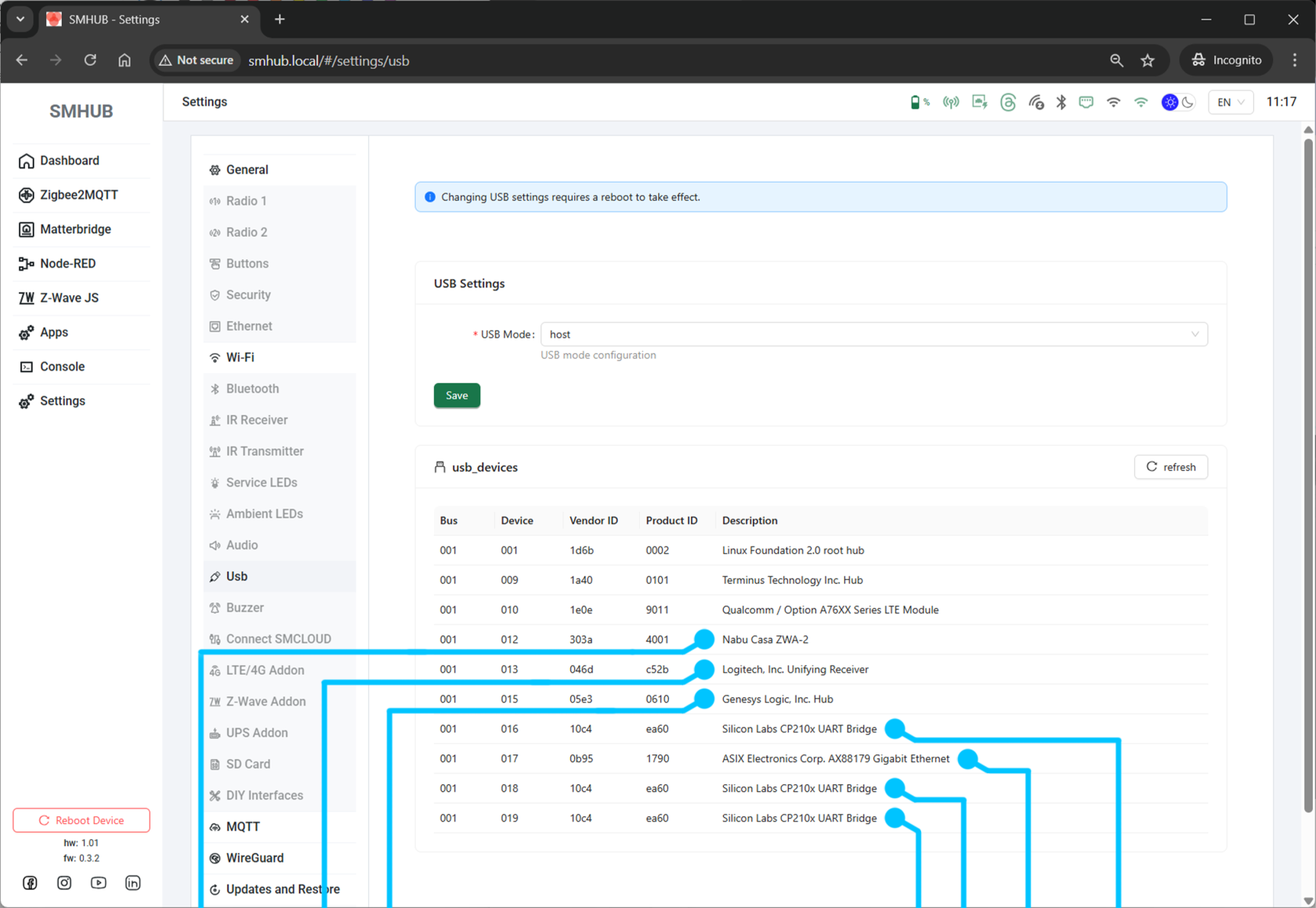
Added USB Device/Host mode selector in USB settings (requires reboot).
-
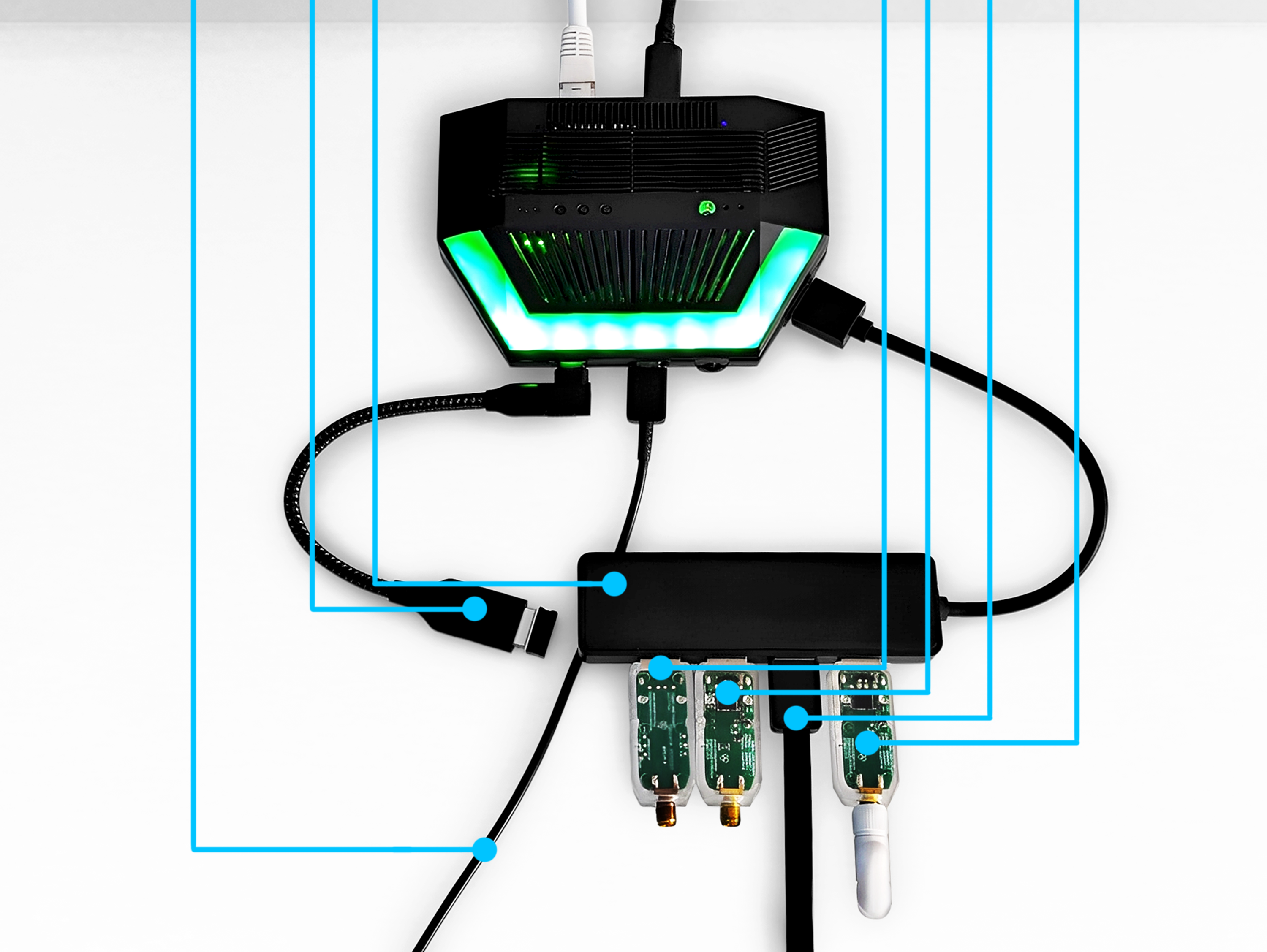
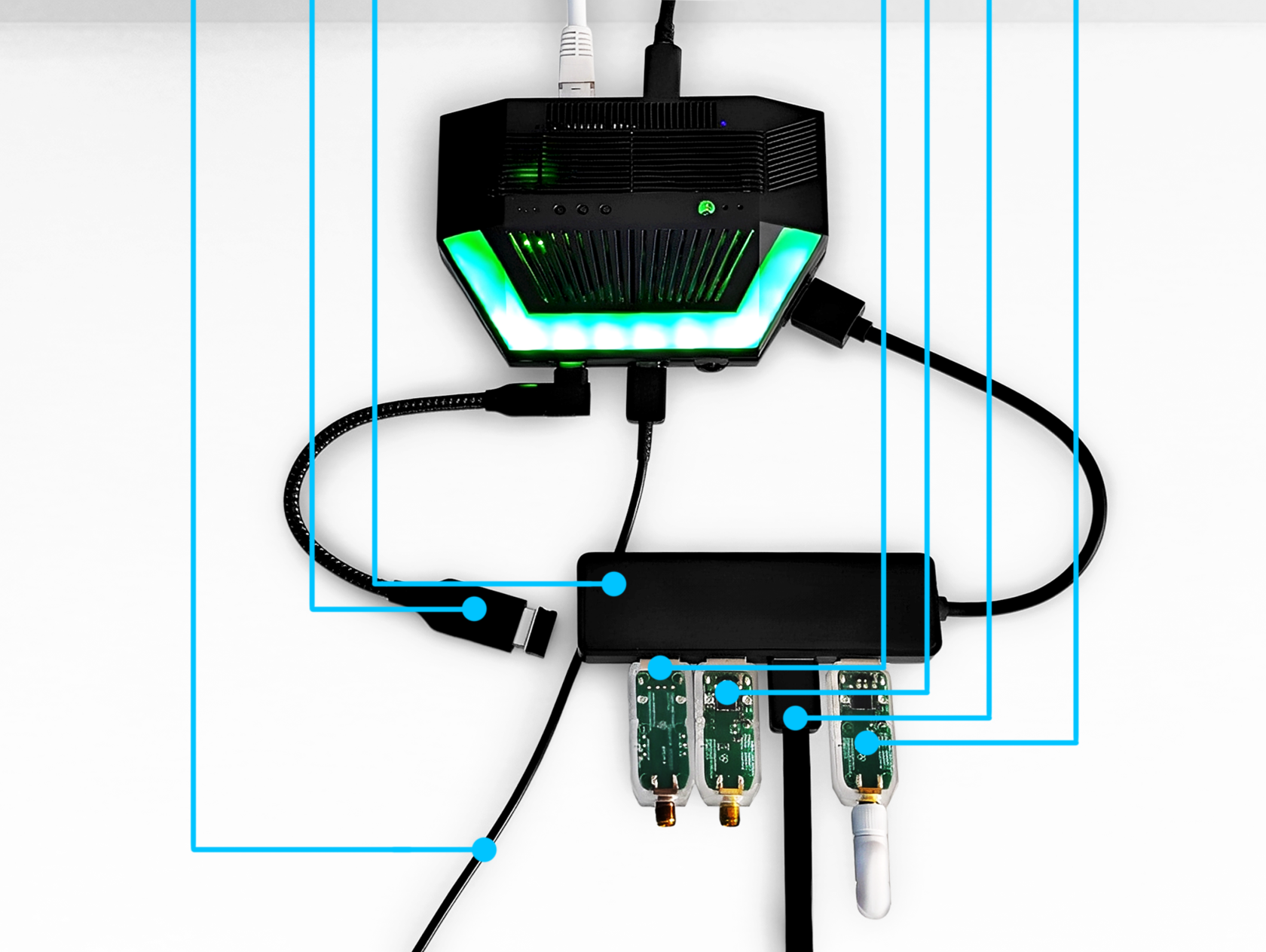
Added USB device list for Host mode.
-
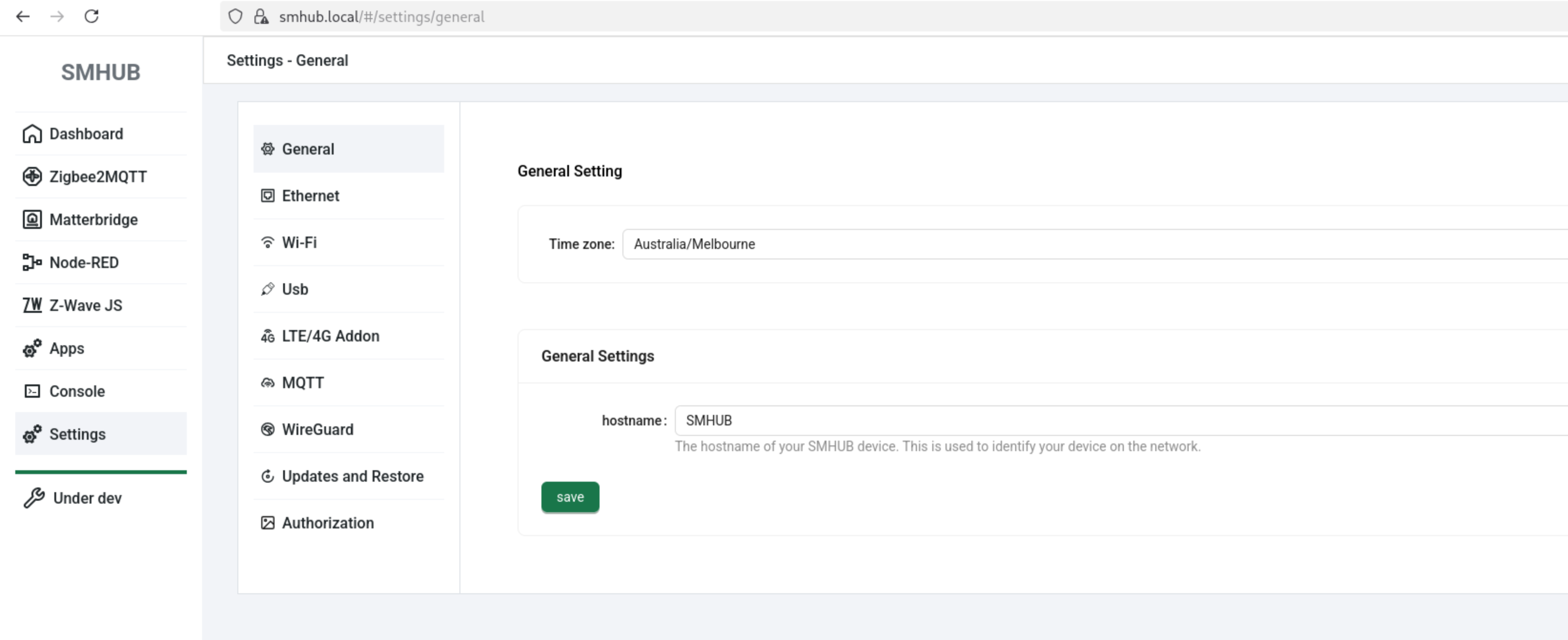
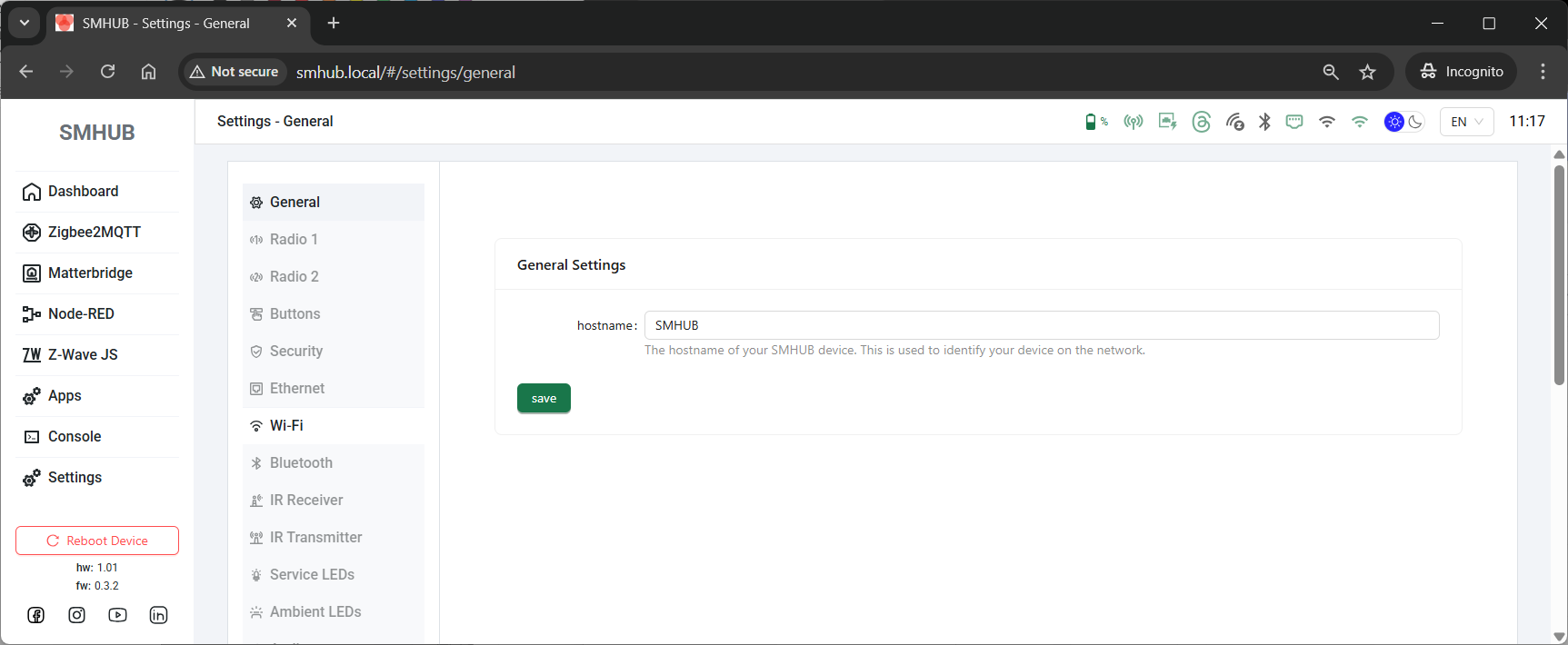
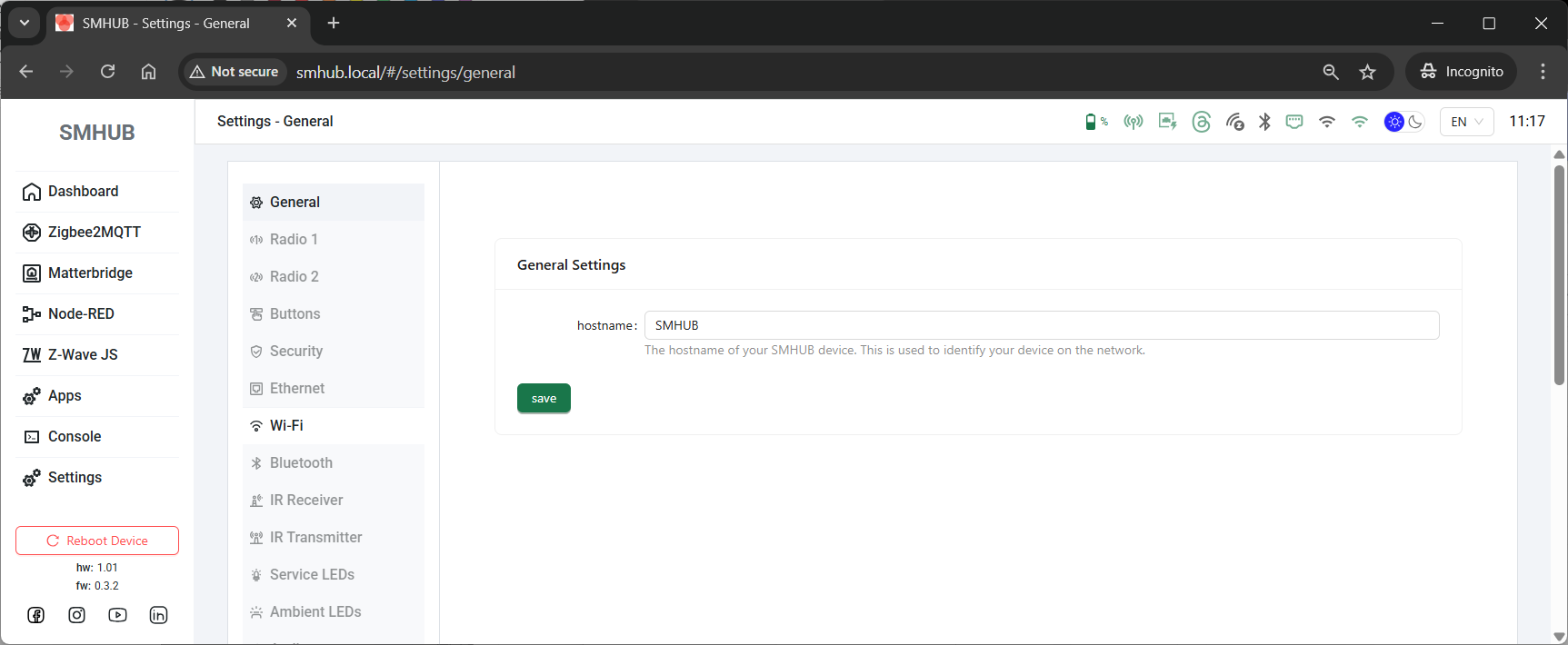
Added ability to change the device hostname on the local network.
-
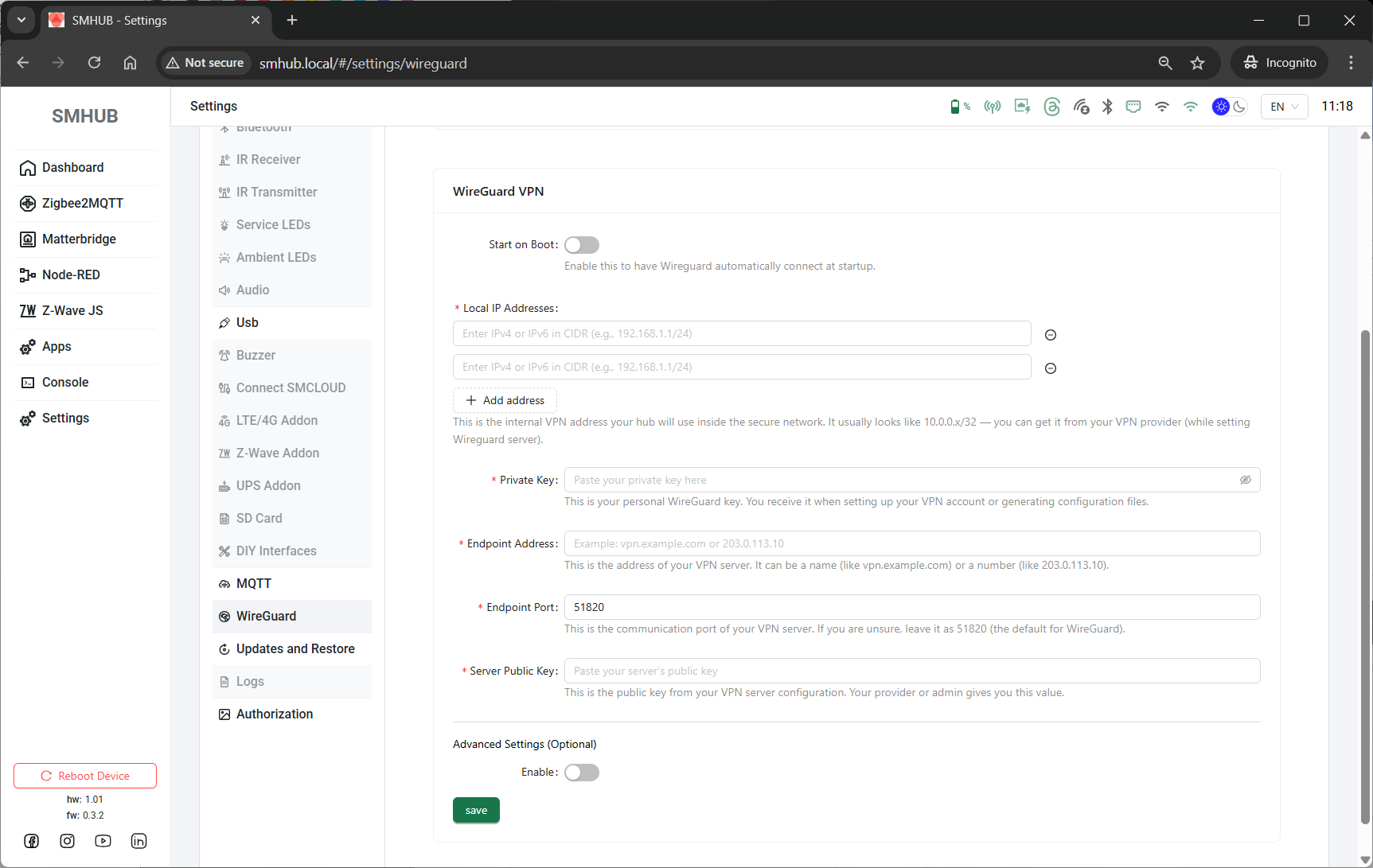
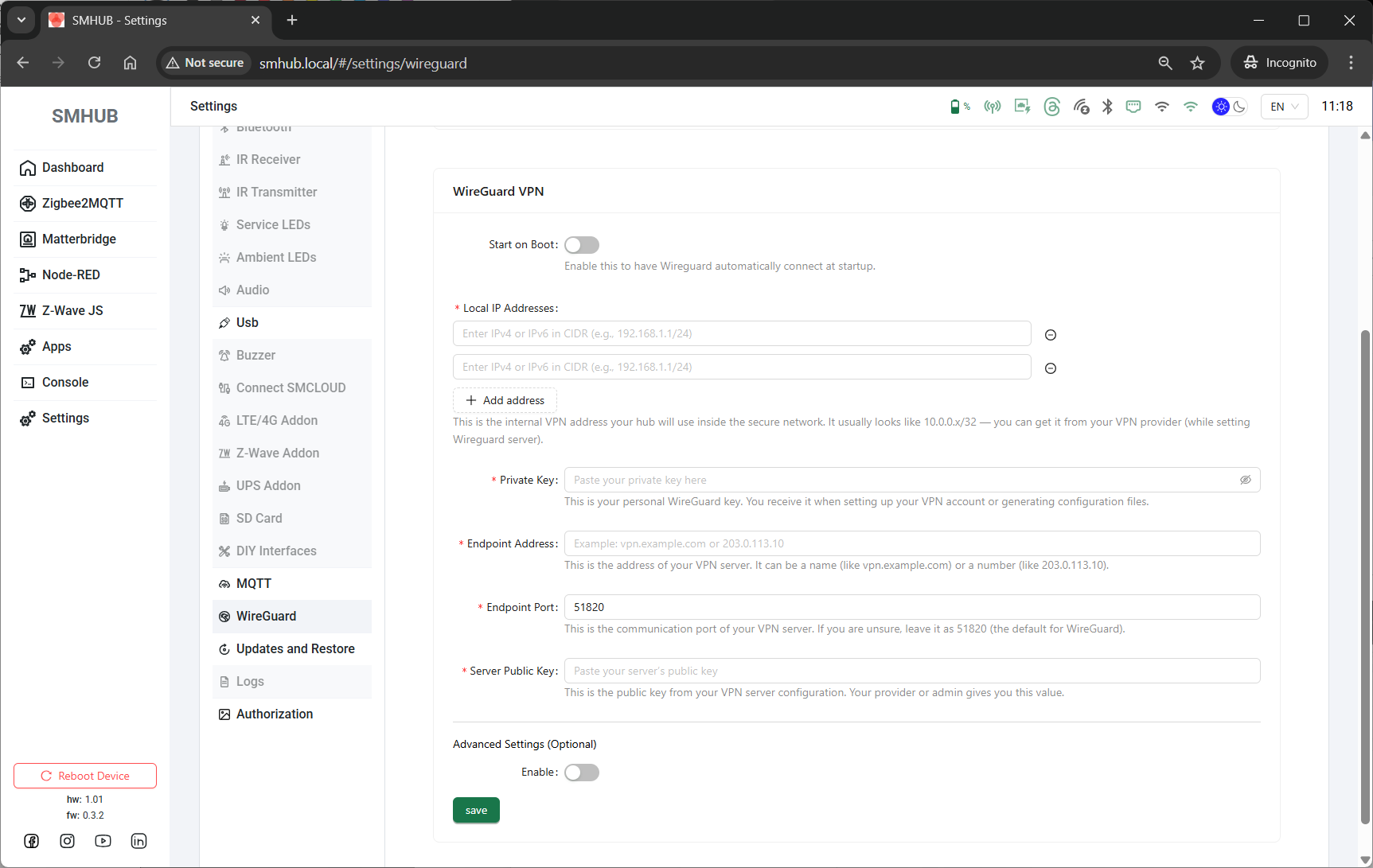
WireGuard now supports hostnames.
-
WireGuard now supports both IPv4 and IPv6.
- UI update or Console update:
- UI (smhub-services restart after update can take up to 4 minutes):
Web → Apps → Refresh → smhub-services/smhub-web → Upgrade - Console (smhub-services restart after update can take up to 4 minutes):
sudo opkg updatesudo opkg upgrade
- UI (smhub-services restart after update can take up to 4 minutes):
2025-Oct-26:
SMHUB-OS v0.3.2 Released
🚀 Key Highlight (0.3.0 -> 0.3.2)
- Fix Type-C or SD-Card flashing from the "brick" state.
- Add script to realign U-Boot partition on existing installs.
- Reset U-Boot env when type-c or SD-Card flashing.
- Add scripts to install new bootloader after OTA (if required, ie, new version).
- Wi-Fi fix to ensure a constant MAC address across reboots.
- Installed gpiod utils.
- LED indicators (Blue LED) when flashing Type-c/SD.
- smhub-services and smhub-web are preinstalled with the latest versions as of today.
Files for Type-C or SD-Card updates: https://updates.smlight.tech/firmware/smhub/os/smhub_os_v0.3.2.zip
- Type-C flashing manual: https://smlight.tech/support/manuals/books/smhub/page/updaterestore-using-type-c
- SD-Card flashing manual: https://smlight.tech/support/manuals/books/smhub/page/updaterestore-using-sd-card
- UI update: Web → Interface Settings → Upgrades and Restore.
2025-Oct-24:
SMHUB-Services v0.1.16 &
SMHUB-Web v0.2.9 ReleasedPLEASE UPDATE smhub-services and smhub-web via SSH (either Console in the web interface or external SSH client - SSH manual is here) - please do not use webUI button for this.
If you have updated via Web UI and SMHUB hangs after the update of smhub-services, please connect to SMHUB via SSH and run these two commands manually (this overrides the UI update process and makes it 100% correct):
🚀 Key Highlight - Wireguard seting page
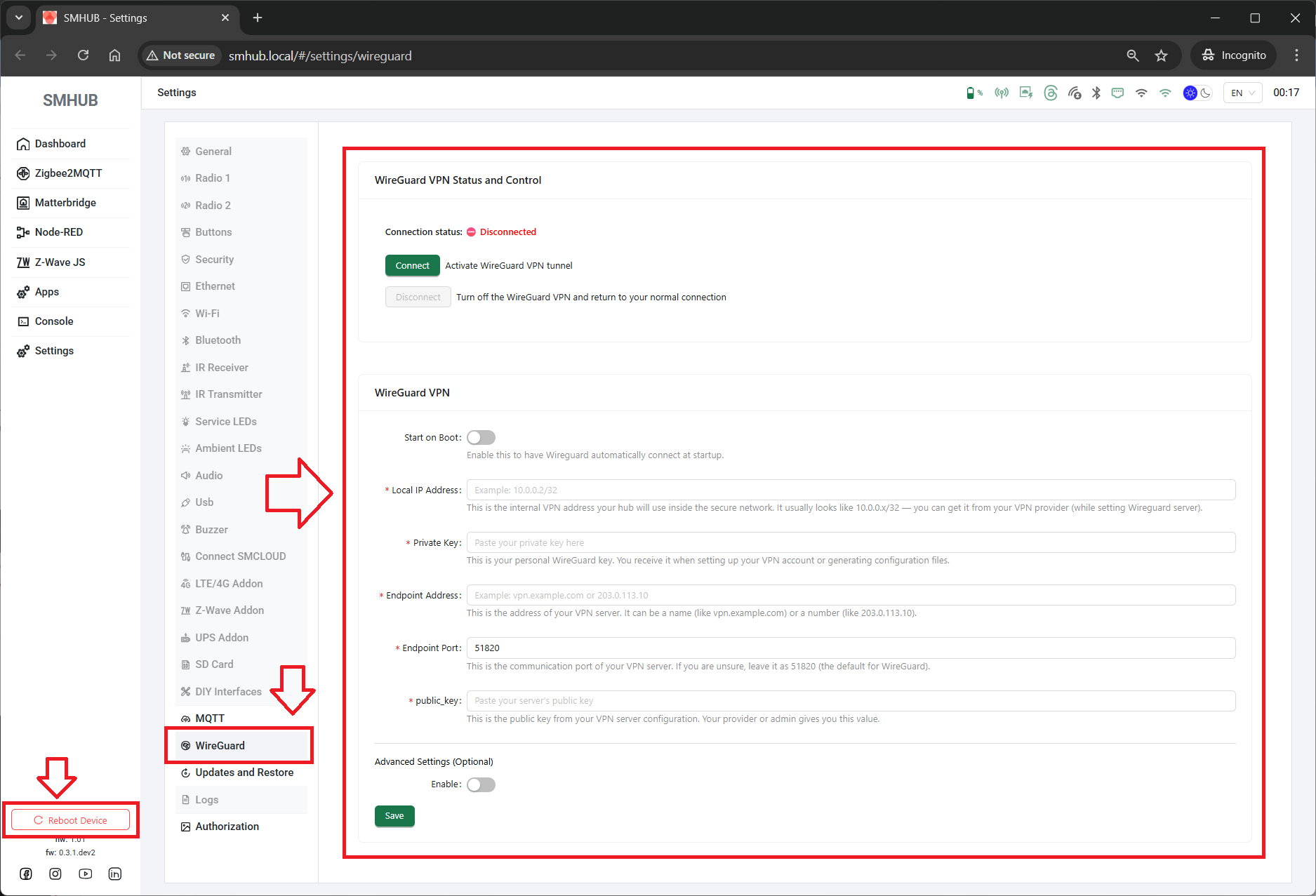
New Wireguard client page added under Settings → Wireguard.
You can now configure SMHUB’s built-in Wireguard client directly from the interface.You can find it under:
Main menu → Settings → Wireguard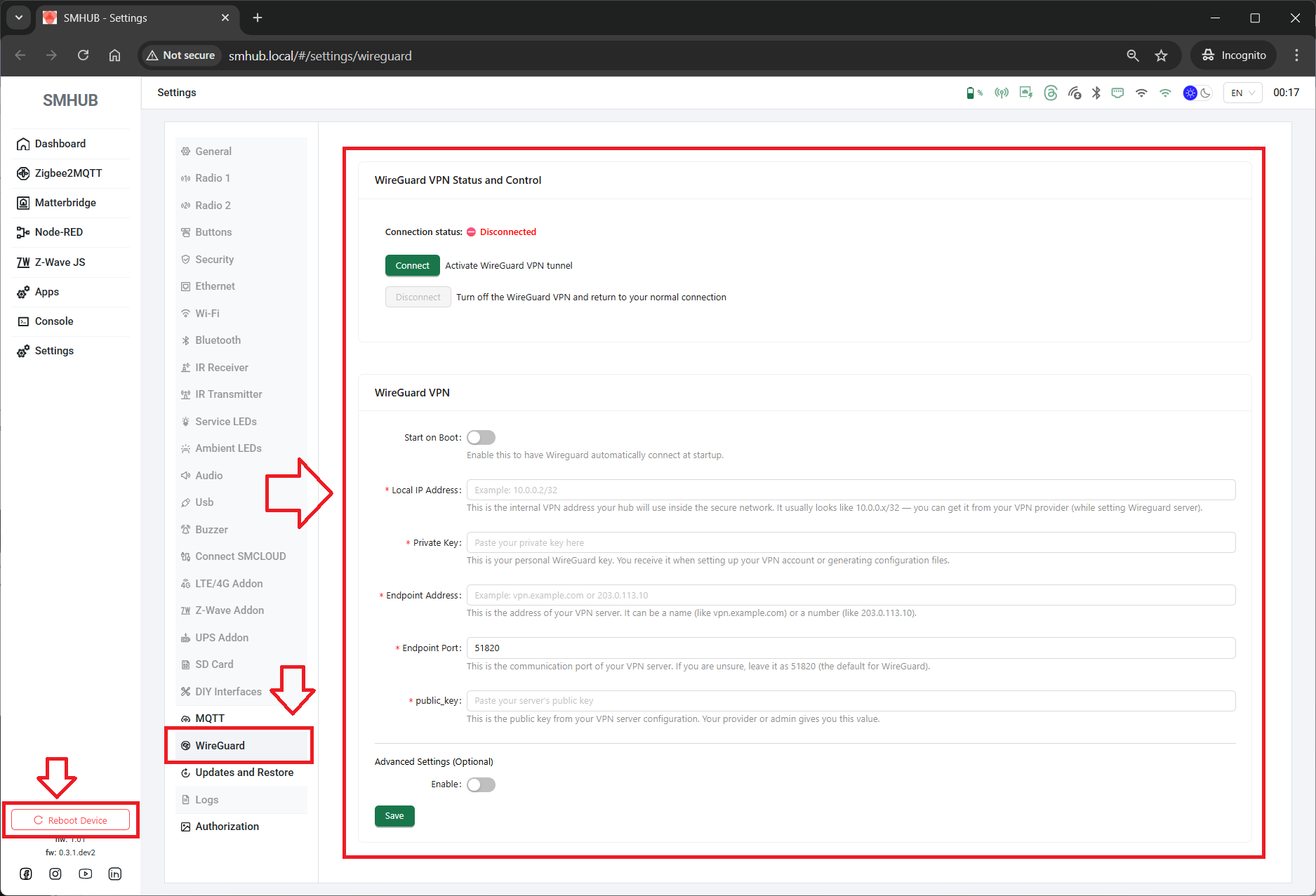
⚙️ Update Instructions
You can update both packages directly from the Web Interface via
Apps → Upgrade specific app.If your device becomes unresponsive or the Web UI hangs during update,
please connect via SSH and run these two commands manually:2025-Oct-18:
🧩 SMHUB 0.3.0 Release
Includes:
-
OS: 0.3.0
-
smhub-services: 0.1.13
-
smhub-web: 0.2.8
PLEASE UPDATE smhub-services and smhub-web via SSH (either Console in the web interface or external SSH client - SSH manual is here) - please do not use webUI button for this. OS is updatable via `Settings` - `Update and Restore`
If you have updated via Web UI and SMHUB hangs after the update of smhub-services, please connect to SMHUB via SSH and run these two commands manually (this overrides the UI update process and makes it 100% correct):
-
🔑 Highlights
🧠 MQTT Broker Settings
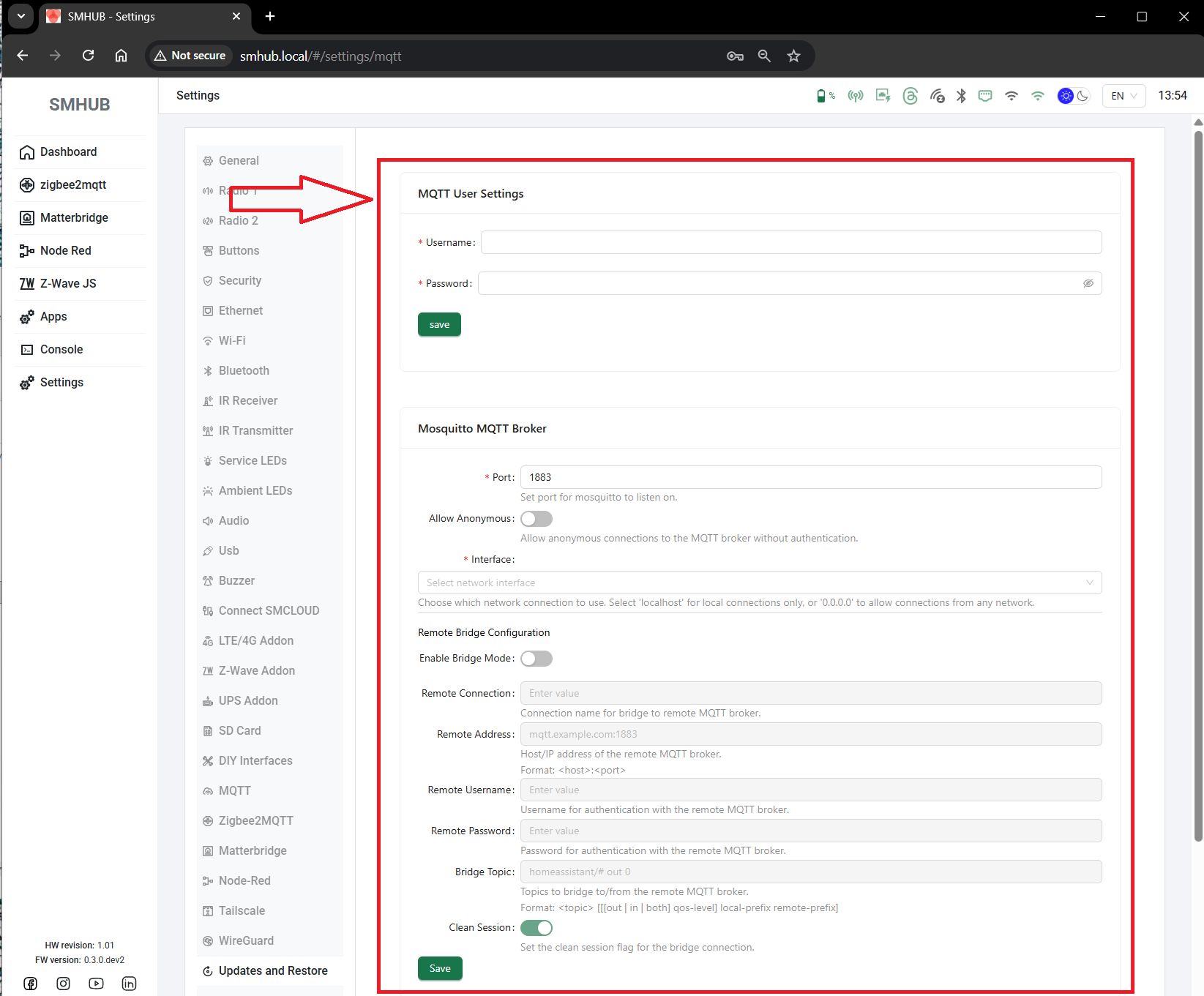
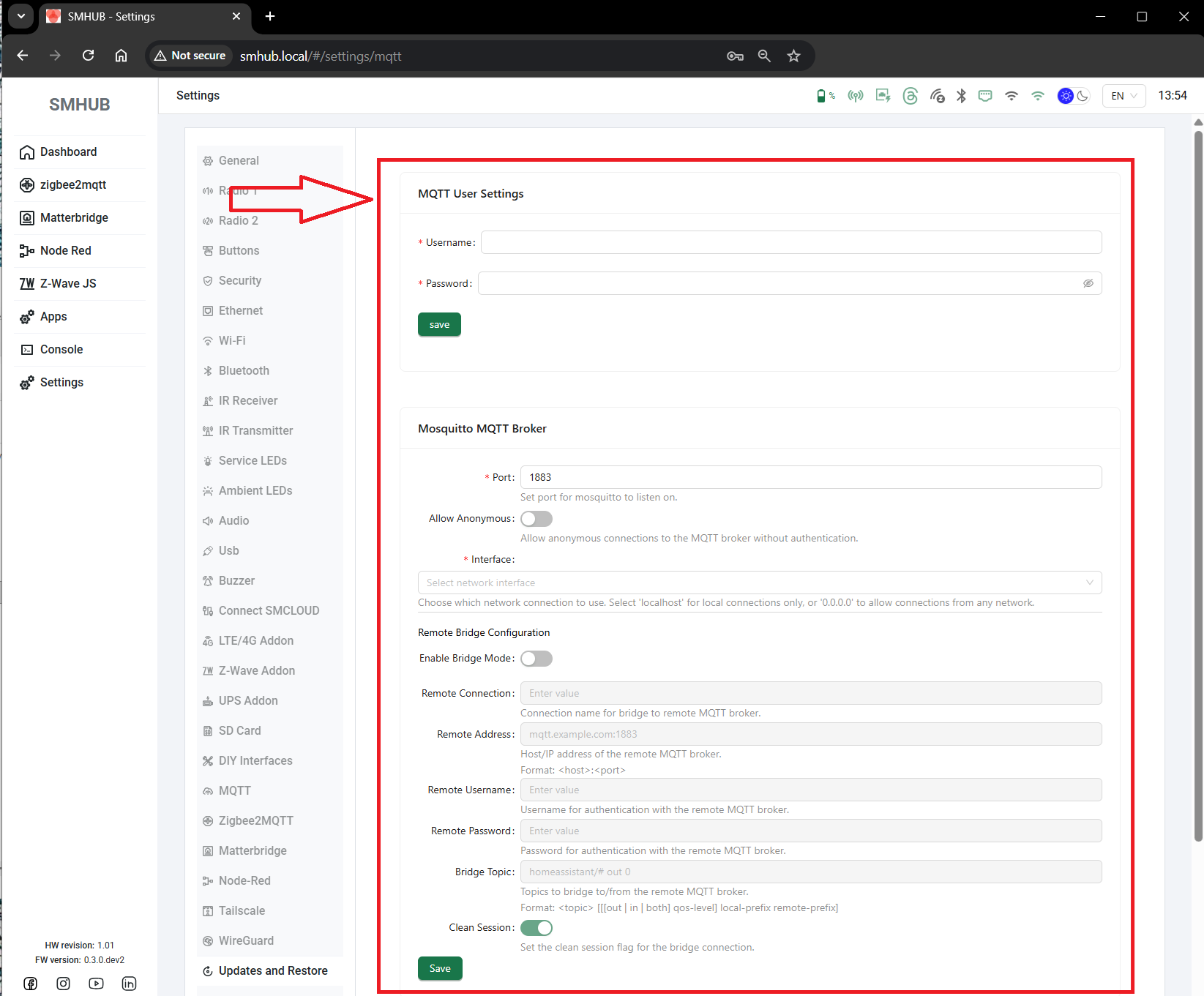
New MQTT page added under Settings → Mqtt.
You can now configure SMHUB’s built-in MQTT broker directly from the interface — or connect it to an external one in bridge mode.MQTT is the communication layer used by apps like Zigbee2MQTT, Node-RED and MatterBridge.
🧩 Fixes & Improvements
💻 Web Interface
-
Added the new MQTT settings page.
-
Fixed saving of MQTT user accounts (credentials now stored correctly).
-
Fixed occasional errors during web update.
-
Improved form texts and translations.
-
Settings are now saved properly (reading back will be added later).
⚙️ Services & System
-
Better stability and reliability across all background services.
-
Backend support for the new MQTT configuration.
-
The system is now read-only by default for improved safety.
-
Configuration changes are stored separately so they survive updates.
-
A factory reset can now easily restore defaults if needed.
🔄 How to Update
From Web Interface
-
OS:
Settings → Updates and Restore → SLZB-OS v0.3.0 -
Services / Web:
Apps → smhub-services / smhub-web → Upgradeor Upgrade all sudo opkg upgrade2025-Oct-13:
SMHUB Services v0.1.9 & SMHUB Web v0.2.5 Released
🚀 Key Highlight - Web Console is Here
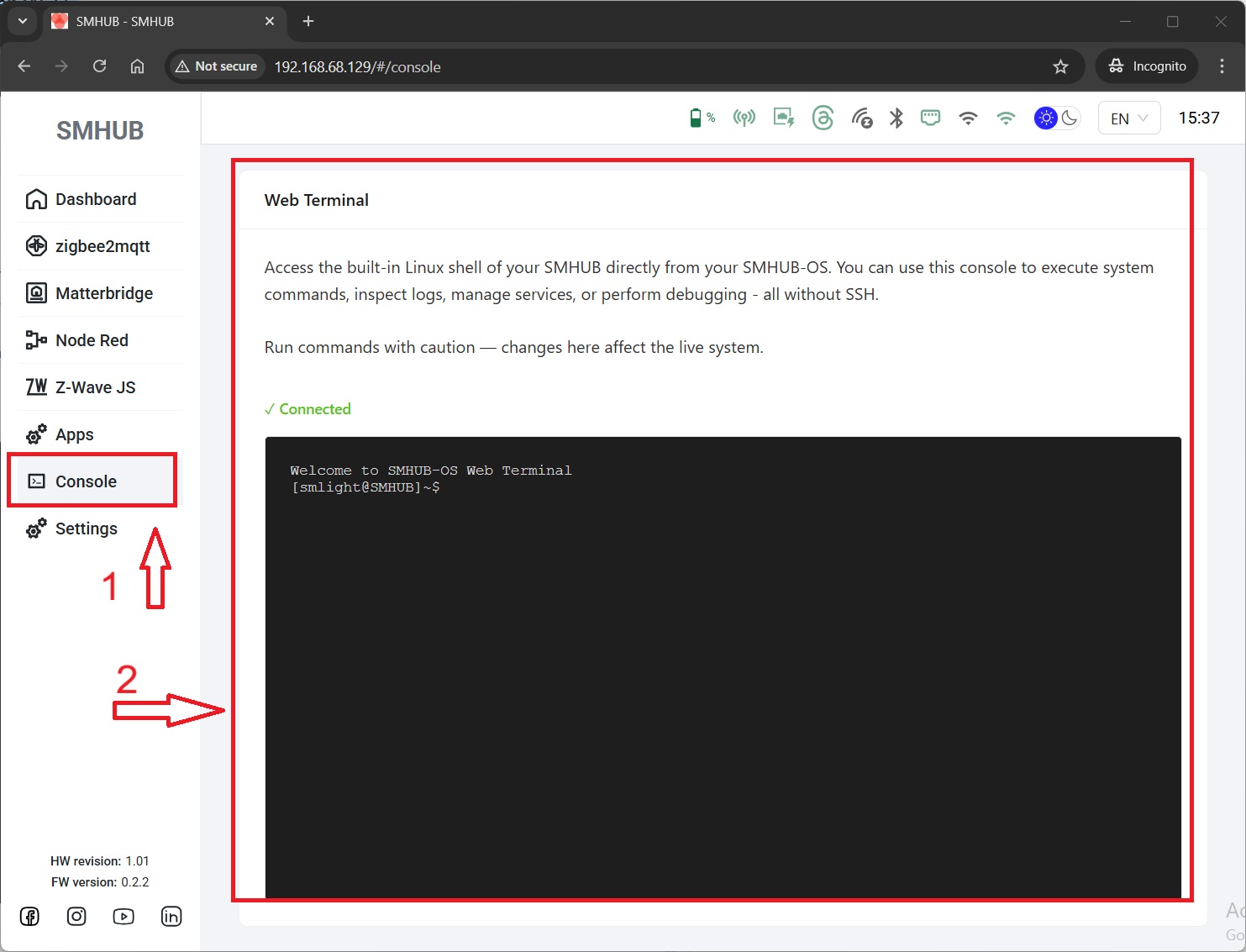
The SMHUB Web Interface now includes a built-in Console, allowing you to execute Linux commands directly from the browser.
This feature brings full terminal access to your device without SSH, making it easier to troubleshoot, manage packages, and perform advanced configuration tasks.You can find it under:
Main menu → Console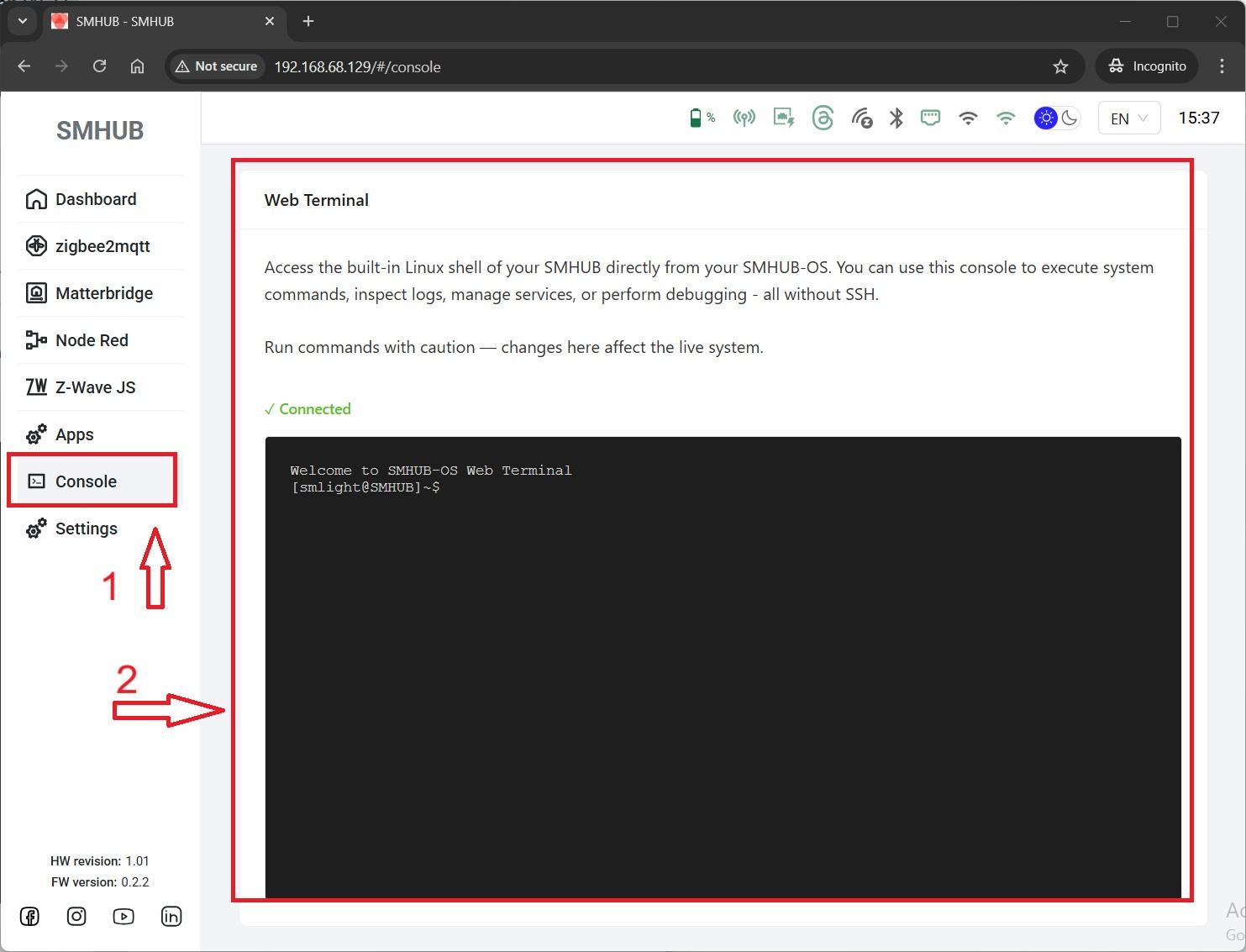
🧩 smhub-services v0.1.9
-
🖥 Added backend for the web terminal
-
🧾 Fixed application logs for Web and Z-Wave apps
-
⚙️ Fixed installation hang of
smhub-servicesvia Web UI -
🛠 Fixed 401 error on HEAD requests (previously filling logs)
-
🔄 Added API endpoint for
opkg update -
👤 Web terminal now logs in as user
smlight -
🌈 Ensured color output for terminal commands
🌐 smhub-web v0.2.5
-
🧠 Added Web Terminal (Console) accessible directly from the UI
⚙️ Update Instructions
You can update both packages directly from the Web Interface via
Settings → Updates and Backup.If your device becomes unresponsive or the Web UI hangs during update,
please connect via SSH and run these two commands manually:-
🧱 Summary
This release brings the first fully functional web console to SMHUB,
turning the browser into your direct control point for diagnostics and management.
It also refines app logging, service handling, and system-level package management —
paving the way for deeper interaction and future maintenance tools.2025-Oct-12:
smhub-os v0.2.2 +
smhub-service 0.1.7-1+
smhub-web v0.2.3-1Today’s release marks a big step forward in the SMHUB platform — a major shift in how updates are delivered and managed.
While the visible feature list may seem short, this release is fundamentally important: it establishes the core OTA infrastructure that will power all future SMHUB updates.From now on, SMHUB updates will happen entirely via the web interface, without the need for Type-C flashing or manual intervention.
🧩 SMHUB System Architecture
SMHUB is built as a modular software stack with three key subsystems working together:
Subsystem Description smhub-os Core Linux system — provides the kernel, drivers, and low-level environment. smhub-services Backend layer handling configuration, networking, and communication between OS and the web interface. smhub-web Front-end web interface for interacting with the device, viewing system state, and adjusting settings. This modular structure enables safe, incremental updates and future scalability — we can now push new kernel, backend, or UI updates independently.
🆕 Latest Versions (as of 12 Oct 2025)
Component Version Description smhub-os 0.2.2Updated kernel and file system with full OTA kernel flashing support. smhub-services 0.1.7-1Improved backend management of configuration and processes. smhub-web 0.2.3-1Updated UI with new dashboard and refined settings layout.
🔧 What’s New
-
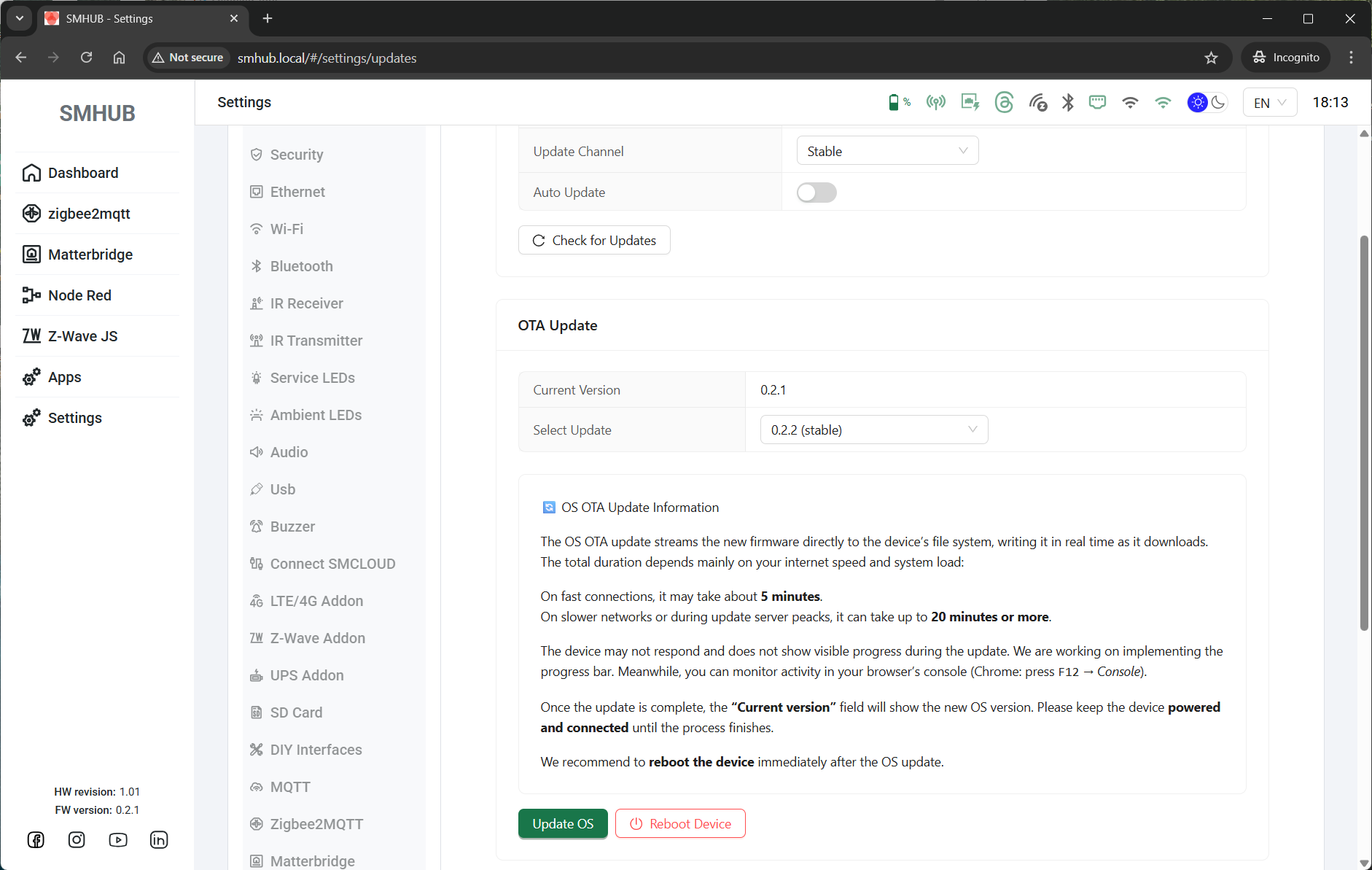
✅ Full Kernel OTA Support
The Linux kernel and base OS can now be updated directly from the web interface — no Type-C connection required.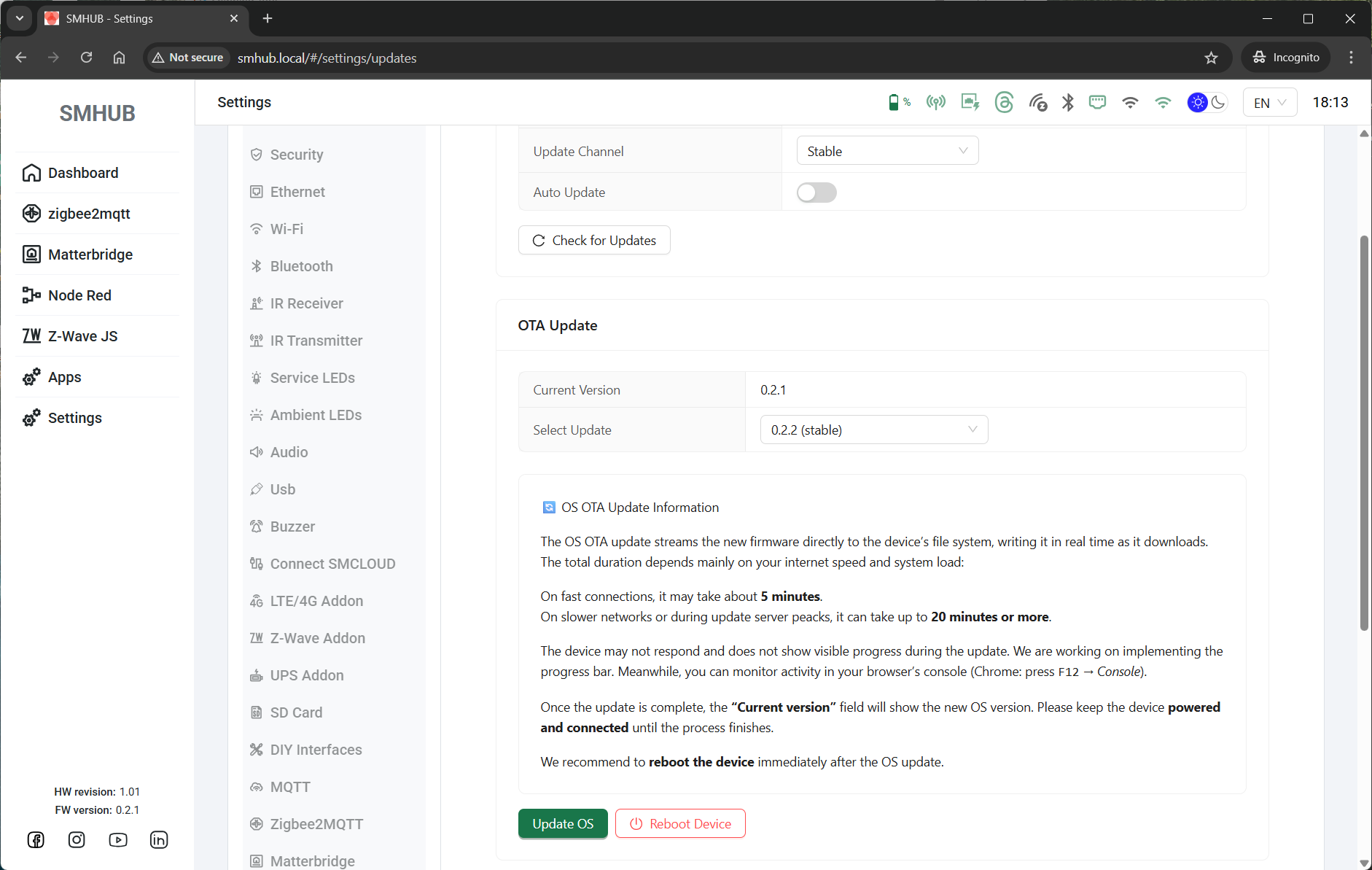
-
🌀 Z-Wave JS Boot Fix
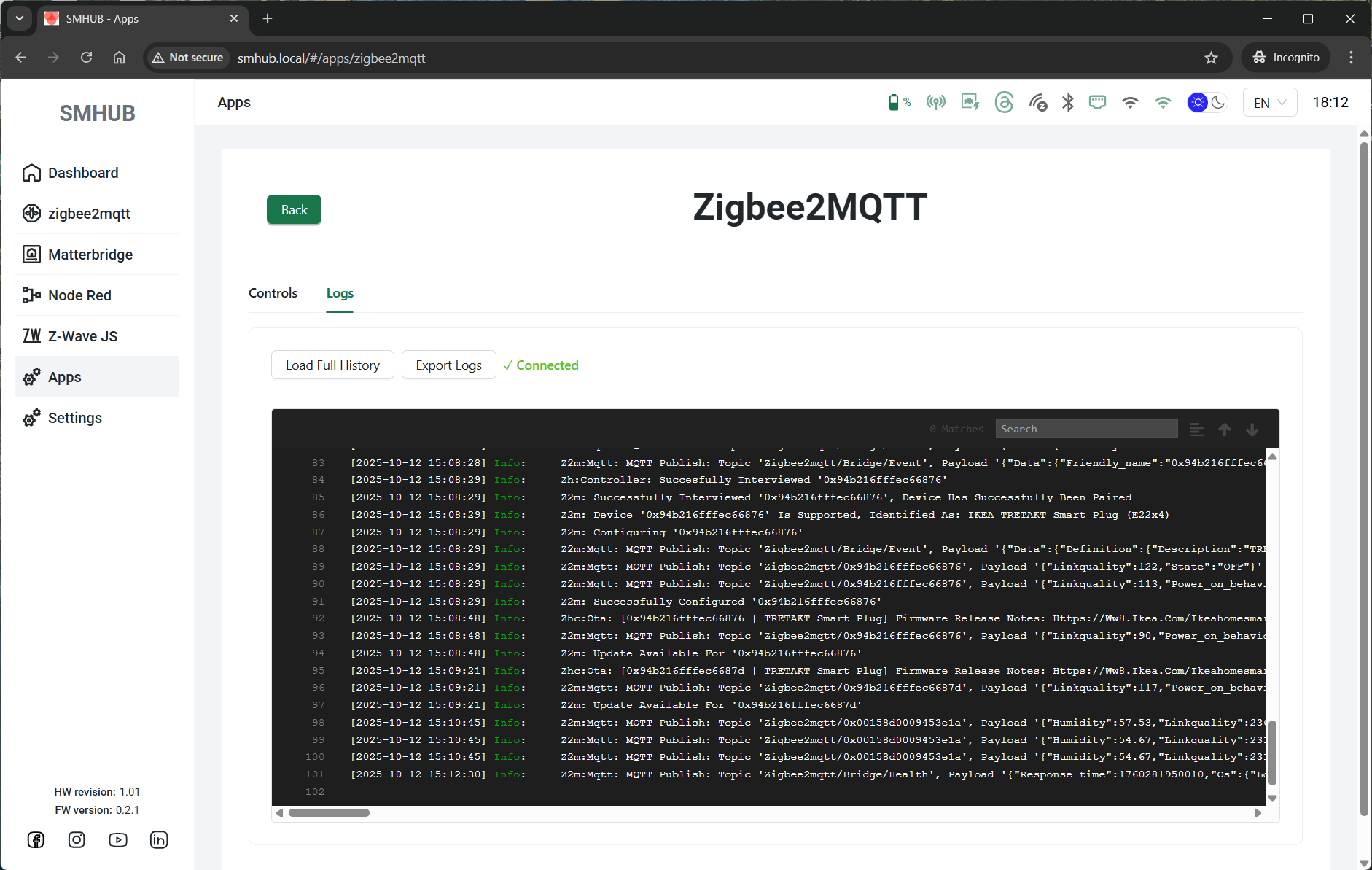
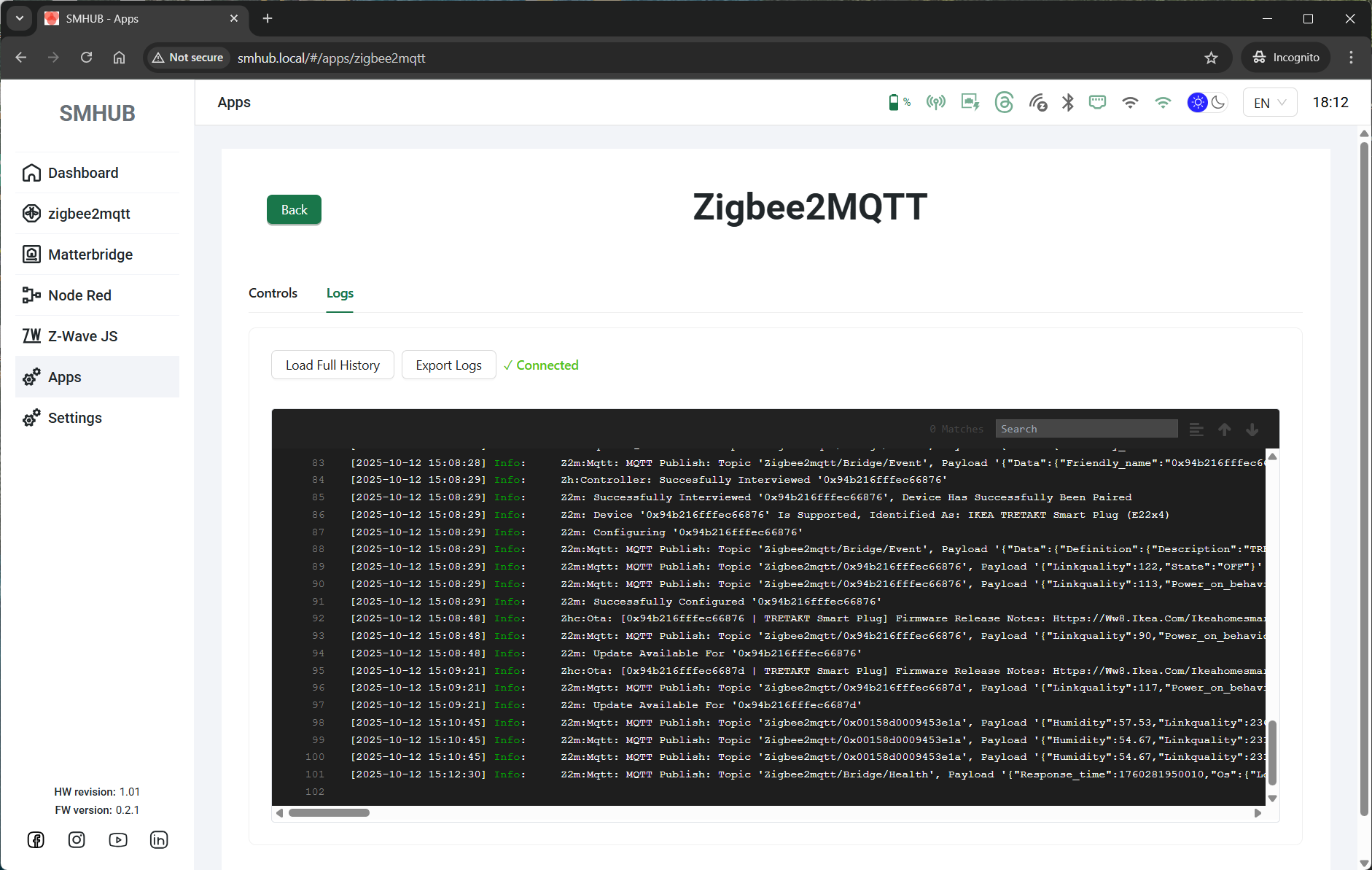
Fixed an issue that prevented Z-Wave JS from starting automatically at boot. - 🧾 New Application Log Viewer
Many apps (including Zigbee2MQTT) now include a Logs tab directly in the Web UI.
To view logs: open the app page → click Logs → logs will appear in real time.
-
🏠 Updated Dashboard Notes
Added helpful contextual information about the current development stage and upcoming feature rollout. -
🔒 Unavailable Settings Pages Refinement
Incomplete or not-yet-implemented settings pages are now visually blocked for a clearer experience. -
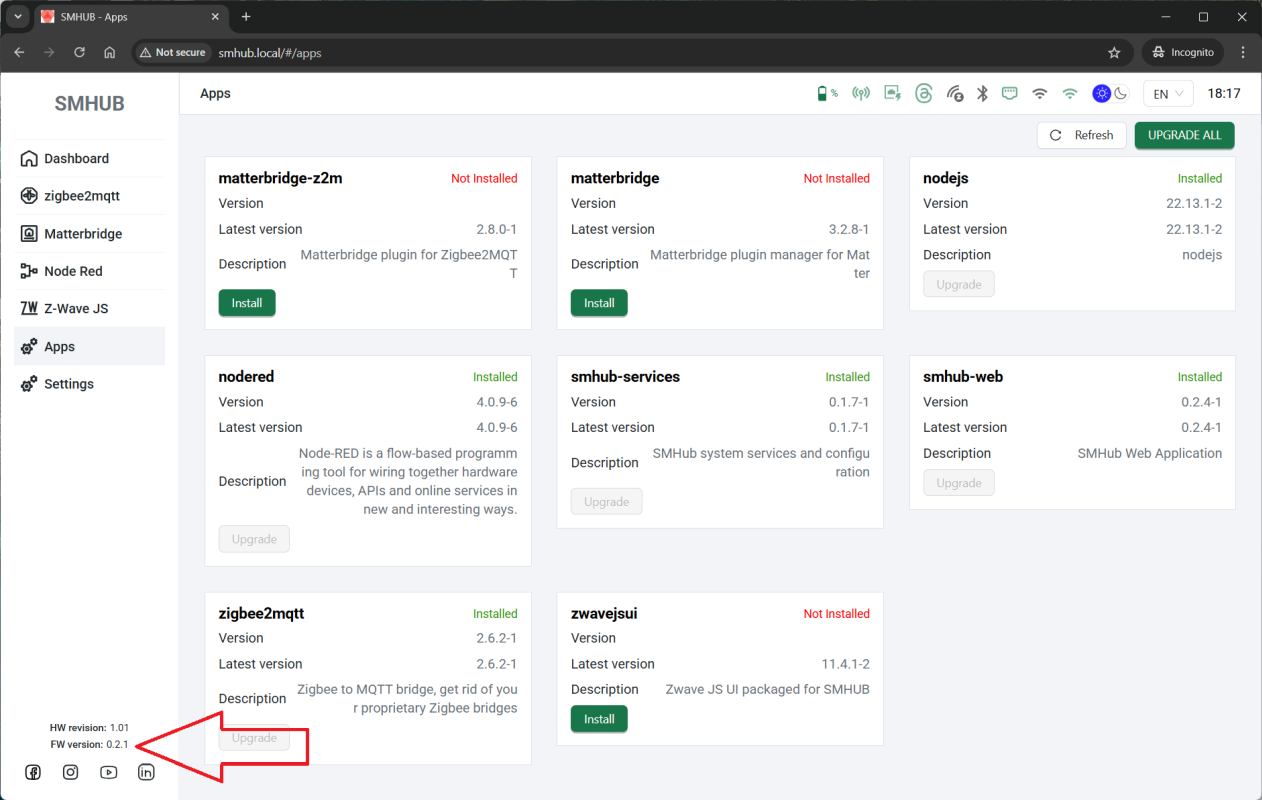
🆔 Firmware Version Display
Firmware version is now visible in the bottom-left corner of the web interface.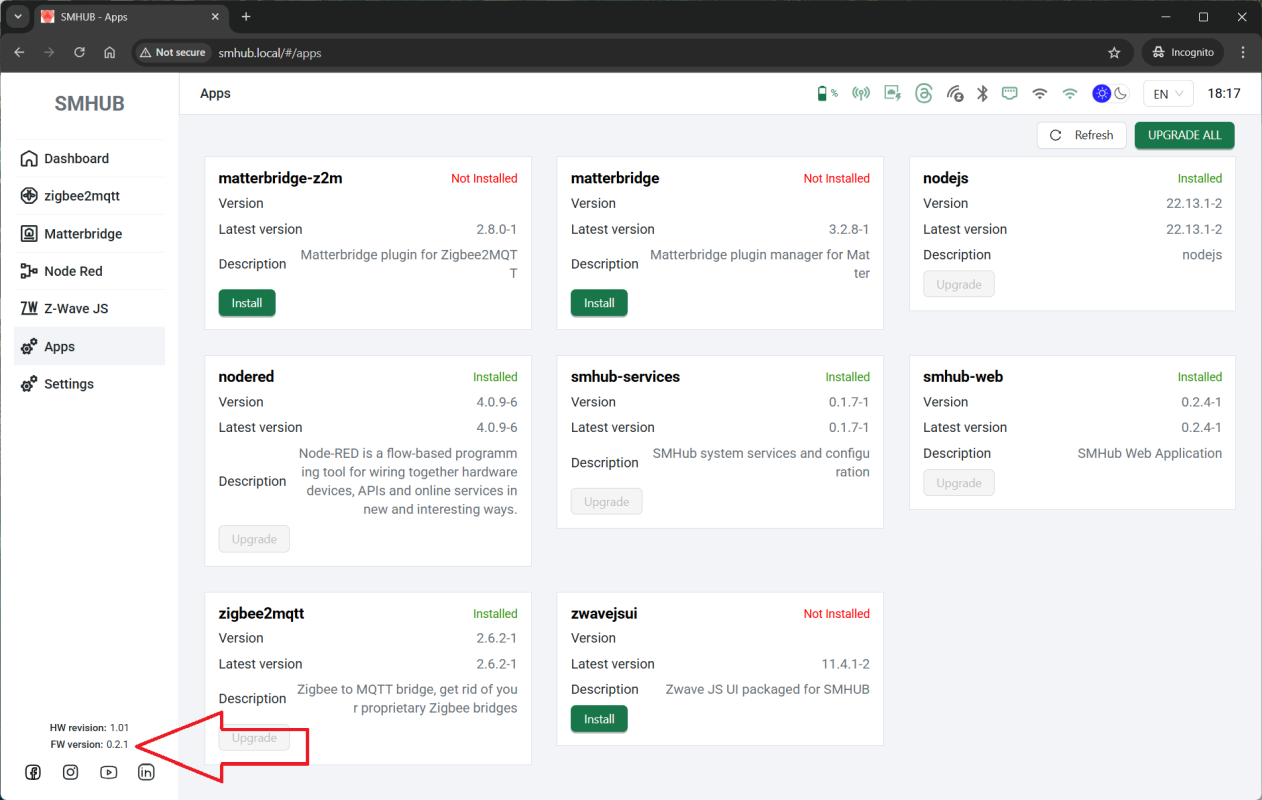
- 💻 (Coming Soon) Web Console
We’re working on enabling direct Linux console access from the web interface under
Settings → Console. This will allow executing shell commands right from UI.
⚙️ Required Update Sequence
Before updating to SMHUB OS 0.2.2, please follow this exact sequence:
-
If you are running SMHUB-OS 0.2.1c - go to step 5. Otherwise, please update your SMHUB to SMHUB-OS v0.2.1c per this manual: https://smlight.tech/support/manuals/books/smhub/page/smhub-early-adopter-quick-start-guide#bkmrk-updating-smhub-firmw
-
Go to the terminal SSH (details here) and execute two commands:
-
sudo opkg update -
sudo opkg upgrade
-
-
Go to "Apps" and verify that both apps are updated to:
-
smhub-services to the latest (
0.1.7-1) -
smhub-web to the latest (
0.2.3-1)
-
- Once all updates are applied, open “Settings → Update and Backup” again - OS 0.2.2 will appear there as the next available update. Please click "Update" and reboot after successful flashing
- Please note, later, to update, one more (and only one) time you will need to to SSH command. All the further updates will be available via buttons in the UI.
Following this sequence ensures that the new OTA kernel update mechanism installs correctly.
⚙️ Why This Release Matters
This update may not look flashy, but it’s a core infrastructure milestone.
Until now, OTA covered only the web interface and backend — now, the entire OS stack (including kernel) can be updated seamlessly.Our recent focus has been on building a reliable OTA foundation.
With that in place, the next releases will shift toward new features, integrations, and automation capabilities, all distributed via this new update system.
⚙️ I did an update of smhub-services to
0.1.7-1 via UI button, but my device hangs/freezesIf you do update of smhub-services via the web-interface button rather than via SSH commands as described here, your device will hand.
To unfreeze it, please execute step 2, namely these commands:
-
Go to the terminal SSH (details here) and execute two commands:
-
sudo opkg update -
sudo opkg upgrade
-